For retouching dust in scans, your monitor should make details easy to inspect and fit on your desk with its stand. If you mainly share work digitally, a suitable sRGB mode and a reliable colour workflow matter more than the widest possible colour gamut. For colour-critical printing, gamut and calibration become more important. A monitor won’t remove dust for you: Adobe recommends zooming in on the affected area before retouching it with a suitable image-editing tool.
Who is this selection for?
Students with lots of old scans
If you want to find and correct small specks of dust without unnecessarily altering image details, a clear view of the image and precise work when zoomed in are key. Adobe Photoshop Help recommends zooming in on the affected area before retouching.
Students with a small desk
If there’s little room alongside your laptop and study materials, compare the monitor’s width and depth with its stand, not just its screen size. Dimensions are specific to each model, so check the manufacturer’s information for the one you’re considering.
Students working on print projects
If you’re preparing retouched scans for colour-critical prints, colour modes and a suitable calibration process matter more than they do for screen-only use. EIZO describes ColorNavigator as software for hardware calibration of ColorEdge monitors.
What should you look for when buying?
First decide whether you’ll mainly work digitally or prepare colour-critical prints. Then check the level of detail on screen, the space available and how the monitor connects to your laptop.
| What matters |
What to check before buying |
Who it matters to |
| Spotting small specks of dust |
Consider the native resolution and screen size together. Adobe recommends zooming in on the area you want to retouch in your image-editing software. |
If I want to see fine details in a scan and keep my tools visible alongside it, I need a clear view that suits my workspace. Around 33% of consumers put spotting small imperfections in scans first. |
| Planning for desk space |
Compare the available width and depth with the manufacturer’s measurements for the specific model, including its stand. |
With a small desk, I want to keep room for my laptop and study materials as well as my monitor. Around 27% of consumers prioritise the space it takes up. |
| Assessing colours for output |
Decide what you’ll use the scans for and check the relevant colour mode. If you need a calibration process, check that the specific model supports it. EIZO describes ColorNavigator as calibration software for ColorEdge monitors. |
If my retouched scans are going into colour-critical prints, my colour workflow needs to suit the print requirements. Around 20% of consumers put assessing print colours first. |
| Connecting a laptop |
Check that the monitor’s ports and stated Power Delivery match your laptop’s video output and charging requirements. For running costs, check the EU energy label and model information. |
If I want to use the monitor with my laptop, I want to make sure in advance that it supports the video connection and power supply I need. Around 20% of consumers prioritise laptop connectivity. |
Common buying mistakes
-
Assuming more Adobe RGB means better dust retouching
A wide colour gamut helps you assess colour as part of a suitable workflow; it doesn’t help you spot or remove small specks of dust. For retouching, Adobe recommends zooming in on the image area.
First decide whether you’ll mainly use your scans digitally or print them for colour-critical work. Then compare the colour features you need for that purpose.
-
Comparing screen sizes in inches but not stand dimensions
The screen’s diagonal measurement doesn’t tell you how much desk depth the stand needs. BenQ lists a depth of 262,6 mm for the 24,1-inch SW242Q and 230,7 mm for the 27-inch PD2705Q.
Measure the width and depth available, then compare both measurements with the specifications for the exact model.
-
Assuming USB-C will work as a one-cable solution
USB-C on its own doesn’t tell you whether video output and the charging power your laptop needs are supported. BenQ lists DisplayPort Alt Mode and 65 W Power Delivery for the PD2705Q; compatibility also depends on your laptop.
Check your laptop’s video output and power requirements against the monitor’s specifications, and see which cables are included.
Depending on the connection, you may need an additional video or charging cable.
Notable monitor brands at a glance
ASUS
The ProArt PA279CRV and PA278QGV models have different strengths when it comes to resolution and connectivity.
- ASUS lists 4K and 96 W USB-C Power Delivery for the PA279CRV, and QHD with 100% sRGB for the PA278QGV.
- These specifications apply to the respective models. The right resolution and connections for you depend on your workspace and what you’ll use the monitor for.
BenQ
The models covered range from the 24,1-inch SW242Q and the 27-inch QHD PD2705Q to the 27-inch 4K PD2732U.
- BenQ lists 2560 × 1600 pixels and 99% Adobe RGB for the SW242Q; QHD and USB-C with 65 W Power Delivery for the PD2705Q; and 4K and 99% Adobe RGB for the PD2732U.
- A wide colour gamut isn’t automatically a key benefit for straightforward digital dust retouching. Check whether your workflow will make use of these colour features.
EIZO
The ColorEdge CS2400S is a 24,1-inch model designed for a colour workflow that can be calibrated.
- EIZO lists a resolution of 1920 × 1200 pixels and more than 99% Adobe RGB for the CS2400S. According to EIZO, ColorNavigator is used to hardware-calibrate ColorEdge monitors.
- Compare the resolution and calibration process you need with your specific scan and print workflow.
Dell
The UltraSharp U2725QE is a 27-inch 4K option with hub features.
- Dell lists 4K, a hub and an adjustable stand for this model.
- Check whether you need the extra features for your laptop and scan work.
Monitors for viewing scans
This selection includes desktop monitors and portable laptop screens for viewing scans. Screen sizes, resolutions and space requirements vary considerably, so compare them with your desk and the level of detail you need to see.
 No image available
INNOCN CB27U1, 27-inch 4K UHD monitor
An option if you’d like to view scan areas on a 27-inch 4K screen.
27 inches; 3840 × 2160 pixels; USB-C with 90 W Power Delivery; HDMI and DisplayPort; height-adjustable stand.
View at Joybuy
 No image available
MSI PRO MP275QPDGDE, 27-inch WQHD docking monitor
A potential choice if you want to view scans and use editing tools on a 27-inch screen.
27 inches; WQHD; USB-C with 98 W Power Delivery; built-in webcam. If you work in sRGB, take the stated 84% sRGB coverage into account when choosing.
View at Joybuy
 No image available
INNOCN 40C1U, 40-inch 5K ultrawide monitor
The wide screen could suit viewing scans and editing tools across a large workspace, but it needs plenty of room.
40 inches; 5120 × 2160 pixels; 21:9; USB-C with 65 W Power Delivery. Before buying, check that the stated stand dimensions of 944,1 × 573,5 × 241,1 mm will fit your available space.
View at Joybuy
 No image available
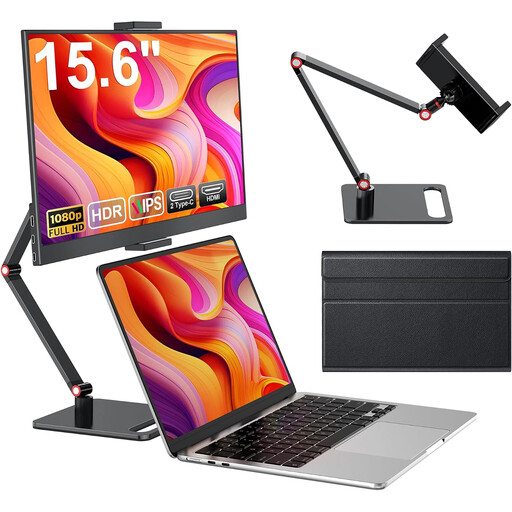
Portable 15.6-inch FHD monitor
A compact extra screen if you have limited desk space for another monitor.
15.6 inches; FHD at 1080p; IPS panel; HDMI and USB-C; stand. Its smaller screen offers less room and fewer pixels for zoomed-in detail work than larger, higher-resolution displays.
View at Joybuy
 No image available
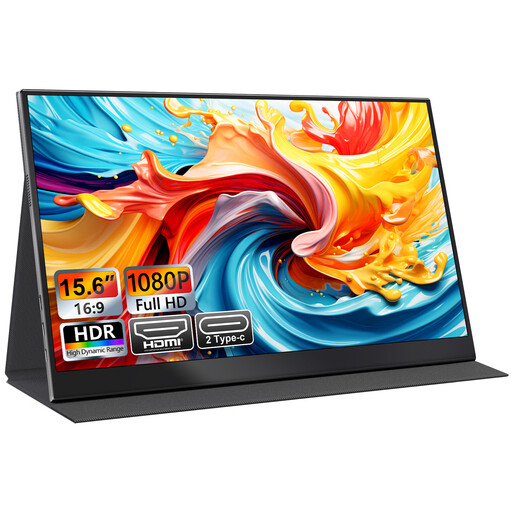
UFYQL M156F04, 15.6-inch FHD IPS monitor
A portable screen for viewing scans in a compact workspace or as an extra display for your laptop.
15.6 inches; FHD at 1080p; IPS display; USB-C and HDMI; smart-cover stand. For highly zoomed-in detail work, its resolution offers less screen space and fewer pixels than larger, higher-resolution displays.
View at Joybuy
Frequently asked questions
Can a monitor remove dust from a scan?
No. A monitor displays the scan. To correct small dust spots, Adobe recommends zooming in on the affected area and using a suitable image-editing tool, such as the Spot Healing Brush. According to Adobe, this tool works particularly well on relatively even backgrounds.
Do I need an Adobe RGB monitor for scans I’ll share digitally?
Not just for dust retouching. First check the intended output colour space and choose a suitable monitor mode. A wider colour gamut is mainly relevant if your colour and print workflow uses it.
What should I check when setting up and connecting a monitor in a student room?
Measure the available space, including the depth needed for the stand, and check your laptop’s ports against the specific monitor. For video and charging over USB-C, your laptop’s video output and power requirements need to match the monitor’s specifications.
Where can I find a monitor’s power consumption information?
For electronic displays covered by the scheme, check the EU energy label and the model-specific information in EPREL. The European Commission lists computer monitors as electronic displays. Compare the information for the specific models you’re considering.
What are my rights in Germany if a new monitor I’ve bought is faulty?
If you buy from a business seller in the EU, you generally have a statutory right to a remedy from the seller for at least two years from the date you receive the goods. This is separate from any voluntary manufacturer’s guarantee. Whether a particular fault is covered depends on the circumstances.


