For village history films, a 27-inch 4K monitor with a suitable Rec.709 workflow is an obvious choice if UHD detail and SDR colour checking are important. A 21:9 monitor gives you more room for the timeline and windows, but at 3440 × 1440 pixels it has fewer vertical pixels than a 3840 × 2160 model. If several people or computers will share the workstation, make sure the ports, USB switching and, where needed, laptop charging meet your requirements for the specific model.
Which monitor is right for you?
Teams checking SDR colour
If you want to assess colour in village history films, start by deciding on your SDR output workflow. A Rec.709 mode on the monitor is an important consideration; Adobe describes Rec.709 as a working colour space for SDR-to-SDR workflows. Your editing software’s sequence settings also need to match the intended output.
Teams working on long editing projects
If you work with lots of clips, audio tracks and tool windows, you’ll need to balance a wide timeline against a detailed preview. 21:9 gives you more horizontal space, while 3840 × 2160 pixels offer more vertical pixels than the 3440 × 1440-pixel ultrawide resolutions mentioned here.
Teams using different computers
If several computers share the same workstation, compatible video and USB ports are essential. A KVM can make it easier to switch shared input devices; for a single computer, this feature offers no such switching benefit. Also check that the monitor’s power delivery is suitable for the laptop you use.
What should you look for when buying?
For a shared video-editing workstation, first decide on your output format and colour workflow. Then choose how you want to arrange the preview and timeline, and finally check the ports and power requirements.
| Buying consideration |
What to look for |
Who is it most important to? |
| Colour for SDR export |
Decide on your output format and check the specific model’s Rec.709 mode and calibration options. Set up the sequence settings in your editing software to match. |
When we assess SDR films for output, we want to align the monitor and editing software with the same workflow. Around 31% of consumers prioritise reliable colour checking. |
| Room for the timeline and preview |
Compare your preferred window layout at 3840 × 2160 and 3440 × 1440 pixels, while also considering desk space and text scaling. |
If we want to see clips, audio tracks and the preview side by side, the right screen layout matters. Around 25% of consumers prioritise editing space above all else. |
| Switching between computers |
Check your computers, video outputs, USB connections and any laptop charging requirements against the ports on the exact model. |
If we share the same workstation between different computers, we want to use input devices and connections together without hassle. Around 25% of consumers give switching between computers top priority. |
| Power requirements and features |
Compare the EU energy labels for specific models and choose features to suit your actual workstation. |
If our editing workstation is used for long periods, we want to consider power requirements alongside the features we need. Around 19% of consumers prioritise suitable features and power consumption. |
Common buying mistakes
-
Assuming a wide colour gamut guarantees the right SDR result
A monitor’s colour mode doesn’t automatically determine how your editing software processes or exports a sequence. Adobe describes separate colour settings for sequences.
Decide whether your intended output is SDR or HDR before comparing models, then match the monitor mode and sequence settings to that workflow.
Setting up and checking a consistent colour workflow may require extra time at the editing workstation.
-
Treating a wide 3440 × 1440 resolution as a full-height UHD preview
The 3440 × 1440 models mentioned have 1440 vertical pixels, while the 4K models mentioned have 2160 vertical pixels.
Plan a typical timeline and preview window for both formats before weighing extra width against the pixel height of a UHD preview.
-
Assuming USB-C or Thunderbolt will meet all your workstation needs
Ports, USB switching and power delivery vary by model. A single connection doesn’t tell you whether the monitor will work with every computer and input device your team uses.
Check the ports on the specific model against the computers and peripherals you use. KVM is only a relevant consideration if you really do switch between several computers.
Key brands at a glance
ASUS
The ProArt PA279CRV is a 27-inch 4K option for teams looking for UHD detail and an SDR colour mode.
- ASUS lists a 3840 × 2160 resolution, a Rec.709 mode and USB-C with 96 W Power Delivery for the PA279CRV.
- A KVM switch isn’t listed for this model. ASUS notes that specifications may vary by region.
BenQ
According to BenQ, the PD2732U combines 4K specifications and colour modes with features for a multi-computer workstation.
- BenQ lists a 3840 × 2160 resolution, a Rec.709 mode, Thunderbolt 4 and KVM for the PD2732U.
- KVM is only an advantage if you switch between several computers; manufacturer specifications aren’t an independent performance comparison.
Dell
The UltraSharp U3425WE is a 21:9 option for teams who prioritise a wide editing workspace over the full UHD pixel height.
- Dell lists a 3440 × 1440 resolution, a Thunderbolt hub and 90 W power delivery for the U3425WE.
- With 1440 vertical pixels, this model offers less pixel height than a monitor with a 3840 × 2160 resolution.
EIZO
The ColorEdge CS2740 is a 4K option for an editing workstation where you want to check the monitor display regularly.
- EIZO lists 4K on a screen of around 27 inches and hardware calibration with ColorNavigator for the CS2740.
- These feature specifications don’t confirm the colour accuracy of any particular unit supplied.
LG
The UltraWide 34U650A-B is another 21:9 option for a wide editing workspace.
- LG lists a 3440 × 1440 resolution and typical 99% sRGB coverage.
- This resolution offers fewer vertical pixels than 3840 × 2160. sRGB coverage alone doesn’t tell you whether a Rec.709 workflow has been set up.
Joybuy products for your editing workstation
These models cover 4K and ultrawide formats, with a range of features for a shared video-editing workstation.
 No image available
MSI PRO MP273UPDE E6, 27 inches, 4K UHD
An option if 4K detail and a screen position that can be adjusted for different users are important.
IPS panel, 3840 × 2160 pixels, 60 Hz and HDR Ready. According to the product specifications, the stand is height-adjustable, swivels, tilts and rotates.
View at Joybuy
 No image available
INNOCN 40C1U, 40 inches, 5120 × 2160
The wide 21:9 screen may suit you if you want room for the timeline and editing windows side by side.
IPS panel, 100 Hz, USB-C with 65 W Power Delivery and PIP/PBP, according to the product specifications. The resolution has 2160 vertical pixels.
View at Joybuy
 No image available
INNOCN CB27U1, 27 inches, 4K UHD
A 4K option if UHD detail and picture-in-picture or picture-by-picture viewing are useful for your workstation.
IPS panel, 3840 × 2160 pixels, 120 Hz and USB-C with 90 W Power Delivery. PIP/PBP is listed in the product specifications. According to these specifications, there is no KVM, so shared USB input devices can’t be switched using a KVM switch.
View at Joybuy
 No image available
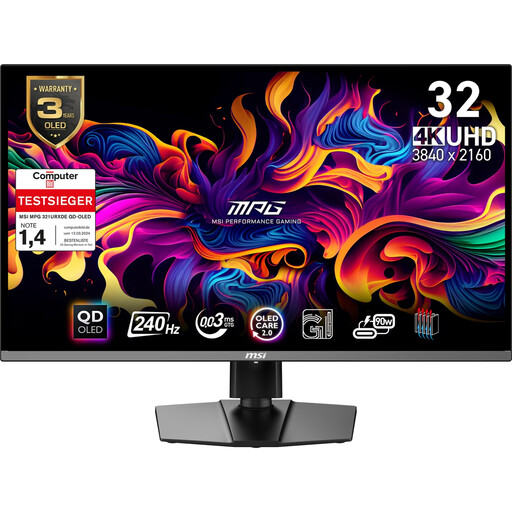
MSI MPG 321URX QD-OLED, 31.5 inches, 4K UHD
Could suit an editing workstation with several computers if you need UHD resolution and an integrated KVM switch.
QD-OLED, 3840 × 2160 pixels and 10-bit colour depth. The product specifications also list a KVM switch and USB hub.
View at Joybuy
 No image available
ASUS ROG Swift OLED PG32UCDMR, 32 inches, 4K UHD
An option if you need 4K resolution and want to switch shared input devices between several computers.
QD-OLED, 3840 × 2160 pixels and 240 Hz. The product specifications list an integrated KVM switch and USB-C with 90 W Power Delivery.
View at Joybuy
Frequently asked questions
Is a monitor labelled HDR10 enough for checking the colour of an SDR film?
No, not on the basis of the HDR10 label alone. First decide on your SDR output colour space: Adobe describes Rec.709 as a working colour space for SDR-to-SDR workflows. Then set up your sequence and monitor settings to match that workflow.
What should the team record when setting up a shared editing workstation?
Document the selected monitor mode and project settings so that the same colour workflow is used when people or computers change. If you’re using several computers, check that their connections match the KVM and USB upstream ports on the specific monitor.
How can you compare power consumption and service before buying?
Compare the EU energy labels for the specific models; the efficiency class alone won’t tell you what your electricity bill will be for your planned usage. A voluntary manufacturer’s warranty is separate from your statutory rights against the seller, as explained by the Verbraucherzentrale.
Does a 14-day cancellation period always apply to online purchases in Germany?
For consumer purchases under distance contracts, a 14-day period generally applies from delivery of the goods; the European Union also lists exceptions. If you order on behalf of an association or another organisation, how the purchase is classified depends on your role in the contract. So check who will be the contracting party before you buy.
Are PC monitors covered by EU energy-labelling rules?
Yes. The European Commission generally includes computer monitors among electronic displays that carry an energy label from A to G. Check the label for the specific model in the relevant listing.


