If you work at a computer with enough screen space, a graphics tablet without a display can keep your drawing area separate from your references. If you’d rather draw directly on the image, a pen display connected to a computer could be a good fit. For working in different locations, you might prefer a standalone tablet. Your window layout, design software compatibility, available space and ports, and what’s included with the stylus are all important factors.
Who are the different types of device suitable for?
Designers working with lots of references
If you mainly work on a computer, you’ll want to keep your drawing, photos and text in view at the same time. Wacom explains how to use the Intuos Pro with a computer, while Apple describes window groups on iPad with Stage Manager.
Artists who draw directly on screen at a fixed workstation
If you want to draw directly on the image on screen and have room for a connected display, a pen display could be a good option. Wacom, Huion and XPPen describe models designed to connect to a computer.
Designers who work in different locations
If you want to review materials or sketch while you’re out and about, a standalone tablet could be an option. Check that the apps you actually need work on the device, and that you can export your files as required.
What should you consider when choosing?
First decide how you want to arrange your drawing and references across the screens you have available. Then choose the right stylus input and check software compatibility and connections.
Graphics tablet without a display
Suitable if: you already have a suitable computer screen and want to arrange several references on it.
Worth noting: Your drawing appears on the computer screen, not on the separate input surface.
Pen display connected to a computer
Suitable if: you want to draw directly on the image on screen and keep references open on another screen.
Worth noting: The display needs a suitable computer connection and space on your desk.
Standalone tablet with stylus
Suitable if: you want to work in different locations and your design software runs on the tablet.
Worth noting: Check which apps and export options are available. According to Apple, the Apple Pencil Pro is not included in the listed iPad Air contents.
| What you need |
What to check before buying |
Who this matters most to |
| Multiple references |
Arrange your drawing, toolbars and references in your planned window layout, taking the screen space available into account. |
If I want to see photos, text and my drawing at the same time, my window layout is key. Around 33 % of consumers prioritise keeping multiple references in view alongside their drawing. |
| Direct pen input |
Decide whether you want to draw on a separate input surface or directly on a connected display. If choosing a display, allow for desk space and a suitable computer connection. |
If I want to draw lines directly on the exhibition board design on screen, a pen display could be right for me. Around 27 % of consumers prioritise drawing directly on a screen. |
| Workflow through to printing |
Check that the software and file formats you need work with the operating system you plan to use. Agree the final size and submission requirements with your print shop. |
If I need to submit a finished exhibition board file, the workflow from design through to the required output format is what matters most to me. Around 20 % of consumers prioritise preparing files for exhibition board output. |
| Working on the go |
Check app suitability, stylus compatibility and what’s included, and find out how to transfer files to your main workstation. |
If I want to work on sketches or references in different locations, I need a mobile workflow that suits me. Around 20 % of consumers prioritise working without a permanently set-up computer workstation. |
Common buying misconceptions
-
A larger drawing device alone won’t solve the problem of having lots of references open
A graphics tablet without a display doesn’t give you an extra screen. How many references you can see at once also depends on the screen space available and your window layout.
First plan where to place your drawing, toolbars and references. Then choose the type of pen input that works for you.
Depending on your setup, you may also need another monitor or more desk space.
-
A pen display is a standalone drawing computer
The pen displays covered here connect to a computer. For the XPPen Artist Pro 16 (Gen 2), the manufacturer says a separate power connection may be needed.
Check the instructions for the exact model against your computer’s video and power connections.
-
The compatible iPad stylus is included automatically
Apple lists the Apple Pencil Pro as compatible with the iPad Air with M4, but it isn’t included in the listed iPad Air contents.
Before buying, check the exact iPad and Pencil versions, and budget for the stylus as a separate accessory.
You’ll need to buy an Apple Pencil Pro separately to draw with it.
-
Display colour modes guarantee the final print result
The colour modes and advertised factory calibration listed by Huion describe the display, not the finished result on an exhibition board.
Check the file requirements and printing process with the print shop carrying out the work. Display specifications don’t guarantee print results.
Relevant brands and device types
Wacom
Wacom offers examples of both a graphics tablet without a display and a pen display that connects to a computer.
- For the Intuos Pro Medium PTK670K0B, Wacom lists an active area of 263 × 148 mm, as well as USB and Bluetooth.
- For the Cintiq 16 DTK168K0B, Wacom lists a 16-inch display and built-in stand feet.
- The Intuos Pro needs a screen, while the Cintiq needs desk space and a suitable computer connection. Manufacturer specifications aren’t an independent assessment of drawing quality.
Huion
The Kamvas 16 (Gen 3) is an example of a pen display that connects to a computer.
- Huion lists a 15.8-inch screen, a resolution of 2,560 × 1,440 pixels and selectable colour modes.
- The connection and software need to suit your setup. Advertised factory calibration doesn’t guarantee the printed result on an exhibition board.
XPPen
The Artist Pro 16 (Gen 2) is another pen display that connects to a computer.
- XPPen lists a foldable stand and describes how to connect the device to a computer.
- According to XPPen, a separate power connection may be needed if the display doesn’t light up via the intended USB-C connection.
Apple
The iPad Air with M4 is an option for working on designs in different locations, provided the apps you need run on iPadOS.
- Apple lists support for Apple Pencil Pro and explains how Stage Manager lets you group windows.
- Pencil Pro isn’t included in the listed iPad Air contents. Check separately that your design and export software is suitable.
Joybuy products for drawing on the go
The Joybuy products below are standalone tablets with a stylus for drawing on the go. Before buying, check that your design and export apps run on the operating system of the device you’re considering.
 No image available
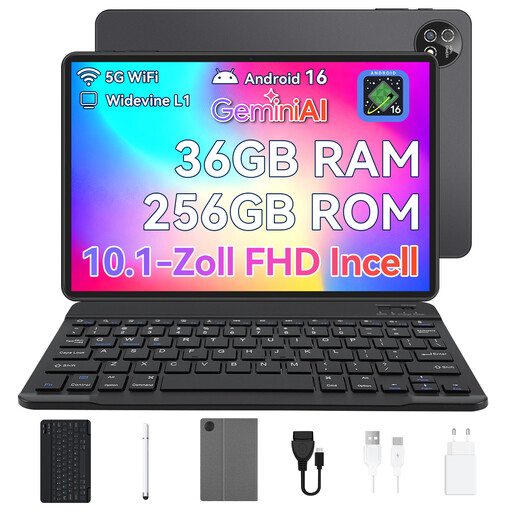
10.1-inch touchscreen tablet, Android 16, 36 GB RAM, 256 GB, keyboard set and stylus
As a standalone Android tablet with a stylus, this model could be suitable for sketching on the go. Check that the drawing and export apps you need are compatible.
Listed in the product name: 10.1-inch touchscreen, Android 16, 36 GB RAM (6+30), 256 GB storage and keyboard set.
Joybuy
 No image available
TECLAST ArtPad Pro 2025, 13.4 inches, 2K display, T-Pen
This standalone tablet with a T-Pen could be suitable for drawing on the go. Check that the apps you need and your export workflow work with Android 15.
Listed in the product name: 13.4-inch 2K display, 4,096 pressure sensitivity levels, 256 GB storage, Dual-SIM 4G LTE and 10,000 mAh battery.
Joybuy
 No image available
TECLAST ArtPad Pro, 12.7 inches, 2K display, T-Pen and keyboard set
This standalone Android tablet with a T-Pen is an option for drawing on the go. Check that the drawing and export apps you need are compatible with Android 15.
Listed in the product name: 12.7-inch 2K display, 4,096 pressure sensitivity levels, 256 GB storage, 10,000 mAh battery, protective case and English Bluetooth keyboard.
Joybuy
Frequently asked questions
How do I set up multiple references while drawing?
Start by arranging a typical drawing, your toolbars and the references you need in your intended window layout. Apple describes window groups for Stage Manager. If you’re using a computer with a connected pen display, you can plan to keep your drawing and references on separate screens. The layout that works for you will depend on your apps and screens.
Does a pen display need a computer and a specific connection?
The connected pen displays covered here need a computer. Check the video connection and power supply in the instructions for the exact model. For the Artist Pro 16 (Gen 2), XPPen says a separate power connection may be needed if the display doesn’t light up using the intended connection.
Does the iPad Air come with a stylus?
No, Apple doesn’t list a Pencil in the stated iPad Air contents. The Apple Pencil Pro is listed as a compatible product; check the exact iPad and Pencil versions before buying.
What are your rights in Germany if the device you bought is faulty?
Your statutory rights against the seller are separate from any voluntary guarantee. According to the Verbraucherzentrale, if a product is faulty, you can initially request that the seller put things right by repairing or replacing it. The details depend on your sales contract and the specific circumstances.
Can I use photos or drawings I find online on a public exhibition board?
Not simply because you can open the files as drawing references. The German Patent and Trade Mark Office explains that you must respect the rights to use protected works. Section 51 of the German Copyright Act (UrhG) allows quotations only when they meet the purpose and scope requirements set out there. If you plan to reproduce an image, check its licence or another relevant permission, and make sure you follow its terms.


