If you mainly blend exposures for digital output, start by comparing the actual footprint, native resolution and sRGB specifications of the models you’re considering. For regular colour-critical prints, a wider colour gamut and hardware calibration are additional factors to consider. Manufacturer specifications are no substitute for a suitable colour-management workflow or measuring your workspace.
Which type of monitor is right for you?
Landscape photographers short on desk space
If you review and edit exposure brackets at a small desk, you’ll need to plan for the monitor, stand and viewing distance together. The model dimensions in the BenQ Deutschland and ASUS Deutschland specifications can help you plan your space.
Detail-focused HDR editors
When blending multiple exposures, you’ll want to assess transitions and image detail. Native resolution and the usable screen area are useful points of comparison.
Photographers who print regularly
If you also edit landscape photos for colour-critical prints, you’ll need a well-matched monitor and colour-management workflow. Adobe recommends calibrating your monitor when working in Lightroom Classic.
What should you look for when buying?
Wide-gamut photo monitor
A good fit if: you regularly prepare images for colour-critical prints and have space for the monitor and calibration equipment.
The trade-off: Resolution and colour control vary by model; neither is a substitute for a suitable colour-management workflow.
Office monitor for digital output
A good fit if: you mainly work with digital output and sRGB specifications matter more to your workflow than wider print colour spaces.
The trade-off: Colour-gamut coverage alone doesn’t prove how accurately an individual monitor will reproduce colour in your workspace.
Full HD monitor for a simple setup
A good fit if: you’re mainly looking for a compact desktop solution and don’t need to prepare colour-critical prints.
The trade-off: Compared with the 16:10 models mentioned here, there are fewer vertical pixels for your photos and toolbars.
Measure your available space first, then check the resolution and output workflow. The model specifications below come from the BenQ Deutschland, EIZO Deutschland, ASUS Deutschland and Dell Deutschland data sheets and apply to the specific models listed.
| What matters |
What to check before buying |
Who is it important for? |
| Space required |
Measure the monitor and stand depth, height and cable clearance. ASUS Deutschland lists the PA248QFV with stand as measuring 53,18 × 53,13 × 19,04 cm. |
If desk space is tight, I measure the footprint rather than just the screen size. Around 31 % of consumers say available space is their top priority. |
| Viewing detail |
Compare native resolution and aspect ratio: BenQ Deutschland lists 2560 × 1600 pixels for the SW242Q; EIZO Deutschland and ASUS Deutschland each list 1920 × 1200 pixels for the CS2400S and PA248QFV. |
When blending, I want to assess fine detail and transitions without the image and tools cluttering my workspace. Around 25 % of consumers put checking detail first. |
| Colour control |
Distinguish sRGB and Adobe RGB specifications from hardware calibration, and check that the measuring device and output profiles suit your workflow. |
If I regularly prepare colour-critical prints, I need a well-matched colour workflow, not just a high colour-gamut specification. Around 19 % of consumers say print colour control is their main concern. |
| Additional equipment |
Before buying, check whether you have the cables, calibration device and software needed for your planned workflow. |
I want to know in advance what extra equipment and accessories my workflow requires. Around 13 % of consumers check this equipment first. |
| Connections |
Check USB-C video output against your laptop’s power requirements. BenQ Deutschland lists up to 90 W for the SW242Q, while EIZO Deutschland lists up to 70 W over USB-C for the CS2400S. |
If I want to reduce the number of cables on a small desk, I check that my laptop, cable and monitor all support video and power delivery. Around 12 % of consumers say simple cable management is their main concern. |
Avoiding common buying mistakes
-
Comparing screen size in inches instead of the space it takes up
The stand, cables and any extra accessories also take up desk depth, so a small screen won’t necessarily fit every small desk.
Measure the available space, including the clearance needed for cables, and compare it with the dimensions of the specific model.
Depending on your setup, you may need a suitable monitor arm or a different position on your desk.
-
Assuming Adobe RGB coverage guarantees print-ready colour accuracy
Colour-gamut coverage, calibration and output profiles answer different questions, and they all need to work together for colour-critical prints.
Check your complete colour workflow and the equipment it requires. If you mainly work with digital output, don’t choose a monitor solely because it has a higher Adobe RGB specification.
You may need a measuring device and other accessories for your planned calibration and printing workflow.
-
Seeing a high refresh rate as a substitute for resolution
A monitor’s refresh rate doesn’t add pixels when you’re inspecting a still photo, and the native resolutions of the monitors considered here vary.
Start by comparing resolution and usable screen area with what you need when editing landscape photos.
-
Assuming USB-C will charge your laptop without checking the power output
The documented USB-C power limits vary between the photo monitors considered here, and a port alone doesn’t tell you whether your laptop will receive enough power.
Check your laptop’s video output and power requirements against the exact monitor model and the cable you’ll use.
Depending on your setup, you may still need a separate laptop charger or a suitable cable.
Key monitor brands at a glance
BenQ
The SW photo monitor range includes the 24,1-inch SW242Q.
- BenQ Deutschland lists 2560 × 1600 pixels, 99 % Adobe RGB and USB-C with up to 90 W for the SW242Q. These features may be relevant for detailed viewing and a suitable print workflow.
- The manufacturer’s specifications don’t provide an independent assessment of the brand as a whole. The stated depth of the monitor with stand is 262,6 mm.
EIZO
According to its German data sheet, the ColorEdge photo monitor range includes the 24,1-inch CS2400S, with a wide gamut and hardware calibration.
- EIZO Deutschland lists more than 99 % Adobe RGB and USB-C power delivery of up to 70 W for the CS2400S.
- At 1920 × 1200 pixels, the CS2400S has fewer native pixels than the BenQ SW242Q at 2560 × 1600 pixels. A test finding about the CS2400S won’t necessarily apply to other ColorEdge models.
ASUS
The ProArt office monitor range includes the 24,1-inch PA248QFV with a 16:10 aspect ratio.
- ASUS Deutschland lists 100 % sRGB, 1920 × 1200 pixels and a depth of 19,04 cm with stand for the PA248QFV.
- The sRGB specification isn’t an independent measurement of the supplied monitor’s colour accuracy. The data sheet doesn’t list Adobe RGB coverage for this model.
Dell
The UltraSharp office monitor range includes the 23,8-inch U2424H IPS monitor.
- Dell Deutschland lists height adjustment and an integrated USB hub for the U2424H.
- The Full HD resolution of 1920 × 1080 pixels gives you fewer vertical pixels than the 16:10 models mentioned here. Dell lists 90 W power delivery for this model as “No”.
Joybuy monitors for a simple setup
This Joybuy selection features Full HD desktop monitors for a simple setup. If you regularly prepare colour-critical prints or need more vertical pixels for photos and tools, also compare the 16:10 photo monitor options mentioned above.
 No image available
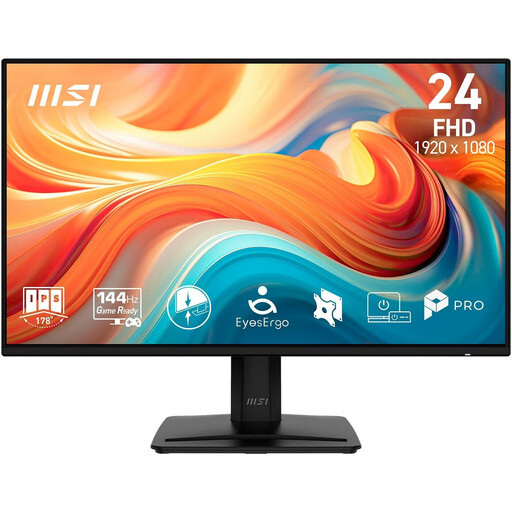
MSI PRO MP242DE E14A
A Full HD option for desktop editing, if 1920 × 1080 pixels is enough for your workflow.
23,8 inches, IPS, 144 Hz, 1 ms MPRT, HDMI, DisplayPort and VGA; the stated stand depth is 18,8 cm.
It has fewer vertical pixels than the 16:10 models mentioned here, which offer 1920 × 1200 pixels.
View at Joybuy
 No image available
KOORUI MB24V29FS4
A Full HD option for landscape photos if you’re looking for a 24-inch IPS monitor with a stand that suits a small desk.
1920 × 1080 pixels, 120 Hz, 5 ms response time, 99 % sRGB according to the product listing, HDMI and VGA. The description gives the stand depth as 18,51 cm; it also lists VESA 100 × 100 mm and tilt adjustment.
The colour-gamut specification alone doesn’t prove measured colour accuracy. The resolution gives you fewer vertical pixels than 1920 × 1200.
View at Joybuy
 No image available
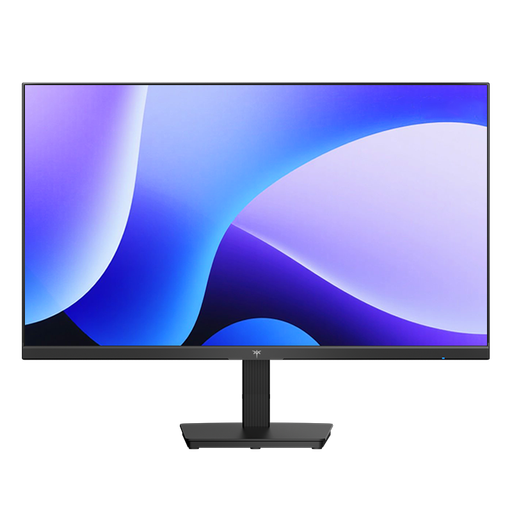
KTC H24B9S
A 24-inch Full HD option for desktop editing, if the stated resolution meets your needs.
IPS, 1920 × 1080 pixels, 144 Hz, HDMI and DisplayPort; the product listing also mentions tilt adjustment and VESA compatibility.
It has fewer vertical pixels than the 16:10 models mentioned here, which offer 1920 × 1200 pixels.
View at Joybuy
 No image available
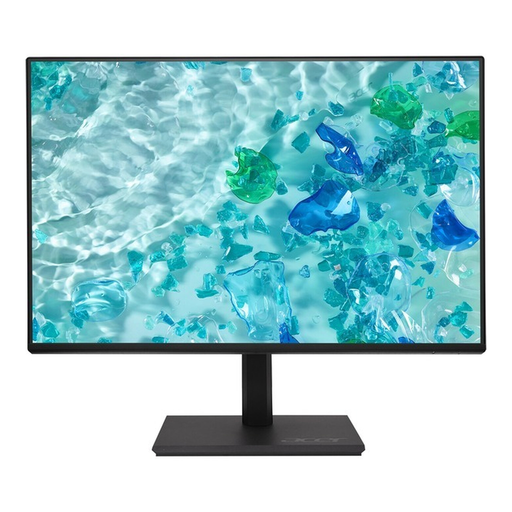
Acer Vero B247YGbmiqprx
A Full HD option for desktop editing if an adjustable stand is important for your setup.
24 inches, IPS and 1920 × 1080 pixels; the product description says the stand is height-adjustable and swivels. The monitor is 18,61 cm deep and also supports VESA 100 × 100 mm.
It has fewer vertical pixels than the 16:10 models mentioned here, which offer 1920 × 1200 pixels.
View at Joybuy
 No image available
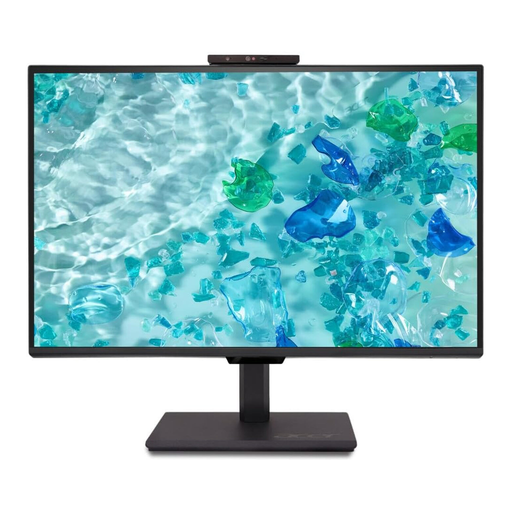
Acer Vero B248YGbemiqprcuzx
A Full HD option for desktop editing if you also need a built-in webcam and microphone.
24-inch business monitor with a 5 MP IR webcam and microphone according to the product title; the description lists 1920 × 1080 pixels, HDMI, DisplayPort and USB ports.
It has fewer vertical pixels than the 16:10 models mentioned here, which offer 1920 × 1200 pixels.
View at Joybuy
Frequently asked questions
Do I need an HDR monitor to blend exposure brackets?
No. Blending multiple exposures is first and foremost an editing step in software; your choice of monitor depends on how you want to assess and output the result. So “HDR10” in a monitor’s data sheet doesn’t prove that it will blend exposure brackets more effectively.
What should I do after setting up my monitor to get reliable colours?
Set up the monitor for your colour-management workflow, then calibrate and profile it using a suitable method. For colour-critical prints, the settings and profiles must also match your intended output; a colour-gamut percentage on its own isn’t enough.
Will USB-C automatically let me connect my laptop with a single cable?
No. Check video output, the cable and your laptop’s power requirements against the features of the specific monitor. BenQ Deutschland lists DisplayPort Alt Mode and up to 90 W for the SW242Q; EIZO Deutschland lists DisplayPort Alt Mode and a maximum of 70 W for the CS2400S.


