What should you look for when choosing?
First, decide whether the drive will mainly store an archive or carry working files that you use often. You can then check access protection, compatibility and a separate backup with these needs in mind.
| Priority |
What to check before buying |
Who is this important to? |
| Capacity for a project archive |
Consider how much data you have now, how much you expect it to grow and the space needed for a separate backup. Check the capacity of the specific model. |
If my archive is growing, I want to store completed projects in one place while keeping a separate copy. That’s why around 27% of consumers put capacity first. |
| Speed for active files |
Check that your computer’s USB specification and cable are compatible with the drive. Samsung states that the T7 Shield reaches its maximum speeds only under certain conditions, including a USB 3.2 Gen 2 host and suitable cables. |
If I open or copy large files often, I want to keep waiting times on my computer to a minimum. That’s why around 20% of consumers prioritise speed. |
| Access protection |
Decide who needs access, how the drive will be locked and who will manage passwords or recovery information. |
If confidential files are stored on a shared computer, I want to restrict access to authorised people. That’s why around 20% of consumers put access protection first. |
| Recoverability |
Plan which files to back up, where to keep the separate copy and whether you can restore files from it. |
If project files must not be lost, I want to create a separate backup and check that I can restore files from it. That’s why around 20% of consumers prioritise recoverability. |
| Computer compatibility |
Check operating systems, ports, cables and the existing file system. Back up any files you need before changing the format, as formatting erases existing data. |
If I share files between different computers, I want to be able to read and write them on every device. That’s why around 13% of consumers put computer compatibility first. |
Joybuy products for archiving and your workspace
This selection includes portable external drives for sharing files, as well as desktop hard drives for large archives at a fixed workstation.
 No image available
WD Elements Portable 5 TB USB-C
For large project collections that you also want to access between workstations.
5 TB; portable 2.5-inch drive; USB-C and USB 3.2 Gen 1 listed.
View at Joybuy
No image available
WD Elements Portable 4 TB USB-C
For project files you want to access between workstations using a portable drive.
4 TB; portable 2.5-inch drive; USB-C and USB 3.2 Gen 1 listed.
View at Joybuy
 No image available
WD Elements 2 TB Portable External Hard Drive, USB-C, USB 3.2 Gen 1, 2.5-inch, exFAT, Black
For files you want to share between Windows and Mac computers.
2 TB; USB-C and USB 3.2 Gen 1; pre-formatted as exFAT and described as suitable for Windows and macOS.
View at Joybuy
 No image available
WD Elements 8 TB Desktop External Hard Drive, USB 3.0
For a large archive at a fixed workstation with a suitable power socket.
8 TB; desktop drive with external power supply and USB 3.0. Pre-formatted as NTFS; according to the description, reformatting is required for use with macOS.
View at Joybuy
 No image available
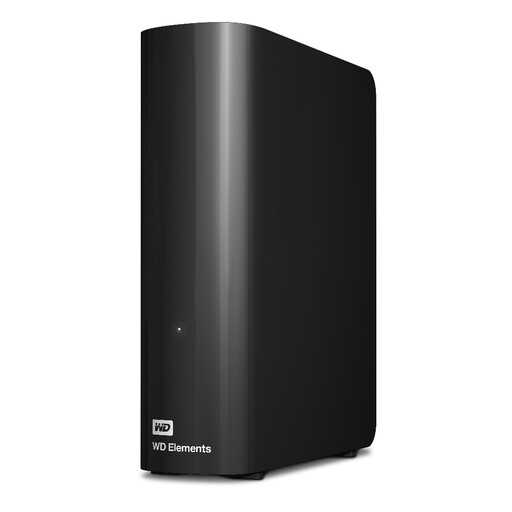
Western Digital 20 TB WD Elements Desktop Hard Drive
For a large project archive at a fixed workstation.
20 TB; desktop drive with power supply; USB 3.2 Gen 1 and a USB-A cable listed.
View at Joybuy
Frequently asked questions
Can I write to an external hard drive used with Windows when it’s connected to a Mac?
It depends on the file system: Apple says macOS can read NTFS drives but cannot write to them. For a drive over 32 GB that you’re going to reformat for use with both Mac and Windows, Apple lists ExFAT as a format option. Back up any files you need before formatting, as this will erase existing files.
How do I connect a Seagate One Touch Hub and safely disconnect an external drive?
According to Seagate’s manual, the One Touch Hub connects to a power supply and to the computer at the rear via USB Micro-B; the front sockets are hub ports. On Windows, Microsoft recommends safely removing external drives before disconnecting them to avoid data loss.
Is one external drive enough to back up all my design files?
No, not if it contains the only copy you have. The BSI recommends backing up data regularly, storing a copy separately from the original and checking that you can restore your data.
What should I check about costs and warranty before buying?
For a desktop HDD, allow for a power supply and space to position the drive; separate backups will need additional storage media. For the Seagate One Touch Hub STLC8000400, Joybuy lists a limited 2-year warranty, while Seagate states 3 years. Check which warranty terms apply to the specific offer.
Is encryption always required for design files on a shared computer in Germany?
No, not as a blanket requirement for every design file or drive. For personal data covered by the GDPR, controllers and processors must take appropriate technical and organisational measures that are proportionate to the risk; Germany’s Federal Commissioner for Data Protection and Freedom of Information (BfDI) lists encryption as one possible measure. What’s required for a particular workflow depends on the data being processed and the risks involved.


