For frequent transfers of large files and a portable handover, an external SSD is a good fit, provided its capacity and connections suit both computers. For very large collections with no tight deadline, a desktop HDD could be an option if there’s power available at the handover location. Whatever you use for the handover, keep a separate, tested backup: Germany’s Federal Office for Information Security (BSI) includes recovery as part of its data backup plan. Check the file system and the recipient’s access in advance, and agree on the necessary safeguards if the footage contains personal data.
Which solution is right for you?
Video professionals with large archives
If you’re handing over a large collection, allow enough space for all the agreed files and keep a separate copy that you can use to restore important files. The BSI includes recovery in its data backup guidance.
Teams that hand over files regularly
If you regularly copy large projects between computers, check the connections actually available on both devices rather than relying solely on a peak speed quoted on the packaging. Kingston Technology notes that the XS2000’s performance depends on the host and connection.
Teams working with sensitive footage
If the footage you’re handing over could contain personal data, clarify who is responsible, who is authorised to access it and what safeguards are appropriate for those specific files. The European Commission and Germany’s Federal Commissioner for Data Protection and Freedom of Information explain security requirements relating to personal data.
What should you consider when choosing?
Portable external SSD
A good fit if: You regularly copy large video files or need to take the drive with you for handovers.
Consider: Check the capacity and connections on both computers. You won’t get the advertised maximum speed from every connection.
External desktop HDD
A good fit if: You’re backing up a very large library in one place and don’t have a tight deadline.
Consider: Make sure there’s power and enough space at the handover location. A desktop HDD is no substitute for a separate backup.
| What matters |
What to look for when buying |
Who this matters most to |
| Space for the complete handover |
Compare the folder size and any agreed extra versions with the usable capacity of the specific model. |
I want room for all the agreed original files, project files and versions without relying on the stated capacity alone. Around 29% of consumers put having enough space for the complete handover first. |
| A recoverable copy |
Plan for a separate copy and open important files from it before the handover. |
I don’t want to be left without my own readable copy after the handover. Around 23% of consumers prioritise a separate, verified backup. |
| Time needed to copy files |
Compare the USB specifications of the computer, drive and cable. Maximum speeds depend on the connection. |
If I regularly transfer large video files, I want to avoid planning around a speed my computer can’t deliver. Around 18% of consumers prioritise transfer time. |
| Protecting sensitive files |
Clarify what the files contain and who is authorised to access them. Only choose an encryption feature if both parties can manage access. |
If footage could contain personal data, I want to control who can open the files. Around 18% of consumers put protecting confidential files first. |
| Access for the client |
Agree on operating systems, connections and the file system in advance, then test access with a file. |
I want the client to be able to open the files on the intended computer without having to reformat the drive afterwards. Around 12% of consumers prioritise compatibility with the recipient’s computer. |
Common handover mistakes
-
Relying on the drive with the client’s copy as your only backup
Once the drive changes hands, you won’t have a copy on it any more. And you can’t assume a backup will be easy to restore, as the BSI points out.
Create a separate backup before the handover and open important files from it.
Allow extra storage space for the additional copy and time to check that it can be restored.
-
Assuming USB-C guarantees the top speed
According to Kingston Technology, getting the advertised maximum speed from a Kingston XS2000 requires a compatible host and suitable cable. On a Mac, you won’t reach the advertised Gen-2x2 speed.
Before buying, compare the interfaces on the drive, host and cable.
-
Checking compatibility only after filling the drive
If you need to reformat the drive, any files already on it will be erased, as Apple explains in its Disk Utility guidance.
Agree on the file system and target computer before copying, then test access. Back up any existing data elsewhere before formatting.
You may need extra storage for a temporary copy, and copying the files again will take additional time.
-
Treating a desktop HDD like a portable drive powered solely over USB
For the Expansion Desktop, Seagate specifies connecting a power supply and a USB cable.
Check the power supply, cables and available space at the handover location for the specific model.
You may need a power socket and enough room at the destination.
Key brands at a glance
Samsung
The Portable SSD T9 is a range of portable SSDs. The 4-TB model is listed as MU-PG4T0B/EU.
- Samsung quotes speeds of up to 2,000 MB/s for this model, along with password protection using AES-256 hardware encryption.
- To reach the maximum speeds, the host, cable and connection must support USB 3.2 Gen 2x2, and UASP mode must be enabled. Actual speeds therefore depend on the computer you use.
Kingston
According to Kingston, the portable XS2000 is available in capacities of up to 4 TB. The XS1000 is a separate product range.
- Kingston quotes speeds of up to 2,000 MB/s for the XS2000 and IP55 protection when the rubber sleeve is fitted.
- Kingston says the advertised Gen-2x2 speed isn’t available on a Mac. Features of the XS1000 can’t automatically be assumed to apply to the XS2000.
Seagate
Expansion Desktop is a range of desktop external HDDs for large media collections.
- Seagate lists capacities of up to 28 TB for this product range.
- The manufacturer specifies a power supply and USB-A cable for operation. Check the specific capacity model and plan for a separate backup.
Crucial
The X10 Pro is a range of portable SSDs. The 4-TB model is listed as CT4000X10PROSSD9.
- Crucial quotes speeds of up to 2,100 MB/s for reading and 2,000 MB/s for writing, as well as IP55 protection, for this range.
- These are manufacturer specifications, not a guarantee of performance with an unspecified computer and cable combination.
Verbatim
The Pocket SSD Colour Edition is a compact portable alternative. A 2-TB model is among the options documented.
- Verbatim specifies USB 3.2 Gen 2 and includes a USB-C cable.
- The backup software specified is compatible with Windows only, so it won’t necessarily suit a Mac-based backup workflow.
Portable drives for handovers
The Joybuy products below are portable external drives for handing over files on the go. In each case, check that the capacity and connections suit the handover folder and both parties’ computers.
 No image available
WD Elements Portable 6 TB USB-C
Could be suitable for handing over a larger collection of files on the go. Check that the capacity is enough for everything agreed.
6 TB; USB-C.
View at Joybuy
 No image available
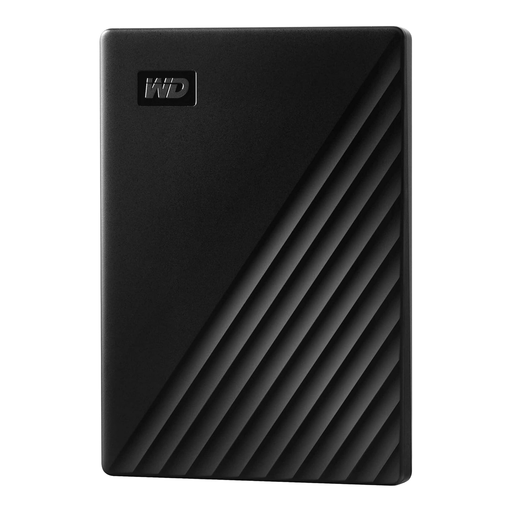
WD My Passport 2 TB
Could be worth considering for a portable handover where password protection is needed. Check that the recipient can use the security feature.
2 TB; the product name specifies password protection and automatic backups.
View at Joybuy
 No image available
MOVESPEED Portable SSD 1 TB, USB 3.2, YSPSRX20M-1TTG
Could suit a portable SSD workflow if its capacity is enough for the handover folder. Check the connections and actual link between both computers.
1 TB; USB 3.2.
View at Joybuy
 No image available
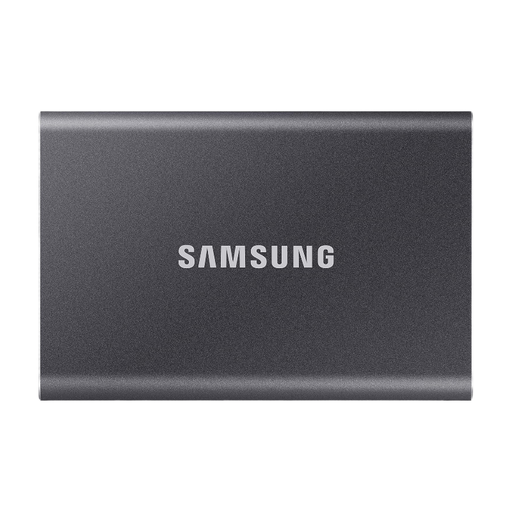
Samsung Portable SSD T7 4 TB
Could be a good fit for handing over a large collection on the go, provided 4 TB is enough for everything agreed. Check the connections on the client’s computer.
4 TB; USB Type-C 3.2 Gen 2. According to the product description, USB-C-to-C and USB-C-to-A cables are included.
If the files need protection, check whether the AES-256 hardware encryption mentioned in the product description suits both parties’ workflow.
View at Joybuy
 No image available
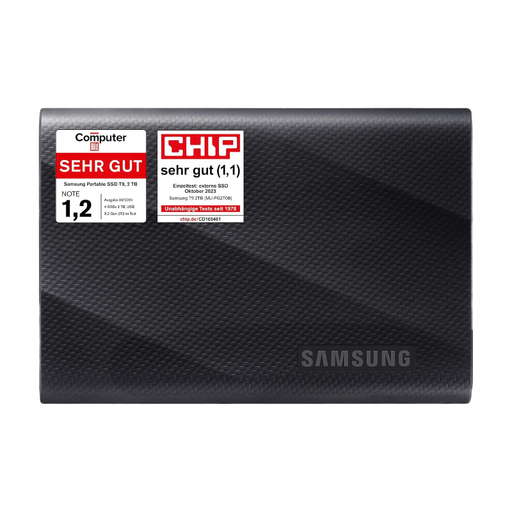
Samsung MU-PG2T0B 2 TB
Could be worth considering for large transfers on the go if 2 TB is enough for your needs. Compare the connections on the drive, cable and both computers.
2 TB; USB Type-C 3.2 Gen 2.
View at Joybuy
Frequently asked questions
Is the drive I hand over also my backup?
Not if it would be your only copy afterwards. Keep a separate backup and check that you can open or restore important files from it. The BSI covers data backup and recovery together.
How do I prepare a drive for Windows and Mac?
First, find out which systems the recipient uses, then test access before the handover. Apple recommends exFAT when formatting a drive larger than 32 GB for use with Mac and Windows. Back up any existing files elsewhere first, as formatting will erase them.
Does a desktop HDD need a separate power supply?
For the Expansion Desktop, Seagate specifies connecting a power supply and a USB-A cable. Check what’s included with the specific model, and make sure there’s a power socket and suitable connections at the handover location.
What data protection requirements apply to footage of identifiable people?
Where personal data is processed, the GDPR requires lawful processing and appropriate technical and organisational security measures, according to the European Commission. This doesn’t mean every video must be handed over on a particular SSD or encrypted in every case. Check the content, permissions and risks involved in the specific handover.
What should I do before unplugging the drive after copying?
Wait until copying has finished. Microsoft recommends ejecting external drives in Windows using ‘Safely Remove Hardware’ before disconnecting them.


