For large folders of scans that you mainly want to store and back up, an external HDD is a good fit. If you often edit project files directly from the drive or take it with you, an SSD may suit your workflow better. Whichever you choose, check the capacity, connections and write access on your devices. A single hard drive isn’t enough for a proper backup: the Federal Office for Information Security (BSI) recommends keeping an additional copy and, to protect against damage to your home, storing it separately.
Which storage options are right for you?
Collectors of large scan archives
If you keep lots of letter scans and large project folders, start by working out how much storage you use now and how much you expect to need in future. CHIP describes external 2.5-inch HDDs as a good fit when high capacity matters more than top data-transfer rates or short access times.
Guardians of irreplaceable letters
If your digitised family letters can’t be replaced, you’ll need an additional, recoverable copy as well as your working files. The BSI recommends backing up data regularly and keeping a copy outside your home to protect against damage to your property.
Active scan-project editors
If you often open, move or use large folders across several devices, check the connections and file system as well as the type of drive. The transfer speed you can achieve depends on several factors, including the drive, host device and cable.
What should you look for when choosing?
External HDD
A good fit if: you mainly store, transfer and back up large scan and project folders, rather than working directly from the drive all the time.
The trade-off: frequent access is slower than with an SSD, and a single drive doesn’t replace an additional copy.
External SSD
A good fit if: you often open or move project files directly from the external drive, or use them while you’re out and about.
The trade-off: manufacturers’ peak performance figures apply only under specific connection, cable and host conditions. An SSD also needs a separate backup.
| What matters |
What to check before buying |
Who should pay particular attention? |
| Capacity |
Compare your current storage use and expected growth with the stated capacity of the specific model. |
If my scan and project folders grow, I want enough space for everything I have. Around 36% of consumers would also put capacity first. |
| Additional backup |
Plan for a separate copy, where you’ll store it and how you’ll test that files can be restored. |
With irreplaceable letters, I want to know I can recover them if a drive fails. Around 29% of consumers would prioritise preserving their files with a separate backup. |
| Access speed |
Think about how often you’ll work directly from the drive. To achieve advertised peak speeds, check your USB port, cable and host device too. |
If I often open and edit large project folders, I don’t want to wait unnecessarily for file transfers. Around 21% of consumers would put ease of access while working first. |
| Devices and access protection |
Check the operating system, write access, connections and file system. Make sure any protection features you want are available on the specific model. |
If I use my scans on different devices or want to protect private content, the format and access options need to suit my needs. Around 14% of consumers would consider compatibility or access protection first. |
Avoid common buying mistakes
-
Moving your only copy to the new hard drive
A drive can fail. If your working files and only backup are kept in the same place, both could also be affected by damage to your home.
Make an additional copy before deleting your existing files, and check that you can restore them. The BSI recommends disconnecting the backup drive from your computer after backing up.
A separate copy needs extra storage space and regular upkeep.
-
Assuming a USB connection means you’ll have write access
A compatible plug doesn’t guarantee that you can write to the drive on every operating system. Toshiba supplies Canvio Basics formatted as NTFS; Apple says macOS can read NTFS but can’t write to it without a suitable additional solution.
Before transferring your files, check the connections, file system and write access on your devices. Back up any existing data before reformatting a drive.
-
Expecting an SSD’s advertised peak speed in every situation
Samsung notes that the T7 Shield’s sequential performance can vary depending on the host device, cable and system environment.
Choose an SSD if you often work directly with project files, and check the connections and cables on your devices.
Key brands at a glance
Western Digital
The portable My Passport range is an option for storing large amounts of personal data. Western Digital lists models with capacities of up to 6 TB.
- Western Digital lists hardware encryption and an included USB-A cable for the range.
- Information about software and protection comes from the manufacturer and doesn’t prove that your data is independently secure. Before using the drive with a Mac, check the file system and write access.
Toshiba
Canvio Basics is a straightforward portable HDD range with models up to 4 TB. Canvio Flex is designed for use with devices that have different types of connection.
- Toshiba says Canvio Flex comes with USB-A and USB-C cables.
- Toshiba states that Canvio Basics comes formatted as NTFS. To use it with the listed macOS versions, you’ll need to reformat it; back up any existing files first.
Seagate
According to Seagate, the portable One Touch range is designed for personal backups; the manufacturer’s overview lists a 4 TB model.
- Seagate lists backup tools and hardware encryption for the portable range covered in its documentation.
- Features, connections and what’s included may vary by model generation. Check the details of the specific product you’re considering.
Samsung
The portable T7 Shield SSD is an option for projects you move around or edit directly. Samsung’s data sheet also lists a 4 TB model.
- Under its own test conditions, Samsung lists sequential peak speeds of up to 1.050 MB/s for reading and 1.000 MB/s for writing, as well as an IP65 rating.
- Samsung says performance can vary depending on the host device, cable and system environment. The protection rating and speed don’t replace a backup.
Crucial
The portable X9 Pro SSD is an option for project folders you take with you frequently. Crucial lists models with capacities of up to 4 TB.
- Under its own test conditions, Crucial lists sequential peak speeds of up to 1.050 MB/s and an IP55 rating.
- For the highest speeds, Crucial specifies USB 3.2 Gen 2 and a USB-C to USB-C cable. Actual performance depends on the devices and connection you use.
Joybuy products for scan and project folders
The Joybuy products listed here are external HDDs for storing large scan and project folders. The selection includes both portable and desktop models.
 No image available
WD Elements Portable 5 TB, USB-C
A portable HDD option for larger scan collections and project folders.
Stated capacity: 5 TB; 2.5-inch format; USB-C with USB 3.2 Gen 1; 240 g. The product description lists compatibility with Windows and Mac. Check write access on your devices beforehand.
Joybuy
No image available
WD Elements Portable 6 TB, USB-C
A portable HDD option for large scan and project folders.
Stated capacity: 6 TB; 2.5-inch format; USB-C with USB 3.2 Gen 1; 240 g. The product description lists compatibility with Windows and Mac. Check write access on your devices beforehand.
Joybuy
 No image available
WD Elements 2 TB Portable, USB-C, exFAT, Black
A portable HDD for scan files if 2 TB suits your current collection and expected growth.
Stated capacity: 2 TB; 2.5-inch format; USB-C with USB 3.2 Gen 1; exFAT pre-installed. The product description lists compatibility with Windows and macOS.
Joybuy
 No image available
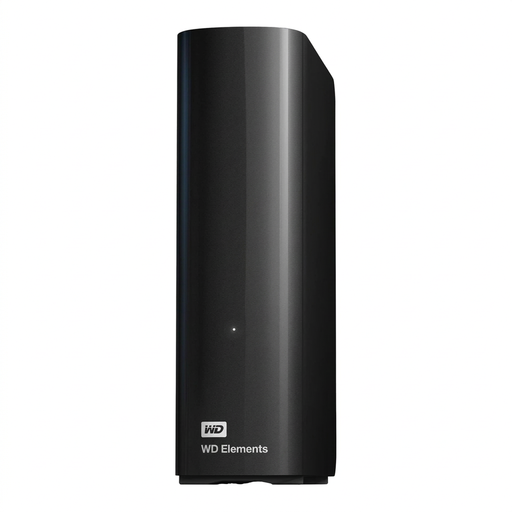
WD Elements Desktop 14 TB, USB 3.0
A desktop HDD option for very large storage collections and backups.
Stated capacity: 14 TB; 3.5-inch format; USB 3.0; NTFS pre-installed; external power supply required. The product description says it needs to be reformatted for use with macOS. Back up any existing data first.
Joybuy
 No image available
WD Elements Desktop 8 TB, USB 3.0
A desktop HDD option for large project folders if you don’t need to move the drive regularly.
Stated capacity: 8 TB; 3.5-inch format; USB 3.0; NTFS pre-installed; external power supply required. The product description says it needs to be reformatted for use with macOS. Back up any existing data first.
Joybuy
Frequently asked questions
How can I protect my letter scans if a hard drive fails?
Keep an up-to-date additional copy alongside your working files, and check that you can restore files from it. The BSI recommends disconnecting the backup drive from your computer when you’re not backing up; to protect against damage to your home, keep a copy elsewhere.
Can I write to the same hard drive on both Windows and macOS?
Not just because it has a USB connection. Toshiba lists NTFS as the pre-installed file system for Canvio Basics; Apple says a Mac can read NTFS but can’t write to it without a suitable additional solution. Before reformatting, check whether the drive already contains data and back it up first.
Can I use one drive for Time Machine and scan folders?
Apple recommends APFS or APFS (Encrypted) for new Time Machine backup volumes. A complete APFS volume is reserved for Time Machine; Apple explains how to set up an additional volume for other files. Reformatting will erase any existing data.
Does the GDPR also apply to family letters stored for personal use?
According to the Federal Commissioner for Data Protection and Freedom of Information, the GDPR doesn’t apply to the processing of personal data solely for personal or family activities. This exemption doesn’t automatically extend to publishing the data or using it outside this context.
What should I do before deleting or handing on an old drive?
Back up any files you need and delete your personal data before handing on, having repaired or disposing of a drive. The BSI recommends securely deleting personal data from external hard drives before taking these steps.


