Owners of old backup discs
If you want to recover files from an older CD or DVD, first check the disc format and whether it appears on the specific drive’s list of supported media. Intenso and Verbatim list supported media for each model.


Choose an external drive whose list of supported formats specifically includes your backup disc; USB-C alone doesn’t prove that a device can read that media. Then check which port is free and what the manufacturer recommends for cables, adapters or hubs. For the USB SuperDrive, Apple recommends connecting directly to your Mac if you run into problems using a display or hub. Once you’ve read the disc, open important files and back them up again somewhere suitable. Germany’s Federal Office for Information Security (BSI) emphasises that data must also be recoverable later.
If you want to recover files from an older CD or DVD, first check the disc format and whether it appears on the specific drive’s list of supported media. Intenso and Verbatim list supported media for each model.
At a workstation with two screens, the available ports can affect your choice. If the USB SuperDrive isn’t responding through a display or hub, Apple recommends connecting it directly to your Mac.
If you want to use recovered files again, open them after copying and back them up somewhere suitable. The BSI points out that you also need to plan for restoring them later.
First check the format of your backup disc, then make sure you have a suitable port free for the drive.
| Buying consideration | What to check | Who needs to consider this? |
|---|---|---|
| Disc format | Check the disc label and format against the media explicitly listed as readable by the specific model. | If you want to recover old backups from CDs or DVDs, the list must include your exact type of media. Around 36% of consumers put format support first. |
| Workstation connection | Check which USB-A or USB-C ports are free, which cable is included, and what the manufacturer recommends for adapters or hubs. | If two screens are already using ports, having a suitable free connection is essential. Around 29% of consumers prioritise how the drive connects to their workstation. |
| Using your files again | After copying, open important files and choose a suitable location for a new backup. | If you want to open or restore the recovered files again later, remember to factor in time to copy and check them. Around 21% of consumers prioritise being able to use their files again later. |
| Extra effort | Check what’s included, which connections are suitable, any operating system requirements for bundled software, and where you’ll store the new backup. | If you want to organise the drive, any adapter you may need and a new backup with as little extra effort as possible, consider the whole process. Around 14% of consumers put extra effort first. |
A general mention of DVD doesn’t confirm that a drive can read every disc format. CD/DVD compatibility and Blu-ray compatibility aren’t the same; you should also check DVD-RAM separately.
First identify the format of your backup disc, then check it against the list of media readable by the specific model.
Connecting the Apple USB SuperDrive through a display or hub can cause problems. In this case, Apple recommends connecting it directly to your Mac. This advice applies to the SuperDrive and not automatically to other drives.
Check the right connection method for your model and, if necessary, allow for a suitable adapter.
Copying the files alone doesn’t show whether they’ll open or can be restored later. The BSI stresses that you also need to be able to restore backed-up data.
Open important files after copying and save them somewhere suitable, where you can check that they can be restored.
The EOD 400D Slim may be worth considering if you need to read DVD-RAM Version 2.2 discs and want a cable with both USB-A and USB-C connectors.
The Slimline 43886 lists CD/DVD reading modes and comes with USB-A and USB-C connection options.
The ZenDrive U9M (SDRW-08U9M-U) is a CD/DVD option with USB-A and USB-C.
The ThinkPad UltraSlim USB DVD Burner 4XA0E97775 is a USB-A option for the CD/DVD formats listed.
The USB SuperDrive is an option only for the compatible Mac models specified by Apple.
This selection includes external CD/DVD drives with different connection and format specifications. Check each model’s list of readable media against your disc, and make sure you have a suitable USB port free.
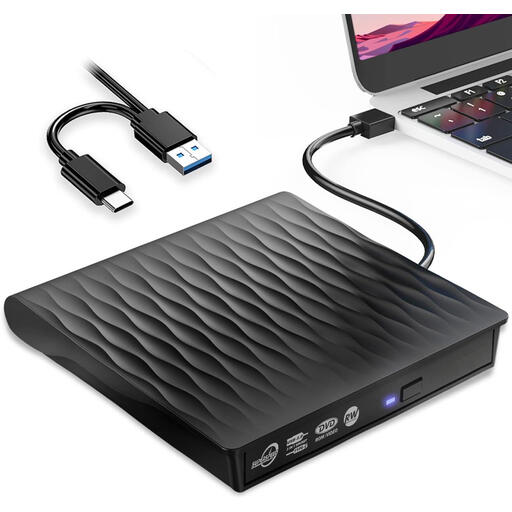 No image available
Could be suitable if your backup disc is one of the supported CD/DVD formats and your computer has USB-C or USB 3.0 available.
The product title mentions USB 3.0, USB-C and plug and play. The description lists supported CD and DVD read and write formats; check your specific disc against the model details.
The description lists Windows, macOS and Linux as compatible systems.
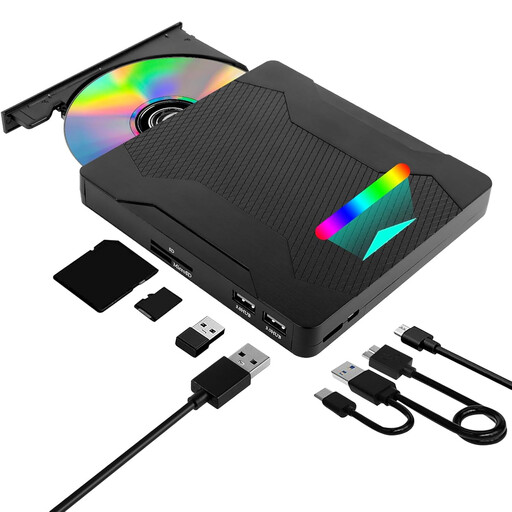 No image available
Could be suitable if your backup is on CD-R/RW, DVD-R/RW or DVD-RAM and you also need an SD/TF card reader.
The description lists CD-R/RW, DVD-R/RW and DVD-RAM as readable and writable media. The title mentions USB 3.0/2.0 and Type-C, as well as an SD/TF card reader.
The description lists Windows, Linux and Mac OS as compatible systems.
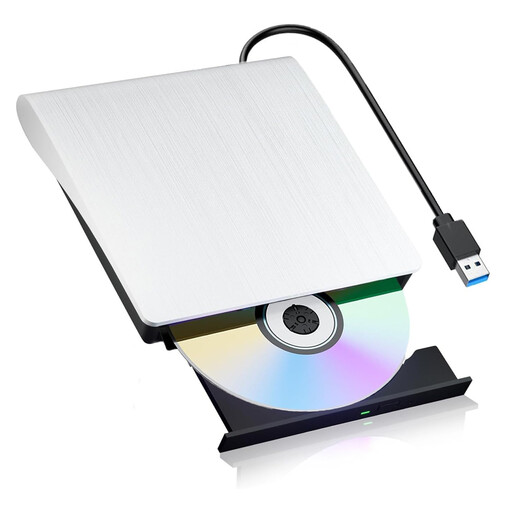 No image available
Could be suitable if your backup disc is one of the listed CD/DVD formats and your computer has USB 3.0 available.
The description lists DVD-RAM, DVD±R/RW and CD-R/RW as supported formats. The title mentions USB 3.0, plug and play, and a portable CD/DVD drive.
The title lists Windows and Mac as compatible systems.
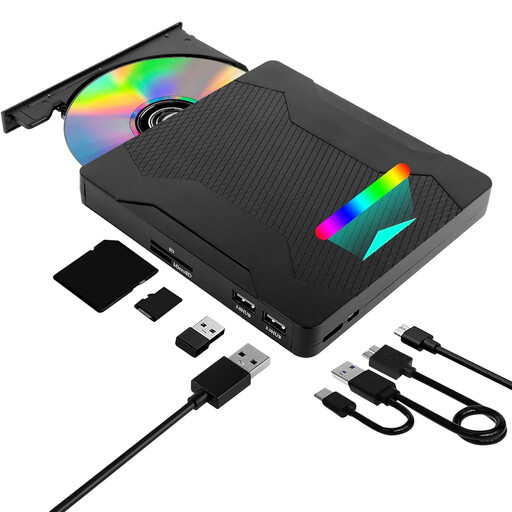 No image available
Could be suitable if you want to read CD-R/RW or DVD-R/RW, can use Type-C and need an SD/TF card reader.
The description lists CD-R/RW and DVD-R/RW as supported media. The title mentions USB 3.0, Type-C and an SD/TF card reader.
The description lists Windows, Linux and Mac OS as compatible systems.
No. Check the disc format against the media explicitly listed as readable by the specific drive. To read a Blu-ray backup, you need a model whose specifications say it can read Blu-ray discs; check DVD-RAM separately too.
For an Apple USB SuperDrive, Apple recommends connecting it directly to your Mac in this situation. If Windows doesn’t recognise a drive, Microsoft lists possible driver or configuration issues; first check whether your computer detects the device.
Not necessarily. Check that important files open and can be restored from a new backup. The BSI points out that simply having a storage device doesn’t guarantee that you’ll be able to use the files later.
If there’s a fault, the seller is generally your point of contact for your statutory consumer rights. A manufacturer’s guarantee is different: it’s a voluntary service offered by the manufacturer.
It depends on what you’re copying and the circumstances. Section 53 of the German Copyright Act (UrhG) allows individuals to make single copies for private use only under the conditions set out there. Section 95a of the UrhG concerns circumventing effective technological protection measures and applies under the conditions set out there.