Choose an external drive based on the format of your course disc and your computer’s connection. Your computer, not the DVD drive, is what sets up the two screens. Microsoft Support explains how to use extended display mode in Windows to create separate workspaces. If you need to install course software, make sure it’s compatible with your operating system too. DVD video may also require additional playback software.
Who is this guide for?
Learners using a disc alongside notes on two monitors
You want to view course materials on one screen and exercises or notes on the other. The key is for your computer to recognise the second screen and for the disc to be readable. Microsoft Support explains how to set up multiple screens in Windows.
Learners using older course software
If you want to install a programme from a disc, check its operating system requirements first. A drive that can read the disc doesn’t necessarily mean the course software will run on your computer. Microsoft Support explains how to install programmes from a disc.
Learners with a USB-C laptop
Check that your computer’s connection matches the cable or adapter supplied with the specific drive. For DVD video, also check whether a suitable playback app or decoder is available.
What should you look for when buying?
The drive reads the disc; your computer controls the screens. In Windows, you can choose ‘Extend’ display mode to view course materials and notes separately, as explained by Microsoft Support.
| What you need |
What to check before buying |
Who this matters most to |
| Course materials and notes on two screens |
Check that your computer recognises both screens and offers the display mode you want. |
If I want to view course materials and notes separately, the display settings on my computer are what matter. Around 29% of consumers prioritise having separate workspaces. |
| Disc format and course software |
Check the disc type, installation instructions and operating system requirements. For DVD video, check the playback software too. Microsoft Support notes that a compatible DVD decoder is required. |
If you want to install a particular course application or play a video DVD, check that the disc and software are both suitable. Around 29% of consumers prioritise disc and software compatibility. |
| USB connection and cable |
Compare your computer’s USB-A or USB-C port with what’s included with the specific model. ASUS Germany lists cables for both connections with the ZenDrive U9M. |
If I want to connect the drive directly to my laptop, the plug needs to fit or I’ll need a suitable adapter. Around 24% of consumers say the connection and cable are key factors. |
| Power supply and recognition |
Follow the manufacturer’s guidance on power supply. If Windows doesn’t recognise the drive, check the connection and device settings. Microsoft Support lists driver and configuration issues as possible causes. |
If you want to use the drive reliably as part of your learning routine, check that your computer recognises it. Around 18% of consumers prioritise how the drive operates. |
Avoiding common buying mistakes
-
Looking for a dual-screen feature on the drive
The USB drive transfers data from the disc; screens are set up on your computer. So switching to a different DVD drive won’t automatically fix a display problem.
First, set your preferred display mode on your computer. Then choose a drive that suits your disc format and connection.
-
Confusing burning software with course or DVD video software
A drive may read a disc without being able to start the course application or play a video DVD. For example, Verbatim says that the Nero Burn & Archive software supplied with model 43886 is compatible with Windows only and is not the same as course software.
Check the disc type and the course application’s operating system requirements. For video DVDs, also check which playback software you’ll need.
-
Assuming USB-C works with every laptop
The connection type alone doesn’t tell you which cables or adapters are included with the specific version.
Check your computer’s port against the details for the exact model and the cables supplied.
Key brands at a glance
ASUS
The ZenDrive U8M and U9M are external DVD drives with different connection specifications. ASUS Germany lists cables for USB-C and USB-A with the U9M.
- ASUS lists DVD-ROM as a readable format for the ZenDrive U9M.
- Details of backup or burning software don’t confirm that a particular course application or DVD video will work without additional software.
Verbatim
Model 43886 is a slimline CD/DVD burner, with details on supported playback media and available connections.
- Verbatim lists DVD-ROM and CD-ROM playback modes and says the drive is powered via USB.
- Verbatim says the supplied Nero Burn & Archive software is compatible with Windows only and should not be confused with a language-course application.
Lenovo
The ThinkPad UltraSlim USB DVD Burner 4XA0E97775 is designed for laptops with a USB 2.0 or USB 3.0 connection.
- Lenovo Support lists CD and DVD media, as well as the supplied PowerDVD software, for this model.
- These details don’t confirm a direct USB-C connection or compatibility with a particular course disc.
Hitachi-LG Data Storage
For the GP96 product family, the manufacturer describes CD and DVD functions across several operating systems.
- The manufacturer lists USB 2.0 as the interface for the GP96 family.
- Don’t assume that details for the product family apply to the exact GP96YB70 version or a particular language-course app without checking.
Apple
Apple describes the USB SuperDrive as a way to use optical media with certain Macs that don’t have a built-in optical drive.
- For Macs with USB-C, Apple lists suitable adapters and recommends connecting the drive directly to the Mac if you have connection problems through a display or hub.
- These details don’t confirm general suitability for Windows computers.
Drives at Joybuy
This selection includes external USB CD/DVD drives for reading discs on a computer. You’ll also need to check your computer’s requirements for the course software and the display mode you want.
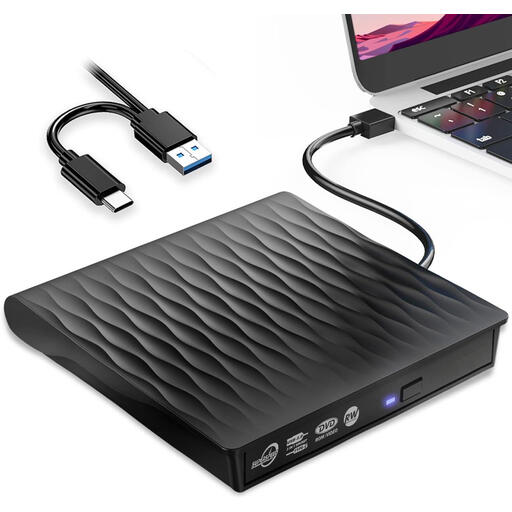 No image available
External DVD drive with USB 3.0 and USB-C
For learners who want to read a disc on their computer via USB.
The product name lists USB 3.0 and USB-C; the product description lists DVD-ROM and CD-ROM as readable formats. Check separately that the course software is compatible with your operating system.
View at Joybuy
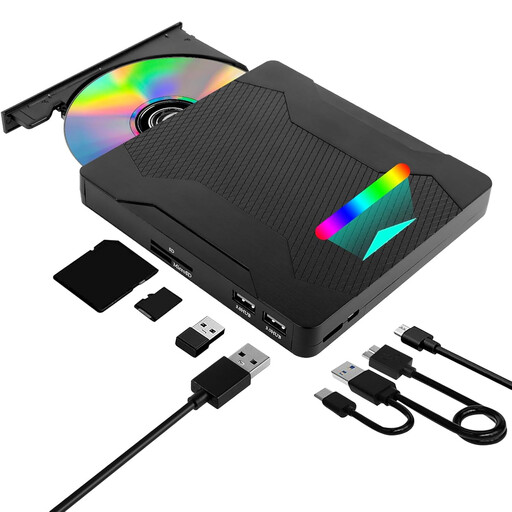 No image available
7-in-1 DVD burner with USB 3.0, USB 2.0 and Type-C
For learners looking for an external drive with extra connections and card reader functions.
The product name lists a DVD burner, USB 3.0/2.0, Type-C, SD/TF and RGB lighting. Check the course software’s compatibility separately.
View at Joybuy
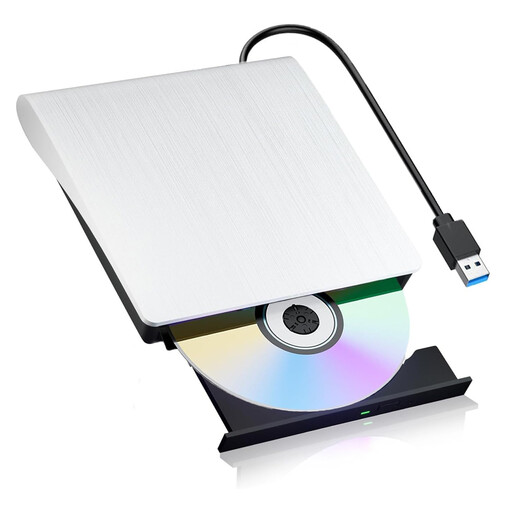 No image available
External DVD burner with USB 3.0
For learners who want to use CD or DVD media on their computer with an external drive.
The product name lists USB 3.0; the product description mentions CD and DVD media. Also check that the course application works with your operating system.
View at Joybuy
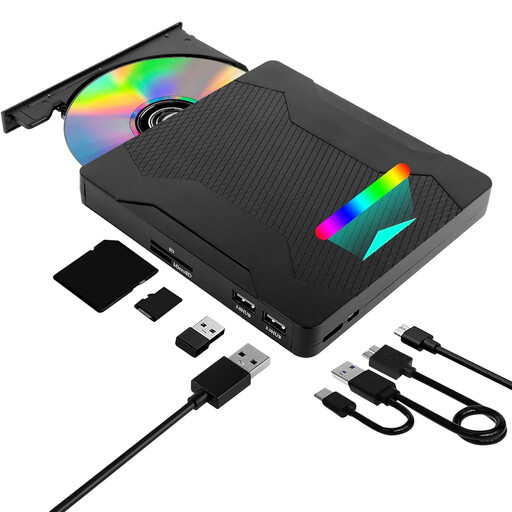 No image available
7-in-1 DVD drive with USB 3.0 and Type-C
For learners who want an external CD/DVD drive with a card reader.
The product name lists USB 3.0, Type-C, SD/TF and RGB lighting; the product description mentions CD and DVD media. Check the specific course software separately.
View at Joybuy
Frequently asked questions
Do I need a DVD drive with two outputs to use two monitors?
No. The USB drive makes the disc available to your computer; you need to set up both screens on the computer to use separate workspaces. In Windows, check that both screens are recognised, then choose ‘Extend’ mode to view course materials and notes separately.
How do I start a language-course application from a disc?
In Windows, insert the disc into the connected drive and follow the installation instructions. Microsoft Support says you can try running the setup file on the disc if nothing starts automatically. Whether the specific course software runs on your operating system depends on its requirements.
Why does the DVD load but the video won’t play?
A DVD video may require a compatible DVD decoder or a suitable playback app. First, check whether your computer recognises the drive, whether playback software is installed and whether the disc is supported. Microsoft Support explains the requirements for a compatible DVD decoder.
What can I do if the drive doesn’t appear in Windows?
First, check the connection, then see whether the drive appears in Device Manager. Microsoft Support lists driver and configuration issues as possible causes; the suggested steps won’t necessarily solve every problem.
Can I copy a protected course disc to use it on two computers?
Owning the disc doesn’t automatically give you permission to copy it or circumvent protective measures. Under certain conditions set out by law, Section 95a of the German Copyright Act (UrhG) prohibits circumventing effective technical measures. Whether and how you can use the specific course software on several computers also depends on the type of disc and the usage rights. You don’t need to make a copy simply to use two screens with one computer.


