If you want to read a software DVD but don’t have a spare plug socket, consider a DVD-reading drive with documented USB power requirements, such as the Verbatim 43886, ASUS ZenDrive U9M or Transcend TS8XDVDS-K. Also check that the drive can read the DVD, that its connection and cable are compatible with your computer, and that the software meets your system’s requirements. You don’t need a disc-writing function to install software from an existing DVD.
Who is an external DVD drive suitable for?
Installing software without a spare plug socket
If you don’t want to connect an additional power adapter to install software from a DVD, check the USB power specifications for the exact model. Verbatim, ASUS and Transcend list USB power for certain drives.
Using older software DVDs
What matters is whether the drive can read the DVD format and whether your computer meets the programme’s system requirements. A drive being recognised doesn’t, by itself, mean the software can be installed on your computer.
Using a USB-C laptop
If you want to use the ports already available, compare your computer’s sockets with the interface and cable supplied with the drive. ASUS and Verbatim list different USB-C configurations for certain models.
What should you look for when buying?
Start by checking the power supply, then the DVD format and software requirements, followed by the connection and compatible cable.
| Buying criterion |
What to check |
Who should pay particular attention? |
| Power supply |
Check whether USB power is specified for the exact model and whether a separate power adapter is required. Verbatim, ASUS and Transcend each list this for certain models. |
If you don’t have a spare plug socket, USB power is particularly important. Around 33 % of consumers put power supply first. |
| DVD and software compatibility |
Compare your DVD type with the supported discs and check the software publisher’s system requirements. Microsoft explains how to install programmes from a disc. |
If you want to use an existing installation DVD, the drive must be able to read the disc and the programme must be compatible with your system. Around 33 % of consumers prioritise compatibility. |
| Connection and cable |
Check that your computer’s USB-A or USB-C socket matches the interface, and confirm which cable or accessories are actually included. ASUS lists Type-A and Type-C for the ZenDrive U9M, and Type-C for the U8M; Verbatim lists a cable and adapter for model 43886. |
If you want to connect the drive to a port you already have, the connection and compatible accessories both matter. Around 27 % of consumers prioritise connection and cable compatibility. |
| Additional disc-writing function |
If you want to write discs, check the supported writable media and the operating system requirements for any bundled disc-writing software. Verbatim’s bundled Nero software is only for Windows. |
If you want to write CDs or DVDs as well as install software, a disc-writing function is useful; you don’t need one to read an existing DVD. Around 7 % of consumers prioritise future disc-writing use. |
Common buying misconceptions
-
“Connects via USB” automatically means “works without a power adapter”
A USB connection alone doesn’t tell you how a particular drive is powered. If you’re short on plug sockets, an additional power adapter may defeat the purpose of choosing that drive.
Check the power supply details for the exact model and make sure they suit the USB port you have available.
-
A recognised DVD doesn’t guarantee a successful installation
The drive may let you access the files, but the software might still not meet your computer’s system requirements.
Check the readable DVD format and the software requirements separately.
-
“USB-C” is not enough information to choose a drive
Connections and what’s included vary by model. A USB-C drive won’t necessarily plug straight into your computer.
Compare the ports you have with the interface, cables and adapters included with the specific product.
Key brands to consider
Verbatim
For model 43886, Verbatim lists USB power, DVD-ROM playback, a USB-C-to-USB-A cable and a USB-A-to-USB-C adapter.
- The details on readable media and accessories apply specifically to model 43886.
- According to Verbatim, the bundled Nero software is only compatible with Windows; this is separate from the drive’s basic reading function.
ASUS
The specifications for the ZenDrive U9M and U8M models list USB power and DVD-ROM reading. The U9M is listed with Type-A and Type-C, while the U8M is listed with Type-C.
- The listed connection types differ between the two models.
- ASUS notes that specifications can vary by country, so check the exact model and what’s included.
Transcend
For the Slim Portable DVD Writer TS8XDVDS-K, Transcend lists CD and DVD reading and writing without an external power supply. The product support page specifies Mini-USB to USB-A and 5 V/1 A.
- The manufacturer’s specifications cover the power supply and connection for this model.
- Transcend does not guarantee normal operation with a USB hub or an unspecified extension cable.
Hitachi-LG Data Storage
The manufacturer’s website describes the GP96 family as a range of drives for various disc formats and lists USB 2.0 as the host interface, compatible with USB 3.0.
- The specifications give an overview of the GP96 family.
- Check the power supply, connector and what’s included for the specific version on sale. Family-level information doesn’t confirm every detail for an individual model.
Joybuy products for software DVDs
The selection below includes external DVD drives with USB connections. Some models are described as working without an external power adapter; check the power supply and compatible connection for the product you choose.
 No image available
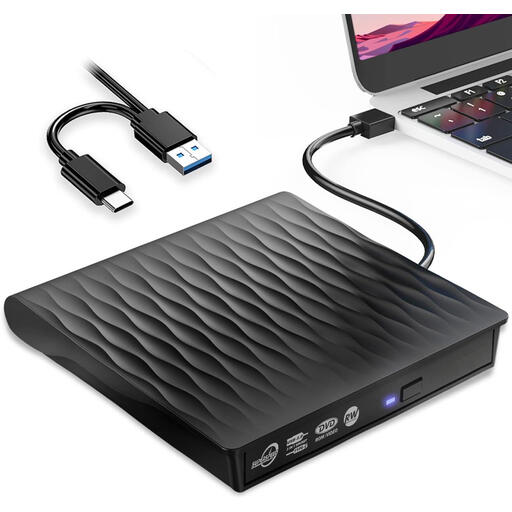
External DVD drive with USB 3.0 and USB-C
An option if you want to read an existing DVD using an external drive and connect via USB-C.
USB 3.0 and USB-C; DVD-ROM support; described as not requiring an external power adapter. Compatible systems listed include Windows, macOS and Linux.
View at Joybuy
 No image available
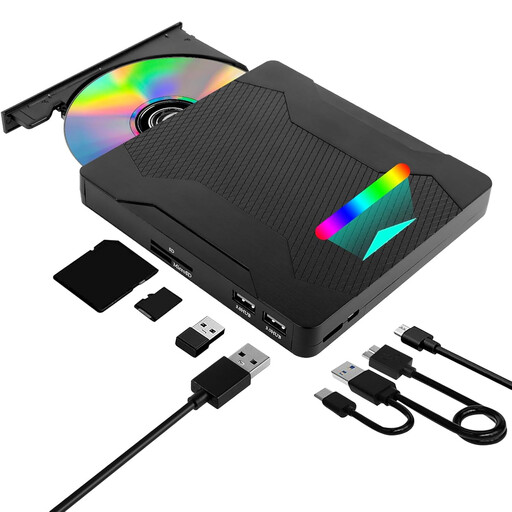
7-in-1 DVD burner with USB 3.0 and Type-C
Suitable if you want additional connections or a card reader as well as DVD reading.
The description lists reading and writing for several CD and DVD formats, an SD/TF card reader and a USB 2.0 port. Compatible systems listed include Windows, Linux and Mac OS.
View at Joybuy
 No image available
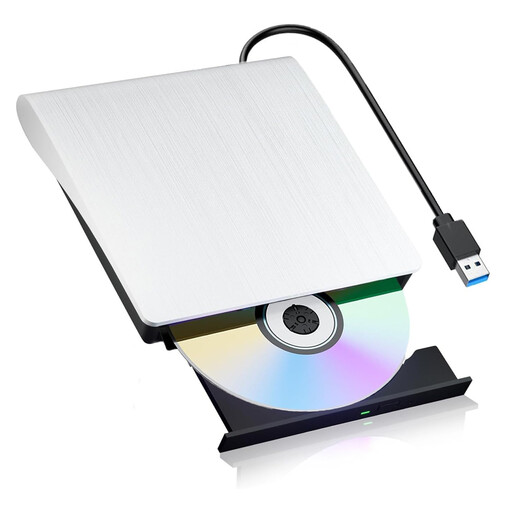
External DVD burner with USB 3.0 and Type-C
An option for installing software from a DVD if you’re looking for an external drive that, according to its description, doesn’t need an external power adapter.
USB 3.0 and Type-C; the description lists reading and writing for various CD and DVD formats, as well as DVD-R, DVD-RW and DVD-RAM. Compatible systems listed include Windows and Mac.
View at Joybuy
 No image available
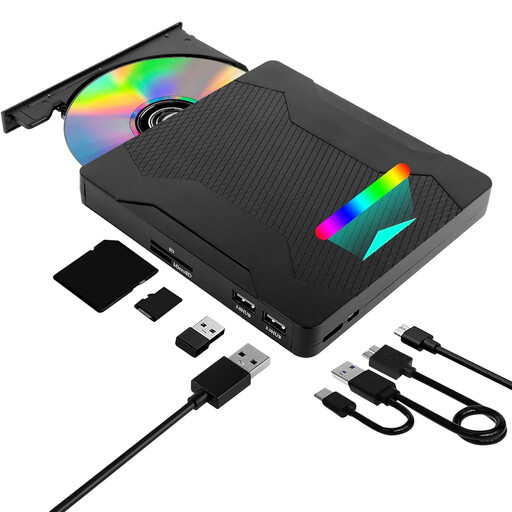
7-in-1 DVD drive with USB 3.0, Type-C and SD/TF card reader
An option if you’re looking for an external drive to read discs and want additional connections or a card reader.
USB 3.0 and Type-C; the description lists an SD/TF card reader and USB 2.0 data ports. CD and DVD reading and burning are also listed.
View at Joybuy
Frequently asked questions
How do I start the installation if nothing happens after I insert the DVD?
First, check your AutoPlay settings. Microsoft Support recommends looking for the setup file on the disc if the installation doesn’t start automatically; it may be called Setup.exe or Install.exe, for example. You may need an administrator password to install the software.
Do I need a DVD burner to install software?
To open an existing installation DVD, the important thing is that the drive can read it. You only need a writing function if you want to write discs yourself; you should check the programme’s system requirements separately.
What can I do if Windows doesn’t recognise the drive?
First, check the connection and the drive manufacturer’s guidance. Microsoft Support describes several possible reasons why CD and DVD drives may not be recognised in Windows 10 and Windows 11; the suggested steps won’t resolve every case.
Who is responsible under the statutory warranty if a drive is faulty?
For statutory warranty rights, the seller is your point of contact for faults. The Verbraucherzentrale distinguishes this statutory warranty from a voluntary manufacturer’s or retailer’s guarantee; the circumstances of each purchase must be considered separately.
How should I dispose of an old drive in Germany?
Take the drive to a separate collection point rather than putting it in household waste. The German Environment Agency lists options including free drop-off at a recycling centre or at a retailer; check which return option is available locally.


