First, choose a backup method that actually keeps previous versions of your recordings and project files; the hard drive alone does not provide version history. Work out the capacity you need based on your data and how long you want to keep it. A portable, USB-powered HDD suits changing work locations, while a desktop model can stay at a fixed backup point but may need a mains adapter, depending on the model. A single hard drive is no substitute for a second copy stored separately or a recovery test.
Who is this selection for?
Choir directors with a project archive
If you keep rehearsal recordings and revised projects, decide in advance which older versions you need to be able to restore. Version history comes from your backup method, not the HDD alone. Microsoft Support explains how to restore earlier versions using File History, while Apple Support covers backups with Time Machine.
People responsible for mobile recording
If you move recordings between the rehearsal room and editing suite, choose a form factor and power supply that suit the journey. Toshiba describes Canvio Basics as USB-powered, while Seagate says its Expansion Desktop requires a power adapter.
People responsible for protected recordings
If recordings include identifiable people, access rules and appropriate safeguards matter alongside backups. The Federal Commissioner for Data Protection and Freedom of Information explains that processing requires an appropriate legal basis.
What should you look for when buying?
Start by prioritising your main requirements: the project versions you need, recovery and protection, where you’ll keep the backup, and how to set it up on your computer.
| Priority |
What to check before buying |
Who it matters to |
| Older project versions |
Work out how much data you have and how long you want to keep it; choose your capacity and backup software accordingly. |
I want to retrieve earlier edits and keep several versions. This kind of version archive is the top priority for around 33% of consumers. |
| Recovery and protection |
Plan regular backups and a recovery test; if needed, check the access protection on the specific model. |
I want to be able to open files again after a failure and protect sensitive recordings from unauthorised access. These protection and recovery needs are a priority for around 27% of consumers. |
| Portable backup location |
Check the route you’ll take, the cable you need, your computer’s connection and the power supply for the specific model. |
I take recordings between rehearsals and the editing suite and want to back them up without unnecessary accessories. A portable backup location is the main priority for around 20% of consumers. |
| Setting up on your computer |
Check the operating system, connection, file system and requirements of your chosen backup feature; back up any existing data before reformatting. |
I want to set up the drive on my existing computer without missing project folders or losing existing files. Compatibility is the main concern for around 20% of consumers. |
Apple recommends using a storage device with at least twice the capacity of your Mac for a complete Mac backup. This is not a general minimum for individual choir project folders. With Windows File History, you may need to add project folders that are outside the libraries it covers; Microsoft Support explains how to do this.
Common selection mistakes
-
Assuming a large hard drive means your project versions are backed up
An HDD provides storage; you can only restore earlier versions if your backup feature captures and keeps them.
Before you buy, decide which folders and older versions you want to keep, then choose your capacity accordingly.
-
Leaving your only external HDD next to your work computer all the time
If the computer and the drive beside it are lost or damaged at the same time, your backup could be affected too. The Federal Office for Information Security points out that the lifespan of storage media cannot be predicted precisely.
Keep an additional copy somewhere separate and occasionally check that you can restore files from it.
-
Reformatting a Windows-formatted drive for Time Machine without checking first
Apple warns that reformatting will erase any data already on the volume.
First back up its contents somewhere else, then select the volume you intend to use for your backup.
-
Assuming portable and desktop HDDs are equally convenient at every rehearsal venue
Toshiba describes Canvio Basics as USB-powered, while Seagate says the Expansion Desktop connects using a power adapter.
Check the power supply for the exact model at your backup location. If it needs a power adapter, plan to take the adapter and cable with you.
Key brands at a glance
Toshiba
Canvio Basics is a range of portable HDDs designed for USB power.
- Toshiba describes Canvio Basics as USB-powered and pre-formatted with NTFS for Windows.
- Toshiba says reformatting is required to use it with a Mac. Check the file system first and back up any existing data.
Western Digital
My Passport is a range of portable HDDs available in different capacities.
- Western Digital lists password protection and hardware encryption for the range covered in its documentation.
- Western Digital says compatibility may depend on the hardware and operating system. Check the details for the specific model; the documented range comes with a limited three-year warranty.
Seagate
Expansion Desktop is a range of desktop HDDs for a fixed backup location.
- Seagate says the Expansion Desktop connects using a power adapter and USB cable.
- Make sure there’s a power socket where you plan to use it, and check the capacity and included accessories for the exact model.
LaCie
Rugged Mini is a range of portable HDDs for taking recordings and project files on the go.
- Seagate advertises the LaCie Rugged Mini model described as having a protective casing and resistance to knocks and drops.
- This manufacturer’s claim is no guarantee against data loss and does not replace a second backup copy.
Verbatim
Fingerprint Secure, product 53650, is a portable HDD with built-in access protection.
- For this model, Verbatim lists AES-256 hardware encryption, fingerprint access and password-protected administrator access.
- Verbatim says a security update is available. Check the software version and access management; the manufacturer’s claim of GDPR compliance does not replace an assessment of how you process your specific data.
Joybuy products for portable backups
This selection features portable external HDDs for recordings and project files that you can take between the recording and editing locations. To keep older file versions, you’ll also need to set up a suitable backup method.
 No image available
WD Elements Portable 5 TB USB-C
A portable option for recordings and project files that need backing up at different work locations.
5 TB; USB-C; 2.5-inch form factor. You’ll need a suitable backup method to keep selected older project versions.
Joybuy
 No image available
WD Elements 2 TB Portable External Hard Drive
A portable option for project files if you’ll be using the drive in different locations.
2 TB; USB-C; USB 3.2 Gen 1; 2.5-inch form factor; exFAT. You’ll need a suitably configured backup method to keep earlier versions.
Joybuy
 No image available
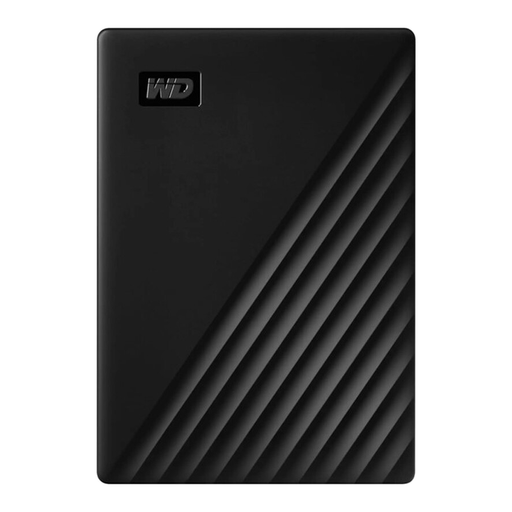
Western Digital My Passport 1 TB Black
A portable HDD for storing recordings and project files. How long you keep each version depends on your backup method.
1 TB; mechanical HDD; 2.5-inch form factor; USB 3.0. Reformatting may be required for operating systems other than the Windows versions listed in the description; back up any existing files first.
Joybuy
 No image available
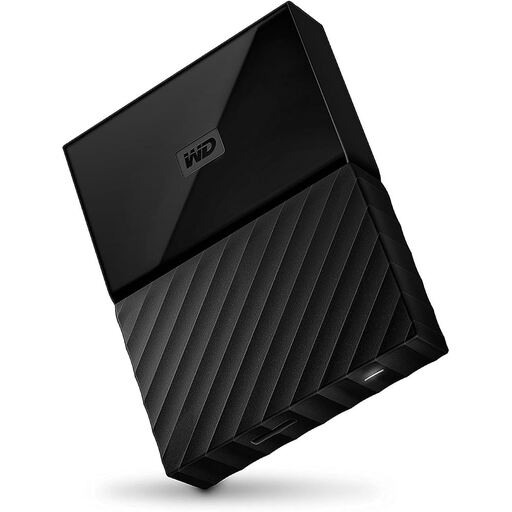
Western Digital My Passport 4 TB Black
A portable option for recordings and several project files, provided the capacity suits your data and how long you plan to keep it.
4 TB; USB 3.0/USB 2.0; USB-powered; 2.5-inch form factor. Reformatting may be needed for operating systems other than the Windows PCs listed in the description. You’ll need a suitable backup method to keep earlier versions.
Joybuy
 No image available
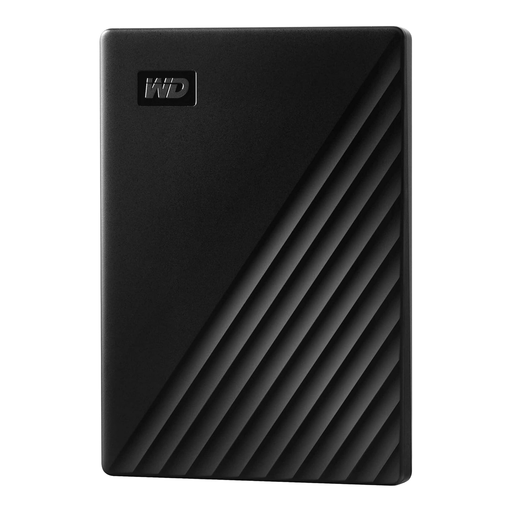
WD My Passport External Hard Drive 2 TB
A portable storage option if you need password protection as well as space for recordings and project files.
2 TB; password protection. The HDD alone won’t keep selected older project versions; set up a suitable backup method for this.
Joybuy
Frequently asked questions
How do I back up several versions of choir projects in Windows?
Windows File History lets you restore earlier versions of files and folders. Check whether your project folder is in a library that File History covers. Microsoft Support explains how to add other folders and set up an external drive as your backup location.
Can I use a drive prepared for Windows with Time Machine straight away?
You can’t use a Windows-formatted volume for a Time Machine backup without changing its format. Apple Support recommends APFS or APFS (Encrypted) and warns that reformatting will erase any data already on the volume. For a complete Mac backup, Apple recommends at least twice the Mac’s storage capacity; you’ll need to plan separately for backing up selected choir folders.
Do I need to replace the hard drive regularly or use a data recovery service?
A hard drive’s purchase date alone won’t reliably tell you when it will fail. The Federal Office for Information Security says the lifespan of storage media cannot be predicted precisely and recommends backing up regularly and checking that you can restore your files. Check the warranty terms for the specific model, and don’t treat an offered data recovery service as a substitute for a working backup.
Do choir rehearsal recordings in Germany always need an encrypted hard drive or consent?
This does not mean there is a blanket requirement to use a particular type of hard drive or to obtain consent in every case. If identifiable people are affected by processing that is not purely personal, that processing needs an appropriate legal basis. According to the Federal Commissioner for Data Protection and Freedom of Information, one of the legal bases in Article 6(1) GDPR is required. The organisation responsible must also consider access permissions, purpose and retention in light of the specific circumstances. A manufacturer’s claim that an HDD is GDPR-compliant does not settle these questions.


