What should you look for?
First, work out which files and backup versions you want to store on the drive. Then consider your backup method, system compatibility and whether portability or copying time matters most.
| What you need |
What to check before buying |
Who will find this important? |
| Capacity for your archive and backup versions |
Check how much space your files take up and how many previous backup versions you plan to keep. For Time Machine, follow Apple’s recommendation for drive capacity. |
As our photo and video archive grows, I want to allow space for what we have now and future backups. That’s why around 29% of consumers put capacity first. |
| Regular backups that you can restore |
Check the backup method, which folders it covers and when it last ran successfully. Then restore a sample file. Microsoft Support says that File History includes libraries by default. |
I want my backup to run regularly and to be able to retrieve a file when I need it. Around 22% of consumers prioritise a backup process they can check. |
| Compatibility with your computer and backup software |
Check the operating system, connection and file system. For Time Machine, check the supported volume format; reformatting, if required, will erase any files already on the volume. |
If our family uses both Windows and Mac, I want to know in advance whether the drive works with each backup method. Around 21% of consumers prioritise this compatibility. |
| Portability and copying time |
Consider how often you transfer large files, the capacity you need, and the USB capabilities of your computer and cable. Samsung gives the T7 Shield’s peak performance figures for certain connection conditions. |
If I often take the drive with me or copy large files, transfer time matters as well as having enough storage. Around 14% of consumers prioritise portability and copying time. |
| Protecting private files and keeping separate copies |
For sensitive files, plan to use suitable encryption and store your password securely. Don’t treat the original and an additional backup as the same copy. |
I want to make it harder for someone to access private family documents if the drive is lost, and keep a separate copy. Around 14% of consumers prioritise privacy and independent backups. |
Joybuy products for family backups
The WD Elements drives below include portable and desktop external HDDs for family archives and local backups. Decide whether you want to take the drive with you or need a fixed backup destination with its own power supply.
 No image available
WD Elements Portable 5TB USB-C
A portable external HDD for family photos, videos and files, if you’re planning for 5 TB of extra storage.
5 TB; USB-C.
View at Joybuy
No image available
WD Elements Portable 4TB USB-C
A portable external HDD for photos, videos and files, if 4 TB is enough for the backups you have planned.
4 TB; USB-C.
View at Joybuy
 No image available
WD Elements 2TB Portable, USB-C, USB 3.2 Gen 1, 2.5-inch, exFAT, Black
A portable HDD for personal files and backups, if 2 TB and the listed system specifications suit how you plan to use it.
2 TB; USB-C; USB 3.2 Gen 1; 2.5-inch; exFAT.
The description lists compatibility with Windows and macOS.
View at Joybuy
 No image available
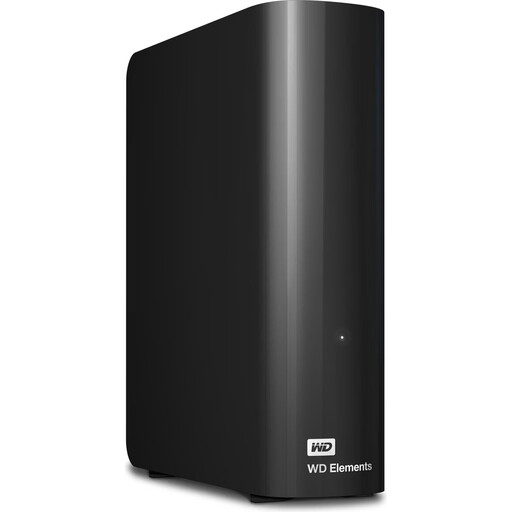
WD Elements 24TB Desktop, USB 3.2 Gen 1, 3.5-inch, Black
A desktop external HDD for large media collections and local backups in a fixed location.
24 TB; USB 3.2 Gen 1; 3.5-inch.
Requires the included power adapter while in use.
View at Joybuy
 No image available
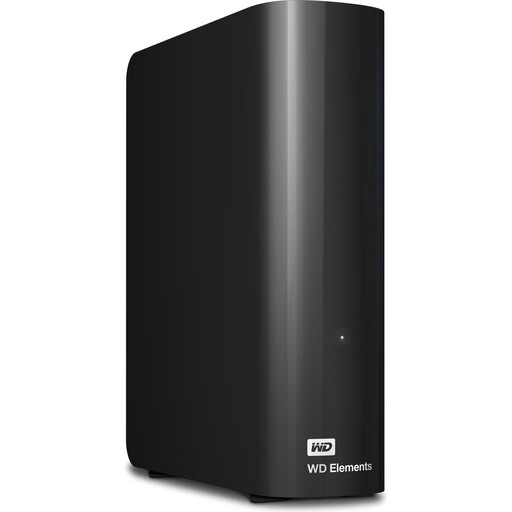
WD Elements 6TB Desktop, USB 3.0, 3.5-inch, NTFS, Black
A desktop external HDD for photos, videos and other files, if 6 TB and a fixed location suit your backup setup.
6 TB; USB 3.0; 3.5-inch; NTFS.
Requires the included power adapter. The description says reformatting is required for macOS; the drive is formatted as NTFS out of the box. Back up any existing files elsewhere before reformatting.
View at Joybuy
Frequently asked questions
Is a photo backed up once I move it to an external hard drive?
No, not if there isn’t another copy. To restore the files you want, they need to be available on another usable storage device. Keeping a separate copy also helps if the place where you keep the shared copies is damaged.
How do I set up a backup in Windows?
For personal files, connect an external drive and turn on File History through the Control Panel. Microsoft Support says that libraries are included by default; check that any additional family folders are covered, and test restoring a file.
Can I use a Windows-formatted hard drive with Time Machine straight away?
Not as a Time Machine backup volume in Windows format. Apple Support lists APFS and APFS (Encrypted) as the preferred formats; reformatting, if required, will erase any existing data on that volume. Apple recommends that a Time Machine drive should ideally have at least twice the storage capacity of your Mac.
What applies if a drive develops a fault: statutory rights or the manufacturer’s warranty?
If the drive you bought has a fault, your statutory rights against the seller are separate from any voluntary manufacturer’s or retailer’s warranty. The Verbraucherzentrale explains the difference in its article dated 28 September 2026. Read the specific warranty terms, and keep another copy of your data regardless.
Can I put an old external hard drive in household waste?
No. Section 10 of the German Electrical and Electronic Equipment Act (ElektroG) requires waste electrical and electronic equipment to be collected separately. Germany’s Federal Environment Agency lists recycling centres and suitable retail take-back points, among other options. Properly erase your personal data before passing on or disposing of the drive.


