Families with growing photo and video collections
When you have lots of photos, videos and documents in different sizes, make room not just for your current collection but also for new files and previous backups.


For a growing family archive, an external HDD is a good fit if storage capacity matters more than fast transfer times. An SSD may be a better choice if you often transfer large files or regularly take the drive with you. You should also consider which folders actually need backing up, which file system is right for you, and how you’ll check that you can restore your files while keeping another copy somewhere separate.
When you have lots of photos, videos and documents in different sizes, make room not just for your current collection but also for new files and previous backups.
A regular routine and a check that you can actually restore a file help make your backups useful in practice. Germany’s Federal Office for Information Security highlights recoverability as an important part of data backup.
Before formatting the drive, decide whether you want to share files between devices or use it as a Time Machine backup destination. Apple Support explains that a Windows-formatted volume can’t be used as a Time Machine destination.
A good fit if: Storage capacity matters more than fast transfer times for your large or growing family archive.
Keep in mind: A high-capacity hard drive is no substitute for testing that you can restore your files or keeping a second copy somewhere separate.
A good fit if: You often transfer large photo and video files or regularly take the drive with you, and can set aside enough capacity for your backups.
Keep in mind: Advertised data rates depend on the host, cable and operating conditions. You’ll still need to make sure the drive has enough storage.
Start by checking how much storage you’re using and what you want to back up. Your operating system, formatting and how you’ll transport the drive will then help you choose the right type for your needs.
| Priority | What to check before you buy | Who should pay particular attention |
|---|---|---|
| Storage capacity | Check how much storage you’re using and allow room for new files and previous backups. Apple Support recommends using a Time Machine volume with at least twice the capacity of your Mac, if possible. | As our photo and video collection grows, I want to leave room for new files and previous backups. Around 33% of consumers prioritise capacity. |
| Backup routine | Check which folders your chosen software includes, then try restoring a file. | If I often forget to back things up, I need a routine that works regularly and can be checked by restoring a file. Around 27% of consumers prioritise a reliable backup routine. |
| System compatibility | Decide whether you want to share files between Windows and Mac or use the drive as a Time Machine destination. Apple Support notes that a Windows-formatted volume can’t be used directly as a Time Machine destination. | When we use Windows and Mac, I want to know before formatting whether the drive is for sharing files or for Time Machine. Around 20% of consumers prioritise system compatibility. |
| Transfer time and portability | Check that your computer’s port and cable are compatible with the SSD’s stated data rates. | If I often transfer large files or take the drive with me, I want suitable speeds and a drive that’s easy to transport. Around 20% of consumers prioritise speed and portability. |
An SSD’s stated maximum speed depends on having a compatible host, cable and operating mode. Samsung lists these conditions for the T7 Shield, so its peak speed isn’t guaranteed on every family computer.
Check your computer’s port and the cable you’ll need before comparing speed claims. Work out how much storage you need first.
A Windows-formatted volume can’t be used directly as a Time Machine destination. Apple Support also notes that reformatting erases any existing data.
Decide what you’ll use the volume for before your first backup. Copy any existing files somewhere else before formatting the drive.
Reformatting and setting the drive up again takes time.
If the drive fails or gets lost, your only backup could be affected. Seagate also notes that the data recovery service listed in its data sheet isn’t available in every country.
Regularly check that you can restore your files, and keep another copy somewhere separate.
The Canvio Advance is a range of portable HDDs that Toshiba offers in capacities of up to 4 TB, with backup and security software.
The portable My Passport range includes a documented 5-TB version for larger collections of files.
Expansion Portable is a range of USB-powered HDDs; Seagate’s data sheet lists a 5-TB version.
The Portable SSD T7 Shield is an SSD option for frequently copying large files and taking your drive on the go. The German product page lists the 2-TB version MU-PE2T0S/EU.
This selection from Joybuy includes portable and desktop WD Elements HDDs for backups. Pay particular attention to capacity, power supply and formatting.
 No image available
For portable backups of documents, photos and videos; the description says it works with Windows and macOS.
4 TB; USB-C, USB 3.2 Gen 1 and exFAT. Described as a portable 2.5-inch drive with USB power and a weight of 240 g.
 No image available
For portable backups and sharing files between Windows and macOS; the description lists photos, videos, music and documents.
2 TB; USB-C, USB 3.2 Gen 1 and exFAT. Described as a portable 2.5-inch drive with USB power and a weight of 131 g.
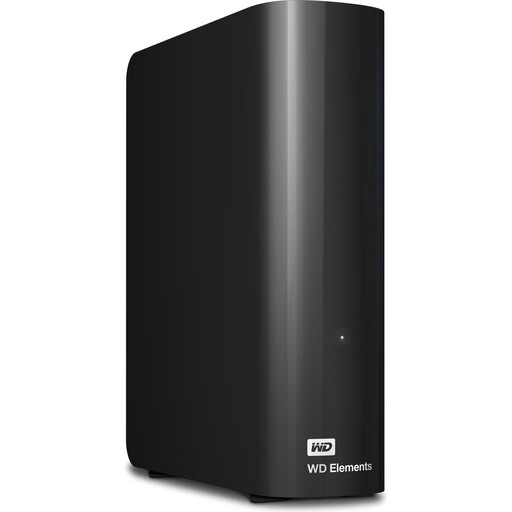 No image available
For desktop backups, with extra room for photos, videos, music and other files.
6 TB; USB 3.0, 3.5 inches and NTFS. Described as a desktop drive with an external power supply. According to the description, you’ll need to reformat it to a compatible file system to use it with macOS.
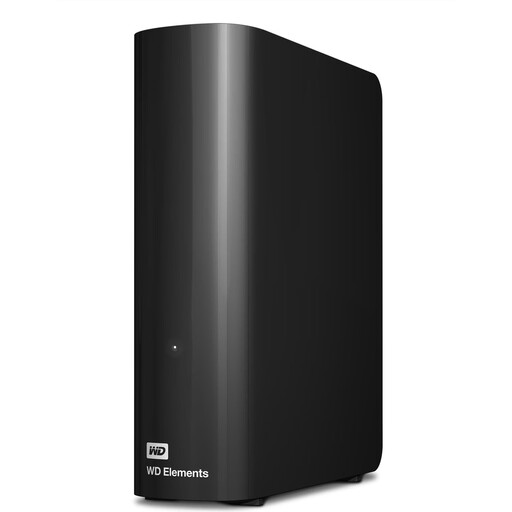 No image available
For large collections of media and files, and desktop backups.
12 TB; USB 3.2 Gen 1, 3.5 inches and NTFS. Described as a desktop drive with an external power supply. According to the description, you’ll need to reformat it to a compatible file system to use it with macOS.
 No image available
For a larger collection of media and files, and for desktop backups.
8 TB; USB 3.0, 3.5 inches and NTFS. Described as a desktop drive with an external power supply. According to the description, you’ll need to reformat it to a compatible file system to use it with macOS.
No. If the files are stored only on the drive afterwards, you won’t have a separate copy. Set up a repeatable backup routine and check that you can restore a file; Germany’s Federal Office for Information Security highlights the importance of being able to restore your data.
You can select an external drive for File History. Microsoft Support says it automatically backs up libraries such as Documents, Pictures, Videos and Music. Also check that any other folders you want are included.
No. Apple Support explains that a Windows-formatted volume can’t be used as a Time Machine destination. Reformatting erases any existing data, so copy your files somewhere else first.
When you buy from a trader in the EU, European Union consumer information states that you’re entitled to a legal guarantee of at least two years from the date you receive the goods. This applies to the seller and is separate from any voluntary manufacturer’s warranty.