People responsible for growing lecture archives
If new recordings are added regularly, you’ll need enough storage space and a separate backup that you can restore. The BSI stresses that backed-up data must also be recoverable.


For a lecture archive that is mainly stored and only accessed occasionally, an external HDD is a sensible starting point. If you regularly transfer large files, an SSD may be a better choice. CHIP recommends SSDs for video editing where speed matters. Before you buy, check your storage needs, connections, file system and access rules. A single drive is no substitute for a separate backup: Germany’s Federal Office for Information Security (BSI) also recommends checking that data can be restored.
If new recordings are added regularly, you’ll need enough storage space and a separate backup that you can restore. The BSI stresses that backed-up data must also be recoverable.
If several authorised people use the same computer, the connection, file system and unlocking process should fit the team’s workflow. You’ll also need to agree responsibilities and access permissions.
If you often copy or edit large files, an SSD may be worth considering. Its advertised speed advantage depends on the capabilities of your computer and connection.
First decide whether your archive mainly needs space for long-term storage or faster transfer times. Then check that the drive is compatible with your computer and suitable for access by multiple people.
| Consideration | What to look for | Who should pay particular attention? |
|---|---|---|
| Archive storage and backup | Work out how much data you already have and how much you expect to add; make a separate backup and check that you can restore it, as the BSI recommends. | Anyone who regularly stores recordings needs enough space and a separately stored copy. Around 33% of consumers are likely to prioritise capacity and backup. |
| Access protection | Agree with the responsible organisation who can access and unlock the drive; don’t mistake encryption for blanket permission to retain recordings. | When using a shared computer, consumers may want to control who can open recordings and unlock the drive. Around 27% are likely to make this their main priority. |
| Computer compatibility | Check the USB ports, cables and operating systems; confirm the specific model’s pre-installed file system and any software it needs. | If several operating systems are used in the workplace, the drive should work without unexpected workarounds. Around 20% of consumers are likely to prioritise this compatibility. |
| Transfer speed | Consider how often you transfer large files, and check the specific model’s requirements for the computer port, cable and transfer mode. | Anyone who frequently copies or edits large recordings will want to keep transfer waiting times to a minimum. Around 20% of consumers are likely to prioritise speed. |
An external drive can fail. If that happens and your recordings are stored only on it, you could lose access to your archive.
Keep a separate backup and regularly check that you can restore files from it. The BSI highlights recoverability as an essential part of data backup.
Potential transfer rates depend, among other things, on your computer, cable and the requirements of the particular model. Samsung specifies certain requirements for the advertised top speeds of the T7 Shield.
Check the specifications for the specific model against the shared computer. If files are only stored occasionally, consider whether an HDD would be enough for your workflow.
A model formatted for Windows may not work seamlessly with every operating system you use. For the documented Canvio Basics model, Toshiba says it must be reformatted for the specified macOS versions.
Before adding files, check which operating systems are used on your computers and whether the file system is compatible. If reformatting is needed, plan to do it before archiving.
An unlocking or encryption method does not, by itself, determine whether personal recordings may be stored or for how long. The European Commission lists limited storage periods as a data protection principle; the University of Bremen also explains the rights of teaching staff and participants in the context of recordings.
Before archiving, check the purpose, responsibilities, permitted access and retention rules with the responsible organisation. Treat drive security as one part of the overall process.
The documented Canvio Basics range is a portable HDD option for archives that are mostly used in one place or moved occasionally.
The Portable SSD T7 Shield is an SSD option for frequent large transfers and carrying files between workstations.
The Store ’n’ Go Secure HDD and Executive Fingerprint Secure SSD offer different built-in unlocking methods.
The One Touch range with password protection is another portable HDD option.
This selection includes external HDDs for portable and mostly stationary archives, as well as portable SSDs for more frequent file transfers. Check that the capacity, connections and file system suit the shared computer.
 No image available
A portable 5 TB HDD for an archive you need to carry between workstations.
The product description lists USB-C, exFAT and compatibility with Windows and Mac.
 No image available
An external 2 TB HDD for an archive you plan to store at your workstation.
The specifications list USB-C, USB 3.2 Gen 1, exFAT and USB-powered operation. The product description lists Windows and macOS as supported systems.
The product is described as a 2.5-inch model.
 No image available
This 8 TB desktop drive is an option for a large archive that will stay in one place most of the time.
The description lists USB 3.0, a 3.5-inch enclosure and an included power adapter that plugs into a mains socket.
According to the description, the drive is pre-formatted with NTFS; it needs reformatting for the Mac uses specified there.
 No image available
A portable 512 GB SSD for an archive where frequent transfers matter.
The product title lists USB 3.1 Type-C and an advertised speed of up to 500 MB/s.
The product title lists PCs, Macs, Android devices and games consoles as compatible devices.
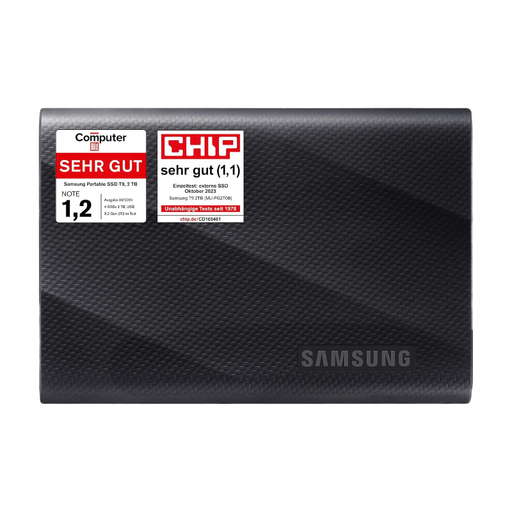 No image available
A portable 2 TB SSD for large files and more frequent transfers.
The product description lists USB 3.2 Gen 2x2 and sequential read and write speeds of up to 2.000 MB/s.
The description lists PC and Mac compatibility, along with USB-C-to-C and USB-C-to-A cables.
No, not if a drive failure must not result in lost recordings. The BSI recommends regular data backups and stresses that data must also be recoverable. So keep a separate copy and check that you can restore it.
Check the USB port, supplied cable, operating system and file system. For example, the documented Canvio Basics model from Toshiba is described as coming with a Type-A-to-Micro-B cable and formatted for Windows with NTFS; it needs reformatting for the specified macOS versions.
No, you cannot assume blanket permission. Whether a specific recording and its continued storage are permitted depends, among other things, on its content, the legal basis and the rules of the responsible organisation. The University of Bremen also explains the rights of teaching staff and participants in the context of its recordings.
No. Encryption can be a protective measure, but it does not replace the responsible organisation’s checks on lawfulness, purpose, storage period and organisational measures. This also applies when a manufacturer claims that a product is GDPR-compliant.