For a growing family collection that is usually backed up on the same computer, a suitably large external HDD is a natural starting point. An SSD may be a good fit if you often take the drive with you and want fast transfers, provided your computer and cable support the necessary standards. The key factors are how much data you have now, room for further backup versions and your backup system’s file system. Apple recommends a backup drive with at least twice the storage capacity of your Mac, ideally. A single drive is not a complete backup strategy: the Federal Office for Information Security recommends backing up regularly, while the Verbraucherzentrale advises keeping separate copies.
Which option is right for you?
Families with a growing photo and video collection
If you’re continually adding photos and videos, it’s worth considering both the storage you already use and the space you’ll need for further backup versions. For Time Machine, Apple ideally recommends a backup volume with at least twice the storage capacity of your Mac.
Families looking to back up regularly
Choose a drive that you can set up with your computer’s backup feature, and establish a routine for making regular backups and keeping additional copies separately. The Verbraucherzentrale recommends following the 3-2-1 rule for data backups.
Families who take their drive with them
If you want to put your drive away after backing up or store it elsewhere, consider its size, connection and power supply. The Federal Office for Information Security recommends securely erasing personal data before passing on or disposing of a storage device.
What should you look for when buying?
Desktop HDD
A good fit if: You back up large collections of photos, videos and documents on one computer, and capacity matters more to you than portability.
Things to consider: A desktop drive needs space and may require a separate power supply, so it’s less convenient to take with you.
Portable HDD
A good fit if: You want to put your drive away after backing up or take it somewhere else.
Things to consider: Check that its capacity will also accommodate further backup versions. The Toshiba Canvio Basics HDTB440EK3CA is documented as coming formatted in NTFS for Windows; Toshiba says it needs to be reformatted for the macOS versions listed.
Portable SSD
A good fit if: You often transfer files or take the drive with you, and an SSD offers the capacity you need.
Things to consider: Samsung quotes sequential speeds of up to 1.050 MB/s for reads and 1.000 MB/s for writes for the T7 Shield MU-PE4T0S/EU. Your host device and cable must support USB 3.2 Gen 2 to achieve these speeds. This SSD is not a substitute for a second backup either.
| What you need |
What to check before buying |
Who is this important for? |
| Capacity for your collection and backups |
Allow for the amount of data you already have, as well as room for further versions. For Time Machine, Apple ideally recommends at least twice the storage capacity of your Mac. |
If I want to keep photos, videos and older backups, I’ll need enough space for more than I have today. Around 36% of consumers prioritise capacity for their collection and further backups. |
| Regular, separate backups |
Check that you can set up the drive with your backup feature, and try restoring a file. The Verbraucherzentrale recommends the 3-2-1 rule for data backups. |
If I want to rely on up-to-date backups, I need a regular routine and an additional copy stored separately. Around 29% of consumers prioritise a practical backup routine. |
| Compatibility with your computer and backup system |
Check that the operating system, USB connection and file system are compatible. Apple says a volume formatted for Windows cannot be used as a Time Machine destination without reformatting. |
If I have a Mac, I’d check that the format and backup method work together before buying, rather than finding out during setup. Around 21% of consumers prioritise system compatibility. |
| Portability and transfer speeds |
If you’ll often take the drive with you, consider its size and power supply. For fast SSD transfers, your computer and cable must also support the required USB standard. |
If I often take my drive with me or regularly transfer large files, ease of use and connection requirements matter more than a speed figure on its own. Around 14% of consumers prioritise portability and transfer speeds. |
Common mistakes when buying a backup drive
-
Moving files to your only external drive and treating it as a backup
If the files are stored only on this drive, you don’t have another copy. The Verbraucherzentrale recommends keeping additional backups separately.
Don’t keep your originals and backup copy solely on the same storage device. For irreplaceable files, plan to keep an additional copy somewhere else.
-
Assuming a Windows-formatted HDD will work with Time Machine
Apple says a volume formatted for Windows cannot be used as a Time Machine destination without reformatting. Reformatting can erase files already stored on the drive.
First, save any files you need somewhere else. Then set up the drive for your chosen backup method.
-
Assuming an SSD’s maximum speeds are the same as your own backup speeds
Samsung quotes maximum speeds for the documented T7 Shield that rely on compatible technology in the host device and cable. They are not guaranteed speeds for every computer.
First, check your computer’s capacity and connections. Higher transfer speeds are most relevant if you often move large amounts of data.
Brands and product ranges to consider
Seagate
The Expansion Desktop STKP8000400 is a stationary 8-TB option for large collections.
- Seagate specifies USB 3.0 and a supplied power adapter for this model.
- The power adapter and desktop design make it less convenient to take with you regularly. Manufacturer information about data recovery services is subject to the relevant product and country conditions, and does not replace a second copy.
Western Digital
According to the manufacturer, the My Book range also includes a desktop 8-TB version for large archives.
- The manufacturer’s data sheet lists password protection, hardware encryption and included backup software for the range.
- Check the features and licence terms for the specific version. These details do not prove a particular level of reliability or guarantee successful data recovery.
Toshiba
The portable 4-TB Canvio Basics HDTB440EK3CA is a USB-connected HDD that you can put away after backing up.
- Toshiba specifies a USB-A to Micro-B connection and an NTFS format for Windows for this version.
- According to Toshiba, the drive needs to be reformatted for the macOS versions it lists. This information applies to the model specified, not to every drive from the brand.
Samsung
The Portable SSD T7 Shield MU-PE4T0S/EU, a 4-TB model documented for Germany, is an option for frequent transfers and portability.
- Samsung quotes sequential maximum speeds of up to 1.050/1.000 MB/s and an IP65 rating, based in each case on tests under controlled conditions.
- To achieve the quoted maximum speeds, your host device and cable must support USB 3.2 Gen 2. Samsung excludes liquid and dust damage from its warranty.
Joybuy products for family backups
The Joybuy products below include desktop HDDs, portable HDDs and a portable SSD to suit different needs for capacity, storage and portability.
 No image available
WD Elements Desktop External Hard Drive 8TB
A good choice for a dedicated backup location if you’re looking for a high-capacity desktop HDD.
Product details list 8 TB, a 3.5-inch desktop form factor, USB 3.0 and an external power adapter. The drive alone is not a complete backup strategy.
View at Joybuy
 No image available
WD Elements Portable 4TB USB-C
A portable HDD for families who want to put their drive away after backing up or take it with them.
Product details list 4 TB, USB-C, USB power and exFAT. Check that the drive works with your computer’s backup feature.
View at Joybuy
 No image available
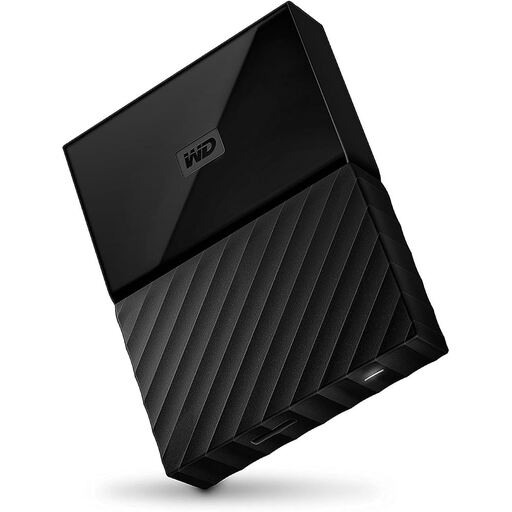
Western Digital My Passport 4TB Black
A portable 4-TB HDD for a collection you want to back up or store in different places.
Product details list USB 3.0, USB power and 256-bit AES hardware encryption with password protection. They also specify a Windows format; reformatting may be needed for other operating systems.
View at Joybuy
 No image available
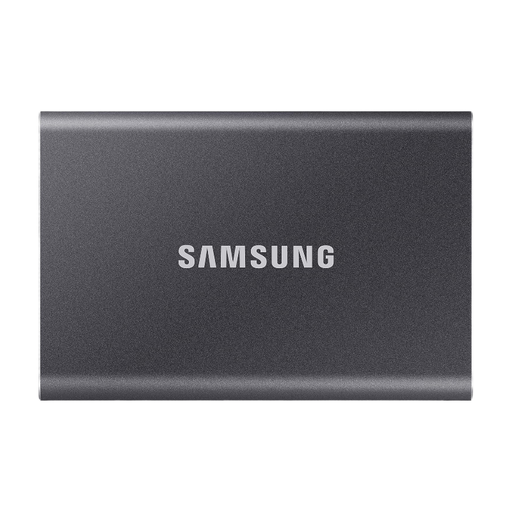
Samsung Portable SSD T7 4TB USB Type-C
A portable SSD for frequent transfers or if you regularly take your drive with you.
Product details list USB 3.2 Gen 2, 4 TB and 256-bit AES hardware encryption with password protection. Sequential maximum speeds of up to 1.050/1.000 MB/s require compatible host and cable technology, and are not a guarantee of the speed of every backup.
View at Joybuy
 No image available
WD Elements Portable 2TB USB-C
A compact portable HDD if 2 TB is enough for your collection and planned backups.
Product details list USB-C, USB 3.2 Gen 1 and exFAT. Compare the capacity with your whole collection and the space you want for further backup versions.
View at Joybuy
Frequently asked questions
How do I set up a drive for backups?
In Windows, you can select an external drive as your backup destination when setting up File History. On a Mac, Time Machine can use an external USB drive. Before agreeing to erase or reformat a drive, check whether it already contains files you need.
How large should a drive be for Time Machine?
Apple ideally recommends a backup volume with at least twice the storage capacity of your Mac. According to Apple, backups can continue on a smaller volume until more space is needed. If your collection is growing, also keep an eye on how long older versions are retained.
What should I know about warranties and statutory rights?
For consumer purchases of goods in Germany, the standard limitation period for claims relating to defects in movable goods is two years from delivery. This is separate from any voluntary manufacturer’s warranty. Check the specific terms before relying on additional services as a substitute for a backup.
Should I erase family data before passing on or disposing of an old drive?
The Federal Office for Information Security recommends securely erasing personal data before selling, repairing, lending or disposing of a storage device. This is a security recommendation; it does not establish a general legal obligation to erase data from private family drives.


