For a large family archive where copying time is less important, an HDD may be the better choice. For frequent large file transfers and use on the move, an SSD is likely to be more suitable. The key considerations are how much space you need for backups, whether the connection and cable are suitable, and which operating system you use. Samsung’s quoted peak speeds for the T7 Shield depend on a compatible host, a suitable cable and UASP being enabled. A single drive shouldn’t be your only backup: keep another copy separately and test that you can restore your files, as recommended by the Federal Office for Information Security (BSI).
Who should consider these options?
People backing up a family archive
If you regularly back up photos, videos and documents, you’ll need enough storage space and should check that you can restore your files. The Federal Office for Information Security (BSI) recommends considering how you’ll restore a backup.
People who transfer files frequently
If you often copy large folders, consider the drive, your computer’s port and the cable together. Samsung notes that the maximum speeds quoted for the T7 Shield require a suitable host and cable, as well as UASP being enabled.
Mac and Windows households
If your household uses different operating systems, check which backup software you’ll use and whether formatting the drive will erase existing files before you set it up. Apple and Microsoft outline different ways to use Time Machine and File History.
What should you look for when buying?
The main things to consider are whether you can restore your files, how often you transfer them, the size of your archive and how the drive will work with your computer.
Portable external HDD
A good fit if: you’re mainly backing up a large family archive and copying time isn’t a priority.
Things to consider: an HDD is less suited to frequent large file transfers than an SSD; a single drive can also fail.
External SSD
A good fit if: you need to transfer files frequently and take the drive with you, and your computer and cable are compatible with the specific model.
Things to consider: a manufacturer’s peak speeds don’t guarantee the transfer rate you’ll get with your family computer.
Desktop external HDD
A good fit if: you need to store a very large amount of data in one place.
Things to consider: it’s less convenient to take with you and needs a power supply to connect.
| What you need |
What to check before buying |
Who will find this especially important? |
| Backups you can restore |
Allow space for backup versions and test restoring individual files after setting up the drive. |
If I’m backing up photos and documents, I want to be able to restore individual files and keep another copy separately. Around 36% of consumers put backup recoverability first. |
| Speed for frequent transfers |
Check the USB capabilities of your computer, cable and drive together; don’t treat advertised maximum speeds as guaranteed copying speeds. |
If I often copy large folders, short wait times and a suitable connection matter to me. Around 29% of consumers prioritise shorter transfer times. |
| Space for family archives |
Consider how much data you have and how many backup versions you want to keep. Apple recommends at least twice the storage capacity of your Mac for Time Machine. |
I need enough storage for photos, videos and several backup versions. Around 21% of consumers prioritise archive capacity. |
| Setting up your computer |
Check your operating system and backup software; back up existing files elsewhere before formatting the drive. |
If my household has both Mac and Windows devices, I want to set up the drive correctly without losing saved files. Around 14% of consumers prioritise a straightforward setup that suits their needs. |
Common misconceptions
-
Expecting peak SSD speeds from every USB-C connection
Samsung lists specific requirements for the T7 Shield’s advertised maximum speeds: the host and cable must be suitable, and UASP must be enabled. So the product specifications don’t guarantee the same copying speed on every computer.
Before buying, check your computer’s ports and cables, as well as the requirements for the specific drive.
-
Assuming one external drive offers complete protection
A single storage device can fail, and you can’t assume that restoring a backup will be straightforward. The Federal Office for Information Security (BSI) recommends planning for recoverability.
Back up regularly, test that you can restore your files and keep another copy separately.
-
Reformatting a Windows-formatted HDD for Time Machine without checking first
Toshiba says Canvio Basics drives come formatted as NTFS for Windows and need to be reformatted for the macOS versions listed. Apple points out that reformatting a Windows volume erases its data.
Check what’s on the drive and back up any existing files elsewhere before agreeing to format it.
Brands to consider
Toshiba
The Canvio Basics range includes portable HDDs for backups and file storage. For the EMEA model reviewed, Toshiba lists capacities of up to 4 TB.
- Toshiba says the drive is powered via USB and comes preformatted as NTFS for Windows.
- Toshiba says the drive needs to be reformatted for the macOS versions listed. The USB interface speed isn’t the same as the HDD’s measured write speed.
Samsung
The portable T7 Shield SSD range is designed for frequent transfers and taking on the go. The quoted specifications refer to the 1-TB version.
- Samsung quotes read speeds of up to 1.050 MB/s and write speeds of up to 1.000 MB/s, provided the host, cable and UASP meet the stated requirements.
- The stated IP65 protection rating is based on controlled tests. Samsung says liquid and dust damage isn’t covered by the warranty.
Seagate
The Expansion Desktop range is designed for storing larger amounts of data in one place.
- Seagate lists models with capacities of up to 28 TB in the range.
- This capacity applies to the range, not every individual model. Seagate says you’ll need a power supply and USB cable to connect the drive.
Intenso
The external TX500 SSD range includes 500 GB, 1 TB and 2 TB models.
- The manufacturer’s German-language data sheet lists a maximum data transfer rate of up to 1.000 MB/s, as well as a USB-C cable and a USB-C-to-USB-A cable.
- This maximum is a manufacturer’s figure, not a measured speed for your particular family computer.
Joybuy products for frequent file transfers
The following Joybuy products are portable external SSDs for frequent file transfers. The right capacity and connection for you depend on your backup needs and the ports on your family computer.
 No image available
KEXIN external SSD, 256 GB, USB 3.1 Type-C
A portable SSD for frequent file transfers; the product name quotes speeds of up to 500 MB/s.
256 GB; USB 3.1 Type-C. The product name lists PCs, Macs and Android devices as compatible.
View at Joybuy
No image available
KEXIN external SSD, 512 GB, USB 3.1 Type-C
A portable SSD for frequent file transfers; the product name quotes speeds of up to 500 MB/s.
512 GB; USB 3.1 Type-C. The product name lists PCs, Macs and Android devices as compatible.
View at Joybuy
 No image available
MOVESPEED Portable SSD 1 TB, YSPSRX20M-1TTG
A portable SSD for frequent file transfers; the product name quotes speeds of up to 2.060 MB/s.
1 TB; USB 3.2. According to the product specifications, the interface and cable must be suitable to achieve the quoted maximum speeds.
View at Joybuy
 No image available
Samsung Portable SSD T7, 2 TB, Titanium Grey
An external SSD for frequent file transfers and backups, with a capacity of 2 TB.
USB Type-C; USB 3.2 Gen 2.
View at Joybuy
 No image available
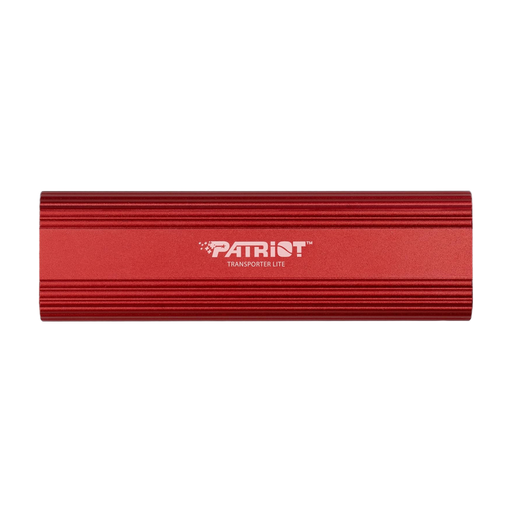
Patriot Transporter Lite, 1 TB, USB 3.2 Gen 2
A portable 1 TB SSD for storing and transferring family files.
USB-C; USB 3.2 Gen 2. The product name quotes transfer speeds of up to 1.000 MB/s.
View at Joybuy
Frequently asked questions
Is it enough to move family photos to an external drive?
No. If you don’t keep another copy on your computer or somewhere else, moving the files on its own doesn’t create an additional backup. Back up regularly, test that you can restore your files and keep another copy separately.
How do I set up the drive for Windows or Time Machine?
On Windows, File History can back up personal files and previous versions to an external drive or a network location, as Microsoft Support explains. For Time Machine, Apple recommends a backup volume with enough storage. A Windows-formatted volume can’t be used for this without changing its format. Back up any existing files before reformatting the drive.
How much storage should a Time Machine drive have?
Apple recommends using a storage device with at least twice the capacity of your Mac for Time Machine. For example, for a Mac with 1 TB of storage, Apple recommends 2 TB of backup storage. This advice applies to Time Machine and isn’t a general minimum for all family backups.
What happens if a drive develops a fault: is it covered by the manufacturer’s warranty or your statutory rights?
In Germany, consumers can generally make a claim under their statutory rights against the seller within two years of receiving a newly purchased product, as explained by the consumer advice centre. A manufacturer’s warranty is separate and is subject to its own terms and conditions.
Can an old external hard drive go in household rubbish?
No. The German Environment Agency says that waste electrical and electronic equipment must be collected separately. You can, for example, take it to a recycling centre. Securely erase your personal data before passing on or disposing of the drive, as recommended by the Federal Office for Information Security (BSI).


