Collectors of large semester archives
You want to store lots of recordings and related project folders for the long term, and plan for the storage space you’ll need now and as your archive grows.


For a large archive of lectures and projects that you’ll mostly store rather than edit, an external HDD is a sensible starting point. If you transfer files frequently or work directly from the drive, an SSD may be a better fit. Your key considerations are your current storage needs and expected growth, the USB capabilities of your computer and cable, and keeping a second backup in a separate location. The German Federal Office for Information Security recommends keeping backups separate from your computer; a single drive is not a substitute for a backup.
You want to store lots of recordings and related project folders for the long term, and plan for the storage space you’ll need now and as your archive grows.
You often move large files or work on them in different locations. Pay particular attention to the connections and transfer modes your devices actually support.
You want to be able to retrieve files after a device failure or store personal information. The German Federal Office for Information Security recommends keeping backups separate; encryption is also worth considering for confidential files.
A good fit if: Your recordings and project folders need plenty of space, and you’ll mostly store the files rather than edit them regularly.
The trade-off: USB interface specifications don’t tell you how quickly your particular files will copy.
A good fit if: You regularly move large recordings between devices or work on project files directly from the drive.
The trade-off: Advertised maximum speeds depend on having compatible devices, connections and cables.
| Buying consideration | What to look for | Who it matters most to |
|---|---|---|
| Space for a growing archive | Check how much storage your folders currently use, allow for expected growth and find out how much space will be available after formatting. | If I want to build up an archive of recordings and project folders over the long term, I need enough space for what I have now and what I’ll add later. This applies to around 28% of consumers whose top priority is having enough archive storage. |
| Copy times and large files | Compare the USB mode supported by your computer and drive, as well as the capabilities of the cable you’ll use. | If I regularly move large files or edit them directly from the drive, I want to know whether my devices support the stated speeds. Around 22% of consumers say transfers and ongoing project work are their main concerns. |
| Use across multiple devices | Check the operating systems, connections and file system. Apple lists exFAT as a formatting option for Mac and Windows; Microsoft states that FAT32 has a maximum individual file size of 4 GiB. | If I want to open and edit the same large files on different computers, the file system and connections need to be compatible. Around 17% of consumers say switching between devices is their main concern. |
| Recoverability | Plan to keep another copy in a separate location and check that you can open files from it. The German Federal Office for Information Security recommends keeping backup media separate from your computer. | If I want to keep my recordings safe after a fault or loss, I won’t rely on a single archive drive. Around 22% of consumers say recoverability is their top priority. |
| Confidential recordings | Check whether you can set up encryption on your devices and store the key securely. Also find out what rules apply to recording and sharing. | If my recordings contain personal or restricted-access content, I want to prevent unauthorised access and follow the relevant event rules. Around 11% of consumers say confidentiality is their top priority. |
Even a high-capacity drive can fail, or be damaged along with your computer if they’re kept in the same place. Your recordings could then be lost.
Keep at least one additional copy in a separate location and check that you can restore files from it. The German Federal Office for Information Security recommends storing it somewhere other than where you keep your computer.
Manufacturers’ maximum speed claims apply only under the stated conditions for the host device, USB mode and cable.
Check your computer’s USB capabilities and the cable you’ll use before choosing an SSD based on its advertised top speed.
Formatting a drive or volume deletes the files stored on it.
First, back up your files somewhere else, then check which file system your devices require. Apple warns that formatting results in data loss.
A protective casing can’t prevent every kind of damage, stop the drive from being lost or prevent access to unencrypted content.
Think of casing protection, separate backup copies and encryption as different safeguards. The German Federal Office for Information Security describes encryption as a way to protect data on lost or stolen mobile devices.
The My Passport range includes documented portable HDDs, including a black 5-TB model.
Expansion Portable is a portable HDD range; the manufacturer’s data sheet lists STKM5000400 as a black 5-TB model.
The T7 Shield is an external SSD range designed for frequent transfers and portability; Samsung lists MU-PE4T0S/EU as a black 4-TB model.
The X9 Pro is an external SSD range for working with files and projects on the move; Crucial describes capacities of up to 4 TB.
The XS2000 is a compact SSD range for frequent transfers; the manufacturer’s data sheet identifies SXS2000/4000G as the 4-TB model.
This selection includes external HDDs for archiving, from portable models to desktop drives.
 No image available
For a portable archive, if your existing folders and expected growth will fit within 5 TB.
5 TB; USB-C.
No image available
For a portable archive, if your folders’ storage requirements fit within the stated capacity.
6 TB; USB-C; USB 3.2 Gen 1.
No image available
For an archive you want to take between work locations, if your folders and expected growth will fit within 4 TB.
4 TB; USB-C; USB 3.2 Gen 1.
 No image available
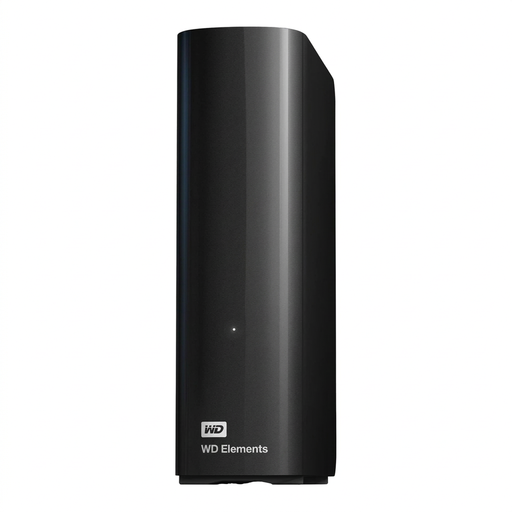
For a large archive that will mostly stay in one place, if your folders fit within 14 TB.
14 TB; USB 3.0; NTFS; 3.5 inches. The included power supply is required for operation. The product description says reformatting is required for use with macOS.
 No image available
For large files that will mostly stay in one place, if your folders and expected growth fit within 8 TB.
8 TB; USB 3.0; NTFS; 3.5 inches. The included power supply is required for operation. The product description says reformatting is required for use with macOS.
Start by checking how much storage your existing recordings and project folders use, then allow for future growth and a separate backup. Documented 4-TB and 5-TB models provide useful points of comparison, but there’s no universally suitable minimum capacity. You won’t have the full stated capacity available for files after formatting.
Apple lists exFAT as a formatting option for a drive used with both Mac and Windows. Microsoft states that FAT32 has a maximum individual file size of 4 GiB, while exFAT supports a much higher limit. Before formatting, check what your devices require and back up any existing data, as formatting will delete it.
No, not if you want to keep your files safe if the drive is lost or damaged. The German Federal Office for Information Security recommends keeping an additional backup in a separate location. Check from time to time that you can open files from it.
Buying a drive doesn’t answer this question. Check that you have permission to record the specific class, and find out what rules your university has on access rights and sharing. The University of Hamburg’s guidance distinguishes between making recordings publicly available and sharing them with a specific group of users.
For consumer purchases in the EU, you have at least two years of statutory rights against the seller for faulty goods, starting from the date you receive them. An additional manufacturer’s warranty may offer further cover, but it doesn’t replace these rights. Check the specific warranty terms for the model you’re considering.