What should you look for when buying?
For large photo project folders stored locally, the right type of drive depends mainly on whether storage capacity, frequent transfers, portability or a recoverable backup is your priority.
Desktop HDD
A good fit if: you mainly back up a large, growing photo archive at a fixed workstation and prioritise capacity.
Keep in mind: factor in the casing, power supply requirements and space on your desk.
Portable SSD
A good fit if: you want to transfer project folders frequently or take them with you between work locations.
Keep in mind: manufacturers’ peak speeds require compatible devices and cables. Check the capacity you need before prioritising speed.
Portable HDD
A good fit if: you want to use an HDD with multiple compatible devices and the included connections matter to you.
Keep in mind: whether a device supports external USB storage depends on the device. Also compare the capacity with the size of your project folders.
| Priority |
What to check before buying |
Who it matters to most |
| Room for growing folders |
Check how much storage your folders currently use and allow for growth and additional backup copies; check the capacity of the specific model. |
If my archive is growing, I want enough space for my existing files and additional backup copies without having to rethink my storage needs all the time. Around 33% of consumers put sufficient capacity first. |
| Transfer time for large projects |
Check that the USB standards supported by your computer and drive match, and make sure you have the right cable. Don’t assume manufacturers’ peak speeds reflect the speed of your own file transfers. |
If I regularly back up or restore large project folders, I want to factor transfer time into my workflow. Around 27% of consumers prioritise transfer speed for this reason. |
| Portability and device compatibility |
Check for USB-A or USB-C connections, included cables, operating system compatibility and whether you may need to reformat the drive. |
If I use my project folders in different places or on different devices, I want to be able to connect the drive and open my files. Around 20% of consumers prioritise portability and compatibility. |
| Recoverability and protection |
Decide how often to back up, how you’ll check that files can be restored and where you’ll keep another copy separately. For sensitive images, also plan how to manage encryption and access to the key. |
If I want my photos to be protected against loss or unauthorised access and remain recoverable, I want to plan my backup beyond a single drive. Around 20% of consumers prioritise backup protection. |
Joybuy products for photo backups
These Joybuy drives include portable WD Elements HDDs for local photo backups and desktop HDDs for archives kept at a fixed workstation.
 No image available
WD Elements Portable 5TB USB-C
For local photo backups when you need a portable drive to take with you.
5 TB; 2.5-inch form factor and USB-C according to the product description. A single drive is not a substitute for another separate backup.
View at Joybuy
No image available
WD Elements Portable 4TB USB-C
For keeping photos and project files on the move when you’re looking for a portable HDD.
4 TB; 2.5-inch form factor and USB-C according to the product description. Plan to keep another backup separately.
View at Joybuy
 No image available
WD Elements Portable 2 TB, USB-C, USB 3.2 Gen 1, 2.5-inch, exFAT, Black
For portable photo storage, if the stated capacity suits the amount of data you have and the backup copies you want to keep.
2 TB; USB-C, USB 3.2 Gen 1, 2.5-inch and exFAT according to the product name. Keep the original and check that you can restore important files.
View at Joybuy
 No image available
WD Elements Desktop 8 TB, USB 3.0, 3.5-inch, Black
For a photo archive kept at a fixed workstation, if you’re looking for a desktop HDD with the stated capacity.
8 TB; 3.5-inch form factor, USB 3.0 and external power supply according to the product description. The description says reformatting is required for macOS; back up any existing data first.
View at Joybuy
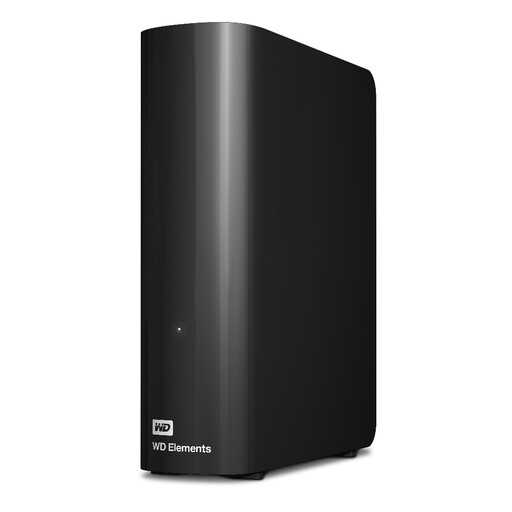 No image available
WD Elements Desktop 20 TB
For large photo and file collections at a fixed workstation, if the stated desktop capacity suits your backup plan.
20 TB, USB 3.2 Gen 1 and power supply according to the product description. A single drive is not a substitute for another separate backup.
View at Joybuy
Frequently asked questions
Is it enough to move my project folders to an external hard drive?
No. If this removes your only original copy, you haven’t created an additional backup. Keep the original and make a separate copy. To protect against damage at the place where you keep your files, the BSI recommends storing another copy elsewhere.
What should I check when setting up and using the drive?
Check the connection and file system on the computer you plan to use, and test that you can restore important files. Western Digital says the WD Elements Desktop needs to be reformatted for use with macOS. Set a regular backup schedule; the BSI advises disconnecting the backup drive from the computer when you’re not backing up.
What should I know about faults and data recovery services?
For a consumer purchase in Germany, the statutory guarantee from the seller is distinct from a voluntary manufacturer’s warranty, as the Verbraucherzentrale explains. An advertised data recovery service is no substitute for a backup; check the terms for the specific model and region. New repair rules have applied since 31 July 2026. However, this does not mean you automatically have a right to have an external hard drive repaired by its manufacturer.
Should I encrypt photos stored on a drive?
If an organisation processes personal data, it must take appropriate technical and organisational measures in line with the risk. The German Federal Commissioner for Data Protection and Freedom of Information particularly highlights encryption for portable storage media that could be lost or stolen.
How should I dispose of an old backup drive in Germany?
Dispose of electrical waste separately, for example at a recycling centre or an appropriate take-back point; the German Environment Agency advises against putting it in household waste. Only delete personal data once you’ve checked that your migration was successful. If a drive is faulty, check whether the data can be securely erased or whether the storage device can be destroyed in a way that protects your data.


