If you want to restore previous versions of your manuscript, setting up version history is more important than choosing between an HDD and an SSD: the drive alone won’t automatically save earlier versions of your files. An HDD is generally better suited to backups that stay in one place and need plenty of storage, while an SSD is more suitable if you transport it frequently. Also check your operating system, connection and formatting, and keep at least one backup separate from your work device. Microsoft Support, Apple Support and the German Federal Office for Information Security describe different backup methods and security measures.
Which backup is right for you?
Writers with lots of versions
If you often edit your manuscript files, setting up version history makes it easier to restore a specific earlier version. Microsoft Support describes this feature for Windows File History; on a Mac, Time Machine can restore previous versions of files.
Writers with a large project archive
If you’re backing up research, images or other project files as well as your text, consider the total amount of data and how often you plan to back it up. Apple’s recommendation of at least twice the Mac’s storage capacity applies to a Time Machine backup of the entire Mac, not necessarily to individual manuscript files.
Writers working in different places
If you often take your backup with you, the right connection and a model designed for transport matter. The German Federal Office for Information Security recommends keeping backups in a different location from your work device; access protection may also be important for confidential documents.
What should you look for when buying?
External HDD
A good choice if: you mainly back up at your desk and need plenty of space for project folders.
The trade-off: Seagate says HDDs generally cost less per unit of storage; traditional HDDs are also more susceptible to impact than SSDs, according to Seagate.
External SSD
A good choice if: you often take the drive with you or regularly copy large project folders.
The trade-off: Seagate says HDDs generally offer better value for storage capacity; a high advertised transfer rate alone won’t give you version history.
| What you need |
What to check when buying |
Who it matters most to |
| Previous versions |
Check whether your backup software saves file versions and includes your manuscript folder. Microsoft Support explains how to restore files using Windows File History. |
If you want to retrieve a specific overwritten or deleted version of your text, version history is essential; around 31 % of consumers prioritise being able to find older versions. |
| Separate backup |
Plan to keep a regularly updated copy that you can disconnect from your work device and store separately. The German Federal Office for Information Security recommends keeping backups in a different location. |
A separate copy is especially important if you want to keep your manuscript and project files after a device failure or malware infection; around 25 % of consumers put this protection first. |
| Storage and connection |
Work out whether you’re backing up project files only or an entire computer. Apple’s recommendation of at least twice the Mac’s storage capacity applies to a full Time Machine backup; also check the connection and file system. |
If you’re also backing up extensive research or images, make sure the storage space and connection are right for your computer; around 19 % of consumers prioritise storage and compatibility. |
| Frequent transport |
Compare the protection ratings for the specific model and make sure you have the right cables. Samsung quotes an IP65 rating for the T7 Shield under controlled test conditions; this rating does not automatically apply to the standard T7. |
If your backup regularly travels between work locations, portability and model-specific protection ratings matter more; around 13 % of consumers prioritise portability. |
| Confidential files |
Check whether your backup method supports encryption and how to keep your recovery password safe. Apple offers an encryption option for Time Machine; you’ll need the password to restore your files. |
If your manuscript includes personal notes or unpublished documents, consider access protection in case the drive is lost; around 12 % of consumers prioritise confidentiality. |
Common mistakes when choosing
-
Treating a second file on the same connected drive as an independent backup
A copy on your work device or a permanently connected drive may still be exposed to the same risks of damage or unauthorised access.
Plan to keep a regularly updated copy that you can disconnect from your work device and store separately. Test whether you can restore a file from it.
-
Assuming more advertised MB/s means better version protection
A drive’s transfer rate is no substitute for a backup feature that saves previous versions of files. For small text files, a high quoted transfer rate alone doesn’t prove that you’ll be able to find an earlier version.
Check the version history feature first and test a file restore. Then compare transfer speeds based on the data you actually need to back up and the connections available.
-
Connecting an HDD formatted for Windows to a Mac without checking it first
Toshiba lists NTFS as the file system for Canvio Basics and notes that reformatting is required for the macOS versions specified. When setting up Time Machine, the selected destination volume may be erased.
Check the file system before setting up the drive, and back up any existing data to another storage device.
Reformatting takes time and may erase existing data on the destination volume.
Key brands at a glance
Toshiba
Canvio Basics is a range of portable HDDs for straightforward external backups, including on Windows computers.
- For the 2 TB version, Toshiba lists model HDTB520EK3AA, with USB power and USB 3.2 Gen 1.
- The drives are formatted as NTFS from the factory; reformatting is required for the macOS versions specified by Toshiba. No built-in version history is promised.
Western Digital
WD Elements Portable is an HDD option for external backups if storage capacity and a simple USB connection are important to you.
- The German manufacturer’s website lists model WDBU6Y0020BBK-WESN with 2 TB and specifies USB 3.2 Gen 1 or USB 3.0.
- The specifications for this model don’t indicate built-in version history, nor do they support general claims about the reliability of every drive from the brand.
Samsung
The portable SSD T7 is a compact SSD range; the T7 Shield is a separate range with its own protection ratings.
- Samsung specifies USB 3.2 Gen 2 and speeds of up to 1,050 MB/s for the T7. For the T7 Shield, the manufacturer quotes an IP65 rating under controlled test conditions.
- The Shield’s protection rating does not automatically apply to the standard T7. Samsung also notes that liquid and dust damage are not covered by the Shield’s warranty.
Seagate
The Portable Drive range includes external HDDs for straightforward file storage and backups.
- Seagate offers 1 TB, 2 TB, 4 TB and 5 TB versions, with USB 3.0 and drag-and-drop copying without extra software.
- Manual copying alone doesn’t create a searchable version history; you’ll need a suitable backup method for that.
SK hynix
The Beetle X31 is a range of portable SSDs; the manufacturer’s product finder lists a 1 TB version for Germany.
- SK hynix specifies USB 3.2 Gen 2 and sequential read speeds of up to 1,050 MB/s for the X31.
- These manufacturer specifications for the X31 are not measurements for a specific manuscript backup and cannot be applied to other models.
Joybuy products for manuscript backups
The external HDDs and SSDs below provide storage for manuscript and project files. To keep earlier versions, you’ll also need to set up a suitable version backup method.
 No image available
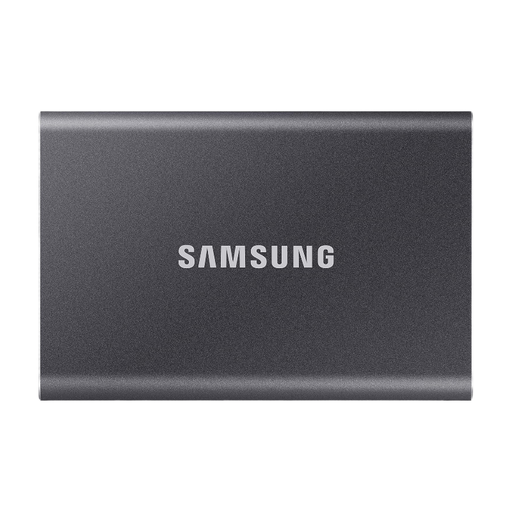
Samsung Portable SSD T7 4TB USB Type-C 3.2 Gen 2, Titanium Grey
A good choice if you want an external SSD for regular backups of large project folders; you’ll need to set up a separate method to keep earlier file versions.
4 TB storage; USB-C-to-C and USB-C-to-A cables; optional AES-256 hardware encryption; quoted drop protection of up to 2 m.
View at Joybuy
 No image available
WD Elements Portable 5TB USB-C
A good choice if you want a portable HDD for manuscript and project files; the drive alone won’t restore earlier versions of your files.
5 TB storage; USB-C; drag-and-drop copying. The product description recommends protecting the drive from impacts.
View at Joybuy
 No image available
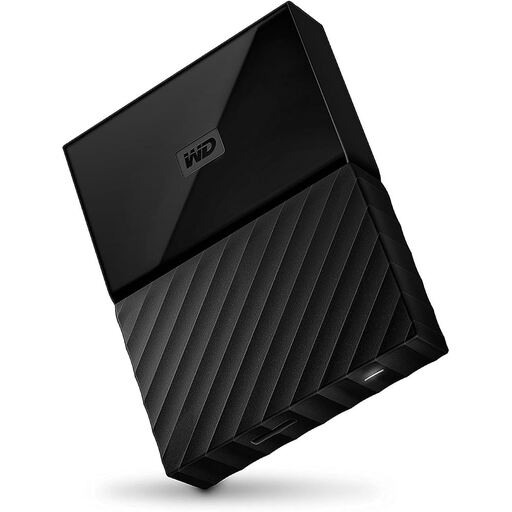
Western Digital My Passport 4TB Black
A good choice if you want a portable HDD with access protection for your files; restoring an earlier manuscript version also requires a version backup method.
4 TB storage; USB 3.0; AES-256 hardware encryption. The product description advises avoiding impacts and shaking.
View at Joybuy
 No image available
Samsung Portable SSD T7 2TB USB Type-C 3.2 Gen 2, Titanium Grey
A good choice if you want an external SSD for manuscript and project files and 2 TB is enough for your backup needs; you’ll need a separate method to keep earlier versions.
2 TB storage; USB-C; hardware encryption; quoted drop protection of up to 2 m.
View at Joybuy
 No image available
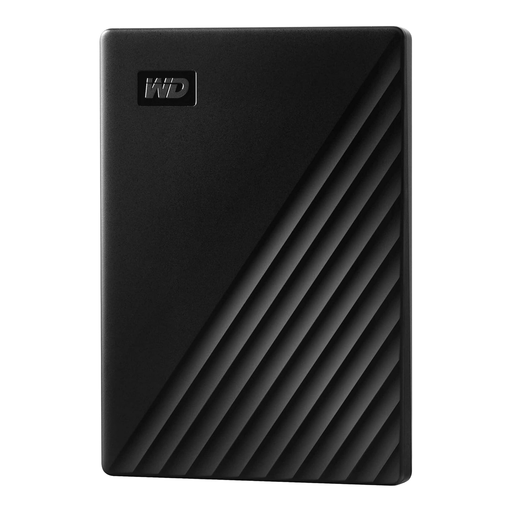
WD My Passport External Hard Drive 2 TB
A good choice if you want a portable HDD with scheduled backups and password protection; automatic backup scheduling isn’t the same as a searchable version history.
2 TB storage; USB 3.0; password protection and AES-256 hardware encryption, according to the product description. It also recommends handling the drive with care and avoiding impacts.
View at Joybuy
Frequently asked questions
Can I recover an overwritten manuscript version using only an external hard drive?
No. You’ll need a backup method that saves file versions. Microsoft Support explains how to restore earlier files using Windows File History; on a Mac, Time Machine can restore previous versions of files. After setting it up, test that you can restore a file.
What should I bear in mind when setting it up on Windows or Mac?
Check the connection, cable and file system before copying files to the drive. Toshiba says Canvio Basics drives are formatted as NTFS and notes that reformatting is required for the macOS versions specified. Time Machine may erase the selected destination volume during setup, so back up any files stored there somewhere else first.
How often should I back up my manuscript?
Set your backup schedule according to how much work you could afford to lose. The German Federal Office for Information Security recommends making regular backups and storing them separately. If your drive is only connected occasionally, make sure the schedule you choose is realistic and easy to keep to.
Does a manuscript backed up for personal use need to be stored on an encrypted drive?
The guidance relevant here doesn’t establish a blanket encryption requirement for every manuscript used privately. The German Federal Office for Information Security describes encryption as a sensible way to protect personal information. If you process personal data for purposes that aren’t exclusively personal, additional data protection requirements may apply, depending on the circumstances.


