Choose your external SSD’s capacity based on your project folders and the versions you want to keep. Its connection, cable and file system also need to be compatible with the computers you use. The German Federal Office for Information Security recommends backing up your data regularly. So an SSD is no substitute for clear version control or a separately stored backup. If you often use it outdoors, protection for the casing may matter more than the highest advertised data rate.
Which SSD is right for you?
Planners with lots of draft versions
If you keep several versions of your plans, clear file names or a suitable versioning feature can help you find them again. As well as allowing for enough storage, plan to keep a separate backup. The German Federal Office for Information Security recommends backing up your data regularly.
People who switch between laptops and desktops
If you open project files on several computers, check that the connections, cables and file system are compatible with your devices before you buy. This helps you confirm that you can read and edit files on all the devices you plan to use.
Planners working at the allotment
If you often take your SSD outdoors, dust and water splashes may be worth considering when choosing a model. Protection for the casing and an additional file copy stored separately serve different purposes.
What should you look for when buying?
| Priority |
What to check when buying |
Who it matters to most |
| Versions and backups |
Check that the capacity and backup process suit your project folders; test whether you can restore an older version. |
If I want to refer back to earlier versions of my plans, I need a clear filing system and a separate backup. Around 36% of consumers prioritise finding and protecting multiple versions of a project. |
| Room for growing project folders |
Compare the size of your folders, including the versions you want to keep, with the model’s usable capacity. |
If drawings, photos and extra versions make my archive grow, I want to know how much space I actually need before choosing a capacity. Around 29% of consumers put space for a growing archive first. |
| Connecting to multiple devices |
Check that the connections and cables are compatible, and that all the devices you plan to use can read and write to the file system. |
If I switch between different computers, I want to be able to open and edit my files on each one. Around 21% of consumers prioritise using their SSD with multiple devices. |
| Protection in transit |
Check the protection rating for the exact model, the conditions it applies to and any possible warranty exclusions. |
If I regularly take my SSD to the allotment, I look for details of its protection against dust and water splashes, and keep another copy of important files somewhere else. Around 14% of consumers say frequent outdoor use is their main concern. |
Common buying and backup mistakes
-
Assuming an SSD with lots of folders counts as a complete backup
If all your versions are stored on just one drive, they could all become inaccessible if it is lost or damaged. The German Federal Office for Information Security recommends regular backups and keeping external backup media in a separate location.
Keep another copy separate from your working file, and test that you can restore it.
-
Choosing the highest MB/s rating without checking your computer and cable
High manufacturer specifications depend on a suitable USB connection and compatible devices. A USB-C connector alone doesn’t tell you what transfer rate you can achieve.
Before choosing a model, check the connection specifications for all your devices and the cables supplied.
-
Confusing an IP rating with protection against data loss
A protection rating applies to the specific model and the conditions stated. Samsung notes that liquid and dust damage to the T7 Shield is not covered by the warranty.
Read the conditions for the specific model and keep important files somewhere else as well, regardless of the casing’s protection.
-
Overlooking a model-specific notice about the SanDisk Extreme Pro Portable SSD V2
In 2023, SanDisk reported possible unexpected disconnections with affected devices in this model family. The notice does not apply to all SanDisk SSDs.
Before using one for important drafts, check the exact model and serial number against the manufacturer’s information.
Notable brands and product ranges
Kingston
The XS1000 is worth considering for compact project folders, while the XS2000 is an option for larger transfers and more frequent travel.
- Kingston lists 1 TB or 2 TB capacities and speeds of up to 1,050 MB/s for the XS1000. For the XS2000, Kingston lists speeds of up to 2,000 MB/s with a compatible connection, as well as a removable rubber sleeve and IP55.
- Transfer speeds are manufacturer specifications. To reach the advertised speed of the XS2000, your connection must support USB 3.2 Gen 2x2.
Samsung
The T7 Shield may suit frequent travel, while the T9 is aimed at users with a compatible USB 3.2 Gen 2x2 connection.
- Samsung lists IP65 for the T7 Shield under controlled conditions and speeds of up to 2,000 MB/s for the T9 over USB 3.2 Gen 2x2.
- Samsung excludes liquid and dust damage to the T7 Shield from the warranty. The T9’s specifications depend on using a compatible connection.
Crucial
The X9 and X9 Pro are portable SSD ranges for storing files; specifications for the X9 Pro do not automatically apply to the X9.
- Crucial lists IP55 and speeds of up to 1,050 MB/s for the X9 Pro under the stated test conditions. On Windows, the Crucial utility for the X9 Pro includes a password lock feature.
- According to Crucial, the X9 Pro is not designed to be submerged. The protection and feature specifications refer to this model.
ASUS
The TUF Gaming AS1000 is another option if protection during travel matters to you.
- ASUS lists IP68 and drop testing to MIL-STD-810H for the AS1000.
- These manufacturer specifications do not guarantee fail-safe storage. The AS1000 is not the same product as the differently named AS1000 Plus.
SanDisk
For the Extreme Pro Portable SSD V2, it’s particularly important to check the exact model and serial number before using it for important files.
- In 2023, SanDisk published a notice about possible unexpected disconnections with affected devices in the Extreme Pro Portable SSD V2 range. The manufacturer says you can use the serial number to check your device.
- The notice does not apply to all SanDisk SSDs.
External SSDs for project files
This selection includes external SSDs for storing project files and versions. None of the SSDs listed automatically creates earlier versions.
 No image available
Samsung T7 Portable SSD, 2 TB, Indigo Blue
External storage for project folders and multiple saved versions; you’ll need to manage earlier versions separately.
The product description lists USB 3.2 Gen 2, hardware encryption, and USB-C and USB-A cables.
View at Joybuy
 No image available
KIOXIA Exceria Plus G2 Portable SSD, 2 TB
An option for project files if you’re looking for a portable 2 TB SSD with connections for different devices; versions are not created automatically.
The product description lists USB 3.2 Gen 2, USB-C-to-C and USB-C-to-A cables, and a password protection feature through SSD Utility.
View at Joybuy
 No image available
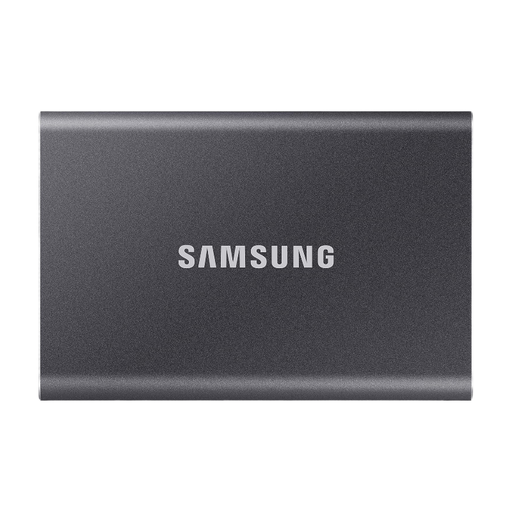
Samsung Portable SSD T7, 4 TB, Titanium Grey
The stated capacity gives you room for a substantial project archive; you’ll still need your own version control and backup process for older versions.
The product description lists USB 3.2 Gen 2, USB-C and USB-A cables, and AES-256 hardware encryption.
View at Joybuy
 No image available
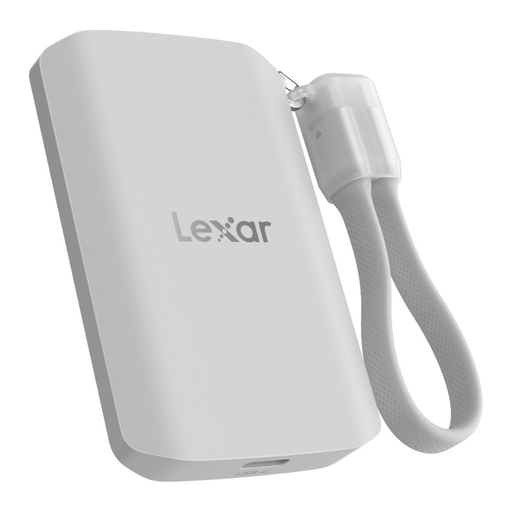
Lexar ES5 Portable SSD, 1 TB
The listed protection features may be useful if you often carry the SSD around; it won’t automatically create earlier versions of your projects.
The product description lists USB 3.2 Gen 2x2, IP65 and drop protection up to 3 m. According to the description, the drive must not be submerged or exposed to high-pressure water for extended periods. Performance may be lower without USB 3.2 Gen 2x2.
View at Joybuy
 No image available
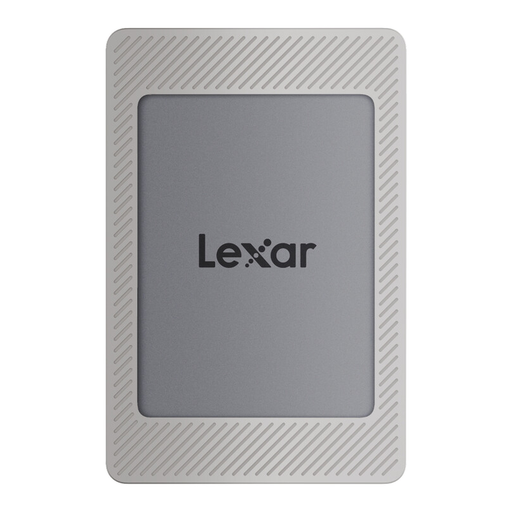
Lexar ES4 Portable SSD Magnetic Set, 2 TB
Portable storage for project folders and saved versions if you want to use the SSD with devices that have different connections.
The product description lists USB 3.2 Gen 2 and USB-C and USB-A cables. You’ll need to manage earlier project versions separately.
View at Joybuy
Frequently asked questions
Does an external SSD automatically save every earlier draft version?
No. Give your versions clear names or use a suitable versioning feature, and test that you can restore an older version. The German Federal Office for Information Security stresses the importance of regular backups and being able to restore your data.
How do I use the SSD with different computers?
Before formatting, check which file systems the devices you plan to use can read and write to, and test a file on each computer. Also check that the connections and cables are compatible; the highest manufacturer specifications depend on using a suitable connection.
Does the SSD need to stay connected after I’ve backed up my files?
No. Safely disconnect the drive once copying is complete, and store it somewhere secure and separate from your working file. The German Federal Office for Information Security recommends keeping external backup media in a separate location.


