Designers with growing project archives
If you keep large working files and completed projects locally, allow for future growth and an additional backup. The Federal Office for Information Security recommends backing up your data regularly.


Choose a capacity based on your existing project library, how much you expect it to grow and the space you need for a separate local backup. Then check what speeds your computer’s port and the cable you use can actually support. A portable SSD keeps your work files close at hand, but it shouldn’t be your only copy: the Federal Office for Information Security recommends backing up your data regularly.
If you keep large working files and completed projects locally, allow for future growth and an additional backup. The Federal Office for Information Security recommends backing up your data regularly.
If you regularly move large files, check that your computer’s port and cable support the SSD’s operating mode. Manufacturers’ peak speed claims only apply under the right conditions.
If you want to use design files on both Mac and Windows without the cloud, the file system, ports and intended use all need to work together. If you also want to use the same SSD for Time Machine, check the format first.
Start by identifying your main priority: storage space, recovery without the cloud, transfer speeds or access across multiple devices.
| Buying priority | What to look for | Who it matters most to |
|---|---|---|
| Space for project archives | Compare your current project library, how long you plan to keep files and the extra space needed for copies. Remember to factor in usable storage. | If I want to keep large, growing projects locally, I need some headroom rather than a capacity that only just covers what I have now. Around 36% of consumers prioritise storage space. |
| Recovery without the cloud | Plan for a separate backup drive, a different storage location and occasional recovery checks. | If I want my files to remain available after a drive failure or accidental deletion, a single working SSD isn’t enough as my only copy. Around 29% of consumers prioritise local protection against data loss. |
| Speed when transferring large files | Check the exact USB mode supported by your computer and cable. Manufacturers’ figures for sequential transfers aren’t a guarantee for every workflow. | If I transfer large files often, I care about speeds my computer’s actual port can make use of. Around 21% of consumers prioritise transfer speeds. |
| Use across multiple devices | Check operating systems, ports and the file system before formatting, and back up any existing files first. A shared working drive may serve a different purpose from a Time Machine volume. | If I need the same design files on several devices, the file system and connection need to suit my workflow. Around 14% of consumers prioritise device compatibility. |
If the drive fails, is lost or files are accidentally deleted, your only copy could be gone for good. The Federal Office for Information Security highlights the importance of having another copy that you can restore.
Plan for a second local copy and occasionally check that you can restore files from it.
Remember to factor in the cost of an additional backup drive and the time needed for regular backups.
Kingston says the advertised USB 3.2 Gen 2x2 speeds for the XS2000 depend on using a compatible host and cable. Kingston also notes that the XS2000 won’t reach Gen 2x2 speeds on a Mac.
Check the exact USB mode supported by the SSD, computer and cable. The connector shape alone doesn’t tell you enough.
Apple lists ExFAT as a formatting option for drives over 32 GB that you want to use with both Mac and Windows. For Time Machine, Apple recommends APFS or APFS (Encrypted); a volume formatted for Windows can’t be used for this. Formatting erases existing files.
Before formatting, decide whether the SSD will hold shared work files, a Time Machine backup or both, and back up any existing data first.
Depending on your workflow, you may need a separate volume or drive for Time Machine.
Samsung gives the T7 Shield an IP65 rating, but says that liquid and dust damage aren’t covered by the warranty. A protective casing is no substitute for an independent backup.
Check the terms for the specific variant and keep important files on a separate drive as well.
The T7 Shield is a portable USB 3.2 Gen 2 range designed for large files and frequent travel. The details here relate in particular to the German 2 TB variant MU-PE2T0S/EU.
The XS2000 is aimed at people working with large files who have a compatible USB 3.2 Gen 2x2 port.
The X9 Pro is a compact portable SSD range for photos and other large creative files.
The Ultra Compact SSD is a small drive that connects directly via USB-C. Seagate lists it in 1 TB and 2 TB capacities.
This selection features portable external SSDs for design and project files stored locally. Capacities and stated USB interfaces vary by model; an SSD on its own is no substitute for a separate backup.
 No image available
For project files stored locally, with a stated capacity of 1 TB.
USB 3.2 Gen 2; sequential peak speeds of up to 1.050 MB/s read and 1.000 MB/s write.
PC and Mac compatibility is listed, along with USB-C-to-C and USB-C-to-A cables. Transfer speeds also depend on the host and cable.
This SSD isn’t designed to be your only copy of files if you need to be able to restore them; plan for a separate backup.
 No image available
For large local files and project archives, with a stated capacity of 2 TB.
USB 3.2 Gen 2; sequential peak speeds of up to 1.050 MB/s read and 1.000 MB/s write.
Windows and macOS compatibility is listed, along with USB-C-to-C and USB-C-to-A cables. Transfer speeds also depend on the host and cable.
Plan for a separate backup if you need to be able to restore your files.
 No image available
For local project archives, with a stated capacity of 2 TB.
USB 3.2 Gen 2; sequential peak speeds of up to 1.050 MB/s read and 1.000 MB/s write.
Windows and macOS compatibility is listed, along with cables for USB-C and USB-A ports. Transfer speeds also depend on the host and cable.
Plan for a separate backup drive to keep a restorable copy.
 No image available
For files stored locally on a portable SSD with a stated capacity of 1 TB.
USB 3.2 Gen 2×2; stated peak speeds of up to 2.060 MB/s read and 1.800 MB/s write.
Windows, macOS and Android are listed as compatible systems. Check that your computer and cable support the stated USB mode.
A separate backup is still essential if you need to be able to restore your files.
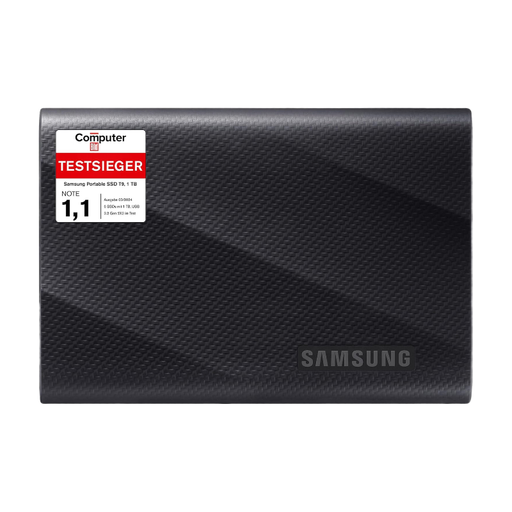 No image available
For files stored locally, with a stated capacity of 1 TB.
USB 3.2 Gen 2x2; stated sequential peak read and write speeds of up to 2.000 MB/s.
PC and Mac compatibility is listed, along with USB-C-to-C and USB-C-to-A cables. Check that the host and cable support the advertised mode.
Plan for a separate backup for important files.
Yes, as long as the devices and ports are compatible and you choose a file system that works with both. Apple lists ExFAT as an option for drives over 32 GB formatted accordingly. Back up any existing files first, as formatting will erase them.
A volume formatted for Windows can’t be used as a Time Machine volume. Apple recommends APFS or APFS (Encrypted) for Time Machine. Before setting it up, decide whether the SSD will hold shared work files or a Mac backup.
If you need a restorable second copy without using the cloud, plan for a separate backup drive and regular recovery checks. Check the warranty terms and data recovery services for the specific variant; a recovery service doesn’t replace your own backup.
The European Data Protection Board’s guidance doesn’t establish a general requirement to use a particular SSD model or hardware encryption. The GDPR requires controllers and processors to put appropriate technical and organisational measures in place, taking the risks into account. If you process personal data for work, you should therefore also consider how to protect an SSD while it’s being transported. This situation doesn’t automatically apply to files kept purely for personal use.