For regular family backups in a shared studio, your external SSD should have enough space for your existing data and the older versions you want to keep. Encryption and secure storage are important when other people can access the drive, and the connection and backup process need to work with your particular computer. The highest quoted transfer speed alone won’t tell you whether an SSD is suitable for this purpose.
Who is this guide for?
Families with a growing photo library
If you want to back up photos, videos and documents, consider how much data you already have and how much space you’ll need for older backups. The German Federal Office for Information Security explains how to plan data backups, while Apple offers its own guidance on capacity for Time Machine.
Families using a shared studio
If other people can access the studio or the drive, encryption and secure storage can help protect private backups from unauthorised access. The German Federal Office for Information Security covers how to protect encrypted data on portable storage devices.
Families short on time for backups
If you want to back up regularly and restore files when needed, you’ll need a suitable connection and a straightforward process. The German Federal Office for Information Security and Microsoft explain ways to back up and restore data in Windows.
What should you look for when buying?
| Consideration |
What to check |
Who it matters most to |
| Capacity and older versions |
Check how much storage is already in use and how much backup history you want to keep. For Time Machine, Apple recommends a drive with at least twice the storage capacity of your Mac, if possible. |
If I’m backing up a growing photo and video library, I need space for my existing files and older versions. Around 29% of consumers put capacity and version history first. |
| Privacy in a shared studio |
Check whether your backup method supports encryption and how you’ll keep the password and drive secure. |
In a shared studio, I want to stop other people from accessing my private backups. Around 29% of consumers put access protection first. |
| Connection and restoring files |
Check your operating system and USB port, inspect the cable and try restoring a file. Microsoft explains File History for Windows, while Apple covers Time Machine for Mac. |
If I don’t want to spend ages setting up backups each time, I need a suitable connection and a clear way to restore files. Around 24% of consumers prioritise backups they can use regularly. |
| Speed and ease of use |
Check whether you’ll be transferring large files often and whether your computer and cable support the stated interface. If you’ll be carrying the SSD around regularly, check the specifications of the exact model, too. |
Speed and ease of use can matter more if you transfer large files often or regularly take your SSD with you. Around 18% of consumers put these considerations first. |
Common buying mistakes
-
Confusing a large file store with a tested backup
An SSD won’t automatically back up your data regularly. Without a process in place, new files may be missed. You should also check that you can restore files from your backup.
Decide what to back up and which method to use, check your backups and test restoring a file.
-
Leaving an unencrypted backup out in a shared studio
A case that protects against certain external factors won’t stop other people from accessing unencrypted files.
Set up encryption with your chosen backup method, keep the password secure and store the SSD somewhere safe.
-
Choosing based only on the highest quoted transfer speed
Manufacturers’ maximum transfer speeds assume you’re using compatible ports and cables. They don’t guarantee the same speed on every family computer.
First, check your computer’s USB port and backup process. Then consider whether extra speed would be useful for the transfers you actually plan to make.
-
Assuming similarly named product ranges are the same
Similar model names don’t necessarily mean the same variant or capacity. Crucial lists the X10 and X10 Pro as separate product ranges.
Before buying, compare the full model name and capacity of the specific variant.
Brands and product ranges to consider
Samsung
The Portable SSD T7 Shield could be a good choice if you’ll be moving the SSD around often. The specifications quoted here are for the black 2 TB variant, MU-PE2T0S/EU.
- Samsung quotes USB 3.2 Gen 2, read speeds of up to 1.050 MB/s and write speeds of up to 1.000 MB/s, as well as IP65 under controlled conditions.
- Samsung specifies host requirements for achieving maximum speeds. According to Samsung, liquid and dust damage are not covered by the warranty.
Crucial
The X9 is a compact USB-C SSD for files and backups. The X10 and X10 Pro are different product ranges and shouldn’t be confused with the X9.
- Crucial quotes read speeds of up to 1.050 MB/s for the X9 and says it works with Windows File History and Apple Time Machine.
- According to Crucial, performance and compatibility depend on the device, formatting and host features.
Kingston
The XS1000 is a compact option if you need USB-A or USB-C for your family computer.
- Kingston lists 1 TB and 2 TB variants, read speeds of up to 1.050 MB/s, and includes a USB-A cable and USB-C adapter.
- The quoted speed is a maximum. This doesn’t confirm that the product range has built-in encryption.
SanDisk
The Extreme Portable SSD SDSSDE70-2T00-G25 is a 2 TB variant for larger collections of files and frequent transfers.
- SanDisk quotes sequential read speeds of up to 2.000 MB/s for this model.
- The manufacturer’s quoted speed doesn’t guarantee the same performance on your family computer, or confirm the specifications of older, similarly named variants.
Verbatim
The Pocket SSD #32193 is the 1 TB variant, with a compact case and a USB-C cable included.
- Verbatim quotes USB 3.2 Gen 2 and read and write speeds of up to 1.000 MB/s.
- According to Verbatim, the included Nero Backup software is only compatible with Windows. You’ll need to set up your backup process differently on a Mac.
Joybuy products for family backups
This selection includes external SSDs for regular backups, with different capacities, connections and access protection features.
 No image available
KEXIN external SSD 1 TB
This variant is worth considering if 1 TB is enough for the backups you plan to keep.
1 TB; USB-C; up to 500 MB/s according to the product listing.
View at Joybuy
 No image available
KIOXIA EXCERIA PLUS G2 Portable SSD 2 TB
The quoted password protection and hardware encryption may be useful for private backups in a shared studio. Check how to set them up and keep your password secure.
2 TB; USB 3.2 Gen 2; read speeds of up to 1.050 MB/s and write speeds of up to 1.000 MB/s; USB-C-to-A and USB-C-to-C cables listed. The description mentions password protection and 256-bit AES hardware encryption through the SSD Utility, plus compatibility with Windows and macOS.
View at Joybuy
 No image available
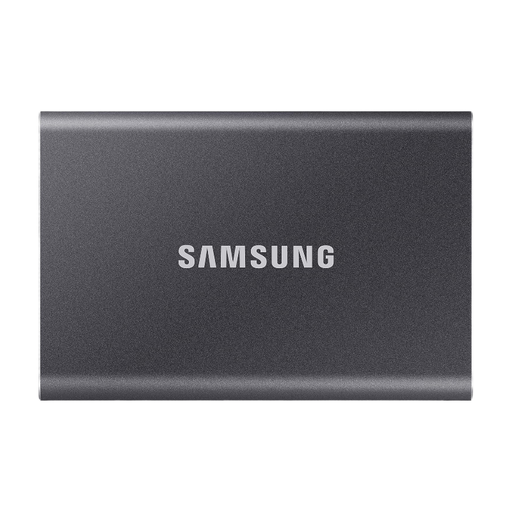
Samsung Portable SSD T7 2 TB, Titanium Grey
If 2 TB suits your backup needs and you’d like an encryption option, the product description lists this variant as one to consider.
2 TB; USB 3.2 Gen 2; read speeds of up to 1.050 MB/s and write speeds of up to 1.000 MB/s; USB-C-to-C and USB-C-to-A cables listed. The description mentions optional 256-bit AES hardware encryption with a password.
View at Joybuy
 No image available
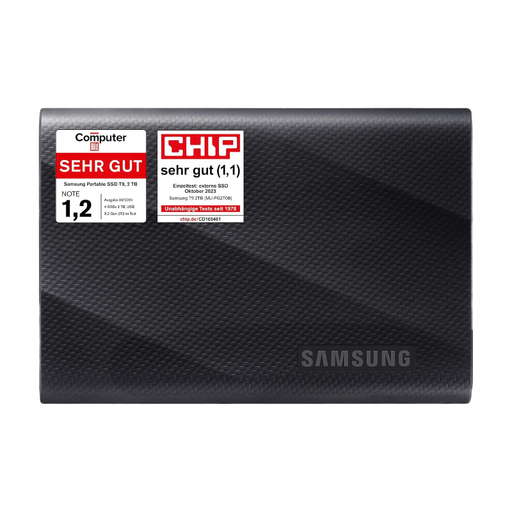
Samsung Portable SSD T7 4 TB, Titanium Grey
The 4 TB variant is worth considering if you have a larger collection of files and want to keep a more extensive backup history.
4 TB; USB 3.2; read speeds of up to 1.050 MB/s and write speeds of up to 1.000 MB/s. The description mentions AES-256 hardware encryption with a password and compatibility with PCs and Macs.
View at Joybuy
 No image available
Samsung MU-PG2T0B external SSD 2 TB
Compare this 2 TB variant with the amount of data you need to back up and the connections available on your family computer.
2 TB; USB 3.2 Gen 2; USB-C-to-C and USB-C-to-A cables listed; the product description states that it’s compatible with PCs and Macs.
View at Joybuy
Frequently asked questions
How do I set up a backup that I can restore from later?
Set up your backup to suit your operating system, then test restoring a file. Microsoft explains File History for Windows, while Apple covers setting up Time Machine on a Mac.
Should a backup SSD be encrypted in a shared studio?
If other people might have access to the drive, encryption is a sensible way to protect private backups. The German Federal Office for Information Security explains how to protect data if a storage device is lost. Keep your recovery password somewhere safe.
Is one external SSD enough for a backup?
A single SSD won’t protect you from every incident that could affect both your computer and the drive in the same place. The German Federal Office for Information Security highlights the benefits of keeping a backup away from home, so consider storing an additional copy separately.
How much storage should an external SSD have?
The right capacity depends on how much storage you’re using and how much backup history you want to keep. For Time Machine, Apple recommends a drive with at least twice the storage capacity of your Mac, if possible. This advice applies to this Mac backup process and isn’t a general recommendation for every computer.


