What should you look for when buying?
Start by working out how much storage you need, what your local backup routine will be and whether the SSD is compatible with your computer. Encryption and faster transfer speeds are other factors to consider if they suit the way you’ll use it.
| What matters |
What to check before buying |
Who should pay particular attention? |
| Space for files and older backups |
Check how much data you have now and how many older versions your backup method should keep. Apple recommends using at least twice the storage capacity of your Mac for Time Machine. |
As our photo and video collection grows, I want to leave room for earlier backups too. That’s why around 26% of consumers put storage for files and backup versions first. |
| Regular backups and file restoration |
Choose a local method, set a backup schedule you can stick to and test restoring a file. The German Federal Office for Information Security recommends including separately stored backups in your data backup plan. |
If I’m likely to forget to connect the drive in the middle of family life, I need a routine I can follow regularly and check afterwards. Around 26% of consumers prioritise a backup routine that’s practical to maintain. |
| Computer, cable and backup software |
Check the operating system, USB connection and what’s included in the box. Microsoft Support distinguishes local File History from folder backup in the Windows Backup app, which syncs selected folders with OneDrive. |
If we have a Windows PC or Mac at home, I want to know whether the connection and backup method work with that specific computer. Around 21% of consumers prioritise compatibility between their system, cable and backup software. |
| Keeping personal data private |
Check whether the specific SSD or backup method offers password protection, and how to keep the password safe and accessible if you need to restore your files. Samsung lists optional password protection with hardware encryption for the T7 Shield. |
If the drive contains private photos or documents, I want to protect access and make sure the password is available if I need to restore them. Around 16% of consumers put personal data protection first. |
| Transfer speeds to suit your needs |
Check which connections and cables your computer supports and whether you regularly back up large amounts of data. The maximum speeds quoted by Kingston Technology and Verbatim Europe depend on the specific connection and cable conditions. |
If I often back up large amounts of data, short transfer times may matter; if I only back up occasionally, having enough storage may be more important. Around 11% of consumers prioritise speed for large or frequent backups. |
Joybuy products for local backups
These Joybuy product options are external SSDs for local backups at home. Before setting one up, compare its stated capacity with your needs and check that its connection and backup method work with your computer.
 No image available
KEXIN external SSD, 1 TB
For local backups of family files. Before buying, check how much storage you need and which connection is suitable.
1 TB; USB-C; up to 500 MB/s according to the product name.
View at Joybuy
 No image available
Kexin M.2 SATA external SSD, 256 GB
A compact storage option for local backups. Check that the available space meets your needs, including room for the older backups you want to keep.
256 GB; USB 3.1; up to 500 MB/s according to the product name.
View at Joybuy
 No image available
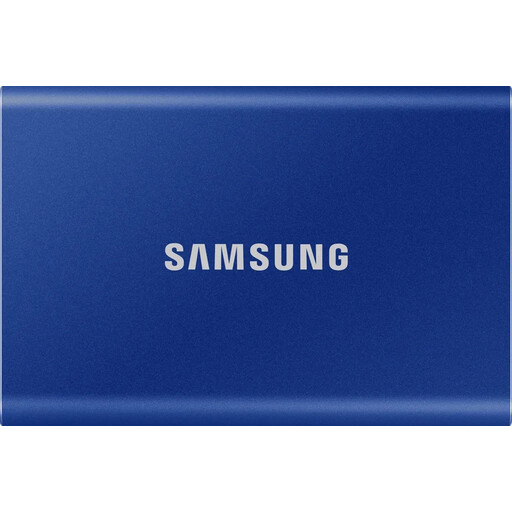
Samsung T7, 1 TB, Indigo Blue
Can be used as an external drive in a local backup routine. Check that the capacity and connection work with your computer.
1 TB; colour: Indigo Blue.
View at Joybuy
 No image available
Samsung T7, 2 TB, Indigo Blue
The higher-capacity version may suit a larger collection of files or extra backup versions. Check what you actually need.
2 TB; colour: Indigo Blue.
View at Joybuy
 No image available
KIOXIA Exceria Plus G2, 2 TB
A 2 TB portable SSD for local backups. Before setting it up, check that it connects to your computer and works with your preferred backup method.
2 TB; portable SSD.
View at Joybuy
Frequently asked questions
How can I back up Windows files without OneDrive?
Windows File History can regularly back up personal files and folders to an external drive. Folder backup in the Windows Backup app, on the other hand, syncs selected folders with OneDrive, so it isn’t suitable if you want a fully local backup. Microsoft Support explains both features.
How do I set up an SSD for Time Machine?
Connect the drive to a suitable port on your Mac and add it to Time Machine as a backup volume. Apple recommends using at least twice the storage capacity of your Mac; you may need to erase the drive during setup.
How much storage should an external SSD have?
Choose a capacity that covers your current files and the older backups you want to keep. For Time Machine, Apple recommends at least twice the storage capacity of your Mac. For other backup methods, check their storage requirements and retention settings.
Is one external SSD enough for a backup?
Don’t rely on a single storage device alone for irreplaceable files. The German Federal Office for Information Security points out that the lifespan of storage media cannot be predicted precisely. Keeping another copy separately after backing up, and regularly testing that you can restore files, helps you check that your backup is working.


