Families with a growing RAW archive
If you regularly back up photos and personal files, allow for new images and the file versions you want to keep when choosing capacity. The BSI stresses that backed-up data must be restorable.


Choose an external SSD for family backups based on the size of your RAW archive, how much you expect it to grow and which file versions you want to keep. Then check your computer’s connection and backup method. For Time Machine, Apple recommends a storage device with at least twice the capacity of your Mac. An SSD on its own is no substitute for a backup kept separately, or for checking that you can restore your files. The German Federal Office for Information Security (BSI) highlights restoration as an essential part of an effective backup.
If you regularly back up photos and personal files, allow for new images and the file versions you want to keep when choosing capacity. The BSI stresses that backed-up data must be restorable.
If you want to use an existing backup method, check whether the SSD can be set up for it and whether you can restore individual files. Microsoft explains how to include additional folders in File History, while Apple sets out its own requirements for Time Machine.
If you carry a backup with you or store it elsewhere, the connection and casing become important. The BSI points out that keeping a copy away from home can be vital if your home is damaged.
Start by comparing your storage needs with the backup method you plan to use. Extra protection features or a higher speed rating matter most when they suit the way you’ll use the SSD and the capabilities of your computer.
| Consideration | What to check before buying | Who is this especially important for? |
|---|---|---|
| Space for RAW files and versions | Allow for the total size of the folders you want to include, expected growth and the file versions you want to keep. For Time Machine, follow Apple’s capacity recommendation for your particular Mac. | If our RAW collection is growing and we want to keep older versions, we plan storage for the full backup. Around 31% of consumers put this storage requirement first. |
| Regular backups you can restore | Choose a backup method, include your RAW folders and test restoring a sample file. | If you want to back up regularly as part of family life and restore individual files when needed, look for a method that fits your routine. Around 25% of consumers prioritise this. |
| Connection and backup format | Match your computer’s USB mode and cable to the SSD, and check that the file system suits your backup method. Before reformatting, back up any existing files elsewhere. | If we back up between Windows and Mac devices, we need a suitable connection and a compatible volume. Around 19% of consumers put compatibility first. |
| Protection when carrying it | If you often take the SSD with you, check the protection features of the specific model and plan to keep a separate copy elsewhere. | If you use the SSD on the go or keep a copy away from home, consider the casing and where you’ll store it. Around 13% of consumers prioritise protection when carrying it. |
| Keeping your photos private | If needed, check the encryption features of your backup method or the specific SSD, and keep the required password somewhere safe. | If other people might have access to the drive, we look for ways to protect our family photos. Around 12% of consumers put privacy first. |
A copy is only useful if the files have actually been backed up and can be restored. The BSI specifically includes restoring data as part of the backup process.
Set up regular backups, check that your RAW folders are included and try restoring a file.
USB-C describes the connector type, not necessarily the USB mode or the transfer speed you’ll get. Kingston notes that the XS2000 does not reach its advertised performance when used with a Mac.
Check your computer’s and SSD’s USB modes and cables before choosing a higher speed rating.
Apple warns that reformatting a drive for Time Machine may erase existing files on the volume.
Check what’s on the drive and copy any files you need to another storage device before setting it up.
Protection ratings such as IP55 or IP65 apply to the specific device version. They won’t prevent accidental deletion or the loss of every copy kept in the same place.
Choose casing protection to suit how you’ll carry the SSD, and keep at least one other restorable copy somewhere separate.
The T7 Shield is an option for mobile backups if you’re looking for specific casing features and compatible cables on the model you choose.
The X9 and X9 Pro differ in several ways, including the protection features listed for the X9 Pro.
The XS1000 is a compact backup option, while the XS2000 is designed for computers with USB 3.2 Gen 2x2.
The Ultra-Compact SSD range has a direct USB-C connection, so there’s no cable to carry. It may be worth considering if you’ll use it on the go frequently.
The external SSDs below could be used as destinations for file backups. Compare their stated capacity with your RAW archive, and check that the connection and backup method are compatible with your computer.
 No image available
Could work as an external destination for file backups if 1 TB is enough for the backup you have in mind.
The product name lists USB-C and speeds of up to 500 MB/s.
 No image available
This portable SSD can be used as a backup destination if its capacity is sufficient for the files you need to back up.
The product name lists USB 3.2 and transfer speeds of up to 2.060 MB/s.
 No image available
The 2 TB version could suit a RAW archive if your planned backup fits within its storage capacity.
The product name lists USB Type-C and USB 3.2 Gen 2.
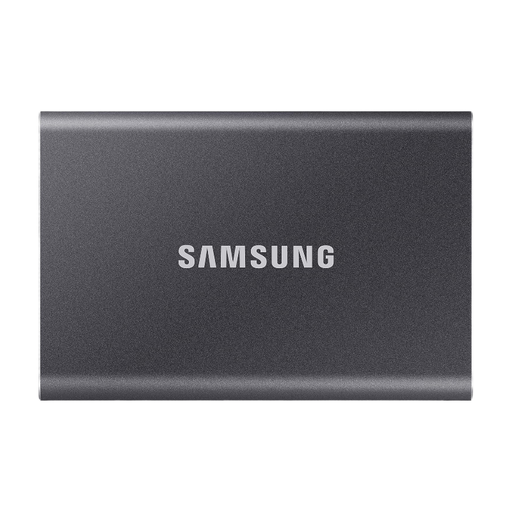 No image available
The 4 TB version has a higher stated capacity than the 2 TB version, but be sure to compare your needs with the actual size of your backup.
The product name lists USB Type-C and USB 3.2 Gen 2.
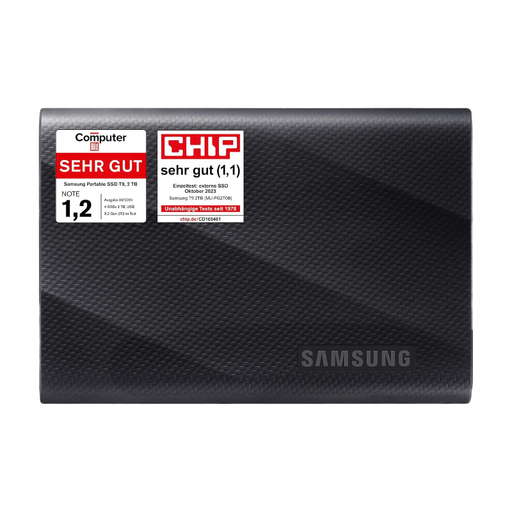 No image available
This 2 TB SSD could work as an external backup destination if it has enough capacity for your archive and the versions you want to keep.
The product name lists USB Type-C and USB 3.2 Gen 2 (3.1 Gen 2).
Select the external drive as the backup destination in File History, then check that your RAW folders are included. Microsoft explains that you can add folders outside the default libraries. Afterwards, test restoring a sample file.
Not as a Time Machine volume without making changes. Apple explains how to set it up and warns that reformatting may erase existing files on the drive. Back up those files somewhere else first.
No. Encryption protects access, but it doesn’t replace a separate backup copy. The BSI cites damage to your home as one reason to keep a backup elsewhere. You should also check that you can restore your files.
Choose capacity based on the folders you actually want to back up, how much you expect them to grow and how many file versions you need. For Time Machine, Apple recommends a storage device with at least twice the capacity of your Mac.