Families with changing project versions
If you want to restore an earlier version of a file, set up version history and check that it covers the relevant project folders. Microsoft Support explains how to restore files using File History.


Choose an external SSD only after deciding which Windows or Mac feature you’ll use to back up earlier project versions. Restoring older versions depends on the software you’ve set up and the folders it covers, not on the drive alone. Microsoft explains how to use File History, while Apple recommends a Time Machine volume with at least twice the storage capacity of your Mac. Size your storage to suit your files and how long you want to keep them, check the connection and cable, and keep important data on a separate backup as well. Germany’s Federal Office for Information Security also recommends checking from time to time that backups are complete and readable.
If you want to restore an earlier version of a file, set up version history and check that it covers the relevant project folders. Microsoft Support explains how to restore files using File History.
As you add photos, videos and project files, make sure the capacity also allows for keeping further backups for as long as you need. For Time Machine, Apple recommends a volume with at least twice the storage capacity of your Mac. This guidance applies to this Mac use case.
If you don’t want a single SSD to be your only remaining copy, plan an additional, separate backup. Germany’s Federal Office for Information Security also recommends checking from time to time that backups are complete and readable.
First decide how you want to back up earlier versions, then choose a capacity and connection to suit your computer.
| What matters | What to check before buying | Who is this especially important for? |
|---|---|---|
| Earlier project versions | Check which backup feature saves earlier versions and whether it covers your project folders. | If I want to restore specific older project versions, I need version history set up for the relevant folders. Around 31% of consumers put restoring earlier project versions first. |
| Space for files and versions | Check how much storage is already in use and consider how many earlier versions you want to keep. | As our family photo and project collections grow, I want to leave enough room for further backups. Around 31% of consumers prioritise available storage for files and versions. |
| Protection against loss and privacy | Plan a separate backup; if you’re storing private files on a portable drive, check whether you need an encryption feature. | If I don’t want important files to depend on a single SSD, I’ll plan an additional, separate copy and protect private data on the drive if needed. Around 23% of consumers prioritise protection against loss and privacy. |
| Connection and speed | Check that the USB standard, port and cable are compatible with your computer before choosing a model with a higher maximum speed. | If I want to connect the drive reliably without paying for speed I can’t use, I’ll check my computer’s connection first. Around 15% of consumers prioritise the connection and a suitable speed. |
The drive stores data, but it doesn’t automatically create multiple versions you can restore. You’ll need to set up this feature and make sure it covers the relevant folders.
Before using it regularly, test that you can restore an earlier project version.
An external drive can be lost or fail. If your important data is stored only on it, you won’t have a separate copy.
Keep your original files and plan another, separate backup for important data.
An additional backup option requires extra storage and regular maintenance.
A manufacturer’s maximum speed isn’t a guarantee of the speed you’ll get on your family computer. The connection and cable need to be compatible with the drive.
Check your computer’s USB standard, port and cable before choosing a model with a higher quoted speed.
A product warranty isn’t a substitute for an additional, readable copy of your data or a restore test.
Check the warranty terms separately from your backup plan, and occasionally test whether you can restore your files.
The T7 Shield is an option for anyone who often takes their drive with them and wants password protection.
The XS1000 offers USB-A and USB-C connectivity, while the XS2000 is designed for computers with a compatible USB-C connection and Gen 2x2.
The X9 Pro is a compact option for computers with a compatible USB-C connection, if a robust design is important to you too.
The Extreme PRO Portable SSD is a Gen 2x2 option for anyone who often transfers large projects and has a compatible connection.
The external SSDs below can be used as the destination for a backup you’ve set up. You can only restore earlier project versions if your operating system’s backup feature is configured to save them.
 No image available
Suitable as an external storage destination for a Windows or Mac backup you’ve set up; restoring earlier file versions requires a suitable backup feature.
Listed specifications include 1 TB, USB-C and speeds of up to 500 MB/s.
 No image available
Suitable as an external storage destination for a backup you’ve set up; whether there’s enough space for your files and saved versions depends on your needs.
Listed specifications include M.2 SATA, USB 3.1, 256 GB and speeds of up to 500 MB/s.
No image available
Suitable as an external storage destination for a Windows or Mac backup you’ve set up; check that the capacity and connection are right for your computer.
Listed specifications include 512 GB, USB 3.1 Type-C and speeds of up to 500 MB/s.
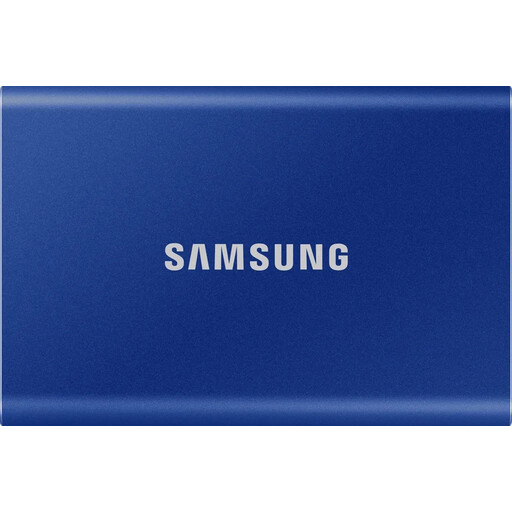 No image available
Suitable as an external storage destination for a backup you’ve set up; earlier versions depend on the backup feature and the folders it covers.
Listed specifications include 1 TB and the Indigo Blue colour option.
 No image available
Suitable as an external storage destination for a backup you’ve set up; choose a capacity to suit your files and how long you want to keep them.
Listed specifications include 2 TB and the Indigo Blue colour option.
No. On Windows, File History can save earlier versions of the files it covers once it’s set up. You may need to add project folders that aren’t in your libraries. On a Mac, Time Machine backs up your files once you’ve set up a volume.
Try restoring an earlier version of a file. Germany’s Federal Office for Information Security recommends checking from time to time that your backup is complete and readable.
No, that isn’t a general requirement. Apple recommends a Time Machine backup volume with at least twice the storage capacity of your Mac. Choose a capacity to suit your actual storage needs and how long you want to keep your backups.
Compare your computer’s USB port and supported standard with the SSD’s connection and supplied cable. A manufacturer’s maximum speed isn’t a guarantee of the speed you’ll get on your own device.