Key brands at a glance
The features listed relate to the specific product ranges and variants described. Manufacturer specifications are not independent measurements of speeds in a studio.
Kingston
The XS1000 is designed for compact file handovers, while the XS2000 offers higher-capacity variants and USB 3.2 Gen 2x2.
- Kingston lists capacities of up to 2 TB and read speeds of up to 1.050 MB/s for the XS1000. For the XS2000, it lists capacities of up to 4 TB and read and write speeds of up to 2.000 MB/s.
- To reach the higher Gen-2x2 data rate, the host and connection must also be suitable; maximum speeds are not guaranteed studio speeds.
Samsung
The Portable SSD T9 is an option for workstations with a suitable USB 3.2 Gen 2x2 port.
- Samsung lists sequential transfer speeds of up to 2.000 MB/s for the T9, as well as password protection with hardware-based AES-256-bit encryption.
- Samsung requires a Gen-2x2 host, a suitable cable and UASP to reach the stated maximum speeds. Encryption is not a substitute for a separate backup.
Crucial
The X9 Pro is a compact option for carrying photo and project files.
- Crucial lists read and write speeds of up to 1.050 MB/s for the X9 Pro, along with IP55-rated protection.
- Crucial specifies USB 3.2 Gen 2 for the highest speeds; according to the manufacturer, compatibility also depends on the format and host.
SanDisk
The Extreme PRO with USB4 is designed for workstations with compatible ports and large files.
- For the documented 4-TB USB4 variant, SanDisk lists read speeds of up to 3.800 MB/s and write speeds of up to 3.700 MB/s, as well as compatibility with earlier USB versions.
- You shouldn’t expect the advertised USB4 speeds with older ports; these figures apply to the specific variant.
Joybuy products for transferring files
This selection includes portable SSDs for handing over and storing project files between workstations. A network share needs to be set up separately if your team needs simultaneous access.
 No image available
Samsung Portable SSD T7, 1 TB, Grey
This compact 1-TB portable SSD is a handy storage option for handing over project files between workstations.
Samsung lists USB 3.2 Gen 2, read speeds of up to 1.050 MB/s and write speeds of up to 1.000 MB/s for this model, along with optional AES-256-bit encryption. The product details list Windows, macOS and Android as compatible systems, and USB-C to USB-C and USB-C to USB-A cables.
View at Joybuy
 No image available
MOVESPEED YSPSRX20M-1TTG, 1 TB
This 1 TB portable SSD is designed for carrying project files.
MOVESPEED lists USB 3.2 Gen 2x2, read speeds of up to 2.060 MB/s and write speeds of up to 1.800 MB/s. Actual speeds depend on the connection supported; the product description lists Windows, macOS and Android as compatible systems.
View at Joybuy
 No image available
Samsung Portable SSD T7, 2 TB, Titan Grey
The 2-TB variant is suitable for project files and extra project versions, provided its capacity meets your actual storage needs.
Samsung lists USB 3.2 Gen 2, read speeds of up to 1.050 MB/s and write speeds of up to 1.000 MB/s, as well as AES-256-bit hardware encryption. The product details list PCs and Macs, along with USB-C to USB-C and USB-C to USB-A cables.
View at Joybuy
 No image available
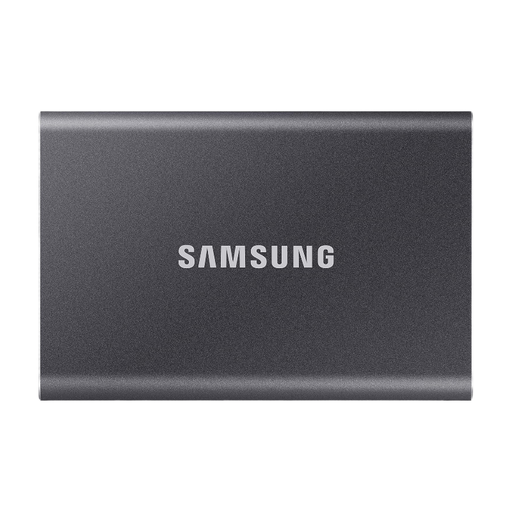
Samsung Portable SSD T7, 4 TB, Titan Grey
The 4-TB variant offers more stated storage capacity for large project libraries and multiple versions.
Samsung lists USB 3.2 Gen 2, read speeds of up to 1.050 MB/s and write speeds of up to 1.000 MB/s, as well as AES-256-bit hardware encryption. The product details list PCs and Macs, along with USB-C to USB-C and USB-C to USB-A cables.
View at Joybuy
 No image available
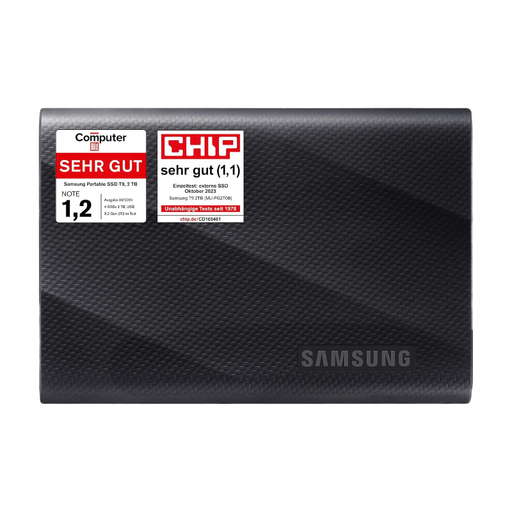
Samsung MU-PG2T0B, 2 TB
This 2 TB portable SSD is designed for storing and handing over project files.
The product title lists USB Type-C and USB 3.2 Gen 2. The product description lists two cables, USB-C to USB-C and USB-C to USB-A, and PCs and Macs as compatible devices.
View at Joybuy
Frequently asked questions
Can several people work from a portable USB SSD at the same time, on its own?
No, simply having the SSD in the studio isn’t enough. To access files from several computers, you need a network share set up through a computer or NAS, with permissions in place. You should also agree how to handle simultaneous edits to project files.
How do I prepare an SSD for Mac and Windows?
Apple lists ExFAT as a format option for drives over 32 GB that will be used with Mac and Windows. Save any files you need elsewhere before formatting, as the process deletes files on the formatted volume.
Does the studio SSD replace a backup?
No. Keep a separate, regularly checked backup of important files and make sure you can restore the data from it. The German Federal Office for Information Security highlights recoverability as an essential part of data backup.
What should studios in Germany consider when handling customers’ personal data?
According to the official guidance of the Federal Commissioner for Data Protection and Freedom of Information, controllers and processors must implement appropriate technical and organisational measures to ensure a level of security appropriate to the risk. Encryption can be one measure for portable storage devices, but it does not replace access controls or backups; the right approach depends on the data being processed and the risks involved.
What else should a studio plan for besides the SSD?
Plan a separate backup for important project files. If several people need to access files at the same time, you’ll also need to set up a network share and manage permissions.


