For animation projects you use regularly, an external SSD can be a good choice for your working drive, provided its connection and cable are compatible with your computer. Its maximum speeds do not guarantee the same performance in your workflow. An HDD may be suitable for large archives that you rarely access. Whatever type of drive you choose, a single drive is no substitute for a separately stored backup.
Which option is right for you?
Active animation projects
If you regularly open project folders and source files directly from your drive, compare its interface with your computer’s port and cable. CHIP recommends an external SSD for frequent file transfers; Kingston says you need a compatible USB 3.2 Gen 2x2 port to get the full performance of the XS2000.
Large project archives
If you mainly store a large number of completed projects, check that the capacity will cover your project files, source material and exports. CHIP notes that HDDs can be suitable for storing large amounts of data when short access times are not a priority; in its EMEA materials, Toshiba lists Canvio Basics models with capacities of up to 4 TB.
Project backups
If you want to protect your projects against the failure or loss of your working drive, plan to keep an additional copy separately. Germany’s Federal Office for Information Security describes external drives as one possible backup medium.
What should you look for when buying?
SSD for active work
A good fit if: You regularly open, move or work on large project folders while on the go.
The trade-off: The speed you get also depends on your computer’s port and cable; you’ll still need another backup.
HDD for archiving and an additional copy
A good fit if: You mainly store large folders of completed projects or keep an additional backup copy.
The trade-off: For frequent file access, an HDD is slower than an SSD.
First, work out how much space you need, including source material and exports. Then check that the connection, cable and file system are compatible with the devices you plan to use the drive with.
| Buying priority |
What to check |
Who is this particularly relevant to? |
| Space for project archives |
Compare the total size of your folders and expected growth with the capacity of the specific model. |
If I want to keep lots of completed projects and their source material, enough archive space matters to me; around 36 % of consumers also prioritise storage space for archives. |
| Access to active projects |
Make sure the SSD, computer port and supplied cable are compatible; don’t assume the maximum speeds quoted are guaranteed working speeds. |
If I regularly open active projects directly from the drive or move files, I look for an SSD with a compatible interface; around 29 % of consumers prioritise access to active projects. |
| Separate backup |
Decide where you’ll keep the additional copy, how you’ll update it and how you’ll check that files can be restored. |
If I don’t want to lose my working files if a drive fails, I plan to keep a separate copy and update it regularly; around 21 % of consumers prioritise a separate backup. |
| Use with Mac and Windows |
Check write access and the file system before transferring files; back up existing files before reformatting. |
If I want to use the same drive with Mac and Windows, I check the file system and write access first; around 14 % of consumers prioritise using a drive across both systems. |
Buying and usage pitfalls
-
Assuming an SSD’s maximum speeds are the same as your working speeds
Manufacturer figures may describe maximum sequential speeds under specific conditions. For example, getting the full USB 3.2 Gen 2x2 performance requires a compatible host and cable.
Before choosing a drive, check your computer’s port and the cable supplied with the specific model. Don’t treat the manufacturer’s maximum speeds as a measure of how it will perform in your workflow.
If the interface isn’t compatible, you won’t be able to get the quoted interface performance from your existing computer.
-
Assuming a project folder stored elsewhere is already a backup
If the only copy of your project is on an external drive, that copy could also be affected if the drive is damaged or lost.
Keep your working drive and an additional copy separate. Update your backup regularly and check that you can restore files from it.
A separately stored copy requires additional storage space.
-
Leaving file system and reformatting checks until after copying files
A compatible plug alone doesn’t guarantee that Mac and Windows can write to the existing file system. Apple says that, in the situation described, a Mac can read but not edit NTFS; formatting a drive deletes its existing files.
Check the operating systems and file system before transferring files. Back up existing data elsewhere before reformatting a drive.
Key brands to consider
Crucial
The X10 Pro is a range of external SSDs for large files you use frequently; the 2-TB model mentioned has the model number CT2000X10PROSSD9.
- For this model, Crucial quotes maximum sequential speeds of up to 2.100 MB/s for reads and 2.000 MB/s for writes.
- To get the full USB 3.2 Gen 2x2 performance, you need a compatible USB-C host.
Kingston
The XS2000 is a compact range of external SSDs, with capacities of up to 4 TB.
- Kingston quotes speeds of up to 2.000 MB/s for both reading and writing with the XS2000.
- According to Kingston, optimum transfer speeds require USB 3.2 Gen 2x2 at 20 Gbit/s and a compatible cable; the interface specification alone won’t tell you how fast it will be on your computer.
Toshiba
According to Toshiba’s EMEA materials, the Canvio Basics range includes portable HDDs with capacities of up to 4 TB.
- Toshiba lists USB 3.2 Gen 1 and says the drives are designed to work with Windows without additional software.
- If you’re using one with a Mac, check the file system of the specific model. HDDs are slower than SSDs when it comes to access times.
Seagate
The One-Touch Portable HDD range includes 2 TB and 4 TB models for portable storage and backups.
- Seagate describes the range as featuring USB-C connectivity, backup tools and hardware encryption.
- These feature descriptions come from the manufacturer and are not an independent security assessment; check the specifications of the specific model.
Drives for work, archiving and backup
This selection includes external HDDs for large archives and external SSDs for working folders you use frequently. Check that the capacity, connection and file system suit your projects and devices; you’ll need an additional, separately stored copy for a backup.
 No image available
WD Elements Portable 6TB USB-C
As an external HDD, this model is designed for large project folders that you mainly store rather than access regularly; for frequent access, an HDD is slower than an SSD.
6 TB capacity; USB-C.
View at Joybuy
 No image available
WD Elements 2TB Portable External Hard Drive, USB-C, USB 3.2 Gen 1, 2.5", exFAT
This portable HDD could suit your project folders if 2 TB is enough for your needs; for regular work directly from the drive, an HDD is slower than an SSD.
2 TB; USB-C; USB 3.2 Gen 1; 2.5 inches; exFAT.
View at Joybuy
 No image available
WD Elements 8TB Desktop External Hard Drive, USB 3.0, 3.5"
This external HDD is suitable for large project archives kept in one place; it requires an external power supply to operate.
8 TB; USB 3.0; 3.5 inches.
According to the product details, the drive is pre-formatted with NTFS. Check the file system before using it with a Mac; reformatting will delete existing files.
View at Joybuy
 No image available
Samsung Portable Solid State Drive T7 2TB, USB Type-C 3.2 Gen 2, Titanium Grey
This portable SSD could suit project folders you use frequently, provided 2 TB is enough and your computer has a compatible port.
2 TB; USB 3.2 Gen 2; Titanium Grey.
View at Joybuy
 No image available
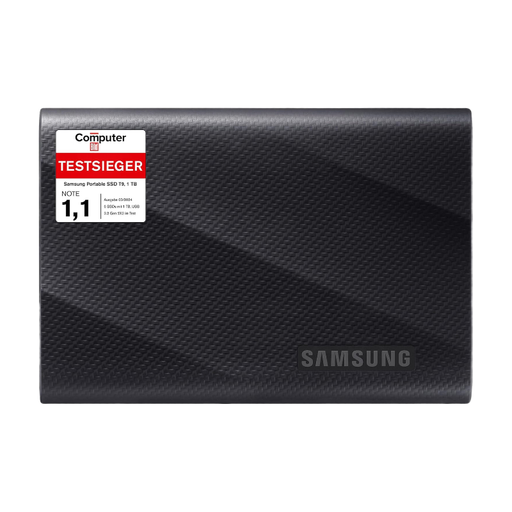
Samsung T9 1TB external portable SSD, USB 3.2 Gen 2x2
This portable SSD could suit frequent reading and writing of large files, provided 1 TB is enough and your computer and cable are compatible with the interface.
1 TB; USB 3.2 Gen 2x2; quoted maximum sequential speeds: up to 2.000 MB/s for both reading and writing. These maximum speeds are no guarantee of the performance you’ll get in your workflow.
View at Joybuy
Frequently asked questions
Is an external hard drive enough as the only place to store my projects?
No. If it holds your only copy, it isn’t a separate backup. Germany’s Federal Office for Information Security recommends making regular backup copies and describes an external drive that can be stored separately as one possible backup medium.
What should I bear in mind when switching between Mac and Windows?
First, check the file system and write access. Apple says that, in the situation described, a Mac can read but not edit NTFS; exFAT is listed as a formatting option for a shared drive with more than 32 GB. Reformatting deletes existing files, so back them up elsewhere first.
What are my rights if the drive is faulty?
If you buy from a business as a consumer, European Union consumer information states that you have a minimum legal guarantee of two years from the date you receive the goods. The rules described there do not apply to purchases from private individuals.


