Edit RAW photos regularly
If you often import and edit large batches of photos, make sure the drive, cable and connection are all compatible with your computer.


For frequent imports and editing, an external SSD is the better choice for a working drive; an HDD may suit a growing archive that is rarely accessed. In COMPUTER BILD’s comparison from July 2026, HDDs offered more storage for the money, but file access was slower – this finding applies to the models compared there. Without cloud storage, keeping a separate, recoverable copy protects you if your working drive fails. The German Federal Office for Information Security recommends storing backups separately.
If you often import and edit large batches of photos, make sure the drive, cable and connection are all compatible with your computer.
If you want to keep lots of original files locally, plan capacity around your existing collection and how much you expect it to grow. Adobe describes RAW files as large, high-resolution files.
If you don’t want to use cloud storage, you’ll need a separate, recoverable copy as well as the drive you use. The German Federal Office for Information Security recommends keeping backups in another secure location.
| Buying priority | What to look for | Who it matters most to |
|---|---|---|
| Protecting RAW originals | Plan for a separate copy with enough capacity, and check that you can restore the files from it. | If my originals matter to me, I want to be able to restore them after a fault or accidental deletion. Around 31% of consumers put protecting their RAW files first. |
| Space for your archive | Size the capacity for your existing collection, expected growth and the space needed for separate copies. | If I want to keep lots of RAW files locally, I need enough space for my growing collection. Around 25% of consumers prioritise archive capacity. |
| Speed when importing and editing | Check the drive, cable and host connection together; advertised sequential maximum speeds rely on compatible devices and connections. | If I often import large batches of photos or edit directly from the drive, a suitable connection is important for regular access. Around 19% of consumers prioritise working speed. |
| Portability and protection on the go | Check the protection claims for the specific model and the conditions that apply. Samsung states that liquid and dust damage to the T7 Shield is not covered by the warranty. | If I take my drive to shoots, I want to know which protective features will actually apply to how I use it. Around 13% of consumers put portability and protection on the go first. |
| Using it with your devices | Before formatting, check whether you want to transfer files between Mac and Windows or set up a volume for Time Machine. Formatting deletes existing files. | If I switch between devices or want to set up a particular local backup, the format needs to fit my workflow. Around 12% of consumers prioritise compatibility with their systems. |
If the drive holds your only copy, it won’t protect you if the drive itself fails. And if you keep the original and the copy in the same place, both could be lost in an incident such as damage to the building.
Keep a separate copy and check that you can open your RAW originals from it. The German Federal Office for Information Security recommends keeping a backup in another secure location.
You’ll need another local storage device, as well as time for regular copies and restore tests.
According to Samsung, the T9’s maximum sequential speed requires, among other things, a USB 3.2 Gen 2x2 port on both the host and cable, with UASP enabled.
Check your computer’s connection and the cable before buying. Then decide whether the stated speed suits your workflow.
According to Adobe, Lightroom Classic backs up only the catalogue file. It doesn’t automatically include your edited photos or exports.
Make sure you include the folders containing your actual image files in your local backup routine.
The right format depends on whether you want to transfer files or set up a Time Machine backup. Apple notes that formatting deletes existing files.
Decide how you’ll use the drive first, and back up any existing data before formatting it.
The T9 is a portable SSD for workflows using a compatible USB 3.2 Gen 2x2 host; the T7 Shield is an SSD for use on the go, with a rated level of enclosure protection.
The XS2000 is a compact SSD with a Gen 2x2 connection; the XS1000 is a compact Gen 2 alternative.
The Canvio Advance is a portable HDD range for a local archive or an additional backup. Toshiba lists versions with capacities of up to 4 TB.
My Passport is a portable HDD range for larger local collections; the manufacturer’s website lists a black 6 TB version.
Crucial describes the X9 Pro as a compact external SSD for frequent photo work; the manufacturer’s specifications list USB-C, IP55 and versions with capacities of up to 4 TB.
This selection includes external HDDs for local archives and portable SSDs for more frequent access. A single drive is no substitute for a second backup copy stored separately.
 No image available
For a local photo archive if you’re looking for a portable 5 TB HDD.
USB-C and USB 3.2 Gen 1; portable 2.5-inch drive weighing 240 g.
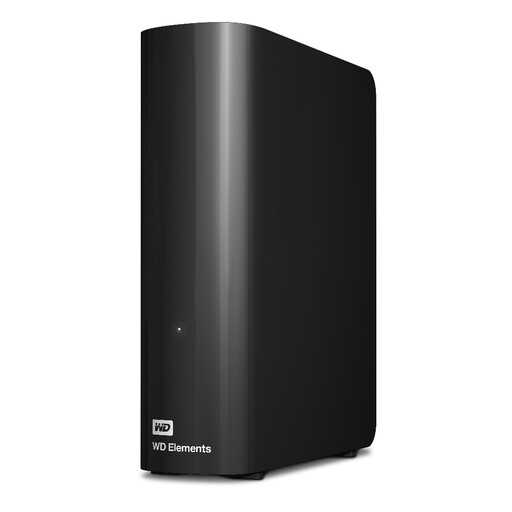 No image available
For a large local archive if you plan to keep the drive in one place.
20 TB, USB 3.2 Gen 1 and a mains adaptor included.
 No image available
For more frequent access to large photos if you’d like a portable SSD.
USB 3.2 Gen 2; maximum sequential speeds of 1,050 MB/s read and 1,000 MB/s write.
 No image available
For frequent access to locally stored photos with an external SSD.
USB 3.2 Gen 2; maximum sequential speeds of 1,050 MB/s read and 1,000 MB/s write. According to the product description, USB-C to C and USB-C to A cables are included.
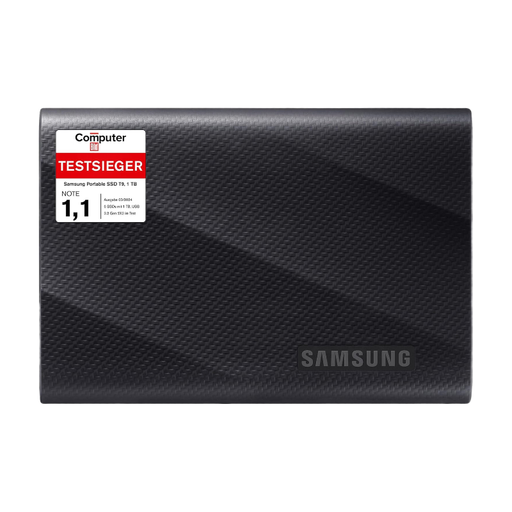 No image available
For regular transfers of large RAW files if your computer supports the required connection.
USB 3.2 Gen 2x2; Samsung quotes sequential speeds of up to 2,000 MB/s. The host and cable must support USB 3.2 Gen 2x2, and UASP must be enabled. According to the product description, both types of USB cable are included.
No. Adobe explains that Lightroom Classic backups include only the catalogue file. You’ll need to back up edited photos and exports separately.
Yes, as long as the drive is formatted appropriately. Apple recommends ExFAT for a drive over 32 GB that you want to use with both systems. Back up any existing files before formatting, as this will erase the drive’s contents.
Apple recommends APFS or APFS (Encrypted) for Time Machine backup volumes; the APFS volume in question is reserved for Time Machine. Apple describes creating an additional volume if you want to store other files on the same physical drive.
Make an additional copy on a separate local drive and, if possible, keep it in another secure location. Regularly check that you can restore and open the RAW files from it.
Securely erase personal image data before passing on or disposing of the drive; ordinary deletion isn’t a reliable way to do this, according to the German Federal Office for Information Security. The German Environment Agency notes that electrical and electronic waste must not be put in household rubbish in Germany, and lists recycling centres as one place where it can be handed in.