Start by choosing an SSD with enough usable space for your photos and previous project versions, then set up versioned backups as well: the SSD alone won’t keep older versions of your files. Faster transfer speeds matter most if you regularly copy large files and have a compatible USB port. If you’ll be carrying the drive around, protection built into the specific model and, where appropriate, encryption may be more important.
Who would benefit from an external SSD?
Keeping earlier project versions
If you want to revisit earlier photos or edits after making changes to your layout, you’ll need to set up versioned backups as well as using an SSD. Microsoft Support explains how to restore files using File History, while Apple Support covers the process with Time Machine.
Growing photo archives
If you collect photos from many stages of a build, remember to account for both your originals and additional versions when working out how much storage you need. Crucial Germany and Kingston Technology point out that usable capacity may differ from the advertised figure.
Model railway photographers on the move
If you take photos between devices or locations, make sure the connector and cable are compatible with the devices you use. If you’ll be carrying the drive through dusty or damp environments, check the protection rating of the specific model too; Samsung, for example, gives the T7 Shield an IP65 rating.
What should you look for when choosing one?
USB 3.2 Gen 2 SSD
A good fit if: you mainly back up photos and project folders, or use the SSD at different workstations.
Consider: A faster interface may be useful if you regularly transfer large files, provided your devices support it.
USB 3.2 Gen 2x2 SSD
A good fit if: you often copy large collections of images and your computer and cable support USB 3.2 Gen 2x2.
Consider: You won’t get the advertised speed on every computer; Kingston specifically notes that the XS2000 runs more slowly on a Mac.
Portable SSD with a protective casing
A good fit if: you regularly take your photos with you and protection from dust or splashes matters for how you’ll use the drive.
Consider: Protection ratings apply only to the specific model and are no substitute for a second copy or versioned backups.
| What you need |
What to check when buying |
Who is it important for? |
| Earlier project versions |
Set up versioned backups to suit your operating system and check that your project folder is included. |
If you want to revisit older photos after making changes, your backup needs to include those versions. Around 36 % of consumers make versioned backups their top priority. |
| Space for your photo archive and versions |
Work out how much space your collection needs, including additional versions, and compare it with the usable storage on the specific model. |
As your archive grows with each new stage of your build, you’ll need room for both the originals and additional project versions. Around 29 % of consumers prioritise archive capacity. |
| Connection and transfer speed |
Check the USB protocol on each device you plan to use and make sure you have the right cable. |
If you regularly transfer large collections of images, your computer needs to support the SSD’s interface. Around 21 % of consumers prioritise device connectivity and transfer speed. |
| Portability and access protection |
Check the protection rating of the specific model and, if needed, plan for encryption on the device you’ll use. |
If you regularly take your SSD out and about, dust, splashes or unauthorised access if it’s lost may be a concern. Around 14 % of consumers prioritise protection while travelling and access security. |
Common buying and usage mistakes
-
Assuming a photo folder on an SSD counts as versioned backup
A single saved version won’t let you restore a previous version that has been overwritten.
Set up File History on Windows or Time Machine on a Mac. Check that your project folder is included and test that you can restore files.
-
Assuming the advertised top speed works with every USB-C port
Transfer speeds depend on the protocol supported by the host device and the cable. Kingston notes that the XS2000 has limitations on a Mac.
Before buying, check the USB specification of your devices and the cable you plan to use.
-
Assuming IP65 means protection from all liquid damage
The Samsung T7 Shield’s IP65 rating is based on tests under controlled conditions. Samsung excludes liquid and dust damage from its warranty; protection built into the casing is also no substitute for backing up your data.
Check the protection rating and warranty terms for the specific model, and keep another backup copy.
Key SSD brands at a glance
Samsung
The T9 is a Gen 2x2 range for regular large transfers, while the T7 Shield is a separate portable range with a model-specific protection rating.
- Samsung quotes speeds of up to 2,000 MB/s for the 1 TB T9, provided the host device and cable support USB 3.2 Gen 2x2.
- The IP65 rating applies to the T7 Shield, not to all Samsung SSDs. Samsung excludes related liquid and dust damage from its warranty.
Kingston
The XS1000 is a USB 3.2 Gen 2 option for files and backups; the XS2000 is a separate Gen 2x2 range.
- Kingston says the XS1000 can be connected using a USB-A cable or adapter.
- The XS2000’s advertised speed requires a suitable connection. Kingston notes that it runs more slowly on a Mac.
Crucial
The X9 is a portable SSD for storing photos and files; the X9 Pro is a separate model range.
- Crucial quotes read speeds of up to 1,050 MB/s for the X9.
- Actual performance may vary, and the full stated capacity is not available for storing files. The X9 Pro’s IP55 rating does not automatically apply to the X9.
SanDisk
The Extreme PRO Portable SSD is a Gen 2x2 range to consider if its interface and features suit how you’ll use it.
- SanDisk quotes speeds of up to 2,000 MB/s and an IP65 rating for the 1 TB model.
- These model-specific specifications don’t guarantee the same speed on your computer or provide an additional backup copy.
External SSDs at Joybuy
This selection includes external SSDs in a range of capacities for storing model railway photos and project folders.
 Image unavailable
KEXIN external SSD, 512 GB, USB 3.1 Type-C
For storing project photos and folders externally; the product description lists 512 GB, USB 3.1 Type-C and speeds of up to 500 MB/s.
You’ll also need to set up versioned backups to keep earlier versions of your files.
View at Joybuy
 Image unavailable
Samsung T7 external SSD, 2 TB
The 2 TB version could work as external storage if your photos and project files fit within its usable capacity.
You’ll also need to set up versioned backups to keep earlier versions of your files.
View at Joybuy
 Image unavailable
KIOXIA EXCERIA PLUS G2 Portable SSD, 2 TB
This portable 2 TB model could work as external storage, provided its usable capacity meets your actual storage needs.
You’ll also need to set up versioned backups to keep earlier versions of your files.
View at Joybuy
 Image unavailable
MOVESPEED Portable SSD, 1 TB, model YSPSRX20M-1TTG
The product description lists 1 TB, USB 3.2 and a transfer speed of 2,060 MB/s. Check compatibility with your devices before factoring this figure into your choice.
You’ll also need to set up versioned backups to keep earlier versions of your files.
View at Joybuy
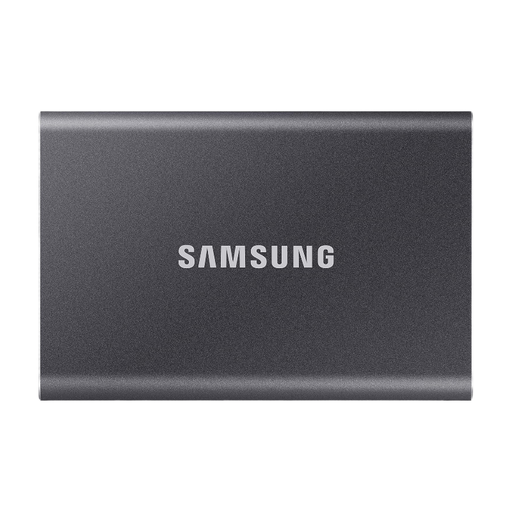 Image unavailable
Samsung T7 external SSD, 4 TB
The 4 TB version could work as external storage if your photo archive and additional project versions need this much space.
You’ll also need to set up versioned backups to keep earlier versions of your files.
View at Joybuy
Frequently asked questions
Does an external SSD automatically keep earlier versions of my project photos?
No, you’ll need to set up versioned backups. On Windows, File History can restore earlier versions of files and folders; on a Mac, Time Machine can retrieve previous versions. Check that your project folder is actually being backed up.
How can I check that my backup is working?
Try restoring an older photo or previous version. Keeping an additional copy disconnected from your other systems after backing up can also help reduce the risk of connected backups being damaged at the same time.
Why does my computer show less free space than the advertised TB capacity?
The capacity shown can vary depending on how the manufacturer and operating system calculate it; formatting and system data also take up space. Plan around the available storage and the measured size of your photo and project collection.
What happens to the statutory guarantee and manufacturer’s warranty if a drive develops a fault?
In Germany, the seller is responsible for the statutory guarantee covering faults. A manufacturer’s warranty is an additional voluntary service with its own terms, so check the warranty conditions for the specific model and keep a separate copy of your data regardless.


