For handing over photos, an external SSD should have enough space for your complete project folders and be accessible on the devices you plan to use. Keep an additional copy somewhere separate, and test that you can restore files from it. The Federal Office for Information Security stresses that it must be possible to restore a backup.
Who is an SSD for handing over photos suitable for?
Photographers preparing a handover
You need a complete local copy of your project folders and want to test that selected files open before handing them over. The Federal Office for Information Security recommends making sure you can restore your data, too.
Mobile photography teams
You carry copies between the shoot location and your workplace. Connections, casing protection and separate storage all affect which SSD suits your workflow. Samsung and Kingston describe models designed for carrying around or switching between USB-A and USB-C devices.
Teams handling confidential client photos
For personal data, you want to manage access to the copy you carry according to the level of risk, and check how it will be unlocked as part of the handover. The Federal Commissioner for Data Protection and Freedom of Information explains how to use technical and organisational measures appropriate to the risk.
What should you look for when choosing one?
First, work out which complete folders and versions you want to back up. Then check that you can read the copy on the devices you plan to use, and how you would restore your separate backup.
| Buying consideration |
What to check |
Consumer |
| Restorability |
Choose a separate storage location; open selected files from the backup. |
If I still need my own readable copy after the handover, I plan how to restore it from the outset. Around 31% of consumers prioritise being able to restore their data. |
| Space for project folders |
Check the size of complete folders and versions; compare it with the SSD's usable capacity. |
If all my selected photo folders and versions need to fit on one drive, enough usable space is essential. Around 25% of consumers prioritise complete project folders. |
| Access protection |
Establish the level of protection needed and who should have access; test unlocking and what happens if you forget the password. |
For confidential client photos, I want to decide who can open the copy I carry and how the handover will work. Around 19% of consumers prioritise controlled access. |
| Device compatibility |
Check the connections, cables and file system; try transferring and opening a test file. |
If I need to open the same files on the devices I plan to use, I check more than just the connector. Around 13% of consumers pay particular attention to device access. |
| Portability and transfer time |
Read the protection ratings and warranty terms for the specific model; check that the USB mode is compatible across the SSD, cable and host device. |
For copies I carry often or large transfers, the casing and suitable connections matter to me. Around 12% of consumers put portability and transfer time first. |
Mistakes that put your backup at risk
-
Relying on the handover SSD as your only copy
A storage drive on its own does not guarantee that you will be able to restore your photos later. Once you hand it over to the client, you may no longer have it available as your own backup.
Keep another copy somewhere separate, and before the handover, check that you can retrieve selected files from it.
A separate copy needs extra storage space and time for a restore test.
-
Assuming USB-C guarantees speed or universal compatibility
A compatible connector alone does not tell you whether the file system and backup process will work on every device you plan to use. Manufacturers' peak speed figures also depend on the host device and cable.
Check the connection mode, cable and file system on the actual devices. Transfer and open a test file before copying the whole folder.
An adapter, another transfer or a secure reformat may take extra time. Reformatting can also erase existing data.
-
Assuming casing protection or a password feature is enough to keep your data safe
A stated protection rating is no substitute for a separate backup or a planned access process. According to Kingston, the Kingston IronKey Vault Privacy 80 can be cryptographically erased after 15 incorrect administrator or user password attempts by default.
Read the details for the exact model, organise access permissions, and check that unlocking and recovery fit your workflow.
Password management and recovery need a planned process. Repeated incorrect entries can result in the stored copy being lost on the Kingston range mentioned above.
Brands to consider
Samsung
The T7 Shield is a portable SSD designed for life on the move. The details below refer to the black 2-TB version, MU-PE2T0S/EU.
- Samsung states that it has an IP65 rating, with sequential peak speeds of up to 1,050 MB/s read and 1,000 MB/s write.
- According to Samsung, these speed figures require the specified host device and cable, as well as UASP. Samsung's warranty does not cover liquid or dust damage.
Crucial
Crucial describes the X9 Pro as a portable SSD for photography. The model number for the 2-TB version is CT2000X9PROSSD9.
- Crucial states that the X9 Pro offers read and write speeds of up to 1,050 MB/s, as well as an IP55 rating.
- Usable capacity depends on formatting, while performance depends on the host device. A USB-A adapter is available separately, so check that the connection and your planned workflow are suitable.
Kingston
Kingston offers different ranges for device connections and controlled access: the Dual Portable SSD and IronKey Vault Privacy 80 are designed for different purposes.
- Kingston says the Dual Portable SSD has built-in USB-A and USB-C connectors and is available in capacities of up to 2 TB. The IronKey Vault Privacy 80 features a touchscreen, administrator and user passwords, and hardware encryption.
- The IronKey's features do not automatically apply to the Dual Portable SSD. According to Kingston, the IronKey can be cryptographically erased after 15 incorrect password attempts by default, so plan your password and recovery process accordingly.
SSDs available on Joybuy
These Joybuy product options are intended for local photo storage. Before choosing, compare capacity, device connections and how you plan to carry the drive.
 No image available
Samsung T7 2 TB Portable SSD, Indigo Blue
For local photo storage, if your selected project folders fit in 2 TB.
According to the product description, USB-C to USB-C and USB-C to USB-A cables are included. Check that they work with the devices you plan to use.
Joybuy
 No image available
KIOXIA Exceria Plus G2 Portable SSD, 2 TB
An option for local photo folders, provided they fit within the stated 2 TB capacity.
If you want to use the password protection described, check the setup process in KIOXIA SSD Utility first. According to the description, USB-C to USB-A and USB-C to USB-C cables are included.
Joybuy
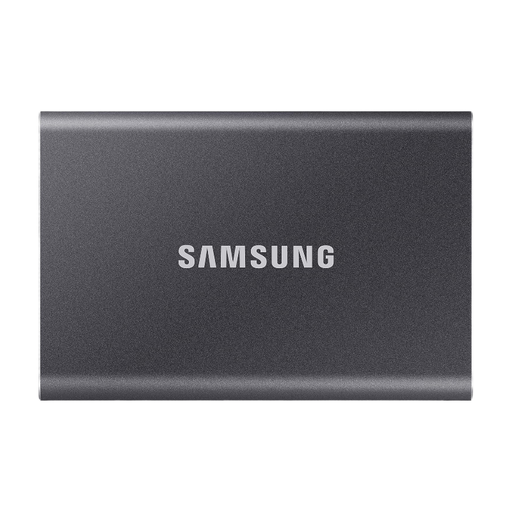 No image available
Samsung T7 Portable SSD, 4 TB, Titanium Grey
The stated 4 TB capacity may suit a larger local copy; compare it with the size of your selected project folders.
According to the product description, USB-C to USB-C and USB-C to USB-A cables are included. Check the connections on the devices you will use for the handover and to retrieve files.
Joybuy
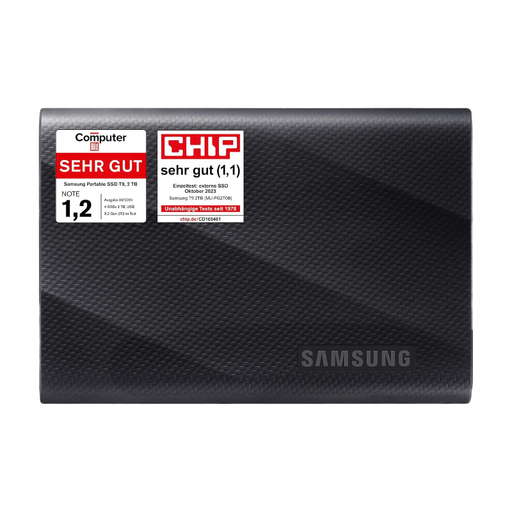 No image available
Samsung MU-PG2T0B 2 TB USB Type-C SSD
For a local copy, if your selected photo folders fit within the stated 2 TB capacity.
The product name specifies USB Type-C 3.2 Gen 2. Check that the connection mode is suitable for the devices and cables in your transfer workflow.
Joybuy
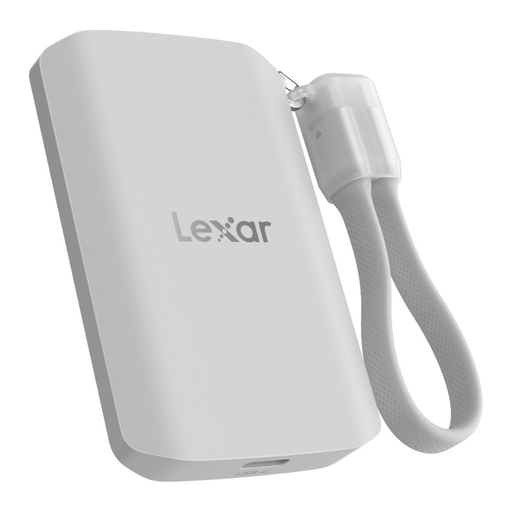 No image available
Lexar ES5 Portable SSD, 1 TB, USB 3.2 Gen 2x2, IP65
A portable option if your selected files fit in 1 TB.
The product name specifies an IP65 rating. According to the description, performance may be lower on devices without USB 3.2 Gen 2x2, so check your host device's connection.
Joybuy
Frequently asked questions
Is the SSD I hand over to the client enough as my backup?
Not if you no longer have your own separate, readable copy afterwards. Treat the handover copy and your backup as two separate copies, and test that you can retrieve the files you need from your backup. The Federal Office for Information Security points out that it must be possible to restore data.
Can I use the same SSD for Time Machine and handing over files?
Only if the format and process work for both purposes. Apple recommends APFS or APFS (Encrypted) for Time Machine backup volumes and warns that reformatting can erase existing data. Check the file format and access on the devices used for the handover before setting up a volume.
What should I do after copying files and before disconnecting the drive?
Open selected files or test that you can restore them before disconnecting the SSD. On Windows, Microsoft recommends safely ejecting external drives before disconnecting them to avoid data loss.
Does an SSD containing client photos have to be hardware-encrypted in Germany?
This does not mean that every SSD containing photos must be hardware-encrypted. When processing personal data, the requirements explained by the Federal Commissioner for Data Protection and Freedom of Information call for measures suited to the risks and the data being protected; encryption may be one of them. The right measures for your content and handover depend on how the SSD will be used.


