What should you look for when buying an SSD for RAW files?
First check how much storage you need, then make sure your computer and cable are suited to your transfers. Plan a separate backup independently of both.
| What to consider |
What to check before buying |
Who it matters most to |
| Capacity |
Take folder size, expected growth and the storage available after formatting into account. |
If I want to store my growing archive without constantly moving files around, I’ll base my choice on what I have and how much it’s likely to grow. Around 36 % of consumers put storage needs first. |
| Separate backup |
Keep your working drive and backup location separate, and check that you can restore the files. |
If protecting my RAW originals is especially important, I’ll plan a separate copy that I can restore. Around 29 % of consumers give data backup top priority. |
| Transfer speed |
Make sure your computer’s port and cable are compatible with the SSD interface. Don’t assume maximum quoted speeds are guaranteed copying speeds. |
If I regularly copy large folders of images, I want my computer’s port and cable to work well with the SSD. Around 21 % of consumers prioritise fast transfers. |
| Protection on the go |
Check the protection rating and warranty terms for the specific model. If you have confidential files, consider proper encryption. |
If I often take my SSD with me, I want to protect it appropriately while I’m out and about, and make sure my files aren’t left exposed if it’s lost. Around 14 % of consumers put portable protection first. |
Which brands are worth considering?
The features below relate to specific product ranges and manufacturers’ specifications; they aren’t a general assessment of the entire brand.
Samsung
The Portable SSD T7 Shield is a portable option for RAW files, with USB 3.2 Gen 2.
- For the 4-TB version MU-PE4T0S/EU, Samsung lists IP65 and speeds of up to 1.050 MB/s read and 1.000 MB/s write.
- Top speeds require a compatible host and cable. Samsung’s warranty excludes liquid and dust damage.
Crucial
The X9 Pro is available in a 4-TB version and offers USB 3.2 Gen 2.
- Crucial lists read and write speeds of up to 1.050 MB/s and IP55 for the X9 Pro.
- Speed claims are based on the manufacturer’s test conditions and may vary. Some of the advertised capacity isn’t available for storing files.
Kingston
The Dual Portable SSD is designed for people who want to move files between devices with USB-A and USB-C.
- Kingston lists speeds of up to 1.050 MB/s read and 950 MB/s write, plus a five-year manufacturer’s warranty, for this product range.
- The largest capacity available is 2 TB, so check that it will suit your archive’s expected growth.
LaCie
The Rugged SSD4 is a USB4-focused range for portable use and frequent large transfers.
- Seagate lists IP54 and a maximum read speed of 4.000 MB/s for the Rugged SSD4, with versions available up to 4 TB.
- Transfer speed depends on the host port. Seagate gives the Rugged SSD4 a limited three-year warranty.
SanDisk
The Extreme PRO with USB4 is a USB4 option for devices with a compatible port and frequent transfers of large image files.
- For the 2-TB model SDSSDE82-2T00-G25, SanDisk lists speeds of up to 3.800 MB/s read and 3.700 MB/s write, and IP65.
- The stated maximum speeds are manufacturer figures. Matching transfer speeds require compatible connection conditions.
Joybuy products for a growing RAW archive
The Joybuy products below are external SSDs for a growing RAW archive. Compare their stated capacity and interface with your collection and your computer’s ports.
 No image available
Samsung Portable SSD T7 1 TB
The 1-TB version could suit an archive if your current collection and planned growth will fit in the available storage.
USB 3.2 Gen 2; quoted speeds of up to 1.050 MB/s read and 1.000 MB/s write.
View at Joybuy
 No image available
Samsung SSD T7 2 TB
The 2-TB version offers a higher stated capacity for an archive that’s outgrowing 1 TB.
USB 3.2 Gen 2; quoted speeds of up to 1.050 MB/s read and 1.000 MB/s write.
View at Joybuy
 No image available
KIOXIA Exceria Plus G2 Portable SSD 2 TB
The stated 2 TB could be a good option if it suits the size of your current RAW collection and its planned growth.
The description lists USB 3.2 Gen 2 and maximum sequential speeds of 1.050 MB/s read and 1.000 MB/s write.
View at Joybuy
 No image available
MOVESPEED Portable SSD 1 TB, Model YSPSRX20M-1TTG
The 1-TB version could suit a smaller or deliberately limited archive, as long as the available storage is enough for the collection you’re planning.
USB 3.2 Gen 2×2; quoted speeds of up to 2.060 MB/s read and 1.800 MB/s write. The description lists compatibility with Windows, macOS and Android.
View at Joybuy
 No image available
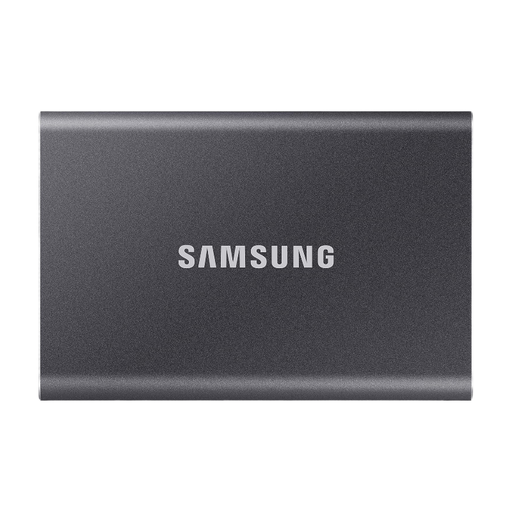
Samsung Portable SSD T7 4 TB
The stated 4 TB could be a good fit for a larger RAW archive. Remember to plan around the storage actually available for files.
USB 3.2 Gen 2; quoted speeds of up to 1.050 MB/s read and 1.000 MB/s write.
View at Joybuy
Frequently asked questions about external SSDs for RAW files
How should I set up my SSD if I use Lightroom Classic?
Decide where to keep your RAW originals, exports and catalogue file, and make sure you include the files you need in your backup routine. Adobe says a catalogue backup only includes the catalogue file, so back up your photos and exports separately.
Do I need to reformat a new SSD to use it with different computers?
Not necessarily. Crucial says the X9 Pro comes formatted as exFAT, but compatibility can depend on the host device and formatting. Check your devices’ requirements before making any changes, as reformatting will erase the data already on the drive.
Does a manufacturer’s warranty cover lost RAW files?
A manufacturer’s warranty is no substitute for a backup you can restore. Check the terms for the specific product and keep a separate copy of your files. For example, Samsung’s warranty for the T7 Shield excludes liquid and dust damage.
What are my rights if I buy a faulty product in Germany?
For a consumer purchase, your statutory rights against the seller are separate from a voluntary manufacturer’s warranty. The Verbraucherzentrale (German consumer advice centre) says that, if a product is faulty, the first step is to ask for a remedy. The details depend on the purchase and the fault.
Can I put a used external SSD in household waste?
No. Germany’s Federal Environment Agency explains that old electrical equipment must be collected separately from household waste. Local collection points generally accept it free of charge. Back up any files you need elsewhere first, and take care of any personal data on the drive before handing it in.


