Who is local RAW backup for?

Anyone with a growing RAW archive

If you regularly add to an existing photo collection, you need enough space for the folders you want to back up and any planned growth. The Federal Office for Information Security recommends allowing enough storage space for the amount of data you need to back up.

Anyone who takes photos on the go

If you take your SSD along on photo shoots, consider its stated protection against dust and water when deciding how to carry it. An additional, separate copy is still important: the Federal Office for Information Security recommends keeping physical backup media somewhere other than the location of the original device.

Anyone who uses several computers

If you want to access your backup on different devices, the connections, cables and file system need to work with the computers you plan to use. Also check that their USB standards support the speed you expect.

What should you look for?

First work out how large your photo archive is and how often you want to back it up. Then check that the connections, file system and enclosure protection suit the way you’ll actually use it.

What matters What to look for Who it matters to
Capacity for your RAW archive Allow for the size of your folders and any planned growth; check the capacity of the specific variant. If my RAW archive keeps growing, I want enough space for the copies I plan to keep. Around 25% of consumers name capacity as their main concern.
A restorable backup Plan a regular backup routine and allow enough room for your copies; test that you can restore them. If I need to rely on a backup, I want to be able to access my files again when I need them. Around 25% of consumers prioritise the ability to restore their files.
Speed when transferring large files Check the USB standards supported by the SSD, computer and cable; don’t assume the maximum quoted speed is the speed you’ll get in your own setup. If I regularly copy large RAW collections, I want to know that my computer and cable support the interface. Around 20% of consumers focus mainly on transfer speed.
Compatibility with your computers Check that the connections, cables and file system work with all the devices you plan to use; back up any existing data before reformatting. If I want to use the same backup with several computers, I want to be able to access it on each one without changing the file system without thinking it through. Around 15% of consumers prioritise device compatibility.
Protection while travelling Check the protection rating and warranty terms for the specific variant; plan to keep another copy. If I regularly take my SSD on photo shoots, I want the enclosure protection to suit how I carry it. Around 15% of consumers put protection while travelling first.

Common buying and backup mistakes

  • Confusing extra storage with a restorable backup

    Storage media can fail. A copy kept in the same place as your computer is also vulnerable to incidents at that location.

    Set up a regular backup routine, test that you can access the files, and keep at least one copy separate from the original device.

    Regular restore tests take time, and keeping another copy may mean buying an additional storage device.

  • Assuming USB-C or a maximum MB/s figure tells you your transfer speed

    USB 3.2 Gen 2 and Gen 2x2 are different standards. A USB-C port alone doesn’t confirm Gen 2x2 support. Kingston also notes that the XS2000 does not reach its advertised speed on a Mac.

    Check the USB standard supported by your computer, SSD and cable, and look at the conditions under which a speed is quoted.

    Paying extra for a faster interface won’t give you the corresponding benefit if your computer and cable don’t support it.

  • Assuming similarly named model generations or variants are the same

    SanDisk Extreme PRO generations differ in their interfaces and speeds. ASUS AS1000 and AS1000 PLUS models also use different USB variants.

    Check the full model name, model number, capacity and connection standard for the specific product listing.

  • Treating an IP rating as a substitute for another copy

    Samsung gives the T7 Shield an IP65 rating, but notes that liquid and dust damage are not covered by the stated warranty. A protection rating doesn’t make a single SSD a fail-safe backup.

    Check the protection rating and warranty terms for the specific variant, and keep another accessible copy regardless.

Key brands at a glance

Kingston

The XS1000 is a compact USB 3.2 Gen 2 option, while the XS2000 is designed for computers with USB 3.2 Gen 2x2.

  • Kingston lists the XS1000 in 1 or 2 TB capacities, with sequential write speeds of up to 1,000 MB/s. The manufacturer offers the XS2000 in capacities of up to 4 TB, with read and write speeds of up to 2,000 MB/s.
  • Kingston notes that the XS2000 does not reach its advertised speed on a Mac. Check the capacity and included cable for the specific variant.

Samsung

The T7 Shield is a portable USB 3.2 Gen 2 SSD with a stated enclosure protection rating. The T9 is a different model range for compatible Gen 2x2 hosts.

  • Samsung gives the 2 TB T7 Shield an IP65 rating and sequential write speeds of up to 1,000 MB/s.
  • Samsung excludes liquid and dust damage from the stated warranty coverage for the T7 Shield. The 1 TB T9 is not the same model as the T7 Shield.

Crucial

The X9 Pro may be a good fit if USB 3.2 Gen 2 and its factory-formatted exFAT file system suit the way you plan to use it.

  • Crucial lists sequential read and write speeds of up to 1,050 MB/s for the X9 Pro, along with an IP55 rating.
  • Crucial describes the speed as a maximum sequential figure measured under test conditions. Compatibility may depend on the host and formatting; reformatting erases the data on the drive.

SanDisk

The Extreme PRO Portable SSD with USB 3.2 Gen 2x2 is worth considering for frequent transfers if your computer and cable support the standard.

  • For the documented 1 TB version, SDSSDE81-1T00-G25, SanDisk lists read and write speeds of up to 2,000 MB/s, as well as an IP65 rating.
  • Earlier Extreme PRO generations have different interface and speed specifications. Check the model number and generation of the product you’re considering.

ASUS

The 1 TB TUF Gaming AS1000 is a documented option for portable storage and data backup.

  • ASUS lists USB 3.2 Gen 2x1 and an IP68 rating for the AS1000.
  • The AS1000 is not the same as the separately sold AS1000 PLUS, which ASUS lists with USB 3.2 Gen 2x2. Protection ratings don’t guarantee that your photo files will be preserved.

Joybuy products for local photo backups

These external SSDs offer different capacities and connections for local photo storage and backups. Check that the specific variant suits your archive and computers.

KEXIN External SSD 1 TB

KEXIN External SSD 1 TB

A 1 TB option for local photo storage, if that capacity suits your collection.

USB-C; stated transfer speed of up to 500 MB/s.

View at Joybuy

KIOXIA Exceria Plus G2 Portable SSD 2 TB

KIOXIA Exceria Plus G2 Portable SSD 2 TB

The 2 TB version is worth considering if it gives you enough space for your RAW archive and the copies you plan to keep.

View at Joybuy

MOVESPEED Portable SSD 1 TB, model YSPSRX20M-1TTG

MOVESPEED Portable SSD 1 TB, model YSPSRX20M-1TTG

A 1 TB option for local photo storage, if your computer and cable support the connection you need.

USB 3.2 Gen 2x2; the title lists a transfer speed of up to 2,060 MB/s. The speed you actually get depends on the supported interface and cable.

View at Joybuy

Samsung Portable SSD T7 2 TB, Titanium Grey

Samsung Portable SSD T7 2 TB, Titanium Grey

The 2 TB version is an option if you’ve decided that this is the right amount of space for your local photo storage.

USB Type-C and USB 3.2 Gen 2.

View at Joybuy
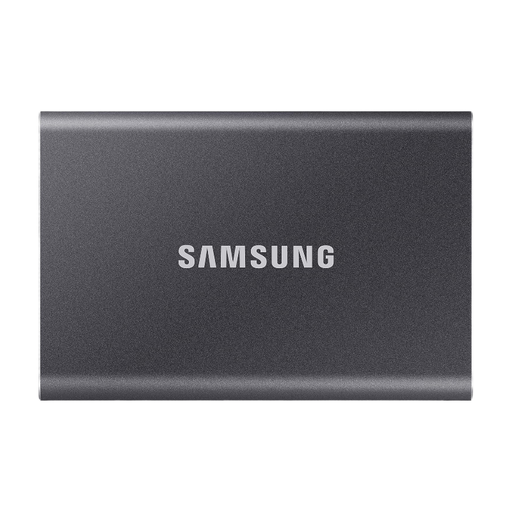
Samsung Portable SSD T7 4 TB, Titanium Grey

Samsung Portable SSD T7 4 TB, Titanium Grey

The 4 TB version may suit a large or growing RAW archive if you need that much storage space.

USB Type-C and USB 3.2 Gen 2.

View at Joybuy

Frequently asked questions

How do I set up an external SSD as a photo backup?

Decide which RAW folders, and any associated catalogue or editing files, you want to back up regularly. Then test that you can access the copied files. The Federal Office for Information Security says that being able to restore your data is an essential part of backing it up.

Is an external SSD enough as the only copy of my photos?

No, not if it holds the only remaining copy. The Federal Office for Information Security recommends keeping physical backup media separate from the original device, so plan to keep another copy.

Can I use the same SSD with different computers?

It depends on the connections, cables and file systems of the devices you plan to use. Crucial lists exFAT as the factory format for the X9 Pro and warns that reformatting erases the data on the drive. Kingston notes that the XS2000 does not reach its advertised Gen 2x2 speed on a Mac.

Does an IP rating replace the need for another backup?

No. A protection rating such as the IP65 rating Samsung gives the T7 Shield describes that particular model variant, but it doesn’t make a single SSD a fail-safe backup. Samsung also excludes liquid and dust damage from the stated warranty coverage.

What should I consider before reformatting?

First, back up any existing files somewhere else and check which file system your computers need. Crucial warns that reformatting the X9 Pro erases the data stored on the drive.