Choose an external SSD with enough space for your existing scans, future projects and the file versions you want to keep. To make older versions recoverable, you’ll need to set up and test a suitable backup method: Microsoft Support explains File History, while Apple Support covers Time Machine. If you’re storing confidential documents, you should also check access protection. A higher quoted transfer rate is no substitute for versioning or an additional backup.
Who is an SSD useful for?
People who back up project versions
If you want to recover older scans and document versions after making changes or accidentally deleting files, what matters is having a versioned backup set up and tested—not the SSD model alone. Microsoft Support and Apple Support explain how to use File History and Time Machine, respectively.
Growing scan archives
If you’re collecting scans from several projects, allow space for new files and saved versions. Germany’s Federal Office for Information Security points out that storage media have different lifespans, which are difficult to predict precisely.
Confidential projects
If you need to restrict access to documents, check the encryption options and make sure the recovery key can be stored securely. Germany’s Federal Office for Information Security outlines encryption options. If you’re processing personal data for purposes beyond purely personal or family use, you’ll also need to assess what safeguards are appropriate.
What should you look for when buying?
First decide how you’ll recover older file versions. Then compare capacity, device connections, access protection and portability with the needs of your archive.
| What you need |
What to check before buying |
Who is it most relevant to? |
| Older project versions |
Set up a suitable backup method, include your scan folders and test restoring an older file. |
If I want to retrieve earlier scans or document versions after making changes, a working versioned backup matters. Around 33 % of consumers have this as their main concern. |
| Space for scans and versions |
Check the size of your existing project folders and allow capacity for new files and saved versions. |
If my archive is growing, I don’t want to buy based on a general storage recommendation; I want to cover my actual needs. Around 27 % of consumers prioritise archive space. |
| Confidential files |
Check whether the drive or its files can be encrypted, and how to store the recovery key securely. |
When storing confidential scans, I want to restrict access without locking myself out by forgetting a password. Around 20 % of consumers say access protection is their top concern. |
| Connection and backup use |
Check that the connection, cable, operating system and file system work with your intended backup method. |
If I want to use the SSD with specific devices and a particular backup method, the connection and set-up need to be compatible. Around 13 % of consumers prioritise device compatibility. |
| Taking it between work locations |
Consider its size, the cable you’ll need and the limits of any stated protection rating; keep an additional backup. |
If I regularly take projects with me, I want a practical way to carry them and to remember that enclosure protection doesn’t guarantee data will be preserved. Around 7 % of consumers have portability as their main concern. |
Common selection mistakes
-
Assuming a second file on the same SSD is an independent backup
If the drive fails or is lost, the additional copy and several project versions could be affected too. Germany’s Federal Office for Information Security notes that storage media have varying lifespans and that data must be recoverable.
Keep another backup in a different location and test that you can restore a file from it.
-
Assuming the quoted maximum speed is the speed you’ll get from your own connection
Manufacturers’ quoted sequential transfer rates apply under their specified testing and host conditions. With your own device, the interface, host and cable can all affect the speed you achieve.
Check the connections on the SSD, computer and cable before relying on advertised maximum speeds to make your decision.
-
Assuming a protection rating or warranty guarantees your data will be safe
Samsung specifies IP65 for the T7 Shield under controlled test conditions and excludes liquid and dust damage from the warranty. Enclosure protection is no substitute for a separate backup.
Treat protection ratings as limited product features, and keep important scans on another backup device as well.
Brands and product ranges at a glance
Crucial
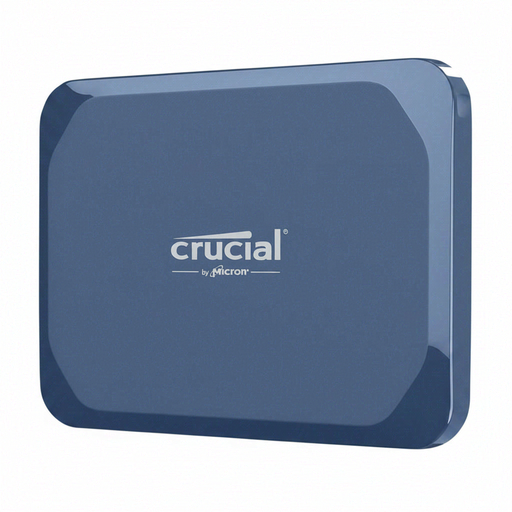
The Crucial X9 is a compact option for storing files and making backups. Crucial says it supports Windows File History and Apple Time Machine.
- Crucial quotes sequential read speeds of up to 1.050 MB/s for the X9 in a test.
- Actual speeds and compatibility depend on the host and formatting. Recovering earlier file versions also requires a backup method to be set up.
Kingston
Kingston offers the compact XS1000 range for backups, as well as the XS2000 range with USB 3.2 Gen 2x2.
- Kingston offers the XS1000 in 1 and 2 TB versions, and the XS2000 in versions up to 4 TB.
- Interfaces and security features vary between product ranges. You shouldn’t assume that an XS1000 or XS2000 is encrypted just because it’s made by Kingston.
Samsung
The T7 Shield is a range worth considering if you often take your SSD with you. The specifications for the 1 TB T7 Shield refer to the MU-PE1T0S/EU version.
- Samsung specifies USB 3.2 Gen 2 and IP65 for this version under controlled conditions. The manufacturer quotes sequential read speeds of up to 1.050 MB/s and write speeds of up to 1.000 MB/s, depending on the host configuration.
- Samsung says its warranty doesn’t cover liquid or dust damage. This statement applies to this product range.
Verbatim
The Pocket SSD is a compact option for carrying files. Verbatim says the #32193 model comes with a USB-C-to-USB-C cable.
- Verbatim lists the Pocket SSD #32193 as 1 TB, 58 g and USB 3.2 Gen 2. The included Nero backup software is for Windows.
- Verbatim says its Nero software isn’t compatible with macOS, so you’ll need to set up another backup method for a Mac.
Joybuy products for scans and project files
The products below are portable external SSDs for storing scans and project files. Capacity, connection and any access protection vary by version; the drive won’t automatically create earlier file versions.
 No image available
KEXIN External SSD, 1 TB
For scans and project files, if 1 TB is right for your archive and the file versions you plan to keep.
1 TB; USB 3.1 and USB-C; up to 500 MB/s according to the product specifications.
You’ll need to set up a backup method to keep earlier file versions.
View at Joybuy
 No image available
Kexin M.2 SATA Portable External SSD, 256 GB
For a smaller scan archive, if 256 GB is enough for your existing files and the versions you want to keep.
256 GB; USB 3.1 and USB-C; up to 500 MB/s according to the product specifications.
You’ll need to set up a backup method to keep earlier file versions.
View at Joybuy
 No image available
Samsung Portable SSD T7, 1 TB, Grey
For project files if you need 1 TB and want the option of password protection for confidential content.
1 TB; USB 3.2 Gen 2; USB-C and USB-A cables; 58 g; optional 256-bit AES hardware encryption according to the product description.
You’ll need to set up a backup method to keep earlier file versions.
View at Joybuy
 No image available
Samsung SSD External Storage T7, 2 TB, Indigo Blue
For a growing archive, if 2 TB is right for your existing scans and the file versions you plan to keep.
2 TB; USB 3.2 Gen 2; optional password protection with 256-bit AES hardware encryption according to the product description.
You’ll need to set up a backup method to keep earlier file versions.
View at Joybuy
 No image available
Crucial X10 Portable SSD, 1 TB
For project files if 1 TB is enough and you’re looking for a version with AES hardware encryption.
1 TB; USB-C 3.2 Gen 2x2; AES hardware encryption according to the product description.
You’ll need to set up a backup method to keep earlier file versions.
View at Joybuy
Frequently asked questions
Does an external SSD automatically save earlier versions of my scans?
No. For example, set up File History on Windows or Time Machine on a Mac with a suitable external drive. Microsoft Support and Apple Support explain how to use these tools to restore earlier file versions. Then test a sample file to check that your scan folder is included.
Can I use a Mac Time Machine SSD as an ordinary project folder as well?
Apple recommends using a Time Machine backup volume that you’ve set up only for Time Machine backups. If you also need general file storage, plan for that separately and check how to set up the volume before formatting it, as this may delete existing data.
What should I bear in mind if the drive develops a fault or before making a warranty claim?
Keeping an additional backup of important scans protects your files regardless of any warranty claim. Germany’s Verbraucherzentrale distinguishes between statutory rights against the seller and a voluntary guarantee; check the relevant terms. Statutory rights or a guarantee are no substitute for a recoverable backup.
Is a particular encrypted SSD model always required for scanned project documents in Germany?
No. There is no general requirement to use a particular SSD model. Germany’s Federal Commissioner for Data Protection and Freedom of Information says the GDPR does not apply when individuals process personal data solely for personal or family activities. Outside this exemption, data controllers must assess appropriate technical and organisational measures based on the risks involved; encryption may be one such measure.


