What should you look for when buying?
First work out how much storage you need and which backup method you want to use. Then check your operating systems and ports, and choose a higher transfer rate only if your workstation can make use of it.
The percentages refer to consumers considering an external SSD for video backups on a shared workstation. Each figure reflects the buyer’s top priority.
| Criterion |
What to look for |
Who should pay particular attention? |
| Usable capacity |
Allow for the size of your video folders, planned changes and the backup versions you want to keep. |
If I’m backing up a growing archive, I need enough room for my existing files and planned backup versions. Around 25% of consumers put sufficient capacity first. |
| Recoverability |
Decide which folders to back up and test restoring a file. |
I want to be able to restore a complete, readable copy when needed, rather than simply having files stored on a drive. Around 25% of consumers prioritise recoverability. |
| System compatibility |
Check your operating systems and USB ports. Before formatting, distinguish between file sharing and a Time Machine backup. |
If I want to use videos on Windows and Mac computers, the format needs to suit how I plan to use them. Around 20% of consumers put compatibility first. |
| Access protection |
Decide who can create and restore backups; check encryption and user accounts on the computer in question. |
When working with confidential footage at a shared workstation, I want to restrict access by other users. Around 15% of consumers prioritise access protection. |
| Transfer speed |
Check the workstation’s USB mode and compare the cable and host requirements with the manufacturer’s specifications. |
If I often transfer large video folders, the speed my computer actually supports matters most. Around 15% of consumers put transfer speed first. |
Joybuy products for video backups
The following Joybuy models are external SSDs that could work as a backup destination for video folders. Choose a capacity that suits your archive and planned backup versions.
 No image available
Kexin M.2 SATA Portable External SSD, USB 3.1, up to 500 MB/s, 256 GB
An option if your backups, including the versions you want to keep, fit within 256 GB.
M.2 SATA; USB 3.1; up to 500 MB/s; 256 GB.
Joybuy
 No image available
KEXIN Portable External SSD, USB 3.1 Type-C, up to 500 MB/s, 512 GB
Consider this model if your planned backups will fit within the stated 512 GB capacity.
USB 3.1 Type-C; up to 500 MB/s; 512 GB.
Joybuy
 No image available
Samsung Portable SSD T7, 1 TB, Grey
Consider it as a backup destination if 1 TB is enough for your archive and planned backup versions.
USB Type-C; USB 3.2 Gen 2; 1 TB. Optional password protection needs to be set up; an unlocked SSD does not prevent access by other users.
Joybuy
 No image available
Samsung Portable SSD T7, 2 TB, Indigo Blue
Consider the 2 TB version if its capacity suits your archive and planned backup versions.
2 TB. Optional password protection needs to be set up; an unlocked SSD does not prevent access by other users.
Joybuy
 No image available
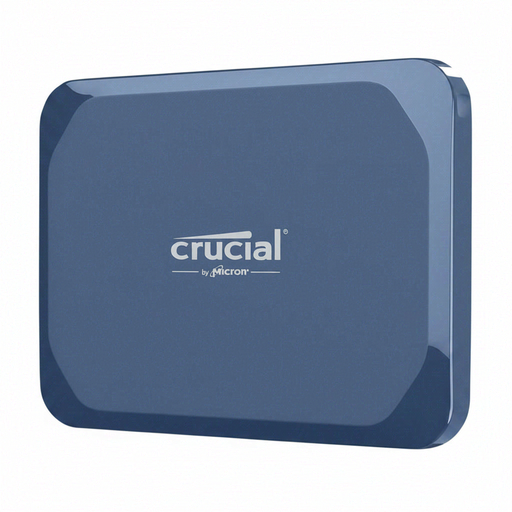
Crucial X10 Portable SSD, 1 TB
Consider it as an external backup destination if your planned backups fit within the stated 1 TB capacity.
Portable SSD; 1 TB.
Joybuy
Frequently asked questions
Can the same SSD be used to share video files between Windows and Mac and as a Time Machine volume?
Not without checking the format and backup method. Apple Support recommends exFAT for sharing files between Windows and Mac, but says that a volume formatted for Windows cannot be used as a Time Machine destination. Formatting deletes any existing files.
What should I check after my first backup?
Check that the video folders you need are included and readable, then test restoring a file. The German Federal Office for Information Security recommends checking backups occasionally to make sure they are complete and readable.
Do I need to plan for extra software or a key to protect access?
That depends on the solution you choose and your edition of Windows. Microsoft says BitLocker is not available in Windows Home, so check the edition on your shared computer and make sure your chosen access solution is supported on all the devices you need to use.
What safeguards should I consider for video footage containing personal data?
If an organisation processes personal data, the GDPR requires appropriate technical and organisational measures that match the level of risk, according to the European Data Protection Board. The right measures depend, among other things, on the footage and how it will be accessed; drive encryption alone cannot reliably restrict access by other users once the drive is unlocked.


