To back up your video library, first work out how much storage you need for your current collection and planned backup versions. Then compare the write speed with the connection on your workstation. Manufacturers’ maximum speed claims apply only under the stated conditions for the host device, cable and interface. The German Federal Office for Information Security (BSI) also recommends disconnecting the backup drive from your computer when it’s not being used for a backup, and checking that you can restore your files.
Who is an external SSD for video backups suitable for?
Collectors with growing video libraries
If you want to back up lots of existing videos as well as new footage, choose a capacity that suits your actual data and planned backup versions. The BSI recommends backing up your data regularly; Crucial notes that some of the stated storage capacity is used for formatting and other purposes.
People who regularly transfer large files
If you update large backups frequently, write speed matters alongside your workstation’s connection and cable. Samsung Germany and Kingston Technology specify these requirements for the advertised maximum speeds of their respective models.
People safeguarding hard-to-replace videos
If family videos or other hard-to-replace files are especially important to you, make sure you have a separate copy that you can restore. The BSI recommends disconnecting the backup drive from your computer when it’s not being used for a backup.
What should you look for in a backup SSD?
First, choose a capacity that suits your library and planned backups. Then compare the write speed, connection and cable with your workstation, and plan how you’ll keep the backup copy disconnected.
| What matters when buying |
What to check |
Who it matters most to |
| Capacity and future backups |
Compare the size of the folders you want to back up, expected growth, planned backup versions and usable space after formatting. |
If your video library is growing, you’ll want room for your collection and planned backup versions. Around 33% of consumers therefore prioritise capacity. |
| Protection and recoverability |
Plan regular backups, disconnect the drive when it’s not being used for a backup, and check that you can restore your files. The BSI recommends keeping the backup medium disconnected. |
If you want to protect hard-to-replace videos from computer failure or malware, a separate, recoverable copy is particularly important. Around 33% of consumers prioritise backup protection. |
| Write speed for large transfers |
Check the write speed of the specific SSD against the USB specifications of your workstation and cable; don’t confuse read and write speeds. |
If you regularly back up large amounts of video, you’ll want to keep transfer times in mind. Around 25% of consumers prioritise transfer speed. |
| Connection and ease of use |
Check the connection on your workstation, the cable supplied and any adapter you may need for the specific SSD. |
If you regularly plug in and disconnect the drive, it should be compatible with your devices’ connections. Around 9% of consumers prioritise connection and ease of use. |
Common mistakes when buying and backing up
-
Assuming read speed is the same as backup write speed
Read and write speeds are different. The speed you can achieve also depends on your workstation and connection.
Compare the write speed of the specific model with the USB specifications of your computer and cable. If these requirements aren’t met, copying may take longer than you’d expect based on the advertised maximum speed.
-
Leaving your only backup SSD connected all the time
If your only backup stays connected to your computer, malware or a hardware fault could potentially affect both the computer and the backup. The BSI recommends disconnecting the drive when it’s not being used for a backup.
Plan regular backups, disconnect the drive afterwards, and check that you can restore files from it.
-
Confusing the enclosure’s protection with protection for your videos
Samsung’s IP65 rating for the T7 Shield is based on controlled tests; according to Samsung, liquid and dust damage isn’t covered by the warranty. An enclosure feature isn’t a substitute for an additional backup copy.
Consider protection features only in the context of how you plan to use the drive, and keep important videos on a separate medium as well.
External SSD brands to consider
Samsung
The Portable SSD T7 Shield is a USB 3.2 Gen 2 range; the documented 4-TB variant has the model number MU-PE4T0S/EU.
- Samsung Germany states that this model offers sequential read speeds of up to 1.050 MB/s and write speeds of up to 1.000 MB/s, when the host, cable and UASP meet the stated requirements.
- The IP65 rating is based on controlled tests. According to Samsung, liquid and dust damage isn’t covered by the warranty.
Crucial
The X9 Pro is a portable SSD range with a documented 4-TB variant, CT4000X9PROSSD9.
- Crucial advertises read and write speeds of up to 1.050 MB/s for the X9 Pro, as well as IP55 protection.
- These are manufacturer claims, not a measurement of your backup process. According to Crucial, a USB-A adapter is available separately.
Kingston
The XS2000 is available in capacities up to 4 TB and uses USB 3.2 Gen 2x2, for workstations with a compatible connection.
- Kingston Technology states read and write speeds of up to 2.000 MB/s.
- Kingston requires a Gen 2x2 host and a suitable cable to achieve the advertised top speed; the manufacturer notes that performance on Macs is lower than advertised.
Joybuy products for video backups
This selection includes external SSDs with a range of capacities and connections for backing up a video library. The key is to choose a variant with enough capacity for your planned backups and a connection that’s compatible with your workstation.
 No image available
Samsung Portable SSD T7 1 TB USB Type-C 3.2 Gen 2, Grey
An option if 1 TB is enough for your planned backups.
The product title specifies USB Type-C and USB 3.2 Gen 2.
View at Joybuy
 No image available
Samsung Portable SSD T7 2 TB, Indigo Blue
An option if 2 TB is enough for your planned backups.
The product description lists USB-C-to-C and USB-C-to-A cables.
View at Joybuy
 No image available
MOVESPEED Portable SSD 1 TB, model YSPSRX20M-1TTG
An option if 1 TB is enough for your planned video files and backups.
The product title specifies USB 3.2. Suitable high-speed interfaces and cables are required to achieve the advertised top speeds.
View at Joybuy
 No image available
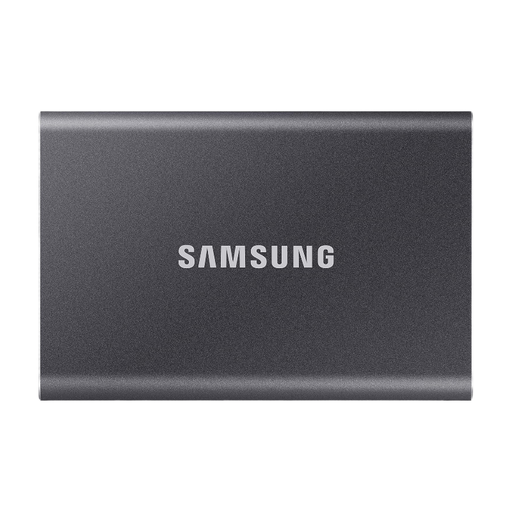
Samsung Portable SSD T7 4 TB USB Type-C 3.2 Gen 2, Titanium Grey
An option if your library and planned backup versions fit within 4 TB.
The product title specifies USB Type-C and USB 3.2 Gen 2.
View at Joybuy
 No image available
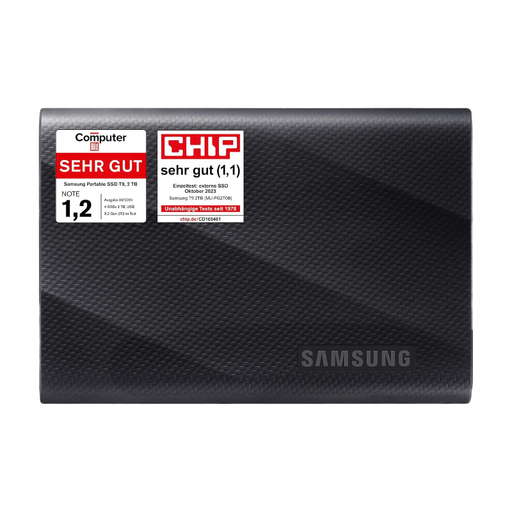
Samsung MU-PG2T0B 2 TB USB Type-C 3.2 Gen 2, Black
An option if 2 TB is enough for your planned backups.
The product title specifies USB Type-C and USB 3.2 Gen 2.
View at Joybuy
Frequently asked questions about external SSDs for video backups
How do I set up an external SSD as a backup drive?
First, work out how much data you need to back up and choose a drive with enough usable space. Plan regular backups, disconnect the drive from your computer afterwards, and check that you can restore your files. The BSI recommends keeping the backup medium disconnected when it’s not being used for a backup.
Do I need a specific connection to achieve the advertised top speed?
To achieve the advertised top speed for a particular model, your connection and cable must meet its requirements. Kingston Technology specifies a USB 3.2 Gen 2x2 host and a suitable cable for the XS2000; Samsung Germany specifies USB 3.2 Gen 2, a compatible cable and UASP for the T7 Shield’s maximum speeds.
Does a manufacturer’s warranty replace backing up my videos?
No. A warranty isn’t a substitute for an additional copy of your files that you can restore. The Verbraucherzentrale distinguishes between statutory rights and a voluntary warranty, so keep important videos on a separate medium as well.
How should I dispose of an old SSD in Germany?
Don’t put a disused SSD in your household waste. The German Environment Agency lists recycling centres and suitable retail take-back points as options; remove your personal data before handing it in.


