Collectors with large video libraries
If you need space for lots of videos and additional backups, choose a capacity that suits your collection. Crucial points out that some of the stated capacity is used for formatting and other purposes.


First, choose a capacity that can hold your existing videos and planned future backups. Then check that the connection and cable are compatible with your computer. A compact drive saves desk space, but it’s no substitute for regular backups and recovery tests. The BSI also recommends keeping an external backup medium somewhere else safe.
If you need space for lots of videos and additional backups, choose a capacity that suits your collection. Crucial points out that some of the stated capacity is used for formatting and other purposes.
If you want to back up new recordings regularly and restore them when needed, you’ll need a practical backup routine. The BSI recommends backing up data regularly and checking that it can be restored.
When desk space is limited, the drive’s size and cable management matter. Crucial lists the X9’s dimensions as 65 × 50 mm; Kingston’s Dual Portable SSD has built-in USB-A and USB-C connectors, so it doesn’t need a separate cable.
Start by working out how much space your video library needs, then check which USB connections your computer supports. This will help you find a capacity, size and interface that suit your desk and backup routine.
| What matters when buying | What to look for | Who is it important to? |
|---|---|---|
| Capacity | Allow for the size of your existing videos and future growth, and take usable storage space into account. | As my collection grows, I want the drive to hold future backups too. Around 31% of consumers put having enough space for both existing and future videos first. |
| Recovery | Choose a backup method for your operating system and test whether you can restore a file. | If I’m going to rely on a backup, I want to check regularly that new videos are actually being saved and that files can be restored. Around 25% of consumers prioritise a reliable, verifiable backup routine. |
| Speed and connection | Check that your computer’s USB specification matches the SSD; don’t treat the manufacturer’s maximum speeds as guaranteed transfer speeds. | When transferring large video files, I want to keep an eye on copy times without paying for a connection advantage my computer can’t use. Around 19% of consumers pay particular attention to transfer speeds and host compatibility. |
| Desk space and cables | Check the drive’s dimensions and leave enough room around the USB ports. | If my desk is small, I want to fit the drive and cable without taking up too much workspace or blocking other connections. Around 13% of consumers prioritise a space-saving setup and simple cable management. |
| Features that suit your needs | Decide on the minimum capacity and connection you need, then compare options with the features you’re looking for. | I don’t want to choose features that won’t benefit my backup routine. Around 12% of consumers focus on finding an SSD with the right capacity and connection for their needs. |
Some of the stated capacity may be used for formatting and other purposes. Make sure your video library and planned future backups will fit in the space that’s actually available.
Check the size of your existing video files and allow for future storage needs before choosing a capacity.
Transfer speeds depend, among other things, on whether your computer supports the SSD’s interface. A high quoted speed on its own doesn’t tell you how quickly backups will run on your device.
Check the USB specification and cable against your computer’s connection, and don’t treat maximum speeds as a guaranteed backup time.
The BSI highlights risks from faults, malware and damage to buildings. If your computer and only backup are affected at the same time, you could lose both copies.
Set up a regular backup routine and recovery test. If needed, keep another copy separately in a safe place.
Apple explains that a Windows-formatted volume can’t be used for Time Machine. Reformatting it will erase any data already on the volume.
Check which backup system you plan to use before formatting, and save any files on the drive somewhere else first.
The T7 Shield could suit anyone considering a portable backup drive with extra protection from its casing.
The product ranges offer different connection and form-factor options. The key is finding one that suits your computer and available desk space.
The X9 is a compact option if desk space and a suitable capacity matter more to you than a quoted maximum interface speed.
The 1 TB Extreme Pro Portable SSD V2 is a specific model featured in a German editorial test list.
This selection features external SSDs for video files and backups, with a range of capacities, connections and form factors.
 No image available
A choice for external video backups if 512 GB is enough for your collection.
The product title lists USB 3.1, Type-C and speeds of up to 500 MB/s.
 No image available
A compact option for video backups if 2 TB suits your collection and your computer supports USB 3.2 Gen 2.
The product details list read speeds of up to 1,050 MB/s and dimensions of 72 × 40 × 11.8 mm.
 No image available
For large video files if your computer supports USB 3.2 Gen 2×2.
The product details list read speeds of up to 2,060 MB/s and write speeds of up to 1,800 MB/s. These maximum speeds aren’t guaranteed on your device.
 No image available
For a video collection that fits within 2 TB and needs backing up from a USB-C or USB-A device.
The product details list USB 3.2 Gen 2, read speeds of up to 1,050 MB/s, two cable types and dimensions of 8.5 × 5.7 × 0.8 cm.
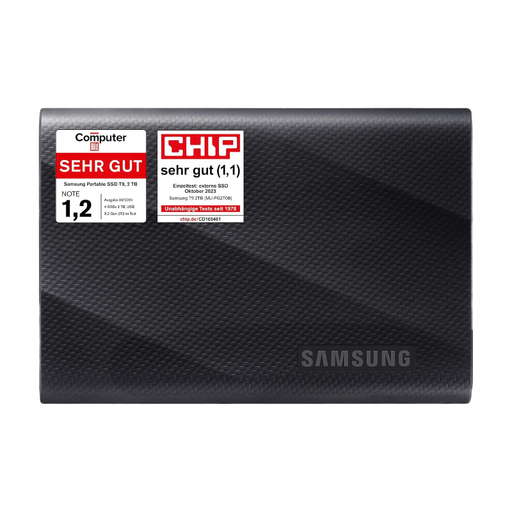 No image available
For video files and additional backups if 2 TB is enough for your collection.
The product details list speeds of up to 2,000 MB/s and USB-C-to-C and USB-C-to-A cables. Check which interface your computer supports; the maximum speed isn’t guaranteed.
Dimensions according to the product details: 8.8 × 6 × 1.4 cm.
On Windows, File History can back up personal files, including videos. Check whether it also includes video folders outside the default libraries. On a Mac, you can use a connected external drive with Time Machine. Then restore a file to check that your backup works.
No. A Windows-formatted volume can’t be used as a Time Machine volume. Apple says you can reformat it, but warns that this will erase any data already on the drive. For new backup volumes, Apple recommends APFS or APFS (Encrypted).
A connected SSD can be used as a backup destination, but you shouldn’t rely on it as your only copy without checking. The BSI recommends keeping an external backup medium somewhere else safe after backing up, and advises testing recovery regularly.
No. The German Environment Agency explains that electrical and electronic waste must be collected separately from unsorted household waste. Save any files you need and deal with the data on the drive before handing it in.