Choose a capacity based on the handouts and project versions you actually want to keep, and check the connections and file access on every computer you plan to use. To keep older file versions, you’ll also need a backup process that’s set up and tested: Microsoft Support explains File History, while Apple Support covers Time Machine. A single SSD is not a separate backup; the Federal Office for Information Security recommends disconnecting the backup medium from your device when it isn’t being used for a backup.
Which solution is right for you?
Workshop teams with lots of versions
If you need to find earlier handouts or project files, a versioning and backup process that’s been set up and tested matters more than simply buying an SSD. Microsoft Support, Apple Support and the Federal Office for Information Security explain backup and recovery features and processes.
Teams using different computers
If you copy files between your work computer and workshop computers, check that the connections and cables match, and that you can access your files on the devices you’ll actually be using. Kingston Technology and Verbatim Europe list the connections and cables available for specific models.
Teams with large project folders
If you regularly transfer large folders, match the capacity and transfer speed to your computer’s interface. Kingston Technology and Samsung Germany quote maximum speeds that depend on using a compatible connection; they’re not guaranteed on every device.
What should you look for when buying?
This table is for consumers copying workshop materials and several project versions between computers. Each row focuses on the main buying priority in that case.
| Priority |
What to look for |
Who will find this most important? |
| Restoring older versions |
Check whether the backup process includes your workshop folders, how you can restore earlier versions and where a separate copy is kept. |
If I need to restore earlier versions of handouts, I need a versioning and backup process that’s been set up and tested. Around 36% of consumers put restoring older versions first. |
| Space for several project versions |
Check how much data you already have, allow for the versions you want to keep and projects you’re planning, and check the usable capacity of the specific model. |
If I want to keep several project versions as well as my handouts, I’ll choose a capacity that suits the folders I actually have. Around 29% of consumers prioritise available storage space. |
| Connection and file access |
Check the USB ports, cables included, file system and access on every computer you plan to use. |
If I switch between workshop computers, the files need to open on every device and the connections need to match. Around 21% of consumers put computer compatibility first. |
| Transfer time |
Compare the USB mode supported by the SSD, computer and cable, as well as the size and frequency of your transfers. |
If I regularly transfer large folders, a compatible USB mode matters more to me than a high quoted speed on its own. Around 14% of consumers prioritise transfer time. |
Common misconceptions
-
An SSD automatically saves previous versions
Copying a current file won’t automatically restore an earlier version that’s been overwritten.
Set up your versioning and backup process before the workshop, then test that you can restore an older file.
Backups and recovery tests take time and require additional storage space.
-
Your only copy can travel with your work computer
Damage, theft or malware could affect your work files and a copy that’s permanently connected at the same time.
Keep a separate backup. The Federal Office for Information Security recommends disconnecting the backup medium from your device when it isn’t being used for a backup.
-
A USB-C connector automatically means Gen-2x2 speeds
To reach the maximum speed Kingston quotes for the XS2000, both the host and cable must support USB 3.2 Gen 2x2. Kingston says the XS2000 won’t reach that speed on Macs.
Before buying, compare the USB modes supported by the SSD, computer and cable instead of relying on the connector type alone.
-
Similarly named SSD versions have the same specifications
Manufacturer information for the ASUS TUF Gaming AS1000 doesn’t automatically apply to the AS1000 Plus. A SanDisk manufacturer notice dated 31 May 2023 describes possible unexpected disconnections on affected devices in the Extreme PRO Portable SSD V2 range; this doesn’t mean every unit is affected.
Check the full model name. If you have a device from the SanDisk range mentioned, check the manufacturer’s information using its serial number.
Key brands at a glance
Kingston
The XS1000 is a compact USB 3.2 Gen 2 option; the XS2000 is designed for frequent large transfers with a compatible Gen 2x2 host.
- Kingston lists USB-A and USB-C connection options and speeds of up to 1.050 MB/s for the XS1000.
- Kingston quotes speeds of up to 2.000 MB/s for the XS2000.
- According to Kingston, the XS2000 needs a compatible host and suitable cable to reach its maximum speed; it won’t reach that speed on Macs.
Samsung
The T9 is a Gen 2x2 option for large transfers with a suitable connection; the T7 Shield is a separate USB 3.2 Gen 2 range.
- Samsung quotes sequential speeds of up to 2.000 MB/s for the T9 under the specified connection conditions.
- The host device and cable must support USB 3.2 Gen 2x2 to reach the T9’s maximum speed. The T9 specifications don’t automatically apply to the T7 Shield.
Verbatim
The Pocket SSD is a portable option if USB-C works with the computers you plan to use.
- Verbatim lists USB 3.2 Gen 2 and an included USB-C-to-USB-C cable.
- If your computers have USB-A ports, you’ll need to check separately that you have a suitable connection option. These specifications don’t provide version management.
ASUS
The TUF Gaming AS1000 may suit frequent travel if its protection ratings match how you plan to use it.
- ASUS lists USB-C 3.2 Gen 2x1, IP68 and drop-test certification for the AS1000.
- These specifications apply to the AS1000 and don’t automatically apply to the differently specified AS1000 Plus. A protective casing is no substitute for a separate backup.
SanDisk
The Extreme PRO Portable SSD V2 is a Gen 2x2 option for larger transfers, provided the specific device version and connection are suitable.
- SanDisk quotes speeds of up to 2.000 MB/s for this product range.
- In a notice dated 31 May 2023, SanDisk described a firmware issue that can cause unexpected disconnections on affected devices in the Extreme PRO Portable SSD V2 range. The notice recommends checking the serial number; it doesn’t state that every device is affected.
Joybuy product selection
This selection includes external SSDs for workshop materials and project versions: compact USB 3.2 Gen 2 models and a Gen 2x2 option for compatible connections.
 No image available
Samsung Portable SSD T7, 1 TB, Grey
For switching between computers with USB-C or USB-A ports, the product description lists cables for both connection types.
1 TB; USB 3.2 Gen 2. Quoted speeds of up to 1.050 MB/s for reading and 1.000 MB/s for writing.
Joybuy
 No image available
Samsung SSD External Storage T7, 2 TB, Indigo Blue
This 2 TB version gives you space for project folders and selected versions; the product description lists cables for USB-C and USB-A ports.
USB 3.2 Gen 2. Quoted speeds of up to 1.050 MB/s for reading and 1.000 MB/s for writing.
Joybuy
 No image available
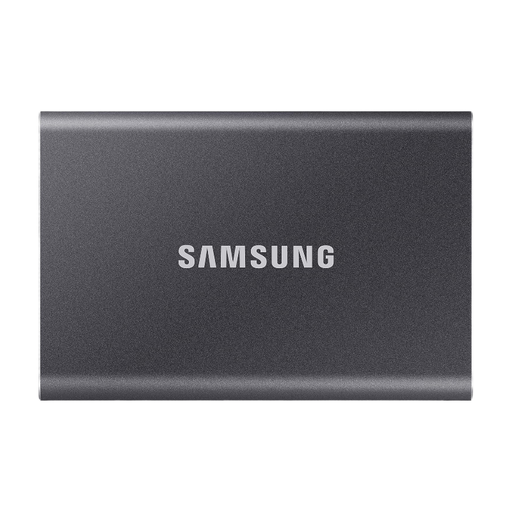
Samsung Portable SSD T7, 4 TB, Titanium Grey
This 4 TB version provides external storage for large workshop folders and selected project versions.
USB-C and USB 3.2 Gen 2. The product description lists USB-C-to-C and USB-C-to-A cables, as well as AES-256 hardware encryption.
Joybuy
 No image available
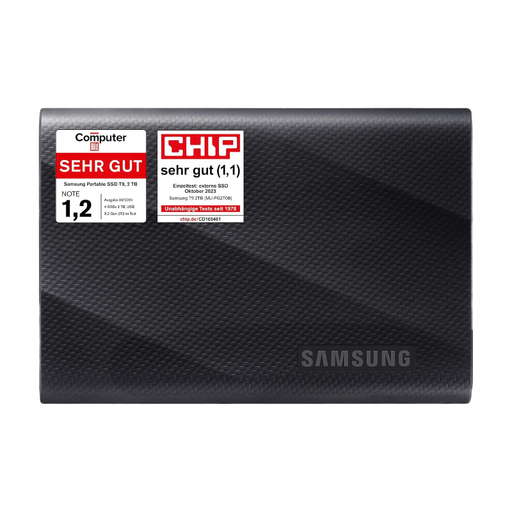
Samsung MU-PG2T0B, 2 TB
This 2 TB version can be used for workshop materials and selected project versions.
USB Type-C and USB 3.2 Gen 2 according to the product name. The product description lists cables for USB-C and USB-A ports, as well as compatibility with PCs and Macs.
Joybuy
 No image available
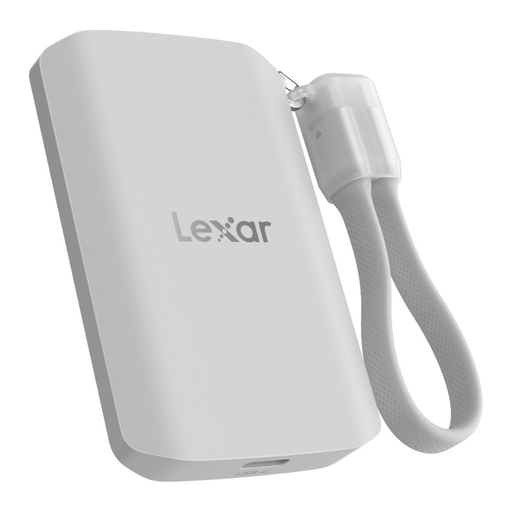
Lexar ES5 Portable SSD, 1 TB
For frequent large transfers, the Gen 2x2 specification is only relevant if your computer and cable support the required USB mode.
The product name lists USB 3.2 Gen 2x2, read and write speeds of up to 2.000 MB/s, and IP65. According to the product description, performance may be lower on systems that don’t support Gen 2x2.
Joybuy
Frequently asked questions
Does an external SSD automatically save earlier versions of handouts when you copy them?
No. Simply copying files doesn’t create version history. Set up a suitable backup process and test that you can restore files; Microsoft Support explains File History, while Apple Support covers Time Machine.
What should I try out with the SSD before the first workshop?
Copy a test folder, open it on every computer you plan to use, then try restoring an older version using your backup process. Check the connection, cable and file access too; the Federal Office for Information Security points out that you also need to be able to restore backed-up data.
Does a backup SSD need to stay connected all the time?
No. The Federal Office for Information Security recommends disconnecting the backup medium from your device when it isn’t being used for a backup.
Is a specific hardware-encrypted SSD required by law for workshop materials?
The data protection guidance referenced here doesn’t impose a blanket requirement to use a particular SSD. If your materials contain personal data and the GDPR applies to the processing, you’ll need to assess the legal basis and appropriate safeguards for the specific activity. The Federal Commissioner for Data Protection and Freedom of Information explains the relevant data protection principles.


