Gamers with very limited desk space
If you need room for a keyboard and mouse as well as your monitor, the width of the casing and depth of the stand matter just as much as the screen size.


For a small desk, a 23.8- to 24-inch monitor is a compact option, but whether it fits also depends on its casing and stand. A 27-inch QHD monitor gives you more screen space if you have enough room and sit at a suitable distance. A 34-inch ultrawide is worth considering if you have space for the extra width and the game displays its interface appropriately. For long sessions with fixed controls on screen, panel care is another factor to weigh up.
If you need room for a keyboard and mouse as well as your monitor, the width of the casing and depth of the stand matter just as much as the screen size.
If you want to see build areas and small controls clearly, consider resolution, screen size and readability together.
If maps or control panels stay on screen for a long time, it’s worth weighing up the panel type and how to use the care features on the specific monitor.
A good fit if: screen width and viewing distance are your priorities. QHD is also available at this size, for example on the AOC Q24G4RE.
The trade-off: At the same scaling, content looks physically smaller on a smaller screen, so check readability from where you sit.
A good fit if: the monitor and stand fit on your desk and you’d like more space for your factory view and controls.
The trade-off: A larger screen takes up more desk space. With the Dell G2725D, the maximum refresh rate at QHD also depends on the connection.
A good fit if: you specifically want a wider view and have checked the dimensions of the model you’re considering.
The trade-off: A wider format won’t automatically solve space issues. Check how your game displays its interface on this type of screen, too.
| Buying criterion | What to check before buying | Who it matters most to |
|---|---|---|
| Desk space and seating position | Compare the casing width and depth with the stand fitted against the space available, as well as the positions of your keyboard and mouse. | If desk space is tight, I want to be able to position the screen and peripherals comfortably. Around 36% of consumers prioritise desk space. |
| Detail and readability | Consider native resolution, screen size and suitable display or in-game scaling together. | For small factory details, I want to see elements clearly without considering resolution and scaling in isolation. For around 29% of consumers, being able to see detail is the top buying priority. |
| Refresh rate and connection | Check your chosen resolution and refresh rate against the monitor input and PC output you’ll actually use. | If smooth visuals are particularly important to me, I check the refresh rate and connections before buying. Around 21% of consumers put smooth visuals first. |
| Panel for long sessions | Check the panel type, care features and warranty terms for the specific model. | For long gaming sessions with controls on screen throughout, I want to weigh up the panel choice and care requirements carefully. Around 14% of consumers prioritise panel care for long sessions. |
On a small desk, the actual depth with the stand fitted affects how much room is left for your screen and peripherals.
Before ordering, compare the full dimensions of the specific model with your desk. Only consider a VESA mount if the monitor, mount and desk are all suitable for it.
For the G2725D at QHD, Dell specifies up to 180 Hz over DisplayPort and up to 144 Hz over HDMI.
Check the figures for the input you want to use and make sure they match your PC’s output.
The F.A.Z. Kaufkompass review dated 22 July 2026 mentions possible colour fringing around text. ASUS describes protection features for the XG27AQWMG, but their presence is not independent proof that burn-in cannot occur.
Weigh up OLED and LCD based on how you’ll use the monitor, and read the care and warranty terms for the specific model.
The 21:9 format alone tells you neither whether a model will fit on your desk nor how a particular game will display its interface.
Check the monitor’s dimensions and how it displays the game you actually play before making your decision.
The Q24G4RE is a compact 23.8-inch QHD option.
The models mentioned range from the 23.8-inch Full HD TUF VG249Q3R to the 26.5-inch QHD OLED ROG Strix XG27AQWMG.
The G2725D is a 27-inch QHD LCD option with a Fast IPS panel.
The Odyssey G50D is another 27-inch QHD option.
The UltraGear 34G630A-B is a 34-inch alternative in the 21:9 format.
This selection includes 27-inch QHD gaming monitors for more screen space, as well as a 24-inch Full HD option for a more compact setup.
 No image available
A 27-inch QHD option if you’d like more space for your factory view and have enough room on your desk.
2560 × 1440 pixels, 144 Hz, Fast IPS panel, FreeSync.
 No image available
The 27-inch QHD version gives you a larger factory view, provided you have enough room for the monitor on your desk.
QHD, 275 Hz, IPS display, FreeSync.
 No image available
A larger QHD screen for factory details, provided the monitor’s dimensions suit your desk.
2560 × 1440 pixels, 120 Hz, IPS panel, Adaptive Sync.
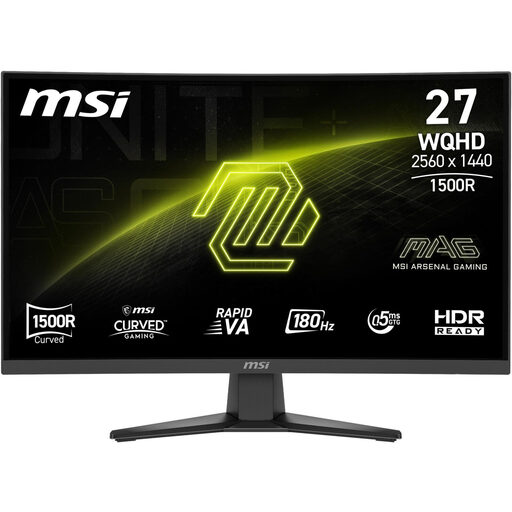 No image available
The 27-inch QHD size gives you a larger view if you can set aside enough desk space for it.
2560 × 1440 pixels, 16:9, Rapid VA panel.
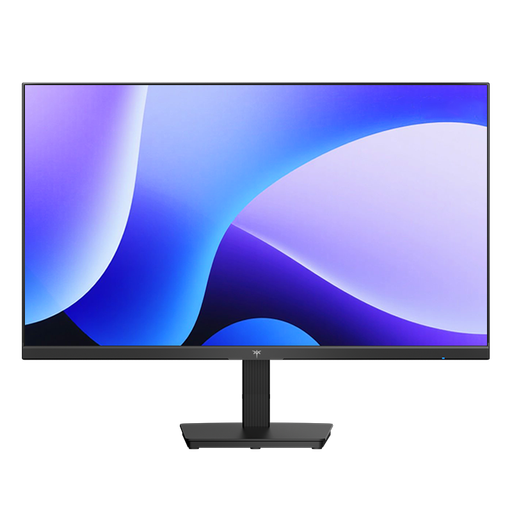 No image available
A more compact option when space is limited. For fine factory details, consider whether Full HD gives you the resolution you need.
1920 × 1080 pixels, 144 Hz, IPS panel, Adaptive Sync.
Compare the full casing dimensions and depth with the stand fitted against the space you have available. Make room for your keyboard and mouse, too; screen size alone isn’t enough to tell you whether it will fit.
QHD is worth considering if you want to see lots of detail in your factory view. Also think about screen size, readability from where you sit and suitable scaling; higher resolution alone doesn’t guarantee that controls will be easy to read.
Not necessarily. For the G2725D at QHD, Dell specifies up to 180 Hz over DisplayPort and up to 144 Hz over HDMI. For your setup, check the monitor input and PC output you’ll use, along with your chosen resolution.
Check the protection features available on the specific model and follow the manufacturer’s instructions. ASUS recommends regular pixel cleaning for ROG OLED gaming monitors; also check the exact operating instructions and warranty terms for the device you’re considering.
It depends on the space available on your desk and how the specific game displays its interface. Check the width and depth of the model you’re interested in, and find out how the game arranges its interface on a 21:9 screen.