Families with large photo and video archives
If you need to back up lots of personal files and keep multiple backup versions, compare the amount of data you have with the drive’s usable capacity.


For large family archives, a portable HDD is a good option if storage capacity matters more to you than fast transfer times. If you regularly back up large files or move the drive around frequently, an SSD may suit your routine better. Check that your computer and cable support the model’s interface. Whichever drive you choose, restrict access to your backup, keep it somewhere safe and test that you can restore your files.
If you need to back up lots of personal files and keep multiple backup versions, compare the amount of data you have with the drive’s usable capacity.
If other people can access the studio, protecting personal files, keeping login details secure and choosing a safe place to store the drive are all important considerations. The Federal Office for Information Security explains how encryption can prevent others from reading data on a shared computer.
If you regularly back up new files or want to restore older versions, choose a backup method that fits your routine. The Federal Office for Information Security also recommends considering how you will restore your data.
An HDD is generally better suited to large archives, while an SSD is a better choice for frequent transfers of large files. Access protection is a separate consideration, and it doesn’t replace keeping a separate backup or testing that you can restore your files.
| Priority | What to check when buying | Who is this particularly important for? |
|---|---|---|
| Capacity for family archives | Estimate the amount of data you have and how many backup versions you want to keep. For a Time Machine backup, Apple recommends using a volume with at least twice the storage capacity of your Mac; this recommendation applies to Time Machine. | If I want to back up a large photo and video archive and leave room for further backups, capacity is my priority. Around 36% of consumers say having enough storage is their most important consideration when buying. |
| Privacy in a shared studio | Check whether the specific drive or backup solution offers suitable encryption, and make sure you know who will keep the password safe. | If other people can access the room, I want to protect my personal files from unauthorised access. Around 29% of consumers put access protection first. |
| Regular backups and file recovery | Check that the backup method is compatible with your computer’s operating system and connection, then test whether you can restore individual files. | I want regular backups to fit into my daily routine and to be able to retrieve older files. Around 21% of consumers prioritise a reliable backup routine. |
| Transfer times and ease of use | Check that your computer’s connection and cable are compatible with the specific model. Manufacturers’ maximum speed claims don’t guarantee how quickly your backup will run. | If I often transfer large files or move the drive between workstations, speed and ease of use are key. Around 14% of consumers put these priorities first. |
A large drive alone won’t protect you if the drive fails. A backup is only reliable if you can also restore the files you need.
Plan when and where you’ll back up your files, and test restoring individual files.
Keeping a second backup in a separate location may require another storage device and additional planning.
Samsung’s stated read speed for the 2 TB T7 Shield depends on conditions such as USB 3.2 Gen 2, a suitable cable and UASP. Actual speeds may therefore depend on the host configuration.
Check your computer and cable against the exact model specifications, and only choose a speed advantage if it matters for your backup routine.
The model number WDBYFT0040BBK-WESN for a 4 TB My Passport deal on Joybuy differs from the manufacturer’s part number, WDBPKJ0040BBK-WESN. Different manufacturer’s warranty details are also listed for the deal.
Before buying, check the full part number and the warranty terms that apply to that specific offer.
The Canvio Basics range is a portable HDD option for larger Windows backups, with Toshiba listing models up to 4 TB.
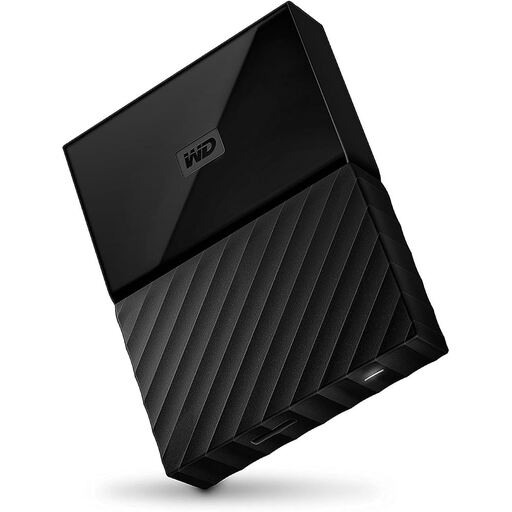
The manufacturer’s My Passport model, WDBPKJ0040BBK-WESN, is a portable 4 TB HDD supplied with backup software.
Seagate offers portable HDDs for larger collections of files, with model-specific support and setup guides available for the One Touch range.
The portable T7 Shield SSD is an option for buyers who prioritise frequent transfers and a drive they can move around over having as much HDD storage as possible.
The Fingerprint Secure #53650 is a specialist 1 TB HDD for users who prioritise access protection for a drive kept in storage.
This selection includes portable drives with 2 TB or 4 TB of storage for family archives, protected backups or frequent file transfers.
 No image available
For large family archives when you need a portable drive with 4 TB of storage and USB-C.
As stated in the product name: 4 TB and USB-C.
 No image available
For a large family archive if access protection is also a consideration when choosing a drive.
Before buying, check the full model and part number, as well as the protection features of the specific version on offer.
 No image available
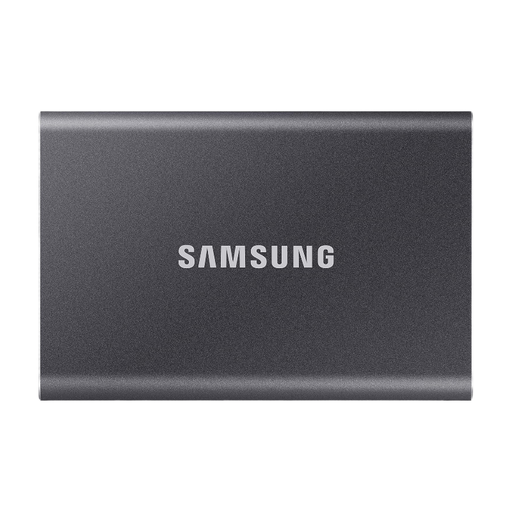
For frequent file transfers if you need 4 TB of storage and your computer supports the stated interface.
As stated in the product name: 4 TB, USB Type-C and USB 3.2 Gen 2.
 No image available
For backups when 2 TB is enough for your files and you’re looking for a portable drive with USB-C.
As stated in the product name: 2 TB, USB-C, USB 3.2 Gen 1, 2.5-inch and exFAT.
For large archives, this stated capacity gives you less room than the 4 TB models.
 No image available
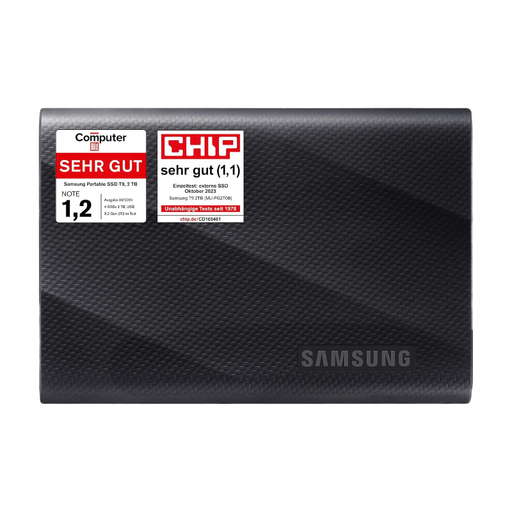
For frequent file transfers if a portable 2 TB SSD suits the amount of data you have.
As stated in the product name: USB Type-C and USB 3.2 Gen 2 (3.1 Gen 2).
At 2 TB, this model offers less space for large archives than the 4 TB options listed.
On Windows, File History can back up personal files and older versions to an external drive; check that it includes the folders you want. On a Mac, Time Machine can use an external drive as a backup volume. Apple recommends setting aside a volume specifically for Time Machine backups.
Copying files only helps if the files you need are up to date and can be restored. Set up a routine that fits your day-to-day life, and test restoring individual files. The Federal Office for Information Security also advises planning how you will restore your data.
No. Encryption features in your operating system or backup solution can also protect access to your data. Microsoft lists BitLocker Drive Encryption for Windows Pro, Enterprise and Education, but not Home. Time Machine offers an option for encrypted backups; keep your recovery password somewhere safe.
Statutory rights relating to faulty goods are separate from a voluntary manufacturer’s warranty, so check the warranty details against the terms of the specific offer. Online distance purchases in the EU generally come with a 14-day right to cancel, subject to statutory exceptions. Securely erase personal data before passing a device on. As the German Environment Agency explains, electrical waste must not go in household rubbish in Germany; it should be disposed of separately.
No. Sharing a room does not, by itself, determine whether the GDPR applies. The GDPR generally exempts personal or household activities that have no professional or commercial connection. If you also process professional data or data belonging to other studio members, you shouldn’t assume this exemption applies. Encryption can protect private backups, but it is not a blanket certification of legal compliance.