For a growing family archive on a small desk, a compact, USB-powered HDD is an obvious choice if storage space matters more than fast transfer times. If you regularly back up large amounts of data, an SSD may better suit your needs. In either case, check the capacity, connection and file system for your computer. Germany’s Federal Office for Information Security (BSI) recommends checking that you can restore your data: a drive is no substitute for an additional copy kept separately.
Which option is right for you?
Families with growing photo collections
If you’re continually adding photos, videos and documents, consider how much data you already have and how much room you’ll need for future backups. For Time Machine, Apple recommends a backup volume with at least twice the storage capacity of the Mac in question.
Families short on desk space
If you have very little room on your desk, check the dimensions of the exact model, whether it’s USB-powered and which cables you’ll need. A compact drive is easier to put away after a backup.
Families who back up frequently
If you regularly update large backups, transfer times may be a bigger factor when choosing between an HDD and an SSD. The BSI also recommends checking from time to time that your backup is complete and readable.
What should you look for when buying?
First, decide which data you want to back up and how you’ll restore it. Then compare capacity, size and connection with your computer. Speed matters most if you regularly transfer large amounts of data.
| What matters |
What to check |
Who should pay particular attention |
| A backup you can restore |
Check that the backup software and scope suit your operating system, and test a restore. |
If you want to recover family photos and documents after a device failure or accidental deletion, don’t just focus on the storage device. Around 28 % of consumers prioritise being able to restore their data. |
| Room for growing data collections |
Match the capacity to the data you’ve selected and the file versions you want to keep; for Time Machine, follow Apple’s recommendation for the Mac in question. |
If your photo and video collection is growing, you’ll need space for future backups too. Around 22 % of consumers prioritise storage capacity. |
| Limited desk space |
Check the dimensions of the exact model and the power supply it needs. |
If there’s little room next to your family computer, consider the drive’s casing, cables and whether it needs a separate power adapter. Around 22 % of consumers pay particular attention to the space a drive takes up. |
| The right connection and file system |
Check that the computer’s USB port matches the cable, and that the file system and backup method work with Windows or Mac. |
Compatibility is essential if you want to set up the drive directly on your existing computer for your chosen backup method. Around 17 % of consumers put this first. |
| Time taken for frequent backups |
Choose an HDD or SSD based on the amount of data and how often you back it up; check the USB standard supported by the drive, host and cable. |
If you often back up large amounts of data, faster transfer times may matter. However, manufacturers’ peak speeds depend on the connection. Around 11 % of consumers prioritise shorter backup times. |
Common buying mistakes
-
Confusing extra storage with a working backup
Having a drive connected doesn’t prove that all the files you want have been backed up and can be restored. The BSI recommends checking that files can be read and restored.
Choose what you want to back up, plan an additional copy that you keep separately, and test restoring a file.
-
Assuming a Windows-formatted drive will work with Time Machine without checking
Apple explains that Time Machine can’t use a volume formatted for Windows straight away. Toshiba specifies NTFS as the file system for its Canvio Basics range.
Before setting up the drive, check which file system your Mac and intended backup method require. Save any existing files somewhere else before reformatting a drive.
Reformatting means setting the drive up again and may delete files already stored on it.
-
Assuming an SSD’s advertised peak speed is the speed you’ll get when backing up
The peak speeds Samsung quotes for the T7 Shield require, among other things, a compatible USB 3.2 Gen 2 host, suitable cables and UASP.
Check the connections on your computer and drive. If you only occasionally back up large amounts of data, factor in capacity and your backup routine too.
Brands to consider
Toshiba
The Canvio Basics USB-C range includes compact, USB-powered HDDs.
- Toshiba gives the dimensions of the 4 TB HDTB440EKCCA model as 78 × 109 × 19,5 mm.
- The range reviewed is formatted for Windows with NTFS; Toshiba says reformatting is required for the macOS versions it lists. These details apply to the specific model.
Western Digital
My Passport is a range of portable HDDs, with backup software available for some models.
- For the black 4 TB WDBPKJ0040BBK-WESN model, Western Digital lists a USB connection and Acronis software included.
- Check what software is included and whether it works with your specific model; the manufacturer’s software claims are not an independent assessment.
Seagate
The One Touch HDD range includes portable models, and Seagate provides setup and support information.
- Seagate lists a capacity of 4 TB and a USB 3.0 interface for the STKC4000404 model.
- Check the model number and what’s included in the box rather than assuming that features of one model apply across the whole range.
Samsung
The T7 Shield is a portable SSD range for people who transfer data frequently or want to put their drive away when not in use.
- Samsung lists 2 TB for MU-PE2T0S/EU, with sequential peak speeds of up to 1.050 MB/s read and 1.000 MB/s write.
- According to Samsung, these speeds require a compatible USB 3.2 Gen 2 host, suitable cables and UASP. Samsung says liquid and dust damage are not covered by the stated warranty.
SanDisk
The Extreme Portable SSD (V3) is another portable SSD range designed for frequent file transfers.
- SanDisk quotes sequential read speeds of up to 2.000 MB/s for the 2 TB SDSSDE70-2T00-G25 model.
- The manufacturer’s figure isn’t a measured backup speed on a family computer; if you mainly back up data while the drive stays in one place, this performance focus may be less important.
Joybuy products
The products below include compact, USB-powered HDDs and portable SSDs for backing up a family computer. Compare the stated capacity and interface with your backup needs and computer.
 No image available
WD Elements Portable 4 TB USB-C
With a stated capacity of 4 TB, this external HDD is a good option for a larger family archive if you’re looking for a USB-powered 2.5-inch drive.
USB-C; USB 3.2 Gen 1; 2.5-inch form factor.
View at Joybuy
 No image available
WD Elements Portable 2 TB USB-C
This external HDD is worth considering if 2 TB is enough for your backups and you want a USB-powered drive for a small desk.
USB-C; USB 3.2 Gen 1; exFAT; 2.5-inch form factor; 131 g. The product description lists Windows and macOS as compatible.
View at Joybuy
 No image available
Kexin M.2 SATA Portable External SSD, 256 GB
If fast file transfers matter more to you than a large HDD capacity, you can check whether this portable SSD is compatible with your computer’s connection.
256 GB; USB 3.1 Type-C; stated read speed of up to 500 MB/s. This is a product speed, not a guarantee of the speed you’ll get when backing up.
View at Joybuy
 No image available
KEXIN External SSD, 512 GB
This portable SSD is an option if 512 GB is enough for your backups and you’re looking for a compact drive with a USB-C connection.
512 GB; USB 3.1 Type-C; stated read speed of up to 500 MB/s. Actual transfer times also depend on the connection to your computer.
View at Joybuy
 No image available
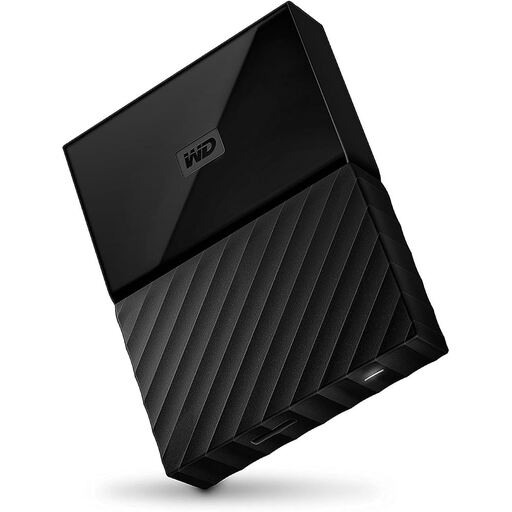
Western Digital My Passport 4 TB Black
If your family archive needs more room, this 4 TB portable HDD is an option for backing up on a small desk.
USB 3.0; USB-powered; 2.5-inch form factor; 256-bit AES hardware encryption, according to the product description. Reformatting may be required for operating systems other than the Windows versions listed there.
View at Joybuy
Frequently asked questions
How can I check that my backup is working after setting it up?
Try restoring a file and opening it. First, choose the right folders and a suitable backup method; the BSI recommends checking that a backup is complete and readable.
Can I use the same pre-formatted hard drive for Windows and Time Machine?
Not without checking the file system and setup: Microsoft supports using an external drive for File History, while Apple explains that Time Machine can’t use a volume formatted for Windows straight away. Save any existing files somewhere else before reformatting.
How much storage do I need for Time Machine?
If you use Time Machine on a Mac, Apple recommends a backup volume with at least twice the storage capacity of the Mac. This recommendation applies to Time Machine; it isn’t a general minimum for other operating systems or backup software.
Who should I contact if there’s a fault: the retailer or the manufacturer?
Your statutory rights for faulty goods are with the seller; a manufacturer’s guarantee is a separate, voluntary offer with its own terms. The Verbraucherzentrale recommends distinguishing between statutory rights and guarantees, and checking the relevant terms.
Can I put an old external hard drive in household rubbish in Germany?
No. As Germany’s Federal Environment Agency explains, old electrical equipment must be collected separately. The BSI advises securely deleting personal data before passing on or disposing of the drive.


