For photo backups that will mostly stay in one place, and when speed isn’t a particular concern, an external HDD is an obvious choice. First, check the size of your collection, the connection and which backup method is right for you. An SSD is a better option if you regularly transfer large amounts of data and your computer and cable support the connection you need. A single external drive is no substitute for a second backup stored separately.
Who is this guide for?
Families with a growing photo collection
If you regularly add new photos, the capacity you choose should suit both your existing collection and your planned backup method. The Verbraucherzentrale recommends setting up a data backup; Toshiba offers Canvio Basics models in different capacities.
Anyone organising family backups
If you’re setting up a backup on a shared computer, make sure it includes the photo folders you need and that you can actually restore files. Germany’s Federal Office for Information Security stresses that backed-up data must be restorable.
Families using different devices
If your photos come from different devices, check the connection, file system and backup software separately. Microsoft Support and Apple Support explain different backup options for Windows and macOS; Toshiba says the Canvio Slim needs to be reformatted for the stated full Mac compatibility.
What should you look for when buying?
First, work out which photos you want to back up and how the process will work on your shared computer. Then choose the capacity and connection, and consider whether you need access protection.
| What you need |
What to check before buying |
Who should pay particular attention? |
| Space for photos and backups |
Check how much storage your photo folders currently use and how much extra space your chosen backup method will need. |
If your photo collection is growing, you’ll want enough room for both your existing photos and your planned backups. Around 36% of consumers put sufficient capacity first. |
| Regular, verifiable backups |
Check which folders the backup software includes, when the drive will be connected and whether you can restore a test file. |
If you’re backing up family photos on a shared computer, the routine needs to fit into everyday life and allow you to restore files. Around 29% of consumers prioritise a reliable backup routine. |
| Compatibility with your shared computer |
Check the operating system and connections. Before formatting a drive, check the file system and backup destination separately. |
If you use several devices or operating systems at your desk, you’ll want to access your photos without unexpected setup steps. Around 21% of consumers prioritise device compatibility. |
| Protecting personal photos |
Check whether the specific drive offers suitable encryption, who can unlock it and how access details will be managed. |
If you take the drive with you or share it with other people, you’ll want to control access to private photos. Around 14% of consumers prioritise access protection. |
Common backup-buying mistakes
-
Confusing one drive with a second backup
A fault, malware or damage to the place where it’s stored could affect your external copy too.
Plan an additional backup that’s stored separately, and check that you can restore files from it.
An additional copy may require another storage device or a separate storage location.
-
Assuming a USB connection guarantees full backup compatibility
The connector, file system and backup software all serve different purposes. Setting up a Time Machine destination may erase data already on the selected device.
Check your operating system, connection and backup destination before formatting a drive.
Depending on the equipment you already have, you may need a suitable cable or extra setup.
-
Expecting advertised SSD maximum speeds to reflect your actual backup speed
Samsung’s quoted maximum sequential speeds for the T7 Shield depend on suitable host and cable conditions, including USB 3.2 Gen 2.
Choose an SSD to suit your transfer needs and check the USB connection on your shared computer. A manufacturer’s maximum speeds don’t tell you how fast your own backups will be.
-
Buying an encrypted drive without planning how access will be managed
With a shared drive, authorised users need to be able to make backups and restore them later.
Decide who can unlock the drive, how access details will be stored and whether security updates are available for the specific model.
Key brands to consider
Toshiba
The Canvio range includes portable HDDs for different setup and backup needs.
- Toshiba Storage lists USB-powered Canvio Basics models in 1 TB, 2 TB and 4 TB capacities.
- The details about the Canvio Slim apply to that product line: it comes formatted as NTFS for Windows, and needs reformatting for the stated full Mac compatibility.
Western Digital
My Passport is a portable HDD with the manufacturer’s backup software, for anyone who wants to take this type of solution into account during setup.
- Western Digital lists 2 TB, a USB connection and Acronis True Image for Western Digital software as included with model WDBYVG0020BBK-WESN.
- Advertised protection features are no substitute for testing a restore or keeping another backup.
Samsung
The Portable SSD T7 Shield is worth considering if you regularly transfer files or need to use the drive on the move.
- For the German 2 TB model MU-PE2T0S/EU, Samsung lists maximum sequential speeds of up to 1,050 MB/s for reading and 1,000 MB/s for writing.
- According to Samsung, these speeds depend, among other things, on using a host and cable with USB 3.2 Gen 2. The IP65 rating doesn’t mean that liquid or dust damage is covered by the warranty.
Seagate
Expansion Portable is an HDD range for storing files and making occasional backups.
- For the models listed, Seagate’s data sheet describes USB power and straightforward Windows setup.
- These details can’t automatically be applied to every later model number, so check the specifications of the exact version you’re considering.
Verbatim
Fingerprint Secure is aimed at people who want extra access control for a drive they take with them or share with others.
- According to Verbatim, the 1 TB model #53650 combines AES hardware encryption with fingerprint access for up to eight authorised users.
- Verbatim notes that a security update is available. The manufacturer’s claims about protection or GDPR compliance aren’t an independent assessment or a blanket legal guarantee.
Joybuy drives for family photos
These external HDDs come in different capacities for photos and backups. Compare your storage needs and planned use on the shared computer with the specifications for each model.
 No image available
WD Elements Portable 5TB USB-C
A portable HDD for a photo collection where 5 TB of storage suits your planned backup.
5 TB; USB-C; USB 3.2 Gen 1. According to the product description, it’s designed for Windows and Mac.
Joybuy
No image available
WD Elements Portable 6TB USB-C
This portable HDD is worth considering if 6 TB suits the size of your photo collection and your planned backup method.
6 TB; USB-C; USB 3.2 Gen 1. According to the product description, it’s designed for Windows and Mac.
Joybuy
No image available
WD Elements Portable 4TB USB-C
A portable HDD for family photos and backups, if the stated 4 TB capacity is enough for your needs.
4 TB; USB-C; USB 3.2 Gen 1; exFAT. According to the product description, it can be used with Windows and macOS without reformatting.
Joybuy
 No image available
WD Elements 2TB Portable External Hard Drive, USB-C, USB 3.2 Gen 1, 2.5", exFAT, Black
This portable HDD could suit photos on a shared Windows or Mac computer, if 2 TB is enough for your planned collection.
2 TB; USB-C; USB 3.2 Gen 1; 2.5-inch; exFAT. According to the product description, it’s USB-powered and designed for Windows and macOS.
Joybuy
 No image available
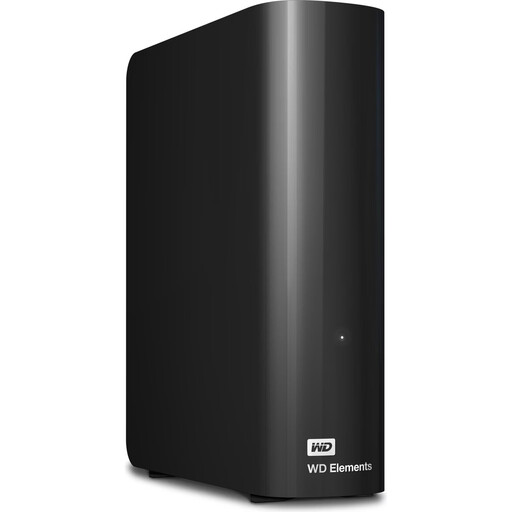
WD Elements 10TB Desktop External Hard Drive, USB 3.2 Gen 1, 3.5", NTFS, Black
A desktop HDD for a large photo or media collection, if you have room for an external power supply at your shared workstation.
10 TB; USB 3.2 Gen 1; 3.5-inch; NTFS. The product description says it needs reformatting for use with Mac; the drive requires the supplied AC power adapter.
Joybuy
Frequently asked questions
How do I set up backups on a shared Windows computer?
Windows File History can back up files from libraries such as ‘Pictures’ to an external drive and restore earlier versions. For each user account, check where the photos are stored and whether the folders are included, then test restoring a file.
Can I use the same hard drive for photo storage and a Time Machine backup?
Apple recommends using a Time Machine backup volume only for Time Machine backups. Setting it up may erase data on the selected storage device. Check for existing files first and choose another volume if needed.
How can I tell whether our photos have really been backed up?
After a backup, check that it includes the photo folders you need, then try restoring a file. Germany’s Federal Office for Information Security points out that backed-up data must be restorable; keeping an additional copy separately can help protect against risks at the same storage location.
If a drive fails, what’s the difference between statutory rights and a guarantee?
In Germany, statutory rights are separate from a voluntary guarantee. The Verbraucherzentrale explains the difference; you should also check the terms of the specific guarantee. Neither statutory rights nor a guarantee is a substitute for a separate backup of your family photos.


