Which option is right for you?

Families with growing photo archives

When photos and older project versions start to build up, consider both the storage space you already need and room for future files. Keep an extra copy separate from the original device; the German Federal Office for Information Security describes backups as a way to restore files after they’ve been lost.

Households with Mac and Windows devices

If you want to use your drives with different devices, check the file system and your backup software’s requirements as well as the connection. Toshiba notes that Canvio Basics needs to be reformatted for use with a Mac; Apple lists APFS or APFS (Encrypted) as the preferred formats for Time Machine volumes.

Families with ongoing photo projects

If you regularly transfer large project folders or work directly from the drive, consider an external SSD. Make sure it has enough capacity for the older versions you want to keep, and check that its connections are compatible with your devices.

What should you look for when buying?

Priority What to check Who is it important to?
Ability to restore files Backup process and storage location; test restoring individual files. If I want to get my photos back after losing them, I need a working backup, not just another place to store them. Around 28% of consumers put the ability to restore files first.
Space for your archive Compare your existing folders and expected growth with the capacity of the specific model. I want room for photos and project folders as my archive grows. Around 22% of consumers make available storage their top buying priority.
Older project versions Check whether your backup software includes the relevant folders and can restore earlier versions. If I want to return to an earlier stage of editing, my backup process needs to capture different versions. Around 22% of consumers prioritise this.
Device compatibility Compare connections, included cables, file systems and backup software requirements. If you want to back up or transfer files using your existing devices, don’t choose a drive based on its connection alone. Around 17% of consumers put compatibility first.
Transfer and portability For frequent transfers, check the interface and cable; also allow for the capacity you need to keep all your chosen versions. If I often move project folders or take my drive with me, I need a suitable connection and a portable option. Around 11% of consumers make frequent transfers and portability their top priority.

Common backup mistakes

  • Moving your archive to a new drive and treating it as a backup

    If the drive contains your only copy, your photos could be lost if it fails or if something happens to the place where it’s stored. A backup is an additional copy that you can use to restore your files.

    Keep another copy separately and test that you can restore individual files from it. The German Federal Office for Information Security and the consumer advice centre explain why backups need to be restorable.

  • Assuming the stated capacity means older versions are saved automatically

    Extra project versions take up storage space, and simply connecting a drive won’t create them. In Windows, File History can restore earlier versions of files and folders it has backed up, provided you’ve set up a backup destination.

    Allow space for the versions you want to keep, set up your backup process for the relevant folders and try restoring a file.

    Keeping multiple versions takes up extra storage; setup and testing a restore also take time.

  • Assuming USB-C or file transfer means Time Machine compatibility

    A connection that makes file transfers easier doesn’t mean a drive is set up for the backup format you need. Toshiba says Canvio Basics is pre-formatted as NTFS and needs to be reformatted for use with a Mac; Apple lists APFS or APFS (Encrypted) as the preferred Time Machine formats.

    Choose your backup method and the right file system before copying files. Don’t reformat a drive that already contains files until you’ve backed them up separately.

  • Assuming an SSD’s peak speeds or protection ratings are guaranteed in your setup

    The peak speeds Samsung lists for the T7 Shield require a compatible host device, suitable cables and UASP enabled. Samsung also notes that liquid and dust damage aren’t covered by the warranty.

    Check the connection with your device, and keep an additional backup even if you use an SSD.

Key brands at a glance

Toshiba

Canvio Basics is a portable HDD for storage, while Canvio Flex is designed for file transfers between supported devices with USB-A and USB-C.

  • Toshiba lists Canvio Basics models with capacities of up to 4 TB and pre-formatting as NTFS for Windows.
  • Toshiba says Canvio Basics needs to be reformatted for use with a Mac. The cables included with Canvio Flex don’t, by themselves, make it suitable as a Time Machine volume.

Western Digital

The My Passport range comprises portable HDDs for local file collections and backups.

  • Western Digital’s data sheet lists models with capacities of up to 6 TB and included backup software. A USB-A cable is specified for the model documented.
  • Password protection and hardware encryption are claims made by the manufacturer; they don’t replace a separate backup or a restore test.

Seagate

Expansion Desktop is a range of desktop HDDs for archives that are mainly kept in one place.

  • Seagate’s data sheet lists a power adapter and USB cable as included.
  • Check which features and accessories are actually included with the specific model you’re considering.

Samsung

The portable SSD T7 Shield could be an option if you often transfer project files or take them with you.

  • For model MU-PE2T0S/EU, Samsung lists 2 TB and sequential peak speeds of 1,050 MB/s for reading and 1,000 MB/s for writing.
  • According to Samsung, these speeds require suitable USB 3.2 Gen 2 hardware, cables and UASP. The IP65 rating applies under controlled conditions; the manufacturer says liquid and dust damage aren’t covered by the warranty.

Crucial

The X9 Pro is a portable SSD range for accessing project files frequently.

  • For the 2 TB model CT2000X9PROSSD9, Crucial lists sequential speeds of up to 1,050 MB/s under the manufacturer’s test conditions.
  • Check compatibility with your host device. Reformatting can erase existing files.

Joybuy products for photo archives and project files

This selection includes portable drives in different capacities, as well as external SSDs for photo archives and frequent transfers. Whichever model you choose, set up your own backup process for older project versions.

WD Elements Portable 5TB USB-C

WD Elements Portable 5TB USB-C

A suitable portable drive for photos and project files if you need the stated storage capacity.

5 TB; USB-C; 2.5-inch form factor.

You’ll need a backup process in place to keep older project versions.

Joybuy
WD Elements Portable 4TB USB-C

WD Elements Portable 4TB USB-C

A portable option for photos and files if 4 TB is right for your archive.

4 TB; USB-C; 2.5-inch form factor.

The product description lists use with Windows and Mac; check the file system and your backup software’s requirements.

Joybuy
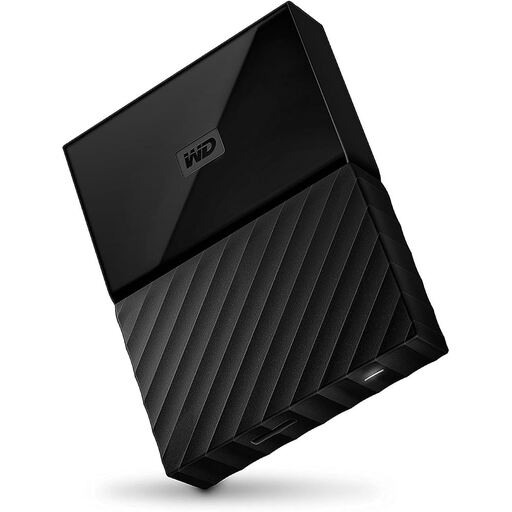
Western Digital My Passport 4TB Black

Western Digital My Passport 4TB Black

This portable drive is available in a 4 TB version for files and backups.

4 TB; USB 3.0; 2.5-inch form factor; USB-powered.

The product description lists optional password protection with 256-bit AES hardware encryption. Reformatting may be required for Windows versions other than those listed.

Joybuy

Samsung Portable SSD T7 2TB USB-C 3.2 Gen 2 Titanium Grey

Samsung Portable SSD T7 2TB USB-C 3.2 Gen 2 Titanium Grey

A portable SSD option if you transfer files often and 2 TB is enough for the backup versions you plan to keep.

2 TB; USB 3.2 Gen 2; USB-C and USB-A cables.

Older project versions won’t be created just by connecting the drive; set up a backup for the relevant folders.

Joybuy
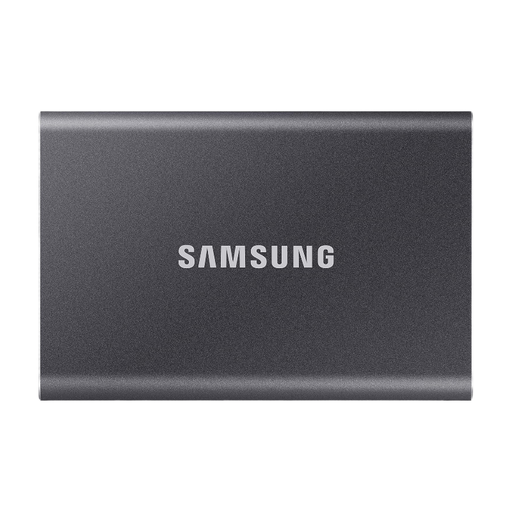
Samsung Portable SSD T7 4TB USB-C 3.2 Gen 2 Titanium Grey

Samsung Portable SSD T7 4TB USB-C 3.2 Gen 2 Titanium Grey

This portable SSD is available in a 4 TB version for frequent file transfers and larger planned backups.

4 TB; USB 3.2 Gen 2; USB-C and USB-A cables.

You’ll need to set up a suitable backup process to keep older project versions.

Joybuy

Frequently asked questions

Can I restore older versions of an edited photo?

Yes, if your backup software captures the file and saves earlier versions. In Windows, File History can restore earlier versions of files and folders it has backed up, once it’s set up. Check the project folder and test restoring a file; simply connecting a drive won’t automatically turn on version backup.

Can I use a drive set up for Windows with Time Machine straight away?

No. A connection or the ability to transfer files doesn’t by itself mean a drive is set up as a suitable Time Machine volume. Apple lists APFS or APFS (Encrypted) as the preferred formats and recommends a drive with at least twice the storage capacity of your Mac. Reformatting erases existing files, so back them up elsewhere first.

Do I need a power adapter for a desktop hard drive?

It depends on the model. Seagate’s Expansion Desktop data sheet lists a power adapter and USB cable as included. Check the specific model and make sure your chosen location is suitable for a desktop hard drive.

Is an external drive enough as the only backup for my family photos?

No. If it’s your only copy, your files still depend on that drive. Keep another copy separately and test that you can restore individual photos from it. The German Federal Office for Information Security recommends keeping a backup away from home.

What happens in Germany if a product develops a fault after purchase?

According to information from the European Union, purchases from business sellers are generally covered by a legal guarantee of at least two years from the date you receive the goods. This applies against the seller and is separate from a voluntary manufacturer’s warranty; it doesn’t guarantee that lost photos can be restored.