Choose a monitor for family videos based first on your intended output format, then on the devices sharing the editing workstation. For SDR editing, a well-configured Rec. 709 workflow matters more than an HDR label. If you regularly switch between computers, check that the monitor has the right video and USB connections, and consider whether you need a KVM switch. ASUS lists the PA279CRV at 3840 × 2160 pixels, while Dell lists the S3425DW at 3440 × 1440 pixels. Each model offers different options for 4K previews and a wider timeline layout.
Who is this choice relevant to?
Family videos with colour grading
If you want to assess skin tones and footage from different cameras for an SDR version, look for a suitable colour mode and a calibration process you can verify. Adobe describes Rec. 709 as a working colour space for SDR workflows.
An editing workstation shared between computers
If several people use the same monitor, keyboard and mouse, or work across different computers, check the video inputs, USB upstream connections and whether there’s a KVM switch. BenQ lists KVM functionality for the PD2705U and PD2732U.
Long recordings with lots of editing panels
If you want to see the preview, timeline and tools at the same time, weigh up 4K image detail against a wider layout. Dell lists the S3425DW at 3440 × 1440 pixels, which differs from the vertical resolution of a 4K UHD monitor.
What should you look for when buying?
| Buying priority |
What to check |
Who is it important to? |
| Colour for your output |
Decide on your output format and check for a documented Rec. 709 or suitable SDR mode; allow for calibration. |
If I want to grade colours for an SDR version, I need a suitable mode and a setup I can verify. Around 31% of consumers put colour assessment first. |
| Switching between computers |
Check that the video inputs, USB upstream connections and peripherals are suitable, and that the power delivery meets your laptop’s needs; check whether KVM is included. |
If several people switch between a desktop or laptop and use the same keyboard and mouse, having a suitable way to switch between computers matters. Around 31% of consumers prioritise switching devices at their workstation. |
| Preview and timeline |
Take your source footage, preferred window layout, scaling and available desk space into account. |
If I edit long recordings, I want to arrange the preview, timeline and tools clearly. Around 25% of consumers prioritise space for these work areas. |
| Seating position and setup |
Compare height adjustment and footprint; check the energy label and the calibration accessories needed for the specific model. |
If different people work at the same workstation, I want to position the screen comfortably and allow for any accessories I need. Around 13% of consumers prioritise ergonomics and ongoing costs. |
Avoid common buying mistakes
-
An HDR label doesn’t automatically mean it’s right for your editing workflow
SDR and HDR output require different choices for colour management and monitor settings. Adobe describes Rec. 709 for SDR workflows.
Decide on your intended output format first, then match the monitor mode and software settings to it.
-
A USB hub isn’t automatically a KVM switch
To share a keyboard and mouse between computers, you need KVM functionality and the right upstream connections. Simply switching the video input may not be enough.
Check the specific model has the video and USB connections you need for both computers. Without a suitable built-in switching option, you may need extra switching accessories or to unplug and reconnect cables.
-
A wide display isn’t the same as a native 4K preview
Dell lists the S3425DW at 3440 × 1440 pixels; 4K UHD resolution is 3840 × 2160 pixels. These formats offer different options for window layouts and image detail.
Check your preferred timeline layout and preview size at a scaling level that’s comfortable for you to read.
-
Hardware calibration doesn’t always mean the measurement device is included
EIZO lists a calibration sensor for the CS2740 as an optional accessory. Adobe describes a colourimeter as a tool for objective calibration.
Before buying, check which accessories and software you’ll need for your model and intended workflow.
You may also need to buy a suitable calibration sensor.
Notable monitor models for video editing
BenQ
According to their respective product specifications, the PD2705U and PD2732U combine 27-inch 4K displays, SDR colour modes and KVM.
- BenQ lists 99% Rec. 709 and 65 W USB-C Power Delivery for the PD2705U, and 100% Rec. 709 and 90 W via Thunderbolt 4 for the PD2732U.
- These are manufacturer specifications for specific models, not independent test results. Check that the connections and charging power suit your laptop.
ASUS
The ProArt PA279CRV is a 27-inch 4K model with a Rec. 709 mode, USB-C hub and adjustable stand.
- ASUS lists 96 W USB-C Power Delivery and a pre-calibration report for this model.
- A factory calibration report doesn’t replace checking and setting up the monitor at your own workstation.
Dell
The models considered here offer different screen formats: the U2725QE, a 27-inch 4K Thunderbolt hub monitor, and the S3425DW, a 34-inch ultrawide.
- Dell lists a built-in USB hub for the U2725QE and a resolution of 3440 × 1440 pixels for the S3425DW.
- A USB hub alone doesn’t confirm KVM switching. The ultrawide model has fewer vertical pixels than a 4K UHD monitor.
EIZO
EIZO says the ColorEdge CS2740 is designed for photography, video and graphics work; the model has a 27-inch 4K screen.
- EIZO lists Rec. 709 coverage and hardware calibration among the features of this model.
- According to the product sheet, the EX4 calibration sensor is an optional accessory. These specifications don’t apply to all EIZO ranges.
LG
The 27UP850K-W is a 27-inch 4K IPS monitor with USB-C and a height-adjustable stand.
- LG lists 95% DCI-P3 as a typical value for this model and promotes hardware calibration with LG Calibration Studio.
- The DCI-P3 figure alone doesn’t confirm measured Rec. 709 accuracy or KVM switching.
Joybuy products at a glance
This selection includes large displays for previews and timelines, a monitor with KVM for a shared workstation, and portable second screens for laptops. The portable models offer a smaller workspace than the larger editing displays.
 No image available
INNOCN 40C1U 40-inch 5K ultrawide monitor
The 40-inch ultrawide format is worth considering if you want to arrange the preview and timeline across a wide workspace.
5120 × 2160 pixels, IPS panel, 100 Hz, USB-C with 65 W Power Delivery and height-adjustable stand.
View at Joybuy
 No image available
MSI PRO MP275QPDGDE 27-inch WQHD docking monitor
The built-in KVM switch is useful for a workstation where two computers share the same input devices.
WQHD, IPS panel, 100 Hz, 1 ms MPRT, USB-C docking with 98 W Power Delivery and KVM.
View at Joybuy
 No image available
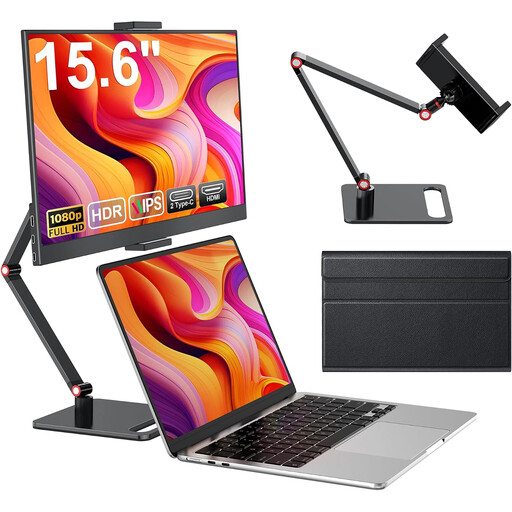
15.6-inch FHD laptop monitor with IPS panel
This model can complement your laptop as a portable second screen. It offers less space for your timeline and preview than a larger editing display.
15.6 inches, 1080p FHD, 60 Hz, HDMI and USB-C; with stand.
View at Joybuy
 No image available
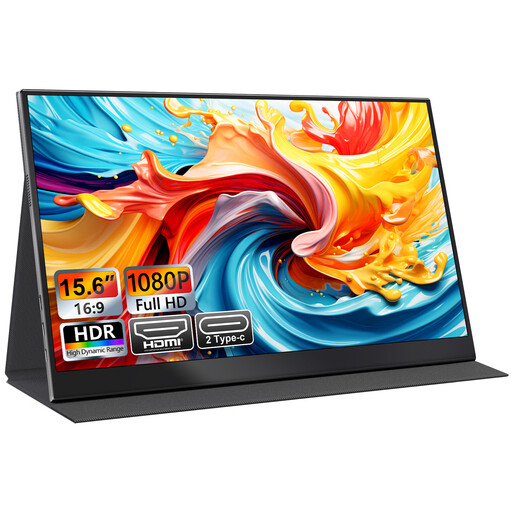
UFYQL M156F04 15.6-inch FHD IPS monitor
This portable model works as a second screen for your laptop, but offers less space for a preview and timeline than a larger editing display.
15.6 inches, FHD 1080p, IPS, HDMI and USB-C; with Smart Cover stand and VESA mounting option.
View at Joybuy
 No image available
INNOCN CB27U1 27-inch 4K UHD monitor
The listed 4K resolution is useful if you want to check image detail in a 4K preview. According to the product description, a KVM switch isn’t included for sharing a keyboard and mouse between computers.
3840 × 2160 pixels, IPS panel, 120 Hz, USB-C with 90 W Power Delivery, HDMI and DisplayPort; with height adjustment, PIP and PBP.
View at Joybuy
Frequently asked questions
Does our monitor need to support HDR for family videos?
Not necessarily. First, decide whether you want to edit an SDR or HDR version. Adobe describes Rec. 709 for SDR workflows and Rec. 2100 variants for relevant HDR workflows. An HDR label alone doesn’t determine which workflow is right for you.
How should I set up the monitor for regular colour grading?
Choose a colour mode that matches your intended output and calibrate the monitor under your usual lighting conditions. Adobe recommends a colourimeter for objective adjustments. A factory report doesn’t replace checking the monitor later at your own workstation.
What costs and consumer rights should I consider when buying in Germany?
Check whether you need to buy a separate sensor for the calibration you want. The Verbraucherzentrale distinguishes the seller’s statutory liability for defects from a voluntary manufacturer’s guarantee. Online purchases generally come with a 14-day right to cancel, subject to statutory exceptions.
Do monitors in Germany have an energy label?
The European Commission generally classifies computer monitors as electronic displays requiring energy labelling, although some product types are exempt. For the specific model, compare the energy label and product information sheet, including the stated HDR efficiency, rather than estimating power consumption from screen size or picture quality.


