Choose a desktop PC for long family recordings based on your editing software, resolution and codec, as well as the space you need for originals, cache and back-ups. Recording length alone doesn’t determine a particular RAM or GPU class. For Premiere on Windows, Adobe recommends 16 GB RAM for HD and at least 32 GB RAM plus 8 GB of GPU memory for 4K and above; other programmes and specific file formats may have different requirements. For larger projects, plan for fast media storage and a separate back-up too.
Which setup is right for you?
Family archive organisers
You want to organise, edit and safely store lots of long original recordings. Allow for both working and back-up storage. The Federal Office for Information Security recommends keeping back-ups so you can recover files if they’re lost.
4K family videographers
You edit high-resolution recordings and need to match your RAM, GPU and storage to your editing software. Adobe sets out different requirements for HD and 4K or above in Premiere on Windows.
Effects and multicamera editors
You want to use effects or multiple video sources, so check which GPU and software features your particular workflow requires. Puget Systems highlights the importance of the GPU in DaVinci Resolve, particularly for OpenFX and noise reduction.
What to look for when buying
The right choice depends on what matters most for your long family recordings: storage, preview performance, effects, data protection or the right configuration.
Compact macOS desktop
A good fit if: You want to use macOS and are looking for a compact computer. First, check that your software and video formats are compatible.
Bear in mind: Apple lists 24 GB of unified memory and a 512 GB SSD for the Mac mini with M4 Pro. For larger projects, you’ll need to allow for additional media storage.
Configurable Windows tower
A good fit if: You want to use Windows editing software or choose specific components to suit your needs.
Bear in mind: The ThinkStation P3 Tower Gen 2, article number 30HT00CWEZ, is listed with 64 GB RAM, a 1 TB SSD and a dedicated GPU. An internal SSD isn’t a substitute for a separate back-up.
Windows workstation with a larger SSD
A good fit if: You want to store lots of media locally and work with more demanding effects, and the specifications of the particular variant matter to you.
Bear in mind: The HP Z2 Tower G1i A40MQET#ABD is listed with 64 GB RAM, a 2 TB SSD and an RTX 4000 Ada with 20 GB of graphics memory. This doesn’t prove it has an advantage for basic editing.
For Premiere on Windows, Adobe recommends 16 GB RAM for HD and at least 32 GB for 4K and above. Adobe also recommends fast storage for media and cache, while the Federal Office for Information Security advises keeping back-ups.
| Priority |
What to check when buying |
Who it matters most to |
| Space and speed for source files |
Estimate the size of your original files and check the available SSD space and connections for extra drives. Adobe recommends fast storage for media and cache. |
If I want to organise and edit lots of long original files, I need enough fast space for media and cache. Consumers whose main concern is storage are likely to make up around 29%. |
| Smooth editing previews |
Check the resolution, codec and editing software. For Premiere on Windows, Adobe recommends 16 GB RAM for HD and at least 32 GB for 4K and above. |
For smooth previews, the resolution, codec, editing software and hardware need to work well together. Consumers who prioritise smooth editing are likely to make up around 23%. |
| Graphics performance for effects |
Check whether you use effects or noise reduction, and compare the GPU with the requirements of your software version. For Premiere on Windows, Adobe recommends 8 GB of GPU memory for 4K and above; Puget Systems highlights the importance of the GPU for certain DaVinci Resolve effects. |
If I want to use demanding effects, I need to choose a GPU that suits my software and workflow. Consumers whose main priority is effects are likely to make up around 18%. |
| Protecting family recordings |
As well as a working drive, plan for a separate back-up of your originals and project files. The Federal Office for Information Security lists back-ups as a way to recover files if they’re lost. |
If I want to keep my original recordings safe even after a drive failure or accidental deletion, I’ll plan for a separate back-up. Consumers whose main concern is data protection are likely to make up around 18%. |
| Upgrade options and total cost |
Compare the full model number, RAM, SSD, GPU, connections and what’s included. Factor in any external drives and software you’ll need. |
If I might add more storage later or connect devices I already own, I’ll check the exact specifications and what’s included. Consumers who prioritise upgrade options and total cost are likely to make up around 12%. |
Avoid common buying mistakes
-
Comparing only the PC’s SSD capacity with the space needed for your original videos
Original files, media cache and back-ups each have a different purpose. A single SSD won’t necessarily cover all these storage needs.
Estimate how much data you already have and plan separate storage for working files and back-ups.
-
Assuming an expensive GPU guarantees smooth editing
Requirements depend on your editing software, codec, resolution and the effects you use. More graphics power isn’t automatically needed for every simple edit.
Decide on your software and footage first, then assess the CPU, RAM, GPU and storage as a whole.
-
Assuming a tower range’s name tells you what’s inside
RAM, GPU, connections and storage can vary between configurations in the same product range.
Before buying, compare the full article number with the specifications of the exact configuration you’ve selected.
Key brands to consider
Apple
The Mac mini with M4 Pro is a compact macOS option. Apple lists 24 GB of unified memory and a 512 GB SSD for the base configuration.
- Apple’s Media Engine supports H.264, HEVC and ProRes, among other formats.
- For long projects, plan for media and back-up storage in addition to the internal SSD, and check the requirements of your specific editing software.
Lenovo
The ThinkStation P3 Tower Gen 2 is a configurable range of Windows towers. Article number 30HT00CWEZ is listed with 64 GB RAM, a 1 TB SSD and an RTX PRO 2000 Blackwell.
- The specific configuration includes a dedicated GPU and 64 GB RAM.
- These specifications apply to the article number shown. Manufacturer claims about performance and reliability aren’t independent editing benchmarks; remember to plan for media storage and a separate back-up too.
HP
The HP Z2 Tower G1i is a range of Windows workstations. The A40MQET#ABD variant is listed with 64 GB RAM, a 2 TB SSD and an RTX 4000 Ada with 20 GB of graphics memory.
- This specific variant combines the listed components with a 2 TB SSD.
- These specifications don’t prove an advantage for basic family video editing. Other Z2 variants may have different specifications.
Dell
The Pro Max Tower T2 is a configurable Windows tower option, with specifications that can be tailored to your editing software and files.
- You can choose the configuration to suit your specific needs.
- Dell notes that changing the configuration may affect other specifications. Check the full specifications of the variant you choose.
Joybuy products for long family videos
The following Joybuy products include a Windows tower, compact Mac mini models and a Windows mini desktop. Check how each one’s specifications match your editing software, file formats and planned storage needs.
 No image available
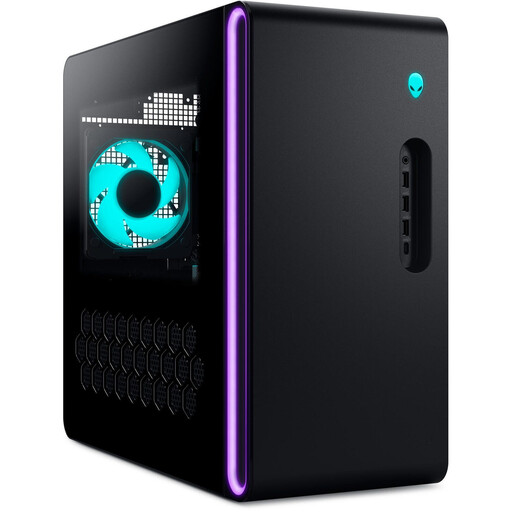
Dell Alienware Aurora ACT1250 1J3N5, Core Ultra 9 285K, 32 GB RAM, 2 TB SSD, RTX 5080
This tower is an option if you use Windows and need internal storage for large media files.
32 GB RAM; 2 TB SSD; RTX 5080 with 16 GB GDDR7; Windows 11 Home.
View at Joybuy
 No image available
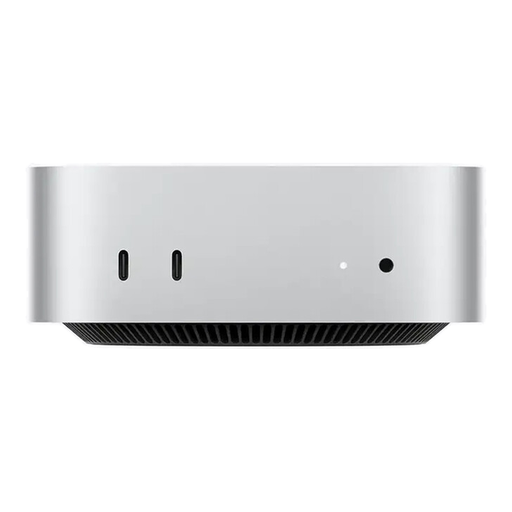
Apple Mac mini M6, 12-core CPU, 12-core GPU, 16 GB, 256 GB SSD
This compact macOS computer could suit you if your editing software and video formats are compatible with macOS. Allow for additional media and back-up storage.
16 GB unified memory; 256 GB SSD; macOS.
Keyboard and mouse must be purchased separately.
View at Joybuy
 No image available
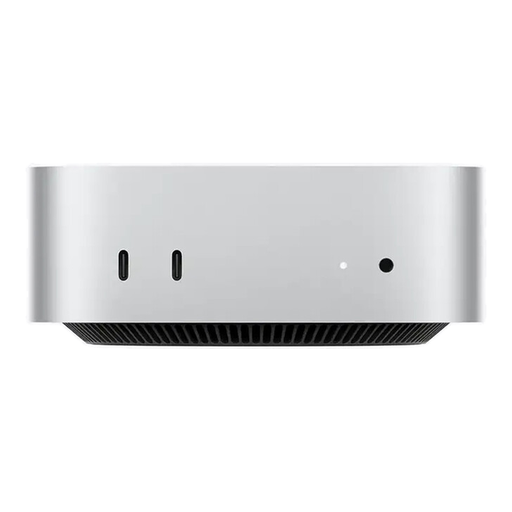
Apple Mac mini M6, 12-core CPU, 12-core GPU, 16 GB, 512 GB SSD
This compact macOS option has a 512 GB SSD. For long projects, you’ll need additional media and back-up storage.
16 GB unified memory; 512 GB SSD; Thunderbolt 4; macOS.
Keyboard and mouse must be purchased separately.
View at Joybuy
 No image available
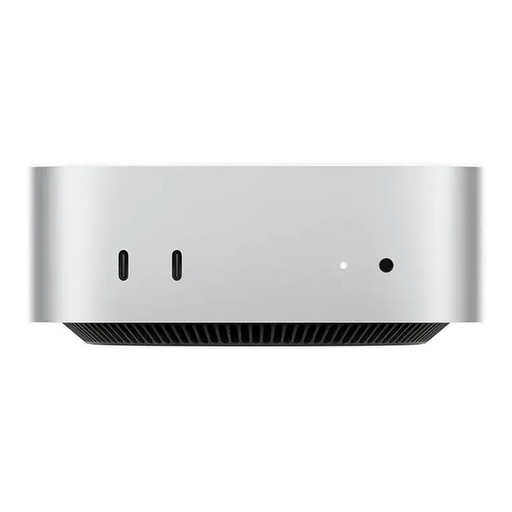
Apple Mac mini M6, 12-core CPU, 12-core GPU, 24 GB, 512 GB SSD
If you’re looking for a compact macOS editing setup, check software compatibility and allow for separate media and back-up storage.
24 GB unified memory; 512 GB SSD; Thunderbolt 4; macOS.
Keyboard and mouse must be purchased separately.
View at Joybuy
 No image available
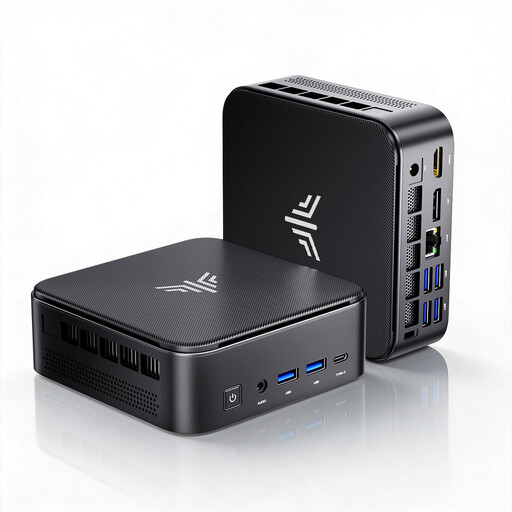
ACEMAGIC E3B mini desktop, Ryzen 7 7735HS, 24 GB, 512 GB NVMe SSD
This mini desktop could suit you if you’re looking for a compact Windows system. Plan how to expand your media storage based on the available connections.
AMD Ryzen 7 7735HS with 8 cores and 16 threads; 24 GB LPDDR5; 512 GB NVMe SSD; two M.2-2280 slots, storage expandable up to 4 TB; Windows 11 Pro.
View at Joybuy
Frequently asked questions
Does a desktop PC for long family videos have to have 32 GB RAM?
No. Recording length alone doesn’t mean you need 32 GB RAM. For Premiere on Windows, Adobe recommends 16 GB RAM for HD and at least 32 GB for 4K or above. Check the requirements for your software version and footage.
What can I do if previews of large files are stuttering?
First, check where your media and cache are stored. For supported video clips, you can create lower-resolution proxies to edit in Premiere; Adobe explains how to use a proxy workflow.
Can a large SSD replace a back-up of family recordings?
No. The Federal Office for Information Security recommends keeping back-ups so you can recover files after a drive failure or accidental deletion, for example. Keep your originals and a separate back-up.
Who should I contact in Germany if my desktop PC is faulty?
Under statutory consumer rights, the seller is generally responsible, not the manufacturer. The Verbraucherzentrale says new goods are generally covered by a two-year statutory warranty. This is separate from any voluntary manufacturer’s guarantee.
Can I cancel an online desktop PC purchase in Germany?
For a distance contract with a consumer, there is generally a 14-day right of withdrawal under §§ 312g and 355 BGB. Exceptions may apply to certain bespoke goods or items made to meet personal requirements; whether a particular PC configuration falls into this category needs to be checked separately.


