For people with a growing video collection
If you want to store lots of existing family videos alongside new recordings locally, weigh up how much space you need against portability and transfer speed.


For a growing video collection that will mostly stay at home, a desktop HDD could be a good fit if it has enough capacity and you don’t mind keeping it in one place with a power supply. If you want to move videos between devices or take them elsewhere, you could choose a portable HDD. For frequent, large transfers, an SSD is another option, which CHIP ranks as faster than HDDs in its comparison. A single drive isn’t enough to ensure you can recover your files: plan to keep another copy separately and check that it works.
If you want to store lots of existing family videos alongside new recordings locally, weigh up how much space you need against portability and transfer speed.
If you want to recover your videos after a device failure or damage to the place where they’re stored, you’ll need another copy kept separately. The Federal Office for Information Security recommends keeping backups away from home if an incident could affect your entire household.
If you move recordings between compatible computers or mobile devices, check the connections, file system and support offered by each device.
First, work out how much storage your videos need and whether the drive will stay in one place. Then check whether you’ll need another copy and compatible connections.
| What you need | What to check before buying | Who should pay particular attention |
|---|---|---|
| Space for your video collection | Check how much storage your files currently use, then allow room for new recordings and any backup versions you want to keep. Compare the capacity of the specific model; manufacturers state capacity in decimal TB. | If I want to keep a growing video collection on one drive, having enough space matters more than moving it between devices often. Around 29% of consumers put capacity for their video collection first. |
| Being able to recover files without the cloud | Plan where you’ll keep the original and the additional copy, how often you’ll back up new videos, and how you’ll check that files can be restored. | If I want to keep my family videos safe after a fault, accidental deletion or damage to the place where they’re stored, I need another copy kept separately. Around 29% of consumers prioritise being able to recover their videos. |
| Connections and use across several devices | Check the USB connection, cables supplied, whether the device supports external storage and the file system. For Time Machine, Apple recommends APFS or APFS (Encrypted). | If I want to transfer videos between several devices, the connections and file system need to work with my devices and backup software. Around 24% of consumers put compatibility across multiple devices first. |
| Time needed for frequent transfers | Check the USB standard supported by both the drive and computer, as well as the cables. Don’t assume manufacturers’ maximum sequential speeds are guaranteed transfer speeds for your videos. | If I often copy large video files, transfer time matters more to me than it would for occasional backups. Around 18% of consumers prioritise transfer speed. |
If you only have one copy, a fault, accidental deletion or damage to the place where it’s stored could affect your videos too.
Make a note of which copy is the original, where the additional copy is kept and whether you can restore files from it. The Federal Office for Information Security and the Consumer Advice Centre explain why backing up your data matters.
Keeping another copy separately requires extra storage and regular maintenance.
Having the right connector doesn’t guarantee that a device or backup feature will use the drive as intended. Apple recommends APFS or APFS (Encrypted) for Time Machine backup volumes.
Before buying, check your device, USB connection, supplied cables and backup software. Back up any existing files before reformatting a drive.
Depending on your device or backup software, you may need a different cable or to reformat the drive.
The quoted peak speeds for the Samsung T7 Shield require a compatible host, suitable cables and UASP enabled. Your actual connection needs to meet these requirements.
If you often copy large files, check that your entire setup meets the requirements. For occasional backups, it may make more sense to work out how much storage you need first.
The Elements Desktop range is designed for stationary storage of large collections of files and videos.
Expansion Desktop is a range of desktop HDDs for storing large files.
Canvio Flex 2024 is a range of portable HDDs for use with several compatible devices.
The portable T7 Shield SSD is an option for frequent transfers and working on the move; the model described here has 2 TB of storage.
The X9 Pro is a range of portable SSDs for transferring files between devices.
This selection includes portable WD Elements HDDs for taking your videos with you, as well as a desktop 8 TB drive for larger collections that stay in one place.
 No image available
This portable HDD is an option if you want to store a video collection locally and move the drive between compatible devices.
5 TB of storage; portable 2.5-inch drive with USB-C and USB 3.2 Gen 1.
A single drive isn’t a second copy kept separately. Plan to keep another copy so you can recover your files.
No image available
This portable HDD is an option if you want to store a video collection locally and move the drive between compatible devices.
6 TB of storage; portable 2.5-inch drive with USB-C and USB 3.2 Gen 1.
A single drive isn’t a second copy kept separately. Plan to keep another copy so you can recover your files.
 No image available
This desktop drive is a good fit for a larger video collection that will mostly stay in one place.
8 TB of storage; 3.5-inch form factor, USB 3.0 and external power adapter.
Pre-formatted as NTFS; according to the product description, it needs to be reformatted for use with a Mac. A single drive isn’t a second copy kept separately.
No image available
This portable HDD is an option if you want to store videos locally and move the drive between compatible devices.
4 TB of storage; portable 2.5-inch drive with USB-C and USB 3.2 Gen 1.
Compared with the 5 to 8 TB models listed here, there’s less room for your collection to grow. Plan to keep another copy separately so you can recover your files.
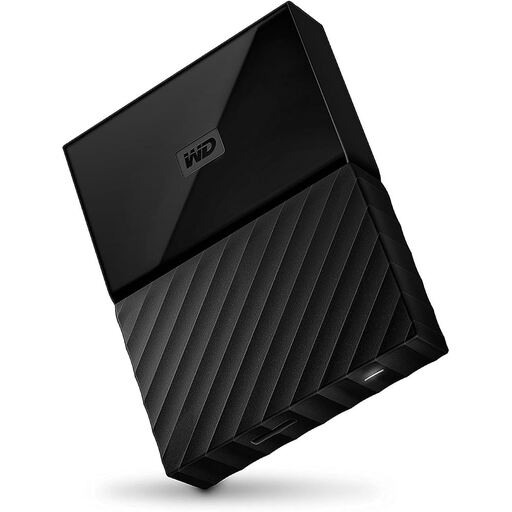 No image available
This portable drive is an option if you want to store videos locally and take compact storage with you between compatible devices.
4 TB of storage; 2.5-inch drive with USB 3.0 and USB power.
According to the product description, it comes pre-formatted for Windows; you may need to reformat it for other operating systems. Plan to keep another copy separately so you can recover your files.
Not if you want to be able to recover your recordings after a fault or damage. Keep another copy separately and check that you can restore files from it. The Federal Office for Information Security and the Consumer Advice Centre explain why backing up your data matters.
Check the format before setting up the drive as a new Time Machine backup volume: Apple recommends APFS or APFS (Encrypted) for this. Reformatting may delete existing files, so back them up first.
The seller is generally responsible for your statutory consumer rights; a manufacturer’s warranty is a separate, voluntary service. The Consumer Advice Centre recommends checking the warranty terms and not treating a warranty as a substitute for your statutory rights or your own data backup.
No. The German Environment Agency says that waste electrical equipment must be collected separately; a recycling centre is one option for disposal. The Federal Office for Information Security recommends securely deleting personal videos before passing on or disposing of a drive, unless they’re already protected from access.