Recorder users with different card formats
If you copy recordings from recorders that use SD and microSD cards, you’ll need the right slots. Tascam specifies microSD media for the DR-05X, but check the card requirements for your own recorder.


First, check whether your field recorder uses SD or microSD cards and whether your computer or tablet has a USB-A or USB-C port. For straightforward copying, a compatible UHS-I reader may be enough. A UHS-II model is mainly relevant if both your card and destination device can make use of the faster card interface. Manufacturers’ interface specifications are not measured copying times for your audio files.
If you copy recordings from recorders that use SD and microSD cards, you’ll need the right slots. Tascam specifies microSD media for the DR-05X, but check the card requirements for your own recorder.
If you want to transfer recordings from your recorder’s card to a computer at the kitchen table, the reader should match the available USB port. Microsoft recommends safely removing external storage devices before disconnecting them in Windows.
If you copy large collections of recordings from UHS-II cards, check that the card, reader and destination device all support the interface you want to use. The SD Association describes UHS-II as an interface with additional data lines; that doesn’t guarantee a particular copying time for audio files.
First match the card format to your recorder, then the connector to your destination device, and finally the UHS level to the card you’ll actually be using.
| Buying consideration | What to check | Who is it important to? |
|---|---|---|
| Card format | Check that the reader’s slots and supported card types match the SD or microSD format used by your recorder’s card. | If I back up recordings from recorders with different card formats, the reader needs to accept each card. Around 36% of consumers prioritise card format. |
| USB port | Check whether a USB-A or USB-C port is available on your destination device and which connector the reader has. | If I want to copy directly to my computer without an extra adapter, the connector needs to fit. Around 29% of consumers focus mainly on the device connection. |
| Careful copying | Check the transferred files and eject the storage device through the operating system before unplugging it. | If I want the original recordings to remain accessible, I want to check the copying process and remove the card safely. Around 21% of consumers make this process their priority. |
| Copying speed | Check the card’s UHS level, the reader’s support and the destination device’s connection together. | If I regularly transfer large collections of recordings, it matters whether the entire connection can match my card’s speed. Around 14% of consumers prioritise copying speed. |
Transfer speed also depends on the card and destination device. A stated interface rate doesn’t tell you how long it will take to copy your audio files.
First check your card’s UHS level and choose a reader that supports that interface. The SD Association describes UHS interface standards; manufacturers’ specifications for individual models are not independent copying tests.
Transcend lists SD and microSD slots for the RDF5, but doesn’t support inserting both cards at the same time. UGREEN lists this feature for the 50706.
If you want to insert both cards at once, check explicitly that the specific model supports this.
Kingston sells the MobileLite Plus SD and MobileLite Plus microSD as separate versions. So the product range doesn’t mean that a single reader accepts both card formats.
Check the reader’s full model name against your recorder’s card format.
If you choose an incompatible version, you may need another reader if there’s no other suitable way to transfer your files.
The 50706 is a multi-format reader with USB-A and USB-C connectors and slots for SD and microSD cards.
The RDF5 is a compact USB-A reader for SD and microSD cards.
The UA440C is a USB-C multi-format reader for SD and microSD cards.
The MobileLite Plus SD and MobileLite Plus microSD are separate USB-A readers, each for one card format.
Models 00123900 and 00200131 are card readers for SD and microSD cards, with different connector types.
The products below list card reader functionality for SD, TF or microSD cards. Check whether the reader is a standalone device or part of a hub, drive or model-specific accessory.
 No image available
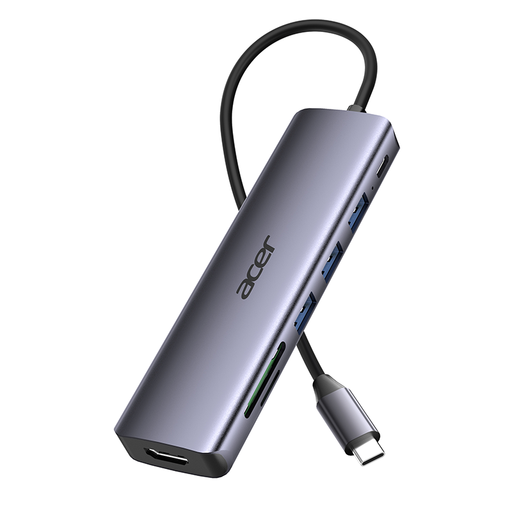
If your destination device has USB-C and you want to read SD or TF cards, this hub has a built-in card reader.
Features listed in the product name: USB-C, SD/TF card reader, HDMI with 4K@30Hz, 100W PD Charging and 3x USB 3.0 5Gbps.
 No image available
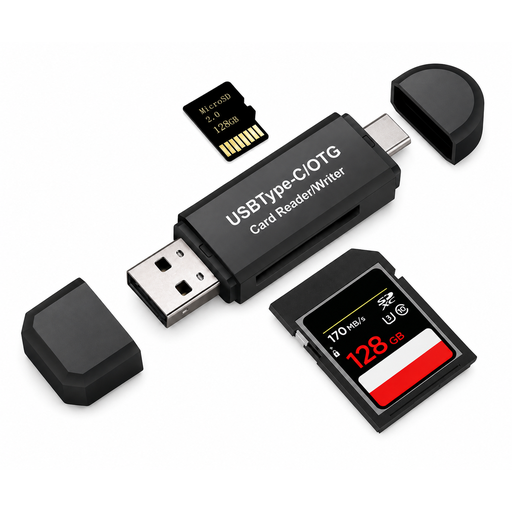
If you’re looking for a card reader with USB-C and USB-A connectors, the product title lists both connector types.
Formats listed in the product title: SD, MicroSD, TF and SDHC.
 No image available
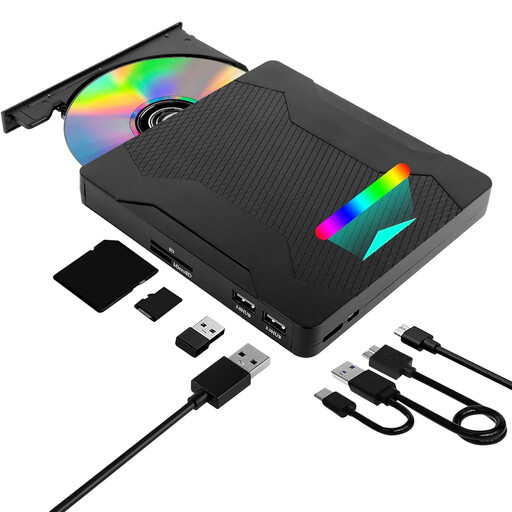
If you need an external DVD drive as well as a card reader, the product title lists both functions.
Features listed in the product title: USB 3.0, Type-C and SD/TF card reader.
 No image available
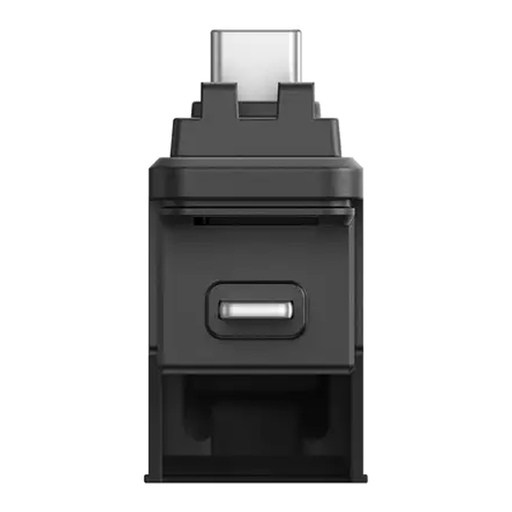
The stated use is to transfer files from an Insta360 X5 microSD card to a smartphone or tablet.
This stated use is specific to the Insta360 X5 and isn’t a general recommendation for field recorder cards.
 No image available
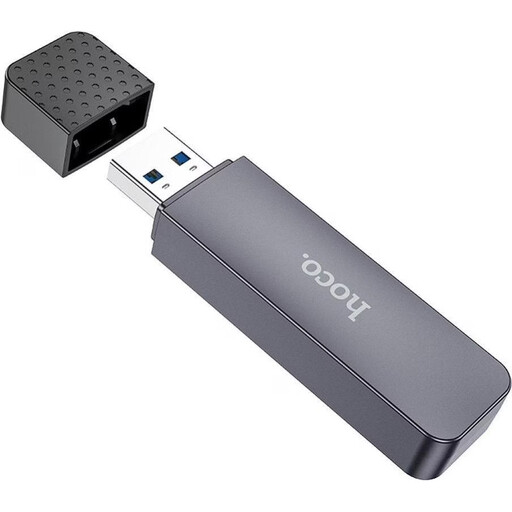
If your computer has a USB-A port and you use SD and TF cards, the product description lists both formats and says they can be inserted at the same time.
The description lists USB-A and a card reader for SD and TF cards.
It depends on the specific recorder model. Tascam specifies microSD, microSDHC or microSDXC for the DR-05X; check the card requirements in your own recorder’s manual.
Yes, with models that are explicitly backwards compatible: TP-Link specifies UHS-I compatibility for the UA440C, and Kingston does the same for the MobileLite Plus SD. A UHS-I card won’t achieve UHS-II speeds just because you use it with a UHS-II reader.
First check the copied files, then eject the storage device through the operating system. Microsoft recommends safely removing external storage devices in Windows; Apple explains how to eject SD cards on a Mac before removing them. Also follow your recorder’s manual.