For simulated crosswind landings, first make sure your aileron and rudder controls are mapped and working. An instrument or switch panel won’t replace these control axes. After that, you can consider an additional instrument display, customisable buttons or a dedicated switch layout, depending on your simulator, aircraft and available space. The Federal Aviation Administration describes the use of the rudder during crosswind landings; the Microsoft Flight Simulator Team notes that a joystick twist axis can be used as a rudder input.
Who are panels and additional controls suitable for?
Practising crosswind landings without a suitable rudder input
If you want to control your approach and alignment yourself, first check whether your existing axes cover both aileron and rudder control. The Federal Aviation Administration describes the rudder as part of crosswind correction; the Microsoft Flight Simulator Team notes that a joystick twist axis may be used.
Single-monitor pilots who need instrument displays
If your controls are already suitable, you could consider a separate instrument display to read flight data while keeping your main monitor free for the outside view. The right choice depends on the instruments you need, the space available and whether your particular simulator and aircraft setup are supported.
Pilots who use extra commands frequently
If you have the control axes you need but would rather trigger frequently used commands with a button, switch or rotary control, a control panel could be a good option. Check that the functions you need can actually be assigned in your simulator and aircraft.
What should you look for when choosing?
When practising crosswind landings on a single monitor, sort out your controls first. Add-on displays and controls come afterwards.
| Consideration |
What to check before buying |
Who is it most relevant to? |
| Control axes before extra features |
Check that your aileron and rudder controls are mapped and working in the simulator, and whether a joystick twist axis or pedals suit your setup. |
If I want to control crosswind corrections myself, my aileron and rudder inputs need to work first. Around 36% of consumers prioritise these control axes. |
| Instruments alongside the outside view |
Compare the instruments you need, the dimensions and support for your simulator and specific aircraft. |
If I want to read flight data while keeping my single monitor free for the outside view, the type of display matters. Around 29% of consumers prioritise instrument displays when using a single monitor. |
| Customisable commands when space is limited |
Check the dimensions, including the stand, and whether you can assign the simulator commands you need to your preferred controls. |
I want to reach frequently used commands quickly using buttons or rotary controls, without constantly clicking controls on the monitor. Around 21% of consumers prioritise customisable additional commands. |
| Dedicated switches for the right functions |
Check that the ignition, lighting or landing gear switches match the functions of your virtual aircraft and are supported by your simulator. |
If I want to operate frequently used aircraft functions physically, the dedicated switches need to suit my aircraft. Around 14% of consumers prioritise these switch functions. |
Common mistakes when choosing flight simulator panels
-
Mistaking an add-on panel for rudder control
Instrument displays and aircraft switches serve different purposes from aileron and rudder inputs. A panel on its own won’t make up for a missing control axis.
First, test your existing axes and their assignments in the simulator. Only then choose any add-on panels.
You may need to make extra room later if you decide to add another control device.
-
Choosing a larger instrument panel just for its display
An integrated display needs to suit the instruments you want, your virtual aircraft and the space available.
Measure the space you have and check in advance that your simulator and specific aircraft are supported.
Depending on the panel and your setup, you may need extra space and compatible software integration.
-
Assuming a button profile will work automatically
A third-party Stream Deck profile relies on its keyboard shortcuts matching your in-game settings.
Before setting it up, check the exact device and simulator versions, along with your own key assignments.
Key brands and their panel types
Logitech G
Instrument and switch panels designed to complement an existing flight control setup in different ways.
- Logitech G lists a 3.5-inch display with switchable flight data for its Instrument Panel. The Switch Panel is designed for functions such as ignition and landing gear.
- The devices serve different purposes and don’t replace an aileron or rudder axis. Check support for your specific simulator and aircraft.
Elgato
The Stream Deck MK.2 offers customisable buttons for users who want quick access to frequently used commands.
- Elgato lists 15 customisable LCD buttons and dimensions of 118 × 84 × 25 mm without the stand.
- A flight simulator profile may require keyboard shortcuts to be mapped. Check that it matches your own settings.
VIRPIL Controls
The VPC Control Panel #1 is for users looking to add physical buttons, toggle switches and rotary controls.
- VIRPIL lists 12 customisable buttons, as well as several switches and rotary controls.
- The stated dimensions are 236 × 202 × 83 mm. It’s an input device, not an instrument display or a confirmed replacement for rudder control.
MOZA Racing
The MGX1000 is a G1000-style instrument panel for compatible virtual aircraft and a setup with enough space.
- MOZA lists an integrated 10.4-inch display and dimensions of 304 × 201 × 66.8 mm.
- Check the manufacturer’s information on simulator and aircraft compatibility for your particular setup. The panel doesn’t replace the control axes needed for crosswind corrections.
Octavi
The IFR-1 is a control option for instrument and navigation functions, not a standalone instrument display.
- Octavi describes context-sensitive buttons and a rotary knob for functions such as radio, flight management and autopilot.
- According to the manufacturer, you’ll need to install a simulator plugin. Check that it supports the functions you need in your simulation.
Joybuy products for controlling crosswind landings
This product selection covers the aileron and rudder controls you need first: it features rudder pedals, not an instrument or switch panel.
 No image available
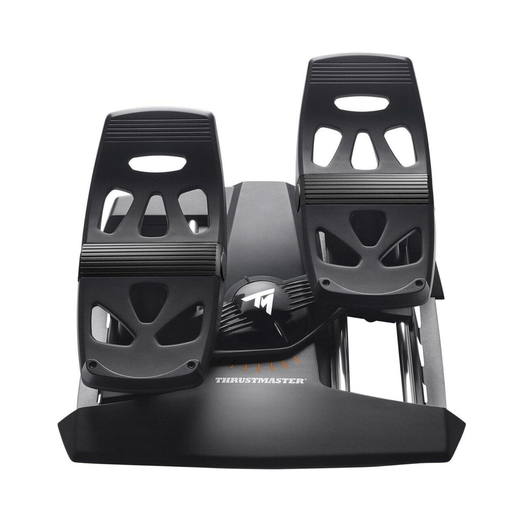
Thrustmaster T.Flight Rudder Pedals (PC/PS4/Xbox One)
The pedals give you separate foot control of the rudder, if you already have aileron control elsewhere.
The product description lists 25 cm pedals, removable heel-rests and differential braking.
The listed connections are USB and RJ12. According to the product description, RJ12 is intended for compatible Thrustmaster joysticks when using a console.
The stated dimensions are 34.9 × 31.4 × 20.6 cm. You’ll need a flat, stable surface, and the pedals don’t provide aileron control themselves.
View at Joybuy
Frequently asked questions
Do I have to use rudder pedals for simulated crosswind landings?
No, not necessarily: the Microsoft Flight Simulator Team notes that a joystick twist axis can be used as a rudder input. Check that this and your aileron axis are mapped and working in your chosen simulator. Pedals are an alternative input method.
What should I check before installing a panel?
Check your simulator version, virtual aircraft, operating system, connections and the software you’ll need. Logitech Support describes a separate plugin for Flight Panels; the stated software version dates from 8 September 2020 and doesn’t automatically confirm support for every newer simulator version. If you use a Stream Deck profile, its keyboard shortcuts must match your own settings.
Does practising on a home flight simulator automatically count towards flight training?
No. Buying a home panel doesn’t mean it has FSTD qualification or that your practice hours will count towards training. The Luftfahrt-Bundesamt describes the formal qualification of flight simulation training devices; according to the Luftfahrt-Bundesamt, Regulation (EU) 2026/781 will only apply from 30 April 2028. Check the requirements for creditable training hours with the relevant training organisation.


