If your main priority is keeping your checklist and instruments in view, a single-stick setup with assignable buttons and view controls may be enough. A HOTAS is a more natural choice if you want to control the throttle and stick separately, but it needs more desk space. Before you buy, check the exact platform, the controls available in your simulator and whether there’s room for your mouse, keyboard and cockpit controls. A flight stick won’t replace your checklist or automatically control every cockpit function.
Which setup is right for you?
Beginners using a checklist on a single monitor
If you’re practising virtual pre-flight checks, you’ll want to keep your checklist, instruments and flight view on the same screen. Assignable buttons and easy-to-reach view controls can help, without the need for lots of separate flight controls.
Pilots practising with separate throttle and stick controls
If you want to operate the throttle and flight stick with both hands during a simulated take-off, a HOTAS with a separate throttle lever is worth considering. Make sure you have enough desk space for it.
Buyers with limited space or a specific platform
If your desk also needs to accommodate a mouse, keyboard and other cockpit controls, think about how you’ll arrange the units. Also check that the exact model version is compatible with your PC or console.
What should you look for when buying?
First, decide whether you want to operate the throttle and stick separately. Then check how much space you have and whether you can assign views, axes and the cockpit commands you need in your simulator.
| What matters |
What to look for when buying |
Who is this important for? |
| Checklist and cockpit view |
Check the view controls and set up a suitable profile in your simulator for views and the cockpit commands you need. |
If I want to keep my checklist and instruments in view on a single monitor, I need easy-to-reach view and cockpit controls. Around 31% of consumers prioritise these controls. |
| Throttle, stick and rudder |
Check that the functions you want are available and see how their axes can be assigned in the profile for your chosen aircraft. |
If I want to control the throttle and aircraft attitude separately during take-off, I look at how the stick, throttle and rudder work together. Around 25% of consumers prioritise this coordinated control. |
| Desk space |
Measure the available space and check whether you want the throttle lever attached, set up separately or left out for now. |
If I also need room for a mouse or keyboard, I want to be able to arrange the units to suit my setup. Around 25% of consumers prioritise the space available. |
| Platform and control assignments |
Check the full model name against your platform, then check the device, axes and any potential control conflicts in your simulator. |
If I want to use a particular device with my PC or console, the exact version must be compatible with my platform. Around 19% of consumers put platform compatibility first. |
Which buying mistakes can you avoid?
-
Assuming lots of buttons means a ready-made pre-flight checklist
A controller profile may be missing or unsuitable for your chosen aircraft. The number of buttons doesn’t tell you whether the commands you want are already set up.
Allow time to configure your simulator, then check the views, throttle, rudder and checklist commands you actually want to use.
-
Buying a separate HOTAS without leaving room for cockpit controls
The stick and separately positioned throttle share your desk with the controls you need for instruments and your checklist.
Before you buy, check whether an integrated throttle control or a lever attached to the stick will suit your setup.
-
Assuming similarly named models or editions are the same
Platform support and what’s included in the box can vary between versions. The TCA Captain Pack X isn’t the same as the older TCA Captain Pack Airbus Edition just because the names are similar.
Check the full model name, platform and included units for the specific product you’re considering.
Which brands are worth considering?
Thrustmaster
The model ranges mentioned here include flight sticks with throttle levers, as well as sets with Airbus-inspired controls.
- Thrustmaster says the T.Flight Hotas One has a detachable throttle lever that can be positioned separately or attached to the stick.
- Check TCA and T.Flight versions by their full model names; similarly named variants aren’t necessarily identical.
Logitech G
The models described include a single stick and a separate stick-and-dual-throttle system.
- Logitech G lists a twist handle and an eight-way hat switch on the Extreme 3D Pro.
- The right button and axis assignments depend on your simulator and the profile for your chosen aircraft.
Turtle Beach
According to Turtle Beach, the original VelocityOne Flightstick combines a stick with built-in levers and additional view controls.
- On this model, the controls are all on a shared base.
- The built-in levers can’t be positioned separately like a standalone throttle unit. These details apply to the original Flightstick and not necessarily to later models with different names.
VKB
VKB FSC Europe describes the Gladiator NXT EVO Space Combat Edition as a single stick with a throttle wheel on the base and options for expansion.
- The throttle wheel provides an integrated control on the stick.
- Different grip options don’t necessarily have the same controls. If you’re planning to expand your setup, check what’s included and whether the components are compatible.
Flight stick and HOTAS options at Joybuy
These models offer flight stick options for practising view changes, with a choice between stick-only control and a separate throttle unit.
 No image available
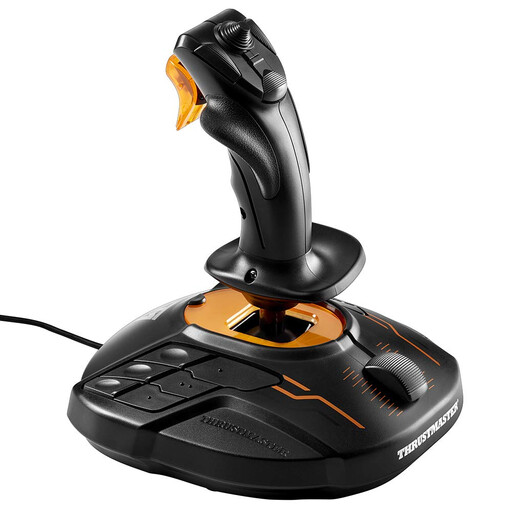
Thrustmaster T-16000M FCS Joystick
An option if you want to manage view changes and stick controls on a single unit. Before you start practising, check that the buttons and axes you want are assigned correctly in your simulator.
Joybuy
 No image available
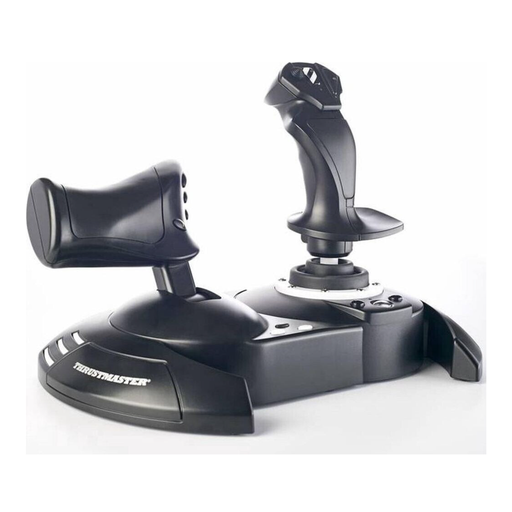
Thrustmaster T.Flight Hotas One
A good choice if you want to operate the stick and throttle separately. The detachable throttle lever can be positioned on its own or attached to the stick. Check the controls in your simulator and make sure you have enough space.
Joybuy
Frequently asked questions
Does a flight stick need to control the virtual pre-flight checklist itself?
No, it doesn’t have to. In Microsoft Flight Simulator 2024, checklists are available in the EFB; Microsoft Flight Simulator Support says you can assign controller functions in the simulator. Decide which steps you want to handle with the stick buttons and which you’ll use your mouse or keyboard for.
What should I check after connecting it?
In the controller menu, check that the device is recognised, then review the axes and buttons in the profile for your chosen aircraft and look for any control conflicts. Microsoft Flight Simulator Support notes that some controller functions need to be assigned manually.
When is a single stick enough, and when is a HOTAS a better choice?
A single stick is worth considering if you want a compact setup and can assign the throttle and other functions to suit your needs. A HOTAS is a better fit if you want to operate the stick and throttle separately and have room for the separate throttle unit.
How can I check whether a flight stick is compatible with my platform?
Check the full model name against the platform information for that exact version. Thrustmaster lists PC and Xbox compatibility for the T.Flight Hotas One; the T.Flight Hotas 5 Microsoft Flight Simulator Edition is listed for PC, PS4 and PS5. Also check whether your simulator recognises the device and which controls need to be assigned.


