On a small desk, a single stick with integrated throttle and rudder controls is a sensible starting point if you want to practise manually without adding another controller just yet. Before you buy, check that the footprint, aircraft type, platform and simulator bindings you need all work together; more buttons alone won’t make for a suitable setup. A home flight stick isn’t automatically an approved training device: the EASA deals separately with the qualification and use of Flight Simulation Training Devices.
Who is a compact flight stick suitable for?
IFR pilots with a small desk
You want to practise virtual approaches with a desktop device to begin with, rather than setting up several modules. The Microsoft Flight Simulator team lists available space and simulation needs as factors to consider when choosing your hardware setup.
Fans of virtual Airbus aircraft
You mainly fly Airbus aircraft and prefer a grip inspired by their design, while still needing access to the rest of the cockpit functions. The Microsoft Flight Simulator team distinguishes between aircraft with a sidestick and those with a yoke.
Sim pilots who want controls close to hand
You want to operate trim and frequently used functions from the stick wherever possible, and are happy to assign the buttons yourself in the simulator. X-Plane describes detecting and calibrating the axes, then assigning the buttons, as part of the setup process.
What should you look for when buying?
First measure the usable desk space, including room to move the stick. Then decide which functions you want to operate directly from the device during an approach.
| Buying criterion |
What to check before buying |
Who is it important to? |
| Footprint |
Compare the base footprint, the room needed to move the stick and the space left for operating the screen or cockpit controls. Thrustmaster lists the T.Flight Stick X footprint as 25,7 × 22 cm. |
If I want to leave room for other controls alongside the stick on my small desk, the actual footprint matters. Around 36 % of consumers may make space requirements their top buying priority. |
| Controls within easy reach |
Decide which functions you want to operate from the stick rather than using a mouse or keyboard. Then calibrate the axes and assign the buttons in the simulator. Turtle Beach lists 38 assignable inputs for the VelocityOne Flightstick II. |
If I want to reach important functions directly while looking at the instruments, I need controls I can assign to suit my aircraft. Around 29 % of consumers may put direct control first. |
| Aircraft and platform |
Match the control style to the aircraft you fly most often and check the platform supported by the exact model. The Microsoft Flight Simulator team recommends a yoke as a more authentic control for aircraft such as the Cessna 172; Thrustmaster lists the TCA Sidestick Airbus Edition for PC. |
If I mainly use a particular virtual aircraft or platform, the stick needs to be compatible. Around 21 % of consumers may see aircraft and platform compatibility as their top buying priority. |
| Room to expand later |
Check which functions a standalone device already covers and whether you really want to use additional devices. Extra modules need space and have to be factored into your setup. |
If I want to start with just the hardware I need and avoid cluttering my desk with accessories, a suitable standalone stick is a straightforward starting point. Around 14 % of consumers may consider the scope for expansion first. |
Buying and setup pitfalls
-
Assuming an Airbus design is authentic for every aircraft
An Airbus-style sidestick isn’t automatically the most authentic control for every virtual aircraft. For aircraft with a yoke, the Microsoft Flight Simulator team says a yoke is closer to the real thing.
First think about which aircraft you fly most often, then decide whether matching its controls or keeping your desktop setup as compact as possible matters more.
-
Assuming the number of buttons means the approach controls will suit you
Assignable inputs aren’t automatically configured for your aircraft. You’ll need to make sure the simulator recognises the function you want and assign it yourself.
Before buying, check which functions you want to operate from the stick. Once connected, calibrate the axes and check that the important buttons are assigned correctly.
Setup may take time for calibration and button assignments; additional controls also need more desk space.
-
Assuming different models have the same platform compatibility
Models in the same product family may support different platforms. Thrustmaster lists the TCA Sidestick Airbus Edition for PC, while the manufacturer lists Windows 10/11 and Xbox Series X|S for the VelocityOne Flightstick II.
Check the full model name against the platform you actually use, rather than relying on the brand name alone.
-
Assuming home simulation counts towards formal flight training
Owning a consumer flight stick doesn’t prove that a practice session will be recognised as formal training. The EASA deals separately with the qualification and use of Flight Simulation Training Devices for regulated training.
Use the stick for personal practice and check in advance with your training organisation whether any of it can count towards your training.
Key brands at a glance
Thrustmaster
Worth considering if you’re comparing standalone PC sticks with general-purpose or Airbus-inspired controls.
- Thrustmaster says the T.Flight Stick X and TCA Sidestick Airbus Edition have integrated throttle and twist rudder functions; the TCA has an Airbus-inspired design.
- Platform compatibility and features vary by model. The grip design alone doesn’t guarantee suitable simulator bindings.
Turtle Beach
The VelocityOne Flightstick II is worth considering if you want to assign multiple inputs on the stick and, according to the manufacturer, play on Windows 10/11 or Xbox Series X|S.
- Turtle Beach lists two levers, a multifunction dial, a lockable twist rudder and 38 assignable inputs.
- The number of inputs doesn’t guarantee suitable default bindings for your aircraft. Also check that the footprint will fit your desk.
VKB
The Gladiator NXT EVO Space Combat Edition is an option for PC users considering a configurable desktop stick.
- VKB FSC Europe lists a throttle wheel on the base, a lockable twist grip, a hat switch and adjustable mechanics.
- Inputs vary between the standard and premium grip versions, so check the exact version. The product specifications aren’t an independent precision test.
Logitech G
The Extreme 3D Pro is another model to compare if you’re looking for a classic standalone stick with twist rudder and programmable buttons.
- Logitech lists 12 programmable buttons, an 8-way hat switch and a weighted base for this model.
- These specifications apply to this particular model and don’t guarantee it will suit every desk or the simulator bindings you want.
Joybuy products for a desk setup
This selection includes standalone flight sticks with integrated controls, as well as HOTAS and yoke alternatives if you’d prefer a separate throttle control or a yoke.
 No image available
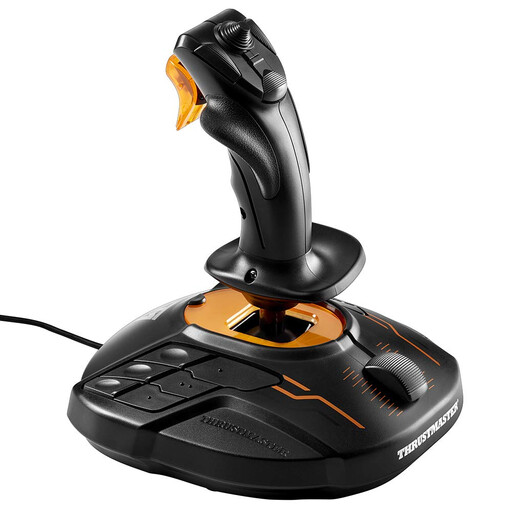
Thrustmaster T-16000M FCS Joystick
This standalone PC joystick has a throttle control and twist rudder function, making it an option if you want to practise without a separate controller to begin with.
16 action buttons, an 8-way hat switch and ambidextrous use; stated dimensions: 20,8 × 19,8 × 24 cm.
View at Joybuy
 No image available
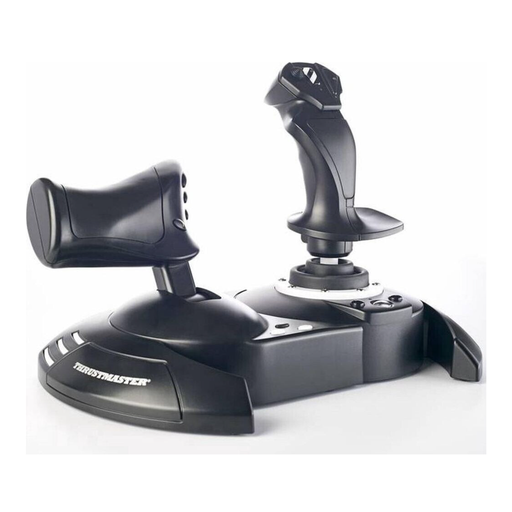
Thrustmaster T.Flight HOTAS One
This HOTAS setup is worth considering if you want to operate the stick and throttle separately and, according to the product description, play on PC or Xbox.
The throttle can remain attached to the stick, according to the description; stated dimensions of the setup: approximately 26,5 × 26,4 × 24,2 cm. Stick resistance is adjustable.
View at Joybuy
 No image available
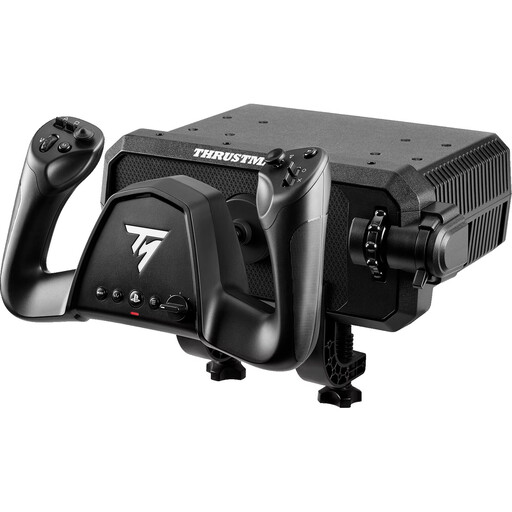
Thrustmaster TCA SKY YOKE Flight Yoke for PS5 and PC
This yoke is an alternative to a flight stick if you mainly fly a virtual aircraft with yoke controls.
Seven axes, 24 action buttons and up to 180 degrees of rotation; the product name lists PS5 and PC. Throttle, trim and rudder controls are included.
View at Joybuy
 No image available
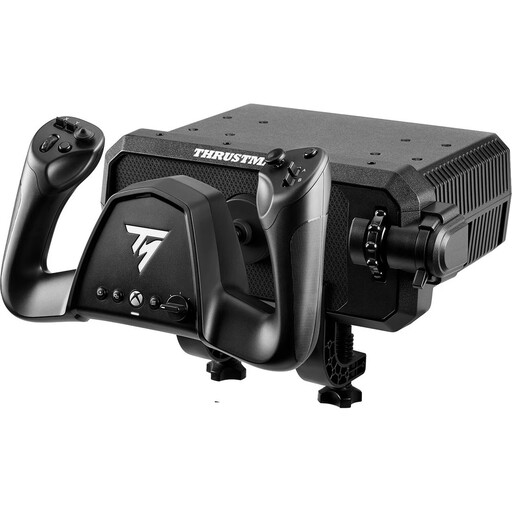
Thrustmaster TCA SKY YOKE Flight Yoke for PC and Xbox Series X
This yoke is an alternative to a stick if matching the controls of the virtual aircraft you fly most often matters more than keeping your setup as compact as possible.
Seven axes, 24 action buttons and up to 180 degrees of rotation; the product name lists PC and Xbox Series X. Throttle, trim and rudder controls are included.
View at Joybuy
Frequently asked questions
How do I set up a stick for simulator practice?
First check whether the simulator recognises the axes, then calibrate them and assign the button functions you need. X-Plane describes this process explicitly; the menus may differ in other simulators.
Do I need rudder pedals and a separate throttle straight away for virtual instrument approaches?
No, not just because you’re practising a virtual approach. Some standalone sticks have integrated throttle and twist rudder functions; whether additional devices are right for you depends on the aircraft, the inputs you want and the space available.
What happens if a product develops a fault, or comes with an additional manufacturer’s warranty?
When you buy goods in the EU, you have statutory consumer rights against the seller. According to Your Europe, if goods do not conform to the contract, you’re generally entitled to a remedy for at least two years from receipt; an additional commercial guarantee cannot reduce these rights.
Does practising with a home flight stick count towards instrument flight training?
Owning an ordinary home flight stick doesn’t prove that your practice counts towards formal training. The EASA deals separately with the qualification and use of Flight Simulation Training Devices for regulated training; this doesn’t determine whether a particular training programme will count a practice session.


