Start by choosing a control that suits your platform and the aircraft you fly most often. Then consider which inputs you want to reach directly during an approach. A single stick can combine throttle and rudder controls, while a HOTAS has a separate throttle; for aircraft with a control yoke, a yoke may be a better fit. None of these controls takes care of navigation or operating the simulator’s avionics for you.
Which controls are right for you?
Getting started with instrument approach practice
If you want to assign frequently used controls to your device without building a whole cockpit, choose a setup that suits your available space and simulation needs. Microsoft Flight Simulator highlights these factors when considering the size of your setup.
Airbus sidestick simmers
If you mainly fly virtual Airbus aircraft, compare the sidestick design and the throttle and rudder inputs within easy reach. Thrustmaster describes these controls on the TCA Sidestick Airbus Edition.
Setting up a permanent cockpit
If you have room for separate controls in your games room, you can arrange your stick and throttle around the aircraft you fly most often. Microsoft Flight Simulator recommends considering the available space and your simulation needs when choosing hardware.
What should you consider before buying?
Single flight stick
A good fit if: You want a compact setup, with throttle, rudder and a few frequently used functions controlled from the stick or its base.
The trade-off: Check the axes and buttons on the specific model. You may need to use a mouse or keyboard to control other cockpit functions.
Stick with separate throttle (HOTAS)
A good fit if: You have room for two controls in a permanent setup and want to operate the throttle and other functions with your other hand.
The trade-off: Separate controls take up more desk space and need setting up. Having lots of buttons won’t automatically make instrument approaches easier.
Yoke instead of a flight stick
A good fit if: You mainly fly virtual aircraft with a control yoke and want to use the same style of controls. Microsoft Flight Simulator gives the Cessna 172 and Boeing 787 as examples of aircraft with a control yoke.
The trade-off: A yoke is less like the sidestick controls shown on virtual Airbus aircraft. Check separately how throttle and rudder are handled in your specific setup.
| Priority |
What to check before buying |
Who it matters most to |
| Inputs for approach tasks |
Check which buttons and controls are within reach, and how to assign the functions you want in the simulator. |
If I want frequently used approach functions at my fingertips, the controls on the device matter to me. Around 36% of shoppers share this priority. |
| Precise control adjustments |
Compare the design, adjustable resistance and stated sensors on the specific model, then configure its axes in the simulator. |
If I want to make small control adjustments during a manual approach, I pay attention to how the controls feel. Around 29% of shoppers prioritise precise control. |
| Platform and aircraft |
Check the platform, simulator configuration and exact device model. Choose a control style to suit the aircraft you fly most often. |
If I want to avoid buying the wrong device for my platform or preferred control style, I check both in advance. Around 21% of shoppers make this their main priority. |
| Throttle and rudder controls |
Check which inputs are included and whether you want separate controls or additional pedals. |
If I want to arrange the controls in my permanent games room setup, how throttle and rudder are handled matters to me. Around 14% of shoppers prioritise this arrangement. |
Avoid common buying mistakes
-
Assuming lots of buttons come with approach functions already assigned
The input device and the simulator’s control assignments are two different things. A large number of buttons won’t configure functions automatically.
Before you buy, decide which functions you want to reach directly. Then check the device’s controls and the documentation for your chosen aircraft in the simulator.
Allow time to configure your controls and learn the avionics.
-
Assuming similarly named editions are the same product
Features of a T.Flight HOTAS One variant specifically labelled as a Microsoft Flight Simulator Edition can’t necessarily be applied to every version. TCA Captain Pack and TCA Captain Pack X are also different model names.
Compare the full model name and what’s in the box rather than assuming the features are the same based on a similar product family name.
-
Choosing a stick or yoke without considering the aircraft
Airbus sidesticks and control yokes represent different control styles. The right option for you depends on which virtual aircraft you mainly want to practise flying.
First decide which aircraft you’ll fly most often, then choose the control style to match.
Key brands to know
Thrustmaster
The models mentioned range from a standalone sidestick to a HOTAS with a separately positioned throttle.
- Thrustmaster says the TCA Sidestick Airbus Edition has an integrated throttle axis and a twist axis on the stick for rudder control. The throttle on the T.Flight HOTAS One Microsoft Flight Simulator Edition is detachable.
- These features apply to the specific models and editions listed, not the entire range.
VKB
The Gladiator NXT EVO Space Combat Edition is a configurable desktop flight stick, available for either left- or right-handed use.
- VKB FSC Europe lists contactless X/Y sensors, a lockable twist axis, a throttle wheel and adjustable mechanics.
- The standard and premium grips have different inputs, so check the specifications of the version you’re considering.
Turtle Beach
The original VelocityOne Flightstick combines built-in levers with assignable inputs for the platforms it supports.
- Turtle Beach lists throttle and flap levers, as well as 27 programmable buttons, for this model.
- These specifications don’t automatically apply to the separate VelocityOne Flightstick II.
Logitech G
The models mentioned include a standalone joystick and a separate stick-and-throttle system.
- Logitech G lists 12 programmable buttons and an eight-way hat switch for the Extreme 3D Pro.
- These features don’t automatically apply to the X56, and the number of buttons alone doesn’t indicate how precise the controls are.
Joybuy products for flight simulation
This selection includes standalone flight sticks and HOTAS systems, as well as yoke alternatives for virtual aircraft with a control yoke.
 No image available
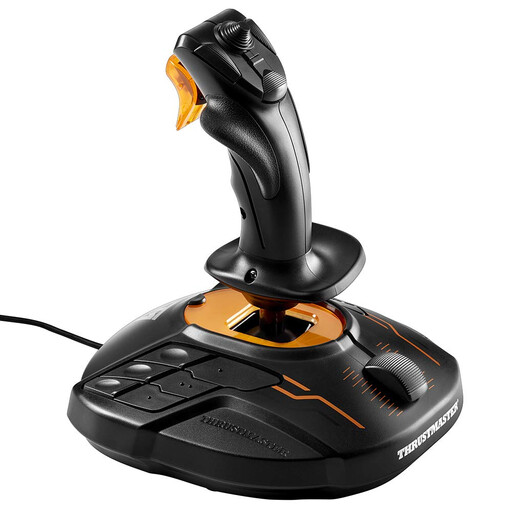
Thrustmaster T-16000M FCS Joystick
Described as compatible with Windows PC; configure the buttons and axes in your simulation software.
16 action buttons, an 8-way PoV hat switch, four axes, a throttle and a twist rudder axis.
The product description lists Microsoft Flight Simulator and X-Plane 12 as compatible uses, and describes a convertible ambidextrous design. It doesn’t list this model for consoles.
View at Joybuy
 No image available
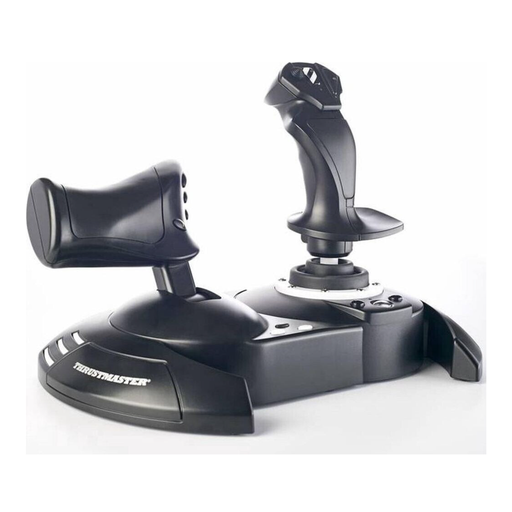
Thrustmaster T.Flight HOTAS One
Designed for a setup with a separately positioned stick and throttle. You’ll need enough desk space for both controls.
The throttle is detachable and the stick resistance is adjustable.
The product description lists Xbox One, Xbox Series X|S and PC as compatible platforms. Assigning additional buttons depends on the game’s supported settings.
View at Joybuy
 No image available
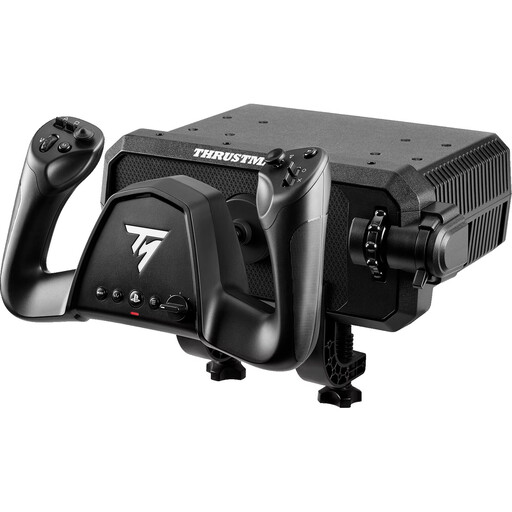
Thrustmaster TCA SKY YOKE Flight Yoke for PS5 and PC
A yoke alternative if you mainly fly virtual aircraft with a control yoke. Secure the device to a stable, flat surface before use.
Seven axes, 24 action buttons and up to 180 degrees of yoke rotation. Throttle, trim and rudder controls are integrated.
The product title lists PS5 and PC.
View at Joybuy
 No image available
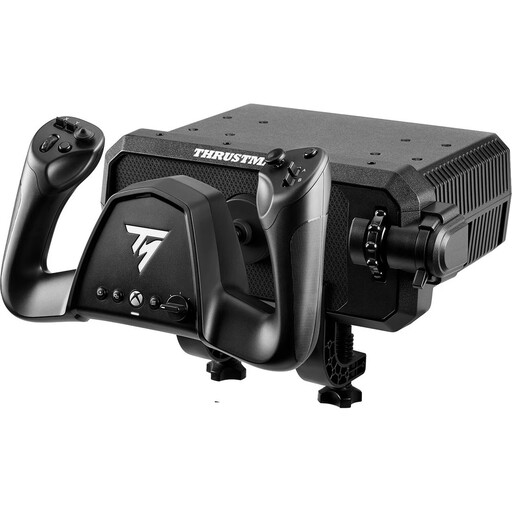
Thrustmaster TCA SKY YOKE Flight Yoke for PC and Xbox Series X
A yoke alternative for virtual aircraft usually flown with a control yoke. Secure the supplied clamp firmly to a compatible surface.
Seven axes, 24 action buttons and up to 180 degrees of yoke rotation. Throttle, trim and rudder controls are integrated.
The product title lists PC and Xbox Series X.
View at Joybuy
Frequently asked questions
Can a flight stick set up an ILS approach for me?
No. A stick provides inputs, but it won’t set up the approach or configure the instruments in your chosen aircraft. Consult the aircraft documentation and check your control assignments in the simulator.
Do I need to buy rudder pedals for virtual instrument approaches?
Not necessarily. Some sticks have a twist axis for rudder control; pedals are an optional extra if you prefer using your feet. Check the axes and connections on your specific setup.
What should I configure after connecting my controls?
Check the control axes and assign the functions you actually need. Microsoft Flight Simulator 2024 lets you configure inputs and profiles; the best assignments will also depend on the aircraft you choose.
Does practising with a flight stick count towards recognised pilot training?
Buying a flight stick for personal use doesn’t mean that your practice will count towards a qualification. The EASA has a separate set of rules covering the qualification and use of flight simulation training devices for pilot training. If you intend to count your practice towards training, check with the relevant training organisation.


